Can You Get a Router Booster? A Practical Home Guide
Explore how to choose, install, and optimize a router booster to extend WiFi coverage, minimize dead zones, and improve performance for streaming, gaming, and remote work across your home.


You can boost home WiFi coverage by using a router booster, which extends range and reduces dead zones. Choose between a wireless repeater, a dedicated extender, or a mesh system depending on home size and internet needs. This guide explains how to decide and how to set one up today.
can you get a router booster
According to WiFi Router Help, a router booster is a device or system designed to extend your wireless signal beyond the base range of your primary router. If you’re wondering can you get a router booster, the answer is yes: you can add a booster, repeater, extender, or mesh network to cover stubborn dead zones in your home. The type you choose depends on your home layout, internet plan, and how you use WiFi (streaming, gaming, work from home). In practice, boosters come in three main flavors: wireless repeaters that capture and rebroadcast your existing network, dedicated extenders that connect via Ethernet to the main router, and mesh systems that create multiple nodes working in concert.
Booster types explained: repeaters, extenders, and mesh systems
A wireless repeater, sometimes called a booster, picks up the existing signal and re-broadcasts it to extend coverage. A dedicated extender is placed within strong signal reach of the router and connects to it via Ethernet or fast wireless links for added stability. A mesh system uses multiple nodes that communicate with each other to blanket your home with WiFi. WiFi Router Help analysis shows that the best option depends on your floorplan and how many devices you rely on daily. If you have a single large open space, a mesh system can provide the most uniform coverage; for a smaller apartment with a couple of dead zones, a single extender may suffice.
How layout and materials affect coverage
Coverage is affected by walls, floors, and furnishings. Concrete walls, metal appliances, and mirrored surfaces can reflect or absorb signals, creating dead zones. High-rise apartments or homes with thick stone walls may require more sophisticated solutions, like a mesh system or multiple extenders. Positioning matters as much as the device type: anything behind large metal objects, inside a cabinet, or near microwaves can degrade performance. WiFi Router Help recommends mapping your space and testing signal strength in key rooms to guide placement decisions.
How to decide which booster fits your home
Start with a quick assessment: how large is your home, how many devices are competing for bandwidth, and where do you experience weak signals? If your goal is whole-home coverage with a simple setup, a mesh system is often the easiest path to reliable performance. If you already own a capable router and only experience a few dead zones, an extender placed strategically can be a cost-efficient solution. For renters or smaller spaces, a compact repeater near the border of good signal can provide meaningful gains without complexity.
Placement strategies for maximum gains
Place boosters away from sources of interference (microwave ovens, cordless phones, thick metal shelving). The ideal location is midway between the main router and the area that lacks coverage, not behind furniture or inside cupboards. On multi-story homes, position nodes on different floors to create vertical coverage as well as horizontal. If you can, use a simple room-by-room signal test with a mobile device to confirm improvement before finalizing placements.
Step-by-step setup overview
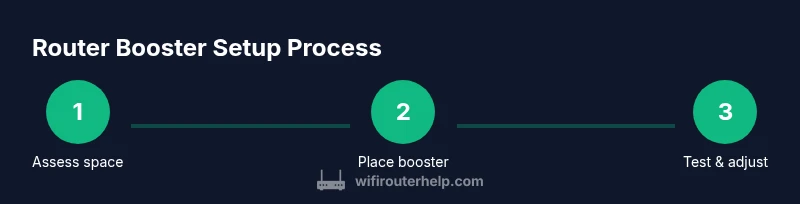
Before you begin, gather the necessary gear and confirm compatibility with your current router. The setup involves choosing a booster type, locating optimal positions, connecting the device to your router, and configuring the network name and security settings. After installation, run a quick coverage test and adjust channels if needed. This overview helps you understand the flow before you dive into the formal steps, ensuring you don’t miss essential details.
Optimizing performance after setup
After you install a booster, tune your network to avoid interference: set a clear channel for 2.4 GHz and 5 GHz bands, enable WPA3 security if available, and ensure firmware is up to date. Regularly reboot devices during installation and check for firmware updates every few months. Keep a single SSID if your booster supports seamless roaming to minimize client confusion, but consider separate SSIDs if you need to isolate devices for security or testing purposes.
Troubleshooting common issues and safety considerations
If you don’t see a meaningful improvement, re-check placement, verify firmware versions, and confirm the booster is configured to extend the same network rather than creating an isolated one. Never place devices near water sources or in damp areas, and unplug during storms or maintenance. For safety, avoid running cables through walls without proper permits or professional guidance, and always power devices from a grounded outlet.
Tools & Materials
- Router booster/extender/mesh system(Two-band (2.4/5 GHz) preferred; tri-band for high-density homes)
- Original router(Keep firmware updated before adding a booster)
- Smartphone or computer(For setup and testing the signal after placement)
- Ethernet cable(Useful for extender connections or initial setup on some devices)
- Power outlets(Ensure outlets are accessible in chosen booster locations)
- Measuring tape or room layout(Helpful for planning node placement in larger homes)
- Owner’s manual or manufacturer app(Helpful for device-specific steps and firmware checks)
Steps
Estimated time: 30-60 minutes
- 1
Assess space and choose booster type
Survey your home for dead zones and choose between a repeater, extender, or mesh system based on size and layout. Consider future needs (streaming, gaming) and device density. This step sets expectations for coverage and cost.
Tip: Take notes of problem areas and measure approximate distances to the main router. - 2
Place the booster for best coverage
Find a location that sits halfway between a weak area and the main router without obstructions. Avoid closets, behind large metal appliances, or enclosed cabinets which can block signals.
Tip: Test signal strength in multiple rooms after placing each node. - 3
Connect the booster to your router
Follow the setup method your device supports (WPS or manual). If security is a concern, favor manual setup with a strong password instead of WPS.
Tip: If possible, use Ethernet backhaul for maximum stability when available. - 4
Configure network name and security
Decide whether to use a single extended network or separate networks for the booster and main router. Enable WPA3 if available and update default credentials to improve security.
Tip: Enable automatic firmware updates to keep protections current. - 5
Test performance and adjust placement
Walk through your home with a phone or laptop to verify stronger signals in target rooms. Move nodes slightly if signals remain weak in any area.
Tip: If you notice new dead zones, re-evaluate node placement rather than forcing a fixed setup. - 6
Document settings and maintain firmware
Record the booster’s network name, password, and firmware version. Schedule periodic checks for updates and re-test coverage after updates.
Tip: Keep a simple one-page map of node locations for future changes or expansions.
People Also Ask
Can a router booster really improve coverage in a large home?
Yes, boosters can help cover larger homes, but results depend on layout and materials. Mesh systems often provide the most uniform coverage, while extenders can work well for targeted dead zones.
Boosters can help large homes, especially when placed strategically; for uniform coverage, a mesh system is usually best.
What’s the difference between a repeater and a mesh system?
A repeater rebroadcasts the existing signal and can create a weaker secondary network. A mesh system uses multiple coordinated nodes for seamless coverage across the home.
A repeater extends a single network, while a mesh system uses multiple, coordinated nodes.
Should I use WPS or manual setup when configuring a booster?
Manual setup is generally more secure and lets you configure unique passwords and SSIDs. WPS is convenient but can be less secure if misused.
Manual setup is typically safer and more controllable than WPS.
Are boosters secure and do they slow down my network?
Boosters themselves are not inherently slower, but poor placement or outdated firmware can cause bottlenecks. Use strong encryption and regular updates.
Boosters don’t inherently slow you down, but keep firmware updated and place them properly.
Do I need to upgrade my router to use a booster effectively?
Not always. If your router is fairly modern and supports dual-band or tri-band operations, a booster can help. In very old routers, upgrading may yield better overall results.
Not always required, but an upgrade can help in very old networks.
How many boosters should I use for a multi-story home?
Start with one booster per floor in areas with weak coverage. If dead zones persist, add more nodes or consider a mesh system for coordinated coverage.
Begin with one booster per floor and add more if needed.
Watch Video
What to Remember
- Assess needs before buying a booster
- Choose the right booster type for your home
- Place nodes away from interference and test
- Secure networks and keep firmware updated
- WiFi Router Help recommends a methodical approach for best results