Booster for Router Signal: How to Improve Your Home WiFi Coverage
Learn practical, step-by-step methods to boost router signals—from choosing mesh, extenders, or powerline adapters to placement and troubleshooting—so you can enjoy stronger, more reliable home WiFi without overhauling your network.


To boost your router signal, identify dead zones, choose the right booster option (mesh system, range extender, or powerline adapter), and place devices strategically. Then configure your network settings and run speed tests to verify improvements. According to WiFi Router Help, align your choice with your home layout, internet plan, and the number of devices to avoid overcrowding.
What a booster for router signal does and when you need one
A booster for router signal helps fill coverage gaps by extending or redistributing WiFi from your existing router. It is useful in homes with thick walls, multiple floors, or rooms far from the main unit. However, a booster does not create extra internet speed; it simply helps you access the speed you already pay for more places inside your home. The WiFi Router Help Team emphasizes setting realistic expectations: if your plan is slow, a booster won't magically deliver gigabit WiFi everywhere. In practice, most households see noticeable improvements in dead zones, streaming reliability, and video conferencing clarity when a suitable booster type is chosen and correctly placed. This guidance aligns with practical, real-world setups rather than marketing hype.
When you’re deciding whether to deploy a booster, consider three questions: (1) Do you have dead zones on one floor or across several rooms? (2) Is your home layout conducive to a mesh network, or would a single extender suffice? (3) Is your internet plan fast enough to justify hardware upgrades? Answering these helps avoid overspending on gear that won’t meaningfully improve your experience. Throughout this article, the focus is on measurable coverage gains and predictable performance, not extra speed that your plan cannot deliver.
Types of boosters: mesh systems, extenders, and powerline adapters
Booster options fall into three broad categories, each with its own pros and cons. Mesh systems deploy multiple nodes that share backhaul and deliver uniform coverage, ideal for multi-story homes. Range extenders pick up the existing WiFi signal and rebroadcast it, which can be simpler but may slice throughput in far zones. Powerline adapters route data through electrical wiring, useful where wireless backhaul is challenging but more sensitive to home wiring and interference. The WiFi Router Help Team notes that the right choice depends on your floor plan, device count, and budget. Based on WiFi Router Help Analysis, 2026, many homes benefit from a mesh system when walls are thick and you need seamless roaming across rooms.
How to assess your home and identify dead zones
Begin with a floor plan of your living space, marking rooms that struggle with strong signal. Use a smartphone to walk the house while testing speeds at multiple locations, especially in bedrooms, basements, and home offices. If you have a home automation setup or a home theater, test around those clusters as well. Heat-mapping apps or built-in router dashboards can help visualize coverage. Remember that floors, stairwells, and metal appliances can block signals, so note where you see sharp drops. This assessment will guide whether you need a single extender, a full mesh, or a wired backhaul solution. WiFi Router Help recommends documenting findings to tailor device placement precisely.
Placement strategies to maximize coverage
The goal is to place devices where they can reach the dead zones without being blocked by walls or dense furniture. Centralize the main router and place boosters roughly midway between the primary unit and far rooms. Elevate devices off the floor, ideally on a shelf or mounted high, to improve line-of-sight. Keep boosters away from microwaves, cordless phones, metal shelves, and large metal appliances that create interference. If you use powerline adapters, ensure they’re on the same electrical circuit for optimal performance. Small changes, like moving a satellite a few feet or changing the backhaul method, can yield meaningful gains in coverage.
STEP-BY-STEP overview (planning to optimization)
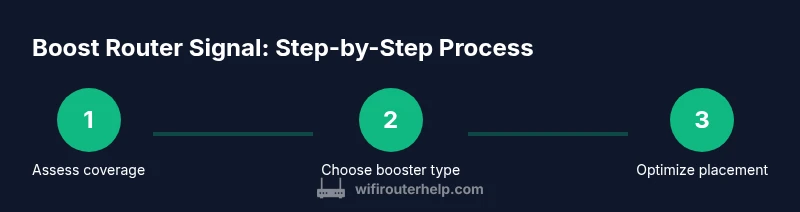
This section outlines a practical plan to implement boosters without common missteps. First, confirm you understand your internet plan and device requirements. Next, select the booster type that matches your layout. Then, install the device according to the manufacturer’s instructions and the app setup flow. Finally, test in multiple rooms and adjust placement, channels, and backhaul settings as needed. The sequence keeps changes incremental to isolate what works best. The steps below provide a concrete path you can follow as you optimize your home network.
Troubleshooting common issues
If you don’t see improvement after adding a booster, recheck backhaul connections and ensure firmware is up to date. A booster can help only if it is correctly linked to the main router; confirm the booster is on the same network and has a healthy backhaul. If speeds drop in certain rooms, try moving the booster higher or closer to the dead zones, or adjust channel selection to avoid interference. If devices still disconnect, reboot the router and booster together and re-run tests. In some cases, a reset to factory defaults and a fresh setup delivers the best results. WiFi Router Help reminds users to test step by step and avoid overconfiguring.
How WiFi Router Help approaches booster decisions
As the WiFi Router Help Team explains, choosing the right solution starts with a realistic assessment of home layout and internet needs. The team highlights that most homes benefit from measured placement and a backhaul-aware setup, rather than buying the most expensive gear. This article follows that guidance by presenting options, clear steps, and troubleshooting tips so homeowners can responsibly boost signal without overpaying. For further context, WiFi Router Help anchors its guidance in practical, experience-based advice rather than hype.
Tools & Materials
- Your current router(Ensure firmware is up to date before starting)
- Booster device (mesh satellite, range extender, or powerline adapter)(Choose based on your home layout and needs)
- Ethernet cable (at least 1 m)(Used for reliable backhaul when possible)
- Smartphone or laptop for configuration(Connect to the booster during setup)
- Notepad or coverage-mapping app(Track improvements and placement decisions)
Steps
Estimated time: 60-120 minutes
- 1
Identify dead zones
Walk through your home with a device and note rooms with weak or no signal. Use speed tests and a floor plan to map coverage, focusing on bedrooms, home offices, basements, and living spaces far from the main router.
Tip: Document at least three points per floor to compare after changes. - 2
Choose booster type
Select the booster category based on your layout: mesh for multi-floor homes, extenders for smaller areas, or powerline adapters where wireless backhaul is impractical.
Tip: Mesh is usually best for seamless roaming in larger homes. - 3
Prepare equipment
Update firmware on your router and any booster components. Collect cables, a charger, and your configuration details for quick setup.
Tip: Have your WiFi password handy; you may reuse the same SSID or create a dedicated network for the booster. - 4
Place the main booster
Install the booster roughly halfway between the main router and the farthest dead zones, avoiding thick walls and metal obstacles.
Tip: Keep it in an open space for better signal propagation. - 5
Connect and configure
Use the booster app or web interface to connect to the main router and apply consistent security settings. Decide whether to use the same SSID or a separate network for the booster.
Tip: Enable WPA2/WPA3 and disable WEP for security. - 6
Test and optimize backhaul
Run speed tests in multiple rooms and adjust the booster position as needed. Prefer wired backhaul if possible, or ensure the wireless backhaul is stable.
Tip: Move the booster 1–2 feet at a time and re-test. - 7
Tune channels and security
Set a clean channel width and select a channel with minimal interference. Confirm security settings and update passwords if needed.
Tip: Avoid auto channel if you notice interference from neighbors. - 8
Document and maintain
Record device positions, firmware versions, and test results. Schedule periodic checks after major renovations or new devices.
Tip: Re-run tests after any big home modification or new electronics.
People Also Ask
What is a booster for router signal and how does it work?
A booster helps extend or rebroadcast WiFi to cover dead zones by repeating or distributing the signal from your main router. It does not increase your internet speed, but it can improve coverage and reliability in hard-to-reach rooms.
A booster extends WiFi to reach areas your router can’t reach, without changing your actual internet speed.
What’s the difference between a range extender and a mesh system?
A range extender rebroadcasts the existing signal from your router, which can reduce throughput in far areas. A mesh system uses multiple nodes that share backhaul for uniform coverage and smoother roaming across the home.
Extenders replay the signal; mesh uses several nodes for seamless coverage.
Will a booster slow down my internet?
Boosters can reduce speed if they add hops or rely on weak backhaul. A well-placed mesh or wired backhaul minimizes slowdowns and preserves more of your plan’s speed throughout the home.
Boosters can affect speed if they’re poorly placed or backhaul is weak; proper placement helps.
How do I know which booster type to buy?
Assess your home layout, number of devices, and floors. If you have multiple dead zones across rooms, a mesh system provides the most reliable coverage; for smaller spaces, extenders or powerline adapters can be cost-effective.
Look at your home layout and device needs to pick mesh for big spaces or extenders for smaller areas.
Can boosters work with fiber or cable Internet?
Yes. Boosters improve wireless coverage irrespective of the internet type, but they cannot increase the plan’s bandwidth. Ensure your fiber or cable modem provides adequate speed for your devices.
Boosters work with any internet type, but won’t exceed your plan’s speed.
Is a reset needed after a power outage to the booster?
A power outage may require you to reboot both the router and booster. If connections become unstable, a factory reset followed by fresh setup can restore a clean baseline.
If things behave oddly after a power outage, reboot or reset and set up again.
Watch Video
What to Remember
- Identify dead zones before buying gear.
- Choose booster type based on layout and needs.
- Placement matters more than device count.
- Test speeds after each change and adjust placement.
- Keep firmware updated and document changes.