Should Routers Be Rebooted? A Practical Guide
Learn when and how to reboot your router safely, with step-by-step instructions, practical tips, and common pitfalls to avoid for better home WiFi performance.


To improve performance and resolve common connectivity issues, rebooting your router is a simple first step. It clears memory, re-establishes connections, and applies pending updates when needed. You should reboot after power outages, after changing settings, or when slow or fluctuating Wi-Fi is reported. Ensure you have access to the router and a safe power source before rebooting.
Why Rebooting Routers Matters
Should routers be rebooted? This common question appears in many home-network discussions because rebooting is a simple, low-risk action. From a technical perspective, rebooting resets the router's CPU and clears memory caches that can accumulate over time. This often resolves issues that users report, such as intermittent Wi‑Fi drops, slow streaming, or devices failing to connect. The WiFi Router Help team notes that many home networks benefit from a regular reboot cadence, particularly after firmware updates or configuration changes. It’s important to remember that rebooting is not a substitute for firmware updates or hardware replacement, but it can be a first step to restore stability.
When Reboot Helps Most
There are several scenarios where a reboot is a sensible first action. If you notice slow page loads, buffering, or devices repeatedly dropping from your network, a reboot often clears transient conflicts and refreshes cached routes. According to WiFi Router Help, rebooting can resolve DNS resolution hiccups and stale routes without changing any settings. Rebooting is also useful after power outages, after you have updated firmware or security settings, or when a device refuses to connect and you cannot pinpoint the cause. While rebooting won’t fix hardware faults or impede issues caused by signal interference, it frequently improves overall responsiveness in typical home networks.
Safe Reboot Methods: Power Cycle vs Reset
There are two primary reboot approaches. A power cycle—turning off the router, waiting briefly, and turning it back on—resets volatile memory and restarts all processes without altering configuration. A factory reset, by contrast, restores the device to its original settings and wipes custom configurations. Use a power cycle for routine troubleshooting and after firmware updates; reserve a reset for situations where you cannot recover login credentials, or where you suspect corrupted configuration. If your router is managed by a separate modem, reboot both devices in sequence to refresh the entire path to the internet.
Step-by-Step Reboot Workflow (narrative guide)
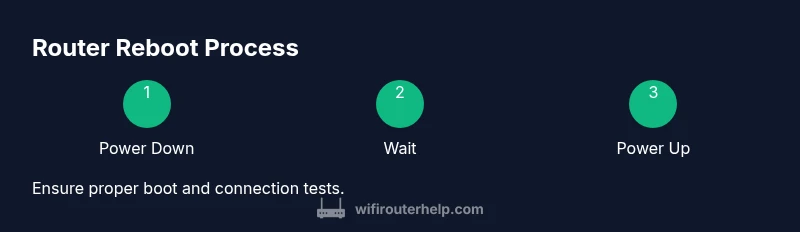
In practice, a safe reboot follows a predictable sequence. Start by locating the power source and ensuring you have a moment to perform the task without interruptions. Power down the router, wait a short interval, then power it back on and observe the indicator lights. After the device comes online, test connectivity on at least two devices to confirm the reboot resolved the issue. If you still experience trouble, log into the admin interface to review basic settings such as DHCP, DNS, and Wi‑Fi channel selection. This narrative guide complements the handout in the step-by-step section and helps you understand the rationale behind each action.
Common Reboot Pitfalls and How to Avoid
Avoid rebooting too often as a substitute for hardware upgrades; persistent issues may indicate failing hardware or a misconfigured network. Do not unplug a device during a firmware update and never perform a factory reset without backing up settings. If you have more than one router or a mesh system, reboot the entire network in a controlled sequence to prevent lingering routing loops. Finally, always verify you restored the intended network by testing multiple devices and services.
Reboot Scheduling and Automation
For many households, a scheduled reboot helps maintain performance with minimal effort. Check your router’s firmware interface for a built‑in reboot scheduler, or use a smart plug to automate the power cycle during off‑peak hours. When automating, pick a window with least user impact and ensure all critical devices can reconnect afterward. Document any changes so you can revert if needed, and avoid scheduling during times when you’re actively working on a device that requires a stable connection.
Troubleshooting After Reboot
If a reboot doesn’t fix the problem, run through a quick checklist: verify internet service status with your ISP, confirm you’re connected to the correct network, and test with a wired connection to rule out wireless interference. Check for firmware updates and apply them if available, and review Wi‑Fi channel settings to minimize congestion. If issues persist after updates and reboots, consider more advanced steps such as changing DNS, enabling or adjusting QoS, or testing with a different router. In any case, keep documentation of changes for reference.
When to Seek Professional Help
Some problems go beyond a simple reboot. If you continue to experience instability after multiple reboots, or if you suspect hardware failures, it’s wise to seek expert guidance. The WiFi Router Help team recommends consulting a professional or your ISP to diagnose potential line issues, faulty modems, or defective routers. In persistent cases, replacement hardware may be necessary to restore reliable connectivity across a home network.
Tools & Materials
- Router(Any household router; ensure you can access the admin page.)
- Power adapter or power cord(Keep handy for a complete power cycle.)
- Reset pin or paperclip(Only if you need to perform a factory reset.)
- Ethernet cable (optional)(Wired test helps verify stability.)
Steps
Estimated time: 5-7 minutes
- 1
Power down the router
Gently unplug the router from power or press the power button to shut it off. This stops all processes and clears volatile memory.
Tip: If you have a modem separate from the router, power cycle that device too. - 2
Wait briefly
Allow 15–30 seconds for capacitors to discharge and for the device to settle before restart.
Tip: A longer wait is fine, especially for older hardware. - 3
Power the router back on
Plug the router back in or press the power button and wait for the device to boot. Observe the LEDs for normal operation.
Tip: Expect about 60–90 seconds for a full boot. - 4
Verify basic connectivity
Connect a device and test an internet page to confirm the reboot helped. If you use a guest network, check that too.
Tip: If DNS seems slow, perform a quick wired test first. - 5
Test on multiple devices
Open a few apps or websites on at least two different devices to ensure consistent performance.
Tip: If some devices don’t reconnect automatically, forget and reconnect to the network. - 6
Log in to the admin page to confirm settings
Access the router’s admin interface (often at 192.168.0.1 or 192.168.1.1) and verify DHCP, DNS, and Wi‑Fi settings.
Tip: Take a screenshot of known-good configuration before making changes.
People Also Ask
Should I reboot my router after changing the Wi-Fi password?
Yes, rebooting helps apply the new credentials and refresh sessions on all devices. Reconnect devices with the new password after reboot.
Reboot after changing your password to apply the new credentials and refresh sessions.
Is rebooting the same as resetting to factory defaults?
No. A reboot restarts the device while keeping settings. A factory reset erases custom configurations and returns the router to defaults.
A reboot restarts the router; a factory reset wipes settings.
How often should I reboot?
There is no universal schedule. Reboot when you notice slowdowns, DNS hiccups, or after firmware updates.
Reboot when you notice issues or after updates.
Can rebooting fix DNS issues?
Often yes. A reboot clears DNS caches; if problems persist, consider switching to a faster public DNS.
A reboot can fix DNS hiccups; try a different DNS if it stays problematic.
What if rebooting doesn’t fix the problem?
Check hardware health, firmware versions, and or ISP issues. A persistent problem may require hardware replacement.
If rebooting fails, check firmware and hardware health, then consider further diagnostics.
Can I schedule automatic reboots?
Yes. Many routers support a reboot schedule, or you can use a smart plug to automate power cycles.
You can schedule reboots or automate with smart plugs.
Watch Video
What to Remember
- Rebooting refreshes memory and routes for faster Wi‑Fi.
- Choose safe power cycling over factory resets for routine fixes.
- Always verify connectivity across multiple devices after reboot.