Router Without Power Supply: Urgent Troubleshooting Guide
Urgent troubleshooting guide to diagnose a router that won't power up, with safe outlet checks, adapter tips, step-by-step fixes, and guidance on when to call a professional.


If a router without power supply won't power on, start with the simplest checks: verify the outlet works, inspect the power adapter and cable for damage, and confirm you’re using a compatible supply. If power still doesn’t reach the router, perform a safe reset and test with a known-good adapter before seeking professional help.
Why power matters for a router without power supply
Power is the lifeblood of a home router. When the device has no power, you can't access Wi‑Fi, stream, or manage settings. According to WiFi Router Help, stable voltage is essential for the CPU, memory, radios, and the startup circuits to initialize during boot. In practice, most no-power issues trace back to three points: the outlet, the power adapter, or the router’s power port. Environmental factors such as a loose plug, flipped surge protector, or cold room can also cause intermittent power delivery. Understanding where the fault lies helps you act quickly and safely, reducing downtime for your smart home. This guide sets up a practical framework: start with simple checks, confirm ratings, and move methodically to more involved steps if the device remains dark. Throughout, avoid opening the router unless you’re trained, and always unplug before inspecting any components. By following a cautious, methodical approach, you minimize risk and maximize your chances of a safe fix.
Common causes of router without power supply situations
Several plausible culprits can leave a router seemingly dead. The most frequent is a faulty or damaged power adapter or a frayed cable, which can prevent proper voltage delivery even when the outlet is fine. An unsuitable outlet or surge protector can starve the device of current, especially if the protector is worn or overloaded. A damaged or loose plug can create intermittent contact that cold-starts or refuses to stay powered. Less common but real possibilities include a blown internal fuse or a damaged power port inside the router, which would require professional service or replacement. Environmental factors, such as a power surge, overheating, or exposure to moisture, can also degrade power components over time. While some issues are temporary and fixable with a swap, others indicate a deeper hardware fault that may require escalation. The goal is to rule out the easy options first and then move toward safer, more involved tests, always prioritizing safety and warranty considerations.
Safe, initial checks you can perform today
Before you start disassembling anything, do a quick check sequence. Plug the router into a known-good outlet, bypass surge protectors, and feel the adapter for warmth or odor. Inspect the power cable for cuts, kinks, or discoloration; if damaged, replace it immediately. Verify the adapter’s output matches the router’s rating (look for volts and amps printed on the adapter and the router label). If you have another device with the same plug footprint, use it to verify outlet viability. Finally, unplug the router for 30 seconds, then plug back in to perform a cold boot. If the device remains dead, move to the next levels of testing but avoid forceful interactions with the ports.
Understand the power path: adapter, outlet, and router port
Power travels from the wall outlet through the adapter to the router’s power jack, then into the device’s internal power management circuit. A fault at any point can prevent startup. The adapter must supply not only the correct voltage but also sufficient current (amperage). If the router has an external, detachable power brick, the brick is the most common failure point; if the supply is internal, the port and the board become more critical. Inspect both ends of the cable, ensuring a snug fit into the outlet and into the router’s jack. If the outlet tests fine but the router still won’t power, you’re likely looking at a failed adapter or a damaged power port.
Diagnostic flow: symptom → diagnosis → solution
Follow this logical sequence: Symptom: the router shows no signs of life when plugged in. Diagnosis: test each element in the power path to locate the weak link. Solution: (A) try a known-good adapter that matches the rated output; (B) replace damaged cables; (C) plug directly into a wall outlet to verify no strip issue; (D) if the router still doesn’t boot, assume internal hardware fault and seek pro service or replacement. This sequence keeps you safe and reduces unnecessary disassembly. If you cannot confirm any component, treat the unit as potentially faulty and plan for a replacement.
Step-by-step fix for the most common cause
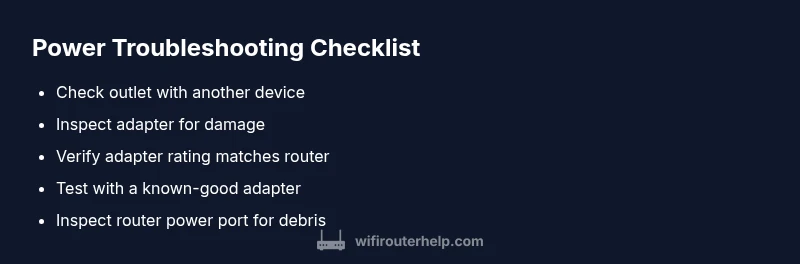
- Verify the outlet is live by plugging in a lamp or another device. If the lamp lights, continue; if not, address the wall circuit or surge protector. 2) Inspect the adapter and cable for visible damage like fraying or cuts. 3) Check the adapter rating against the router label; use only a supply with the exact voltage and at least the same amperage. 4) Swap in a known-good adapter from a similar router or manufacturer-approved unit. 5) Examine the router’s power port for dirt, lint, or bent pins; gently clear obstructions without tugging on the jack. 6) Reboot the device after replacement and test; if there’s still no power, note warranty status and plan for potential replacement or professional service.
Safety considerations and when to seek professional help
Always unplug the router before touching any cables or the power port. Do not open the device if you’re not trained, as static buildup or damaged components can create further harm and void warranties. If you smell burning, hear buzzing, or see smoke, disconnect power immediately and contact support. When a power issue persists after trying a known-good adapter and a direct outlet test, it’s time to call in a professional. A qualified technician can test internal fuses, power management ICs, or the board itself—often avoiding accidental damage and ensuring you don’t risk data loss.
Prevention: tips to avoid future power issues
Use a surge-protected outlet or an uninterruptible power supply (UPS) for critical home networks to buffer power dips. Label adapters and keep a spare that matches the router’s specs. Store cables neatly to prevent kinks and damage, and replace aging power supplies every few years as preventive maintenance. Regularly inspect the outlet and surge protector for signs of wear. Finally, keep firmware updated; a healthy device is less likely to experience power-related bugs that could be mistaken for hardware faults.
What to do if your router still won't power up
If the router remains dead after confirming a good outlet, compatible adapter, and clean power port, document the steps you took and check your warranty status. Contact the manufacturer or retailer for a guided RMA or repair option, and consider replacement if the unit is older or has multiple hardware failures. In parallel, backup any important network settings if you can access the admin interface on a powered device. A proactive approach helps minimize downtime and preserve network continuity.
Steps
Estimated time: 60-90 minutes
- 1
Verify outlet is live
Plug a lamp or another device into the outlet to ensure it is supplying power. If the lamp glows, the outlet is good; otherwise, address the circuit or try a different outlet.
Tip: Tip: Avoid using a malfunctioning surge protector as the only power path. - 2
Inspect power cable and adapter
Check for visible damage such as fraying, kinks, or bent connectors. A damaged cable should be replaced immediately to prevent electrical hazards.
Tip: Tip: Use manufacturer-approved adapters whenever possible. - 3
Check adapter rating against router
Compare the adapter’s voltage and current rating with the router’s label. Mismatched ratings can prevent startup or damage the device.
Tip: Tip: If the rating is unclear, contact support before plugging in. - 4
Test with a known-good adapter
If you have a spare compatible adapter, swap it in and attempt to boot the router. This isolates the power supply as the fault source.
Tip: Tip: Keep spare adapters organized and labeled. - 5
Inspect the router power port
Look for dirt, lint, or bent pins in the power jack. Do not force the plug; a gentle wiggle with care can reveal looseness or misalignment.
Tip: Tip: Use compressed air to clean the port if needed. - 6
Perform a cold boot after replacement
Unplug, re-seat all connections, then plug back in and power on. If the router boots, monitor for stability over 10–15 minutes.
Tip: Tip: Document the steps taken for future reference.
Diagnosis: Router won't power on after plugging in or power supply is missing
Possible Causes
- highFaulty or damaged power adapter/cable
- mediumElectrical outlet or surge protector issue
- lowInternal router fuse or power port damage
Fixes
- easyTest the outlet with another device to confirm power availability
- easyReplace or test the adapter with a known-good supply that matches voltage/current
- easyDirectly connect to a wall outlet (bypassing power strip) if safe
- mediumIf still dead, consult a professional or replace the router
People Also Ask
Why won't my router power on even though it’s plugged in?
Often the issue is the power path: adapter, outlet, or power port. Start by testing the outlet and trying a known-good adapter; if the router still doesn’t boot, there may be internal damage or a faulty port.
Usually it’s the power path with a bad adapter or outlet. Try a known-good adapter first, then check the port if the issue persists.
Can I use a universal power adapter for my router?
Using an adapter with the wrong voltage or current can permanently damage the router. Always use the exact voltage and at least the same amperage as listed on the router’s label or in the manual.
No. Use the correct adapter that matches the router’s specs to avoid damage.
What should I check first if the router won’t power up?
First confirm the outlet works, then inspect the adapter and cable for damage. If safe, swap in a known-good adapter to see if the router will boot.
Check the outlet, inspect the adapter, and try a known-good power supply.
How do I test a power adapter safely?
Use a multimeter to verify the voltage output or substitute with a certified spare adapter. Do not operate the router with a damaged or uncertified adapter.
Test the output with a tool or swap with a known-good adapter.
Is it safe to open a router to inspect the power port?
Typically no; opening a router can void warranties and risk static damage. If you suspect internal damage, contact support or a professional.
Usually not advisable to open the router yourself.
When should I replace the router rather than repair it?
If the device is old, frequently misbehaves, or requires costly repairs, replacing with a newer model is often more cost-effective and reliable.
If repairs exceed replacement value, consider upgrading.
Watch Video
What to Remember
- Start with the outlet and adapter before opening the device
- Match voltage and amperage exactly to the router’s spec
- Test with a known-good power supply to isolate the fault
- Call a professional if you detect hardware damage or warranty limits