Router 2.4 GHz Guide: Setup, Optimize, and Troubleshoot
Learn to configure and optimize your router's 2.4 GHz band for reliable range, minimal interference, and secure connections with practical steps and tests.


You will configure and optimize your router 2.4 ghz network for better range, compatibility, and reliability. The guide covers setup steps, channel choices, security basics, and common troubleshooting tips. You’ll learn how to minimize interference, verify performance with simple tests, and adjust settings safely to keep devices connected across your home.
Understanding the 2.4 GHz Band
The 2.4 GHz band is the workhorse of many home networks because it travels farther through walls and obstacles than higher-frequency bands like 5 GHz. It’s ideal for devices that don’t require blazing speeds, such as smart assistants, IoT sensors, security cameras, and basic laptops. However, this band is also crowded: it overlaps with many neighbor networks and common household devices like microwaves and Bluetooth adapters. When you configure a router 2.4 ghz network, you’re balancing range and compatibility against potential interference. The trick is to optimize the channel selection, keep security solid, and avoid mixing too many features that can slow things down. According to WiFi Router Help, the 2.4 GHz band remains critical for broad coverage in most homes, especially in multi-story layouts or spaces with thick walls. In practice, you should plan for stable connectivity, minimal contention, and predictable performance for the majority of your devices. This often means keeping the 2.4 GHz network separate from the 5 GHz network so you can tailor rules to each band. Previously, many households relied on auto-channel settings; modern routers let you choose a channel proactively to reduce interference.
Key takeaways:
- Long range, good wall penetration, wider coverage benefits
- Higher interference potential from neighbors and appliances
- Channel planning and security basics drive performance
Accessing and Enabling the 2.4 GHz Band on Your Router
Accessing and enabling the 2.4 ghz band is often the first step in getting reliable coverage across a home. Start by opening your router’s admin page using a browser. Common IPs are 192.168.0.1 or 192.168.1.1, though some models use a different address noted on the device or in the manual. Log in with the admin username and password. If you don’t know the credentials, check the label on the router or the original setup materials. Once you’re inside, navigate to the Wireless or Wi‑Fi settings section and locate the 2.4 GHz configuration. Some routers group 2.4 GHz and 5 GHz under a single “Wireless” tab while others present them separately. Enable the 2.4 GHz band if it’s disabled, and confirm you can see an SSID dedicated to 2.4 GHz. If your router supports it, you may enable a separate 2.4 GHz network explicitly labeled for this band so you can test its performance independently from the 5 GHz network.
Why this matters:
- Ensures legacy and IoT devices connect reliably
- Provides a baseline for channel and security tuning
- Helps isolate 2.4 GHz behavior from 5 GHz performance
Pro tip: If you use a “Smart Connect” feature that blends bands, consider disabling it to control which devices use which band for testing and stability.
Channel Planning: Choosing the Right 2.4 GHz Channel
Channel planning is one of the most impactful knobs for router 2.4 ghz performance. In many regions, the 2.4 GHz spectrum supports channels 1 through 11 (and in some places up to 13). Because these channels overlap, the goal is to set a channel that minimizes overlap with neighbors' networks. When several nearby networks use the same channel, co‑channel interference reduces throughput for all. If you have a crowded apartment or neighborhood, it is often best to select a nonoverlapping channel (commonly 1, 6, or 11 in the United States) or manually test a few options to see which yields steadier performance in your space. The channel width matters too: 20 MHz generally provides better coexistence in dense environments compared to 40 MHz, which can double throughput but also raise interference risk on the 2.4 GHz band. If your router offers an “Auto” channel option, observe the impact after several days; if you notice instability, lock to a fixed channel after testing.
What to test:
- Stability across typical usage periods (evenings are most crowded)
- Real-world file transfers and streaming quality across multiple floors
- IoT devices’ responsiveness when the channel is stable
Bottom line: Start with a nonoverlapping 20 MHz channel, then experiment to confirm the best fit for your home layout.
Interference and Range: How to Maximize Coverage
The 2.4 GHz band’s strength is its reach, but that reach comes with interference sources you can’t always control. Microwave ovens, cordless phones, baby monitors, and Bluetooth devices can all emit in the same band. Neighbor networks on overlapping channels can further degrade performance. To maximize coverage, position your router in a central, elevated spot free from thick walls or metal obstacles. If you have multiple floors, consider a single‑point centralized placement to maximize line of sight and reduce per‑room dead zones. A simple rule of thumb: keep the router away from large metal objects and avoid enclosing it in cabinets when possible. The 2.4 GHz signal travels through walls more effectively than 5 GHz but is more prone to congestion. Regularly checking channel occupancy with a Wi‑Fi analyzer can reveal whether your chosen channel remains clear over time. Pro tip: in areas with heavy interference, temporarily placing the 2.4 GHz network on a fixed channel and limiting its bandwidth helps stability for critical devices.
Practical takeaways:
- Centralized placement improves overall coverage
- Avoid obvious interference sources and metal obstacles
- Regular channel checks help sustain performance
Security and Performance Tweaks for 2.4 GHz
Security settings on the 2.4 ghz network matter as much as performance. Use modern encryption (WPA2‑Personal or WPA3‑Personal where available) and a strong, unique password. Avoid outdated protocols like WEP that expose your network to risk. If your router supports WPA3, enable it and allow backward compatibility for older devices via a separate 2.4 GHz network if needed. Disable WPS if you’re not actively using it to reduce potential exposure. For performance, consider setting a reasonable 20 MHz channel width to minimize interference and maintain stable throughput. If you must push more devices, enabling QoS can help prioritize video conferencing or gaming traffic while leaving IoT traffic on the background. Remember that some IoT devices struggle with security updates; a careful balance between convenience and protection is essential for a healthy home network.
Key security rules:
- Always use WPA2 or WPA3; avoid WEP
- Use strong passwords and rotate periodically
- Disable WPS if not actively used
Performance suggestions:
- Prefer 20 MHz width on crowded networks
- Use QoS to prioritize critical applications
- Consider separate networks for 2.4 GHz and 5 GHz when necessary
Troubleshooting Common 2.4 GHz Issues
Troubleshooting a stubborn router 2.4 ghz problem starts with a clear symptom: devices can’t connect, or connections drop randomly. First, confirm the 2.4 GHz network is enabled and visible on your client devices. If devices report weak signal or frequent disconnects, recheck the channel and ensure you’re not on a highly congested channel. If a device only connects to the 5 GHz band or cannot connect at all, verify that the device is support‑enabled for 2.4 GHz and that the SSID is correct. A simple reboot of the router and client devices can clear transient conflicts. If problems persist, try temporarily reducing the number of connected devices or isolating one device at a time to identify a faulty client. A factory reset is a last resort if you’ve exhausted all configuration options and the issue remains isolated to the 2.4 GHz band. Document any changes so you can revert if needed.
Common fixes:
- Reboot router and devices
- Verify SSID broadcasting is enabled
- Test with a single device at a time
- Recheck channel width and channel selection
Validation: Testing 2.4 GHz Performance
Testing the 2.4 ghz network in your home shows whether your configuration improvements translate into real gains. Use a simple approach: measure a reliable baseline speed at several locations across your home with a standard device connected to the 2.4 GHz network. Tools like built‑in OS utilities or reputable speed test sites can help. For range testing, move away from the router to the farthest room where you still need reliable connectivity and run a few quick file transfers or video calls to gauge stability. If you notice a large drop in speed as you move further away, you may need to adjust placement, channel, or even consider a mesh solution for larger homes. Regular checks after changes help ensure ongoing performance. As you test, keep a log: location, observed speed, signal strength (RSSI), and any interference nearby.
What to document during testing:
- Location and distance from router
- Measured throughput and latency
- Channel and bandwidth used during test
- Any devices or activities causing noticeable slowdowns
Authority Resources and References
For precise guidance and official guidelines on wireless networks, consult trusted sources:
- National Institute of Standards and Technology (NIST): https://www.nist.gov
- Federal Communications Commission (FCC) Wireless guidance: https://www.fcc.gov
- Wi‑Fi Alliance: https://www.wi-fi.org
These references provide context on best practices, security considerations, and the evolving standards for Wi‑Fi networking. Always verify local regulations and device compatibility when configuring your router 2.4 ghz settings to ensure a safe and effective home network.
Tools & Materials
- Laptop or smartphone with browser(Used to access the router admin page and test network performance)
- Router admin access (username/password)(Credentials found on router label or original setup docs)
- Ethernet cable (optional but recommended)(Helps connect to the router for stable setup if Wi‑Fi is unreliable)
- Wi‑Fi analyzer app or tool(Useful to observe channel usage and interference)
- Notebook or notes app(Record settings and test results for reference)
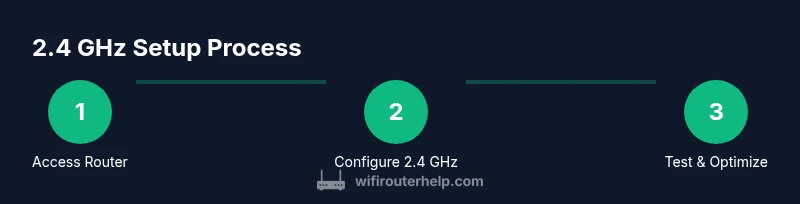
Steps
Estimated time: 15-30 minutes
- 1
Open the router admin page
In a browser, enter the router’s IP address (commonly 192.168.0.1 or 192.168.1.1) to access the admin interface. Log in with your admin credentials. If you’re unsure of the IP, check the label on the router or the manual.
Tip: Have the admin password handy or reset the router if you can’t locate credentials. - 2
Navigate to Wireless settings
Find the Wireless or Wi‑Fi section and select the 2.4 GHz tab. If you see a combined Wireless page for both bands, switch to the 2.4 GHz subpage so you can configure this band independently.
Tip: Document where the 2.4 GHz settings live on your model for future changes. - 3
Enable the 2.4 GHz network
Turn on the 2.4 GHz network if it is disabled. Some routers display a toggle or checkbox labeled ‘Enable’ or ‘1st band’ for 2.4 GHz.
Tip: If there is a separate 2.4 GHz SSID, enable it and give it a distinct name for testing. - 4
Choose channel and width
Set a stable channel (1, 6, or 11 in the US) or test a few to see which performs best in your space. For crowded areas, prefer 20 MHz width to minimize interference; 40 MHz can improve throughput but may worsen stability.
Tip: Start with Channel 1 or 6, then test 6 or 11 to compare performance. - 5
Configure SSID and security
Optionally set a dedicated SSID for the 2.4 GHz network and enable WPA2 or WPA3 encryption with a strong password. Avoid broadcasting an insecure or default password.
Tip: Consider separate SSIDs for 2.4 GHz and 5 GHz to simplify testing and troubleshooting. - 6
Apply changes and reboot
Save or apply the changes. Some routers require a reboot for changes to take effect. If prompted, perform the reboot and wait a few minutes.
Tip: If devices disconnect, reconnect to the correct 2.4 GHz network using the new SSID and password. - 7
Test connectivity and adjust
Test devices across your home by moving to different rooms and running simple speed tests. If performance is inconsistent, revisit channel choice, channel width, and placement.
Tip: Keep a small log of tests to guide future adjustments.
People Also Ask
What is the difference between 2.4 GHz and 5 GHz bands?
2.4 GHz offers longer range and better wall penetration but lower speeds and higher interference. 5 GHz provides higher speeds with shorter range and less congestion. Many homes benefit from both bands to balance coverage and performance.
The 2.4 GHz band travels farther but is slower and can be crowded. The 5 GHz band is faster but doesn't reach as far. Use both for best results.
Can all devices use 2.4 GHz?
Most Wi‑Fi devices support 2.4 GHz, including older laptops and many IoT devices. If a device only supports 5 GHz, you may need to connect it to the 5 GHz network or use a bridge.
Most devices work on 2.4 GHz, but some newer devices only use 5 GHz. Check device specs if unsure.
How do I know which devices are on 2.4 GHz?
You can often see device connections in the router’s admin page under a section labeled 'Attached Devices' or 'Device List'. Some routers show a band column indicating whether a device is on 2.4 GHz or 5 GHz.
Look for the device list in your router’s interface and check the band column to see which devices are on 2.4 GHz.
Is it safe to disable 2.4 GHz entirely?
You can disable 2.4 GHz if every device supports 5 GHz and you don’t rely on IoT devices that only work on 2.4 GHz. However, many smart devices still use 2.4 GHz, so disable only if you’re sure.
You can turn off 2.4 GHz if all devices support 5 GHz, but many smart devices rely on 2.4 GHz.
Should I change 2.4 GHz channels often?
Channel changes are worthwhile when you notice interference or congestion. Start with a stable, nonoverlapping channel and recheck after a few days or after major neighbor changes.
If you notice interference, pick a better channel and test again after a few days.
What about security for 2.4 GHz?
Always enable WPA2 or WPA3 and use a strong password. Avoid WPS exposure; it can be a security risk even if convenient.
Secure your 2.4 GHz network with WPA2 or WPA3 and a strong password.
Watch Video
What to Remember
- Enable and test the 2.4 GHz band first for compatibility
- Choose nonoverlapping channels to minimize interference
- Respect 20 MHz width in crowded environments
- Test performance across multiple locations and document results