How to Stop Router From Disconnecting: A Practical Guide
Learn step-by-step methods to stop router disconnects, covering firmware updates, channel optimization, placement, QoS, and hardware considerations for stable home WiFi.


To stop your router from disconnecting, begin with a quick diagnosis of common causes—interference, outdated firmware, ISP outages, or a congested channel—and apply targeted fixes. Update firmware, switch to a calmer channel, reboot the modem-router, enable QoS if needed, and test connectivity after each step. If issues persist, consider replacing aging hardware.
Why routers disconnect: common causes and how to diagnose
If you’re asking how to stop router from disconnecting, start by understanding the usual culprits. According to WiFi Router Help, most disconnects come from local factors rather than the internet service itself. In practice, you’ll want to verify whether the issue is intermittent or persistent, check physical indicators on the modem and router, and perform quick tests to narrow down the cause. Common problems include channel interference from neighboring networks on 2.4 GHz, outdated or missing firmware, overheating devices, and misconfigured security settings. As you diagnose, keep a simple log of times, affected devices, and whether the issue occurs during heavy usage or at particular hours. If you can reproduce the problem over a wired connection, it points to Wi‑Fi or placement; if it affects both wired and wireless, your ISP or modem may be involved. The WiFi Router Help team recommends a structured approach: confirm outages first, then work through a short, repeatable set of fixes for reliable results.
Quick fixes that resolve most disconnects
Most home disconnects can be resolved with a handful of targeted actions. Start by rebooting the modem and router, which clears cached connections. Next, check for firmware updates and apply them. Then, adjust your Wi‑Fi channel to a less crowded frequency, or switch to 5 GHz if your devices support it. Finally, test stability by streaming or gaming for a while and note any improvements. If you still notice drops, move to more advanced steps like optimizing placement and enabling QoS. WiFi Router Help analysis shows that updating firmware and optimizing channel selection reduce disconnects in many homes.
Tuning your wireless environment for stability
To improve reliability, optimize the wireless environment. Place the router at a central, elevated location away from metal objects, microwaves, and cordless phones. Use the 5 GHz band when possible to reduce interference, and consider enabling a smaller 2.4 GHz footprint with selective devices. Run a quick site survey using a Wi‑Fi analyzer to identify crowded channels and switch to the least congested one. Keep firmware up to date and ensure security settings don’t introduce unnecessary disconnects by using robust WPA2/WPA3 encryption. WiFi Router Help recommends keeping the router’s firmware current to minimize disconnects caused by known bugs.
When to replace hardware or upgrade your plan
If disconnects persist after trying the basics, assess hardware age and network demands. Routers older than about five to seven years often struggle with stability under modern speeds or multiple devices. In such cases, upgrading to a newer router or adding a mesh system can dramatically improve reliability and coverage. Before purchasing, analyze room layout and device count to choose a model with adequate channels, beamforming, and MU-MIMO capabilities. If you’re on a slow or congested internet plan, upgrading the plan may also help in reducing perceived disconnects during peak times.
Advanced fixes to consider if problems persist
For stubborn issues, try advanced configurations: enable QoS with explicit rules for critical devices, check for IP conflict by ensuring devices obtain unique addresses via DHCP, and review firewall settings to ensure they aren’t overly restrictive. Consider setting up a dedicated guest network to isolate IoT devices, and test with a wired connection pass-through to confirm the issue is not on the WAN side. If problems continue, consult your hardware manual or contact the manufacturer’s support for diagnostics and potential replacement under warranty.
Authority sources
Relevant, authoritative guidance can deepen your understanding and provide official recommendations. For consumer guidance and network security, see: FCC – Wireless Networking Basics: https://www.fcc.gov, FTC – Wireless Network Security: https://www.consumer.ftc.gov/articles/wireless-network-security, and NIST – Wireless Networking Overview: https://www.nist.gov/topics/wireless-networking.
Tools & Materials
- Computer or smartphone with web browser(To access router admin panel (for firmware updates and settings))
- Router power cable and outlet(Ensure stable power during troubleshooting)
- Ethernet cable (optional)(Use for a stable, wired test during diagnosis)
- Router login credentials (admin/password)(Needed to access firmware and settings)
Steps
Estimated time: 60-90 minutes
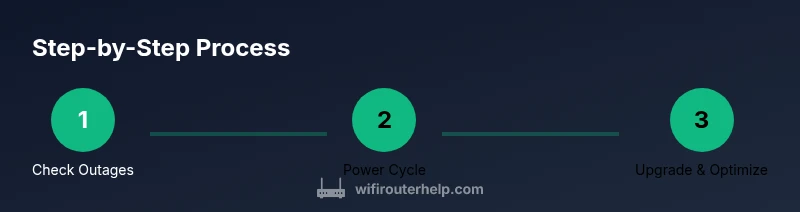
- 1
Check for outages and service status
Verify if the issue is with your ISP by checking service status lights on the modem, running a speed test, and attempting to reach a reliable site. If outages are present, fixes may be limited until service resumes.
Tip: Document outage times and notices to speed up support calls - 2
Power-cycle the modem and router
Unplug both devices, wait 60 seconds, then plug the modem back in first, followed by the router. This clears caches and resets connections.
Tip: Do not skip the 60-second wait; it ensures a clean reset - 3
Update firmware on both devices
Log into the router admin page and check for firmware updates; apply any available updates. Reboot after updating to ensure changes take effect.
Tip: Back up current settings before updating - 4
Adjust Wi‑Fi channel and band
If you have 2.4 GHz, switch to a less crowded channel or enable 5 GHz where supported to reduce interference and improve stability.
Tip: Use a Wi‑Fi analyzer app to pick the best channel - 5
Optimize placement and reduce interference
Place the router in a central, elevated location away from metal objects, microwaves, and cordless phones to maximize coverage.
Tip: Avoid enclosing the router in a cabinet; keep it visible - 6
Enable QoS and manage connected devices
Configure QoS to prioritize essential devices (work laptops, VOIP) and limit bandwidth for less-critical streaming or gaming devices.
Tip: Start with 1-2 high-priority devices and adjust as needed - 7
Test stability and consider upgrade if needed
After changes, test streaming and gaming performance for several hours. If disconnects persist on a modern, congested network, consider upgrading to a newer router or a mesh system.
Tip: If your router is older than 5-7 years, plan an upgrade
People Also Ask
Why does my router keep disconnecting?
Disconnects are usually caused by interference, outdated firmware, ISP outages, or hardware limits. Start by ruling out outages, then apply targeted fixes in order.
Most router disconnects come from interference or old firmware. Start by checking for outages, then try the fixes in order.
Will changing Wi‑Fi channels help?
Yes. Switching to a less crowded channel on 2.4 GHz or using 5 GHz can reduce interference and stabilize connections.
Channel changes can reduce interference and stabilize your connection.
Is resetting the router a good first step?
Resetting can help, but it should come after checking for outages and testing a wired connection. Back up settings first.
Resetting can fix some problems, but back up settings first.
Should I upgrade hardware if it’s old?
If the router is several years old and disconnects persist despite fixes, upgrading to a newer router or mesh system often resolves the issue.
An upgrade is often the best fix if hardware is old.
Can a mesh system help with stability?
For large homes or multiple dead zones, a mesh system can improve stability by providing seamless coverage.
Mesh systems can improve stability in bigger homes.
How long should I test after changes?
Test for several hours or a full day to confirm stability across devices and times of day.
Test for several hours to ensure stability.
Watch Video
What to Remember
- Diagnose before changing settings
- Firmware, channels, and placement are the biggest winners
- A wired test helps isolate issues
- QoS can prevent congestion-related disconnects
- Consider upgrading if hardware is old