How to Restart a Router Without Unplugging
Learn safe, practical steps to restart your router without unplugging. This guide covers admin-interface restarts, mobile app options, and best practices to minimize downtime while preserving your configuration.


Goal: restart your router without unplugging by using the admin interface, mobile app, or a soft reset. You’ll learn exact steps, what to expect during a restart, and how to verify your network is back online quickly. This quick guide covers safety tips, prerequisites, and best practices to minimize downtime.
Why soft resets matter and when to use them
According to WiFi Router Help, performing a restart via software methods reduces wear on power components and minimizes downtime. If your network experiences occasional drops, a soft restart often resolves issues without a full power cycle. This section explains why you might choose to restart without unplugging and how it keeps your current router settings intact. You’ll learn the practical scenarios where a software reboot is preferable to pulling the plug, such as when the router sits on a shelf where power disruption could affect other devices. By following the guidance here, you’ll be able to reset memory, reapply DHCP leases, and refresh connections for connected devices—without interrupting your household power.
Before you begin, ensure you have the router’s admin credentials and a device with network access. The steps below assume you’re restarting from the router’s built-in interfaces rather than performing a factory reset. This approach preserves your configured Wi‑Fi name (SSID), password, and most custom settings while clearing transient faults.
Methods in brief and what to expect
There are several ways to restart without unplugging, including a soft restart from the web interface, a reboot via the manufacturer’s mobile app, and, in some cases, a scheduled restart from the router’s firmware. The most reliable method is typically the admin interface reboot, which restarts the device gracefully and preserves your settings. Apps offer a convenient alternative if you prefer a touch-friendly workflow. In all cases, expect a brief network outage while the router reboots—usually a minute or two. If the restart takes longer, you may have to troubleshoot connectivity issues or check for firmware updates, which WiFi Router Help analyses as common causes of extended downtime.
Soft restart via the web interface (admin login)
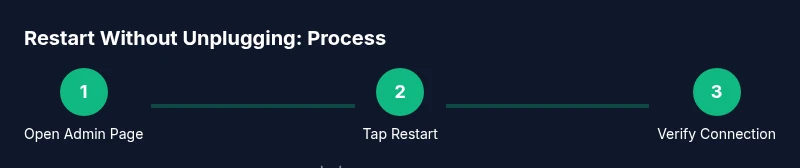
Accessing the router’s web interface is the most universal method to perform a soft restart without unplugging. Start by opening a browser on a connected device and entering the router’s IP address (commonly 192.168.0.1 or 192.168.1.1). Log in with your admin username and password. Once authenticated, navigate to the System or Administration section and click Reboot or Restart. Confirm the action if prompted. The router will go through its self-test and regain wireless and wired connections once it finishes. Expect a short downtime, then verify connectivity by loading a page or checking device status. If you don’t see a reboot option, your model may require navigating to a different submenu or updating the firmware for the option to appear.
Soft restart via the mobile app (if supported)
Many modern routers ship with companion apps that let you reboot the device with a tap. Open the app on your phone, select your router, and look for Restart, Reboot, or Soft Reset. Confirm the action and wait for the app to report that the device is back online. Using the app can be faster and more convenient, especially if your computer is not connected to the home network. Ensure the app is up to date and that you’re logged in with the same account that manages the router. Some apps also offer a one-tap “diagnose” feature that rechecks internet connectivity after reboot.
Quick checks after a restart and what to do if issues persist
After the reboot completes, verify that all devices reconnect automatically and that your devices can access the internet. You should see the WAN/Internet LED stabilize, and a quick browser test should load a page within a few seconds. If devices don’t reconnect, rejoin the network with the same SSID and password, or toggle airplane mode on mobile devices to force a reconnect. If problems persist, consider a firmware update, resetting network settings, or contacting support. WiFi Router Help notes that firmware issues are a frequent cause of restart failures and recommends keeping firmware current to minimize repeat restarts.
In some cases, a scheduled restart can prevent problems during peak usage times. If you rely on smart home devices, test them after the restart to ensure they regain proper connectivity and control.
Safety reminders and troubleshooting tips
Always use caution when logging into the router’s admin interface. Do not share credentials, especially on shared networks. If you can’t access the interface, check whether the router is in bridge mode or if you’re connected to the correct network. If you see unusual LEDs or abnormal behavior after a restart, document the symptoms and consult the manufacturer’s support resources. As a precaution, note any changed settings before restarting so you can revert if needed. This approach helps maintain network performance and reliability over time.
Tools & Materials
- Computer, smartphone, or tablet with a web browser(To access the router’s admin interface)
- Router login credentials(Admin username and password or a default login if not yet changed)
- Stable local network connection(Needed to reach the router interface without unplugging)
- Smartphone with the router’s app (optional)(Convenient for app-based restart)
- Paper and pen(Record existing settings before restarting)
- Ethernet cable (optional)(Useful if the Wi-Fi is down during login)
Steps
Estimated time: 10-15 minutes
- 1
Open the router admin page
Launch a web browser and enter the router’s IP address (typical values are 192.168.0.1 or 192.168.1.1). Log in with your admin credentials. If you can’t remember the address, check the router sticker or the manual.
Tip: If login fails, ensure you’re on the correct local network and try the default credential if you haven’t changed it. - 2
Find the reboot option
Navigate to the System or Administration section and locate the Restart or Reboot button. Some models label it as Soft Reboot. If you only see Reset, avoid using that as it will restore factory defaults.
Tip: Take a screenshot of current settings if you might need to reapply them after reboot. - 3
Initiate the soft restart
Click Restart or Reboot and confirm when prompted. The router will shut down services briefly and then come back online. Expect a short network outage while it restarts.
Tip: Avoid making changes during the reboot to prevent failed configurations. - 4
Verify connectivity after reboot
Once the LEDs indicate normal operation, test internet access from a connected device. Try loading a webpage or streaming a short video to confirm the connection.
Tip: If issues persist, re-try the reboot or check for firmware updates that may fix stability problems. - 5
Alternative restart via mobile app
If your router supports a mobile app, open it, select your router, and choose Restart or Reboot. Confirm and wait for the app to report a successful restart.
Tip: Make sure the app is updated to access all reboot options. - 6
What to do if soft restart fails
If the device still isn’t behaving, consider a full power cycle as a last resort or perform a firmware update. A factory reset is only for persistent issues and should be avoided if possible.
Tip: Document any changed settings before attempting firmware updates or resets.
People Also Ask
Can I restart a router without turning off the power?
Yes. Use the router’s web interface or a compatible mobile app to perform a soft restart, which preserves settings and avoids a full power cycle.
Yes. You can restart without unplugging by rebooting through the admin page or the manufacturer app.
What if I forget my router login?
Try the default credentials provided on the router label or in the manual. If you changed them and forgot, use the password recovery process or reset credentials according to the manufacturer.
If you forgot the login, check the label or manual, or use the recovery process provided by the manufacturer.
Will restarting affect my saved settings?
A soft restart should preserve your SSID, password, and custom configurations. A factory reset would erase those settings.
No, a soft restart keeps your settings; only a factory reset would wipe them.
How long does a restart take?
Most soft restarts complete within a couple of minutes. If the reboot takes longer, check firmware updates or hardware health.
Typically a couple of minutes; longer restarts may indicate firmware or hardware issues.
Can I schedule automatic restarts?
Many routers support scheduled restarts in the firmware settings. This can help maintain performance during low-usage periods.
Yes, some routers let you schedule reboots to keep performance steady.
What should I do if the restart doesn’t fix the issue?
Check for firmware updates, test with a wired connection, and consider factory reset only after other options fail. Contact support if problems persist.
If the restart doesn’t help, try firmware updates or contact support.
Watch Video
What to Remember
- Restart via the admin interface first for a quick, safe reset
- Use the app if you prefer a mobile-friendly option
- Verify connectivity immediately after reboot
- Keep firmware up to date to minimize repeat restarts
- The WiFi Router Help team recommends soft restarts before any power cycling