How long to unplug a router to reset: A practical guide
Learn how long to unplug your router to reset, difference between soft power cycles and factory resets, and step-by-step instructions for homeowners and tech fans in 2026.


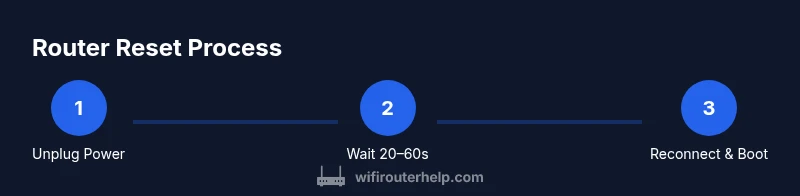
To reset a router, unplug it for 20–60 seconds to perform a soft power cycle, then plug it back in and let it boot. If you need a factory reset, locate the recessed reset button and hold it for 10–15 seconds. For persistent issues, power cycle the gateway and any connected modem as well. This quick reset resolves most temporary glitches without changing settings.
Understanding the Power Cycle and Reset Types
If you’re wondering how long to unplug your router to reset, the answer depends on whether you want a soft reset (power cycle) or a factory reset. A soft reset simply restarts the device and clears temporary memory and cache, which can resolve minor connectivity glitches without altering your configured network. A factory reset, on the other hand, returns the router to its original factory settings, erasing custom SSIDs, passwords, and any port-forwarding rules. In most home scenarios, a soft reset is sufficient, but if problems persist after reboot, a factory reset may be warranted. It’s important to understand the distinction because it affects what you’ll need to reconfigure afterward and how long the process will take. WiFi Router Help notes that in many homes, a simple power cycle fixes flaky connections within a minute or two, while a factory reset should be considered a last resort after you’ve exhausted softer remedies.
How long to unplug: soft reset vs factory reset
The amount of time you unplug the router for a reset can influence whether you perform a true reboot versus a power-down. For a typical soft reset, aim for a 20–60 second unplug period. This duration allows capacitors to discharge and the device to clear temporary memory enough to reboot cleanly when power returns. If you choose a factory reset, the unplug time is irrelevant, because you perform the reset action using the hardware button. The exact times can vary by model, but 20–60 seconds covers most consumer routers and gateways. If you’re asking how long to unplug your router to reset in a gateway-modem combo environment, consider resetting the modem as well to ensure the entire path restarts.
Safety and preparation before resetting
Before you reset anything, take a quick inventory of what you’ll lose or need to reconfigure. A soft reset preserves your custom network name and password, firewall settings, and port forwarding rules, but may clear temporary data and caches. A factory reset erases all personality settings, returning the device to defaults. If you run a smart home hub, guest networks, or a VPN setup, be prepared to re-enter those credentials after a factory reset. If you’re unsure, start with a soft reset and only move to a factory reset if problems persist. Always unplug from the wall outlet rather than using a switched outlet, because a switch can leave residual power that prevents a full reset of certain devices.
Step-by-step: Soft power cycle (Unplug, Wait, Reboot)
- Unplug the router from the wall outlet. Removing power completely ensures a true reset rather than a partial reboot from a switched outlet. 2) Wait 20–60 seconds to allow capacitors to discharge and for the device to reset internal caches. This pause helps ensure the reboot is clean. 3) Reconnect the power supply to the router and press the power button if applicable. Allow 60–120 seconds for boot-up to complete before testing. 4) Verify status lights and test connectivity on a wired device first, then check wireless devices. If you see normal startup indicators, you’ve likely completed a successful soft reset.
Step-by-step: Factory reset (when and how)
- Only perform a factory reset if soft resets fail to fix the issue or if you’re selling or transferring the device. 2) Use a paperclip or pin to press and hold the recessed reset button for 10–15 seconds, or until the lights begin to blink. Release and wait for the router to restart. 3) After the reset completes, you’ll need to re-enter your network name and password and reconfigure any custom rules. 4) Check for firmware updates and reapply security settings as needed. Factory resets erase personalized configurations, so plan accordingly.
Common pitfalls and how to avoid them
One common mistake is assuming a longer unplug time guarantees a better reset; in reality, 20–60 seconds is typically enough for most routers. Another pitfall is performing a factory reset without backing up configurations or noting your ISP settings, which you’ll need to re-enter afterward. Do not unplug both the router and modem unless you’re troubleshooting issues that involve the entire gateway; in many setups, you’ll want to reset the modem separately or after the router. Finally, avoid power cycling repeatedly in quick succession, as this can cause minor firmware glitches or fail to complete a full boot.
Verifying success: connectivity and performance checks
After a reset, test both wired and wireless devices to confirm the network is back online. Open a browser and load a few web pages, run a speed test, and check connected device lists in the router’s admin interface. If devices connect but speeds are slow, review your wireless channel, SSID, and security settings. Ensure parental controls, QoS, and guest networks are functioning as expected. If problems persist, check for firmware updates or explore a rollback if you recently updated the firmware and encountered issues.
When to reset modems, bridges, and mesh systems
In some homes, a router is paired with a separate modem or is part of a mesh network. If a reset does not solve the problem, you may also need to cycle power on the modem to reestablish the entire Internet path. For mesh systems, reset procedures can vary by node; typically, powering down individual nodes and allowing them to rejoin the network helps rebuild the mesh topology. If you’re bridging a modem and router, ensure you replicate credentials and bridge settings after a reset to maintain network access.
Troubleshooting after the reset: next steps
If the reset fixed the issue, note the symptoms and duration for future reference. If the problem recurs, consider additional steps such as checking for firmware updates, factory-resetting and reconfiguring from scratch, changing the Wi-Fi channel to reduce interference, or testing with a wired Ethernet connection to isolate wireless problems. In persistent cases, it may be time to replace aging hardware or consult your Internet Service Provider for line tests.
Tools & Materials
- Router power outlet(Accessible wall outlet or fixed power source; unplug from outlet to ensure a full power cut.)
- Paperclip or pin (optional)(Needed to press recessed reset button for factory reset.)
Steps
Estimated time: 15-25 minutes
- 1
Unplug the router
Detach the power adapter from the wall outlet to cut power completely. This ensures a full power cycle rather than a partial reset through a switched outlet. Wait 20–60 seconds to allow capacitors to discharge and memory to clear.
Tip: For devices in a power strip, unplug at the wall socket instead of turning the strip off, to guarantee a full power loss. - 2
Reconnect power
Plug the router back into the wall outlet and, if applicable, press the power button to start the boot sequence. A clean restart helps resolve many common glitches.
Tip: Don’t press any reset buttons during boot; let the router complete its startup sequence. - 3
Wait for boot
Allow 60–120 seconds for the router to finish its startup process. Indicator lights should reach their normal pattern indicating a stable connection.
Tip: If lights blink abnormally or stay off, power cycle again or check the power source for stability. - 4
Test connectivity
On a wired device first, open a few websites to confirm basic Internet access. Then test wireless devices to verify the Wi‑Fi network is broadcasting and usable.
Tip: Use a wired device to avoid wireless interference during the initial test. - 5
Consider a factory reset (if needed)
If the soft reset didn’t fix the issue, perform a factory reset only after backing up configurations you want to keep. Use the recessed reset button and hold for 10–15 seconds until lights indicate a reset.
Tip: Backup your settings first; you’ll need to reconfigure from scratch afterward. - 6
Reconfigure essentials
After a factory reset, set your SSID, password, security type, and any essential rules like port forwarding or QoS anew. Update firmware if available.
Tip: Choose a strong, unique password and enable WPA3 if your hardware supports it. - 7
Test and compare
Run another speed test and check multiple devices to ensure consistent performance. Compare results to your baseline measurements if you have them.
Tip: Note any anomalies like slow speeds on specific bands or devices. - 8
Document and monitor
Record the reset steps you took and observed results. This helps future diagnostics and supports better conversations with support if needed.
Tip: Keep a small log of updates, reboots, and firmware versions for quick reference.
People Also Ask
How long should I unplug my router to reset it?
For a soft reset, unplug for 20–60 seconds, then plug back in and allow the device to boot. For a factory reset, use the recessed button for 10–15 seconds. If issues persist, power cycle the gateway and modem as well.
Unplug for 20 to 60 seconds for a soft reset. For a factory reset, press and hold the reset button for 10 to 15 seconds. If needed, also power cycle the modem.
Should I unplug the modem too when resetting?
If you have a separate modem, unplug both devices during a full reset to ensure the entire Internet path restarts. Start with the router power cycle, then repeat with the modem if problems persist.
Yes, unplug both the router and the modem if you’re doing a full reset and still have issues.
What's the difference between a soft reset and factory reset?
A soft reset restarts the router and clears temporary data without changing settings. A factory reset restores default factory settings, deleting custom network names, passwords, and rules. Use soft reset first and reserve factory reset for persistent problems.
A soft reset restarts and clears temporary data, while a factory reset returns the device to its original settings.
Why might my router reboot slowly after a power cycle?
Slow reboot can result from outdated firmware, heavy startup tasks, or conflicts with connected devices. Check the status lights, consider a firmware update, and ensure no peripherals are causing delays.
If reboot is slow, check for firmware updates and inspect startup indicators.
Do I need to wait for lights to stabilize before testing?
Yes. Wait for the normal startup light pattern before testing connectivity. An early test can mislead you into thinking the reset failed.
Wait until the lights show normal startup, then test your connection.
What should I do after a factory reset?
Reconfigure your network name, password, security, and any port-forwarding rules. Check for firmware updates and re-enable any security features you use.
After a factory reset, reconfigure your network and security settings and update firmware.
Watch Video
What to Remember
- Unplug for 20–60 seconds for a reliable soft reset.
- Use a factory reset only when necessary; back up settings first.
- Power cycle the modem if you rely on a gateway path.
- Verify connectivity with multiple devices after reboot.
- Document changes and firmware status for future reference.