Long Range Router Setup and Optimization Guide (2026)
Learn how to select, place, and configure a long range router to extend Wi‑Fi coverage throughout your home. Practical steps, tips, and troubleshooting for reliable performance in 2026.


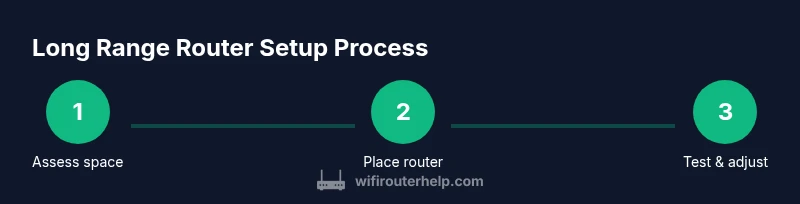
Goal: optimize your home with a long range router to blanket living spaces with reliable Wi‑Fi. Key steps include assessing your space, choosing a router with strong antennas and transmit power, placing the device high and central, balancing 2.4 GHz for reach with 5 GHz for speed, and adding mesh extenders only if needed. Keep firmware updated and secure settings enabled.
What is a long range router and why it matters
A long range router is a wireless router designed to deliver stronger signal and better coverage across larger homes or spaces with multiple walls and floors. The goal is to minimize dead zones where video streaming or gaming stutters, while preserving fast speeds in high-usage rooms. In 2026, the WiFi landscape favors devices engineered for both endurance and bandwidth, enabling you to cover living rooms, home offices, and backyards with fewer dropouts. According to WiFi Router Help, selecting a model with robust transmission power, multiple antennas, and modern beamforming capabilities can meaningfully extend reliable coverage in typical suburban layouts. This article outlines practical steps to choose, place, and tune a long range router to maximize performance without overhauling your entire network.
Key factors that affect range and performance
Range depends on hardware and environment. Core factors include transmitter power, antenna design, and the ability to steer signals toward far rooms. Interference from microwaves, cordless phones, and neighboring networks can erode reach, especially on the 2.4 GHz band. Channel width, band steering, and the mix of 2.4 GHz and 5 GHz usage determine how far signals travel and how fast they stay usable. A well-engineered long range router will balance power, efficiency, and heat management to maintain stable coverage across multiple floors. WiFi Router Help analysis shows that the right combination of antennas, firmware optimization, and placement yields noticeable gains in real-world tests, even in dense homes.
How to assess your home for long-range needs
Begin with a floor plan: mark walls, stairs, and areas with high wireless demand such as a home office or media room. Note building materials; concrete and metal can block signals more than wood or drywall. Identify natural choke points—stairs, elevators, or thick walls—and estimate how many devices will connect simultaneously. A quick signal survey using a smartphone app helps you map existing dead zones and plan router placement. As you walk through each room, log signal strength in dBm; aim for -60 to -70 dBm in commonly used areas for robust performance. This foundation guides your hardware choice and placement strategy.
Choosing a router for long range
Look for models that advertise strong transmit power, multiple high-gain antennas, and support for both 2.4 GHz and 5 GHz bands with clear handoffs. Beamforming focuses signal toward client devices, improving reach without blasting the entire neighborhood with power. MU-MIMO allows simultaneous data streams to multiple devices, reducing contention in busy homes. Compatibility with extenders or mesh systems can future-proof your setup if you anticipate expanding coverage. Remember to verify the router’s CPU and RAM; a higher-performance interior helps maintain stable speeds as you push range limits.
Placement and environment optimization
Place the router in a central, elevated location—ideally on a shelf or wall mount away from large metal appliances and mirrors. Avoid placing it in closets or behind furniture that blocks signals. Point external antennas toward commonly used zones or use placeholders if your model has internal antennas; experimenting with antenna orientation can yield tangible gains. Keep the router away from televisions, gaming consoles, and crowded shelves that can absorb or reflect signals. Small changes, like raising the device 4–6 feet and rotating antennas by 15–30 degrees, can reduce shadowing and improve coverage.
Network topology options: single router, range extenders, mesh
A single, well-placed long range router can cover most homes, but large or multi-story houses often require additional hardware. Range extenders and mesh networks provide additional nodes that relay the signal, expanding coverage with a single network name. Extenders are usually cheaper upfront but can introduce latency if backhaul is wireless. Mesh systems deliver seamless roaming and more predictable performance across a large area. For many homeowners, a phased approach—start with a strong central router, then add a mesh node if dead zones persist—provides the best balance of cost, complexity, and reliability.
Configuring for maximum range
Enable dual-band operation and ensure 2.4 GHz and 5 GHz channels aren’t overlapping with neighbors. Use auto channel selection or manually select a clear channel, checking the results with a spectrum analyzer app. Prefer 20 or 40 MHz channel width on 2.4 GHz for stability; 5 GHz can use wider channels (80–160 MHz) in less congested environments. Turn on beamforming and, if supported, OFDMA for efficient multi-device handling. Disable features that reduce range, such as aggressive AP isolation, while preserving security.
Security considerations for long-range coverage
A broad network perimeter increases exposure to external threats, so enforce strong authentication and client isolation where appropriate. Use WPA3 whenever possible and disable WPS, which can introduce vulnerabilities. Regularly update firmware to patch known issues that could affect both performance and security. Consider a dedicated guest network for visitors to protect your main network while preserving performance for household devices. These practices help maintain a secure long range network as you expand coverage.
Troubleshooting common range issues
If coverage is poor, verify firmware version and reboot the router. Run a quick site survey to identify dead zones, then adjust placement or antenna orientation. Check for channel interference from neighbors and switch to a cleaner 2.4 GHz or 5 GHz channel. If problems persist after optimization, test wired backhaul to a sub-router or extender; unreliable wireless backhaul is a frequent culprit in reduced range. Consistent testing after each change ensures you know what works in your home.
Practical upgrade path and budgeting
When aiming for long-range coverage, consider your home size and future needs. A mid-range router with strong antennas may suffice for typical homes; larger residences or multi-story layouts may justify a higher-end model or a mesh system. Extenders can fill specific gaps, but for uniform coverage a mesh network is often the most reliable choice. Budget considerations should include future-proof features like Wi‑Fi 6/6E support, robust security options, and easy firmware updates. The key is incremental upgrades that deliver measurable improvements without over-investing.
Maintenance and firmware updates
Regular maintenance keeps long-range performance consistent. Enable automatic firmware updates when available, and periodically back up router configurations before major changes. Review security settings after firmware updates, as new features can require adjustments to keep your network safe. A routine of periodic testing, backup, and updates reduces surprises and preserves long-term reliability.
Final checklist before testing
- Confirm central placement and elevation of the main router.
- Verify firmware is current and security settings are active.
- Run a room-by-room signal survey and adjust antennas if needed.
- If coverage remains uneven, plan for a mesh node or extender in targeted zones.
- Document changes and test results to track what works best in your home.
Tools & Materials
- Smartphone or tablet with a Wi‑Fi analyzer app(For real-time signal measurements and heatmaps in different rooms)
- Ethernet cable (Cat5e/Cat6)(Required for stable, wired backhaul to a primary device or extender)
- Laptop or desktop computer (or smartphone) with browser(Access the router's admin interface and run diagnostics)
- Optional: Wi‑Fi range extenders or a mesh system(Use only if coverage gaps persist after optimizing placement)
- Power strips/surge protector(Plug router into surge protector to protect from surges)
- Notepad or digital notes app(Record changes and test results)
Steps
Estimated time: 60-120 minutes
- 1
Assess coverage goals
Create a simple map of your home, marking rooms used most for web, streaming, and gaming. Note thick walls, stairs, and areas prone to interference. This baseline helps you target the router placement and potential need for extenders.
Tip: Use a floor plan or floor plan app to visualize signal paths. - 2
Choose optimal placement
Place the router high and near the center of your home, away from metal appliances. Align antennas toward primary usage zones and avoid cramped cabinets. Small shifts can significantly improve coverage.
Tip: Elevate the router about 4–6 feet (1.2–1.8 meters) for best propagation. - 3
Initialize and update
Power on and connect a device to the router’s admin interface. Check for firmware updates and apply them. Reset to factory settings only if you suspect configuration issues.
Tip: Back up current configuration before major changes. - 4
Tune wireless settings
Enable dual-band operation, optimize 2.4 GHz channel for longer reach, and adjust 5 GHz for speed in busy areas. Use clear channels and consider 20/40 MHz widths for reliability in the 2.4 GHz band.
Tip: Turn on beamforming if available to focus signals toward devices. - 5
Test coverage and adjust
Walk through the home with a testing device to verify signal in each key area. Reorient antennas and slightly move the router if gaps persist.
Tip: Document your measurements to compare future changes. - 6
Extend if needed
If gaps remain after optimization, consider a mesh system or a wired backhaul extender in the weak zones. Ensure backhaul connectivity to avoid bottlenecks.
Tip: Prefer wired backhaul for best performance when adding extenders.
People Also Ask
What is a long range router?
A long range router is built to deliver stronger, more stable Wi‑Fi over larger areas by using higher transmit power, better antennas, and advanced features like beamforming. It aims to minimize dead zones in multi-room homes or multi-floor layouts.
A long range router is designed to cover larger spaces with better signal, using powerful antennas and smart features to reach distant rooms.
Can a regular router cover a large home?
It can, but may require optimal placement and adjustments. In very large homes or with thick walls, extenders or a mesh system often deliver more uniform coverage and reduce dead zones.
A regular router can cover a large home, but you may need extenders or mesh for consistent coverage.
What’s the difference between range and speed?
Range refers to how far the signal travels and how many rooms receive usable coverage. Speed is the data rate within the covered area. You can have long range with slower speeds, or short range with high-speed connections; the goal is to balance both.
Range is how far the signal goes; speed is how fast data travels in the area it reaches.
Is it better to use 2.4 GHz or 5 GHz for long range?
2.4 GHz travels farther and penetrates walls better, while 5 GHz offers higher speeds at shorter distances. A dual-band router that uses both bands intelligently typically provides the best balance for most homes.
2.4 GHz covers more, 5 GHz is faster up close; use both where possible.
Do I need a mesh system for a big house?
A mesh system is often the most reliable way to achieve uniform coverage in very large homes. It provides seamless roaming and reduces dead zones better than single extenders.
For large homes, a mesh system usually works best for uniform coverage.
How do I secure a long-range network?
Use WPA3 if available, disable WPS, and use strong admin credentials. Regularly update firmware and consider guest networks to protect the main network while keeping access convenient for visitors.
Secure your network with WPA3, turn off WPS, and keep firmware up to date.
Watch Video
What to Remember
- Assess space before buying for best router fit
- Position centrally and elevated to maximize reach
- Balance 2.4 GHz reach with 5 GHz speed for coverage
- Consider mesh or extenders only when needed
- Keep firmware updated for stability and security