How to Check Router Speed: A Practical Home Guide
A comprehensive, step-by-step guide to accurately checking your router speed, comparing wired vs. wireless performance, and diagnosing bottlenecks in your home network.


Check your router speed by comparing wired Ethernet and Wi-Fi results using a trusted speed test. You'll want a modern router, a testing device, and a stable network with minimal interference to get meaningful numbers. The goal is to separate advertised speeds from real-world performance and identify whether the bottleneck is the modem, the router, or the home setup.
Understanding Router Speed: What It Really Means
According to WiFi Router Help, how to check router speed is best understood as the throughput your devices actually experience, not just the router's advertised PHY rate. The distinction between advertised speed and real-world performance matters because many factors in a typical home reduce throughput. In this guide, we'll separate the concepts of WAN speed, LAN throughput, and wireless performance, and show you how to measure them reliably. You’ll learn why your speeds vary by device, location, and interference, and how to set realistic expectations for your home network. The WiFi Router Help team emphasizes testing in real-world conditions, not just the router’s label.
- Real-world throughput vs. theoretical maximum
- Wired vs. wireless performance differences
- How environment, hardware, and ISP influence results
Quick Ways to Check Speed Before You Start
To get a baseline, run speed tests on both a wired connection and a wireless connection from the devices you actually use. Use reputable sites like Ookla Speedtest or Fast.com, and repeat tests at different times of day. Make sure testing devices are not connected to background downloads. This quick check helps you decide where to focus optimization: router, modem, or ISP. WiFi Router Help analysis shows that real-world results often lag behind advertised speeds due to interference and hardware limits.
How to Measure Router-Provided Speeds vs WAN Speed
The maximum speed your router can handle is not the same as your internet plan’s advertised speed. Start by testing a device plugged directly into a router’s LAN port with an Ethernet cable to measure local throughput. Then test wirelessly from a nearby device to compare wireless performance with the Ethernet baseline. Finally, compare both results to your ISP-provided plan speed to identify where the bottleneck lies.
Local Network Factors That Affect Speed
Speed can drop for many reasons that are entirely within your control. Distance from the router, walls or floors that attenuate signals, and congestion on 2.4 GHz vs 5 GHz bands all matter. Interference from neighbors and household electronics can further reduce throughput. A quick resident test across multiple rooms helps map dead zones and signal frailty. A WiFi analyzer app can help you identify the clearest channel and best band for your home.
Tools You Need to Assess Speed Accurately
- A tested router (your current device or a replacement you’re evaluating)
- A reliable testing device (laptop or smartphone)
- An Ethernet cable (Cat5e or better)
- Access to speed test sites or apps (Ookla Speedtest, Fast.com)
- A router admin login to adjust settings
- Optional: a WiFi analyzer app for channel optimization
Step-by-Step: Run a Controlled Speed Test at Home
-
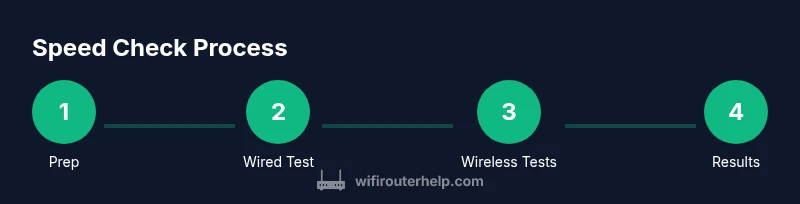
Prepare the environment by updating the router firmware, rebooting the router and testing device, and closing non-essential apps. This ensures tests aren’t affected by pending updates or background activity. Tip: set a clear baseline before you start.
-
Connect a device to the router via Ethernet and run a wired speed test to establish LAN throughput. Use a trusted site and record the result. Tip: use a browser or app that isn’t throttled by background processes.
-
Move to a 2.4 GHz wireless test in the same room, then another test in a farther room. Compare results to the wired baseline to estimate wireless health. Tip: ensure the device supports the 2.4 GHz band and is connected to the correct network.
-
Repeat the wireless tests on the 5 GHz band, first in proximity and then at the farthest practical distance. 5 GHz tends to be faster but shorter range. Tip: choose a channel with low interference using a WiFi analyzer.
-
Test from at least two different devices to account for hardware limits. Record differences and look for consistent patterns. Tip: newer devices often have faster network adapters.
-
If results look slow, try simple optimizations: reposition the router higher off the floor, away from metal objects, and ensure antennas are oriented for coverage. Tip: avoid placing next to microwave ovens or cordless phones.
-
Re-run the tests after these changes to quantify improvement. If there’s no improvement, move to more advanced steps like enabling QoS or updating firmware. Tip: document every measurement with date and time.
-
Compile your results into a simple chart or table and compare them to your ISP plan. If you’re consistently short of your plan, contact your provider with the evidence. Tip: keep firmware update history handy.
Estimated total time: 45-60 minutes
Interpreting Your Results: What Numbers Really Mean
A number on a speed test is a snapshot of performance under specific conditions. When you compare wired LAN throughput to wireless results, you’ll see how much signal loss and interference affect your experience. If wired speeds approach your plan and wireless speeds are significantly lower, prioritize improving your wireless setup instead of buying a higher-end router. The goal is consistency across rooms and devices without excessive latency.
Remember that peak speeds during tests don’t always reflect everyday usage—streams, calls, and gaming can fluctuate. Use multiple tests at different times to get a reliable picture, and document the variance so you can reproduce improvements later.
Common Pitfalls and How to Fix Them
- Interference and channel congestion can dramatically reduce wireless throughput. Solution: run a WiFi analyzer, switch to a cleaner channel, and favor 5 GHz where possible.
- Outdated firmware can limit performance. Solution: update to the latest stable firmware from the manufacturer.
- Router placement is suboptimal. Solution: place the router higher, uncluttered, and away from metal objects and appliances.
- ISP-related issues can cap your speed even if your router is fast. Solution: run tests at different times and contact your provider if you consistently miss your plan.
- Devices with old network adapters may bottleneck. Solution: test with newer devices or adapters. The WiFi Router Help Team recommends following a structured test routine to isolate the cause of slowdown.
When to Seek Professional Help and What to Expect
If your tests show persistent bottlenecks after optimization, you may benefit from professional assistance. Consider contacting your ISP to verify plan speeds, or consult the router manufacturer for advanced configuration guidance. A technician visit might be warranted if you suspect cabling, in-wall interference, or a failing modem or router. The WiFi Router Help Team recommends documenting your tests and outcomes before asking for support so the technician can reproduce issues quickly.
Authoritative Sources and How to Use This Information
For further reading and verification, consult established resources that discuss wireless networking guidelines and best practices. The following sources provide foundational guidance on Wi‑Fi standards, measurement methodologies, and consumer safety considerations. These references help ensure your testing approach aligns with recognized best practices.
Tools & Materials
- Router(Your current model or a replacement you’re evaluating)
- Testing device (laptop or smartphone)(Prefer a recent device with up-to-date Wi‑Fi hardware)
- Ethernet cable (Cat5e or better)(Supports gigabit speeds; use for wired tests)
- Speed test sites/apps(Ookla Speedtest, Fast.com, or equivalent)
- Router admin access(You may need admin credentials)
- WiFi analyzer app (optional)(Helpful for channel selection)
Steps
Estimated time: 45-60 minutes
- 1
Prepare baseline measurements
Update firmware on the router, reboot the router and testing device, and close background apps. This ensures tests reflect normal operation and aren’t skewed by pending updates or background activity.
Tip: Firmware updates can impact throughput; perform tests after a reboot. - 2
Test wired Ethernet speed
Connect a device to the router via Ethernet and run a trusted speed test to establish LAN throughput. Use a direct LAN port with no switches in between.
Tip: Use a wired test as your primary baseline for comparison with wireless results. - 3
Test 2.4 GHz wireless speed
Test from a nearby room on the 2.4 GHz band. This band travels farther but is more prone to interference. Note the speeds and latency.
Tip: Ensure the device is on the 2.4 GHz network and not accidentally connected to 5 GHz. - 4
Test 5 GHz wireless speed
Move to a closer room and test on the 5 GHz band. This band is faster but has shorter range. Compare results to the 2.4 GHz test.
Tip: If you don’t see expected gains, check channel congestion. - 5
Test with multiple devices
Run tests on at least two different devices to account for hardware differences in network adapters.
Tip: Document peculiarities of each device so you can reproduce results later. - 6
Optimize placement and settings
Reposition the router higher and away from metal objects; consider enabling a more favorable channel and updating QoS if needed.
Tip: Small changes in placement can yield noticeable improvements. - 7
Re-test after changes
Run the same tests again to quantify improvements and confirm stability across bands and devices.
Tip: Keep a log of before/after results for future reference. - 8
Document and compare with ISP plan
Create a simple chart comparing LAN tests against your ISP’s advertised plan. If gaps persist, contact your provider with the documented results.
Tip: Clear records speed up support calls and troubleshooting.
People Also Ask
What is router speed vs internet speed?
Router speed refers to the local network throughput your devices can handle, while internet speed is the connection from your ISP. Both contribute to your overall experience, so testing both wired and wireless helps identify where bottlenecks occur.
Router speed is how fast your local network moves data; internet speed is what you get from your provider. Test both wired and wireless to locate bottlenecks.
Should I test Wi‑Fi or Ethernet first?
Start with Ethernet to establish a wired baseline. Then test each Wi‑Fi band (2.4 GHz and 5 GHz) to see how wireless conditions affect throughput.
Begin with a wired test to set a baseline, then test both Wi‑Fi bands to gauge wireless performance.
Why do speeds vary by room or device?
Physical obstacles, distance, and interference from other networks degrade wireless signals. Different devices have different network adapters, which affects achievable speeds.
Signals weaken with distance and obstacles. Different devices also have varying network hardware.
How often should I re-test after changes?
Re-test after any placement change, firmware update, or new device introduction to confirm improvements persist over time.
Test again after changes to confirm improvements last.
Can firmware updates boost router speed?
Yes. Firmware updates can improve performance and stability by fixing bugs and optimizing hardware utilization. Always back up settings before updating.
Firmware updates can improve speed and reliability; back up settings first.
What should I do if speeds stay slow after testing?
Review placement, consider upgrading hardware, check for ISP issues, and use the documented tests to contact support with concrete data.
If slow, check placement, consider upgrading gear, and gather data before contacting support.
Watch Video
What to Remember
- Test wired first to baseline router throughput
- Compare 2.4 GHz vs 5 GHz performance
- Account for interference and placement when interpreting results
- Keep firmware up to date to maximize performance
- Document changes and test again after adjustments