What router settings should you change: A practical guide
Learn exactly which router settings to change for better security, reliability, and performance. Step-by-step guidance, checklists, and expert tips from WiFi Router Help.


You’ll identify and change essential router settings to improve security, coverage, and reliability. Start by updating your admin password, choosing a clear SSID, enabling WPA3 (or WPA2 if WPA3 isn’t available), and updating firmware. Then adjust DHCP, IP reservation, guest network, QoS, and parental controls as needed for your household.
What to change first and why
If you’re wondering what router settings should you change, start with security and access controls before touching performance options. According to WiFi Router Help, the safest first steps are securing the management interface, selecting a strong admin password, and choosing an unambiguous SSID. The WiFi Router Help team found that many home networks are vulnerable because default credentials and weak passwords are left unchanged. From there, plan your changes to balance security with convenience. A solid early move is to disable remote management unless you specifically need it, and to ensure your router’s firmware is up to date.
Next, back up the current configuration so you can revert if something goes wrong. Document the new admin password and Wi‑Fi details in a secure place. As you proceed, keep a changelog to track what you altered and why. This approach minimizes downtime and makes troubleshooting easier if a setting doesn’t behave as expected.
Security fundamentals you should set
Security is not optional equipment for your home network; it is the foundation. Begin by ensuring the router’s login page is not exposed to the wider internet unless you require remote administration. Use HTTPS if available, and set a long, unique admin password. Enable WPA3 on supported devices (or WPA2-PSK with AES if WPA3 is unavailable). Disable UPnP unless you need it for specific devices, and review firewall settings to ensure basic protection is active. WiFi Router Help’s guidance emphasizes that strong encryption and restricted admin access dramatically reduce risk of unauthorized control and eavesdropping. Finally, verify that the router can still be reached from your main devices after changes so you don’t lock yourself out.
Naming and segmentation: SSID and guest network
Naming the network clearly helps you and guests connect without exposing sensitive information. Change the SSID to something unique but not personally identifying, and keep the password strong. If possible, enable a guest network to isolate visitors from your main devices, which protects your primary system from accidental misconfigurations or malware spread. A segmented network also makes parental controls and bandwidth management simpler to manage. The WiFi Router Help team notes that guest networking is a simple, effective guardrail for family networks and small offices alike.
IP addressing, DHCP, and reservations
DHCP assigns IP addresses to devices automatically, but you may want control over critical devices by reserving fixed IPs. Review the DHCP range to ensure it doesn’t overlap with static addresses you assign to printers, NAS drives, or computers. If your router supports IP reservations, add known devices by their MAC address to ensure they keep the same internal IP. This stability reduces interruptions for services like printers or local backups and makes port forwarding and firewall rules easier to manage. WiFi Router Help emphasizes planning your addressing scheme before making changes so you don’t create conflicts as devices join and leave the network.
Wireless encryption and admin access specifics
Your encryption choice determines how data travels across your network. Enable the strongest common standard you can, preferably WPA3, with AES encryption. If WPA3 isn’t available on older hardware, use WPA2-PSK with AES, and avoid mixed modes that compromise security. In addition, consider restricting admin access to the local network only and disabling cloud-based remote administration if it isn’t essential. Keeping a tight admin policy prevents attackers from triggering changes from outside your home. WiFi Router Help highlights that strong encryption and restricted admin access are the most impactful security upgrades you can make.
Firmware updates and auto-update considerations
Keeping firmware current is one of the simplest and most powerful improvements you can implement. Check for firmware updates from your router’s manufacturer, and enable automatic updates if you’re comfortable with automatic downtime during firmware installs. When an update appears, review the changelog to confirm it addresses security or stability improvements relevant to your setup. If you have multiple devices on the network, document the firmware version for each, so you know what you’re running after updates. The WiFi Router Help guidance stresses updating firmware as a routine habit, not a one-off event.
Quality of Service (QoS) and channel optimization
QoS helps prioritize traffic for critical devices like work computers, video calls, or gaming consoles. Enable QoS rules for devices that need low latency, and consider setting bandwidth limits on nonessential devices. Channel optimization can reduce interference; if your router supports auto-channel selection, enable it, or manually select a channel with the least congestion in your area. In mixed environments with 2.4 GHz and 5 GHz bands, accurate band steering and band selection improve both reach and throughput. WiFi Router Help recommends testing speeds after adjustments to confirm improvements.
Backups, documentation, and final verification
Before concluding changes, back up the new configuration to a safe location. Create a short document noting the changes you made, the dates, and any new passwords or SSIDs. After applying updates, reboot the router and reconnect your main devices to verify access. Test both wired and wireless connections, guest access, and any port-forwarding rules you rely on. Finally, leave a short note about the next review date so you revisit settings periodically. The goal is repeatable, documented changes that you can trust when trouble arises.
Quick verification checklist after changes
- Can you log into the admin page with the new password? (Yes/No)
- Do all essential devices reconnect automatically? (Yes/No)
- Is your guest network isolated from your main devices? (Yes/No)
- Are firmware and security settings up to date? (Yes/No)
- Have you saved a config backup and updated notes? (Yes/No)
If you answered No to any item, re-check the corresponding section and test again. This ensures you haven’t created dead ends while optimizing your router settings.
Tools & Materials
- Computer, phone, or tablet with a web browser(Must be connected to the router’s network (Wi‑Fi or Ethernet) to access the admin interface)
- Ethernet cable (optional but recommended)(Stable connection during changes, especially firmware updates)
- Notepad or password manager(Record new credentials and changes securely)
- Current router model information/manual(Helpful for defaults (IP address, login, supported features))
- Uninterruptible power source (UPS) or fully charged device(Minimize risk of interrupted updates)
- External backup of configuration (optional)(Store a copy of settings after changes)
Steps
Estimated time: 60-90 minutes
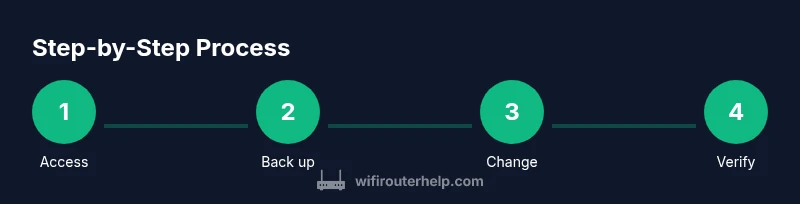
- 1
Access the router admin page
Connect to your router via Ethernet or a stable Wi‑Fi connection. Open a web browser and enter the router’s IP address (commonly 192.168.0.1 or 192.168.1.1). Log in with the current credentials. If you cannot access, check your network connection and ensure you’re using the correct address.
Tip: If you have never changed the login, locate the default credentials in the manual or on the device label. - 2
Back up current configuration
Navigate to the backup/restore section and save a copy of the current configuration to your computer or cloud storage. This creates a safety net should something go wrong during changes. Take screenshots of key pages like DHCP, WLAN, and firewall rules for reference.
Tip: Store the backup in a known location and include a note with the date. - 3
Change the admin password
Enter the admin settings area and replace the old password with a long, unique passphrase. Use a password manager to generate and store it securely. Avoid passwords that reuse previous ones or include common phrases.
Tip: Choose a passphrase that is at least 12–16 characters and includes a mix of letters, numbers, and symbols. - 4
Update the firmware
Check for firmware updates within the router’s interface and apply any available updates. Do not interrupt the update process, and verify the router reboots successfully after installation. If automatic updates exist, enable them if you’re comfortable with automatic maintenance.
Tip: If the update requires a restart, perform it at a convenient time to avoid losing connectivity. - 5
Change SSID and Wi‑Fi password
In the wireless settings, set a unique network name (SSID) and a strong Wi‑Fi password. Do not include personal identifiers in the SSID. If possible, enable separate 2.4 GHz and 5 GHz networks with distinct passwords.
Tip: Document both SSIDs and their passwords in your password manager. - 6
Set encryption to WPA3 or WPA2‑PSK with AES
Choose the strongest supported encryption. Prefer WPA3 if all devices support it; otherwise use WPA2‑PSK with AES. Avoid mixed modes that degrade security. Confirm client devices can connect after the change.
Tip: If some devices don’t support WPA3, create a transitional WPA2 network with a separate passphrase. - 7
Configure DHCP range and IP reservations
Set a DHCP range that leaves room for static reservations for essential devices like printers or NAS. Use IP reservations for those devices to keep a predictable address and simplify port forwarding and firewall rules.
Tip: Document reserved addresses and MACs to prevent conflicts. - 8
Enable a guest network
Set up a guest network to isolate visitors from your main devices. Restrict guest access to internet only where possible, and avoid routing guest traffic to your local devices. This protects your security posture while keeping guests connected.
Tip: Turn off guest network when not needed to reduce potential exposure. - 9
Configure QoS and channel optimization
If available, enable QoS to prioritize essential traffic (work calls, gaming, conferencing). Use automatic channel selection or manual tuning to minimize interference, especially in dense environments. Test performance after making changes to confirm improvements.
Tip: Monitor impact on latency for real-time apps and adjust rules if needed.
People Also Ask
Do I really need to change the admin password?
Yes. Changing the admin password prevents unauthorized access to the router’s settings. Use a long, unique passphrase and store it securely. After updating, verify you can still log in with the new credentials.
Yes. Changing the admin password is essential for security. Make it long and unique, then verify you can log in with the new password.
Can I change settings without resetting the router?
In most cases you can update security, SSID, and DHCP settings without a factory reset. However, if something goes wrong, a reset to factory defaults may be necessary, which will erase custom configurations. Always back up before making major changes.
Yes, you can usually change settings without resetting, but back up first in case you need to revert.
Is a guest network necessary for home networks?
A guest network is highly recommended. It isolates visitors from your main devices, reducing security risk and simplifying access control. If you don’t have guests, you can disable it until needed.
A guest network is recommended to keep guests separate from your main devices.
How often should I update firmware?
Check for updates regularly and apply them when available. Updates often include security fixes and stability improvements. Verify the router reboots correctly after installation.
Check for updates regularly and install them when available to keep your router secure and stable.
What’s the difference between WPA3 and WPA2?
WPA3 provides stronger protection and improved encryption for modern devices. If some devices don’t support WPA3, use WPA2‑PSK with AES as a best‑effort option. Avoid mixed or legacy modes that weaken security.
WPA3 is stronger, but WPA2 with AES is acceptable for older devices.
Will changing settings slow down my network?
Changing settings can improve speed and reliability if misconfigurations were causing interference or poor coverage. Incorrect QoS rules can temporarily slow certain apps, so test and adjust as needed.
Proper changes can improve performance, but bad QoS rules might slow things down—test and tweak.
Watch Video
What to Remember
- Prioritize security before performance.
- Isolate guests from your main network.
- Document and back up every change.
- Keep firmware up to date for protection.