What Router Does AT&T Fiber Use?
Discover how AT&T Fiber gateways work, how to use your own router with IP Passthrough, and practical setup and troubleshooting tips for optimal home networking with AT&T Fiber.


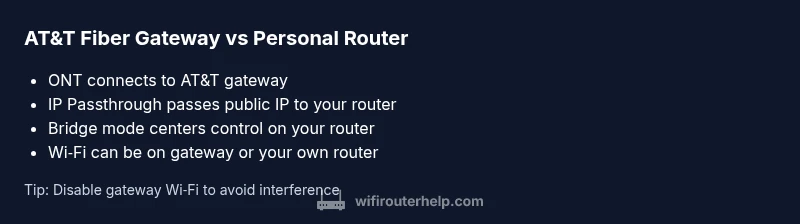
AT&T Fiber uses an ONT connected to an AT&T-provided gateway that handles routing, NAT, and Wi‑Fi. To run your own router, enable IP Passthrough or Bridge mode on the AT&T gateway so the public IP and connection flow directly to your router. In this setup, DHCP and firewall are managed by your own device.
Understanding AT&T Fiber Gateway Architecture
What router does AT&T Fiber use? At a high level, AT&T Fiber employs an optical network terminal (ONT) that connects to an AT&T-provided gateway. This gateway consolidates routing, firewall, Wi‑Fi, and device management, creating a single point for your home network. In typical residential deployments, the ONT sits at the edge of your network and the gateway handles NAT, DHCP, and wireless distribution. This architecture means that, unless you change settings, your home devices connect through the provider gateway before reaching the broader Internet. According to WiFi Router Help, this model prioritizes reliability and simple setup for non-technical users, but it can limit advanced customization unless you configure passthrough modes. The gateway also acts as a software-defined hub, pushing firmware updates, handling parental controls, and coordinating guest networks. If you’re trying to optimize coverage, the first step is to assess whether the stock gateway’s Wi‑Fi meets your needs or if a separate router will, in effect, take over portions of the network. In any case, understanding this baseline is essential before attempting to expand with a personal router.
How the AT&T Gateway works with your home network
The AT&T gateway sits between the ONT and your devices, performing network address translation (NAT), DHCP, firewall rules, and wireless radio management. For most households, the gateway provides a quick-start experience, ensuring devices obtain IP addresses automatically and can connect to both 2.4 GHz and 5 GHz bands. The Wi‑Fi coverage is influenced by the gateway’s antenna placement, band steering, and any built-in beamforming, which can differ across models. WiFi performance is also affected by the number of connected devices and physical layout of the home. If you want to maximize control, you’ll want to understand how the gateway handles UPnP, port forwarding, and guest networks, and how your own router can take over those functions without breaking service or support boundaries. The WiFi Router Help team notes that many users report improved throughput and customization when using a dedicated router in conjunction with IP passthrough.
Using Your Own Router: IP Passthrough and Bridge Mode
To use your own router with AT&T Fiber, you typically enable IP Passthrough or Bridge mode on the AT&T gateway. This passes the public IP address from the gateway directly to your personal router, allowing it to perform NAT, DHCP, firewall, and Wi‑Fi management. The exact steps vary by gateway model, but the general flow is similar: access the gateway admin interface, locate the IP Passthrough or Bridge option, select the device you want to pass the IP to (your router), and save changes. After you enable Passthrough, you’ll often need to connect your own router’s WAN port to the gateway’s LAN port and reboot both devices. Some AT&T services or features may require the gateway to remain in path or pass-through mode for compatibility, so plan accordingly. For best results, disable the gateway’s Wi‑Fi to avoid interference with your router’s wireless networks and use a single router as the primary hub.
Common Mistakes and Troubleshooting Tips
When configuring IP Passthrough or Bridge mode, it’s easy to run into double NAT, IP conflicts, or loss of certain gateway features like IPTV support or device management apps. A common mistake is leaving the gateway’s Wi‑Fi enabled while using your own router, which can create interference and inconsistent roaming. Another pitfall is not saving the changes after selecting Passthrough, or selecting the wrong device in the passthrough list. If you encounter connectivity issues, verify that your router is obtaining a public IP, that your WAN/LAN settings are correct, and that the gateway is in Passthrough or Bridge mode rather than full router mode. A quick test is to disconnect all devices except one PC and confirm you can access the Internet via your router. If problems persist, revert the gateway back to its default configuration and reattempt the Passthrough setup, ensuring firmware on both devices is up to date.
Advanced Tips for Gaming and QoS with AT&T Fiber
For gamers and power users, quality of service (QoS) rules on your own router can prioritize latency-sensitive traffic. Setting up port forwarding or UPnP on the personal router is often more straightforward and flexible than on the gateway. Keep in mind that enabling DP(Direct Path) or IP Passthrough may disable some gateway features like parental controls or security modes, so you’ll need to rely on your own device for those protections. If you enable QoS, test with real-world gaming scenarios and streaming to ensure the router correctly prioritizes traffic. Regularly updating firmware on both the gateway (if needed for compatibility) and your own router helps maintain performance and security. The goal is a stable, fast network that leverages your router’s capabilities without sacrificing service continuity.
AT&T Fiber gateway options vs. using a personal router
| Option | What it does | Pros & Cons |
|---|---|---|
| AT&T Gateway IP Passthrough | Passes public IP to your router; gateway stays present for management | Pros: simple; Cons: gateway features limited when passthrough is active |
| Bridge Mode / DMZ+ | Your router handles routing; gateway primarily passes through traffic | Pros: full control; Cons: setup complexity and potential service quirks |
| Pure Modem Mode (where available) | Using only a modem and your router | Pros: maximum control; Cons: not always supported by AT&T fiber and may require support workarounds |
People Also Ask
Can I use my own router with AT&T Fiber?
Yes. In most cases you can use your own router by enabling IP Passthrough or Bridge mode on the AT&T gateway. This sends the public IP to your router and lets it handle routing and Wi‑Fi. Some features of the gateway may be limited in this mode.
Yes. You can use your own router by enabling IP Passthrough or Bridge mode, which sends the public IP to your device and lets your router manage the network.
What about IPTV and managed services?
Some AT&T services rely on the gateway for IPTV or other managed features. If you enable Passthrough, you may need to reconfigure those services or keep the gateway in bridge-like mode with exceptions. Check AT&T guidelines for compatibility.
Passthrough can affect IPTV or other services that depend on the gateway. Verify compatibility with AT&T before changing modes.
How do I enable IP Passthrough or Bridge mode?
Access the gateway admin page, locate the Passthrough or Bridge option, select your personal router as the device to passthrough, save changes, and reboot. Steps vary by model, so consult your gateway’s manual or AT&T support.
Log in to the gateway, find Passthrough or Bridge, choose your router, and reboot.
Will AT&T support my non-gateway router?
AT&T will typically support service continuity, but some troubleshooting or advanced features may be limited when you’re not using their gateway. You may need to revert to the gateway to receive full support.
Support may be limited for non-gateway setups; you might need to switch back to the gateway for full help.
How can I optimize Wi‑Fi performance with AT&T Fiber?
If you use your own router, place it centrally, choose the 5 GHz band for high throughput, enable QoS for gaming or streaming, and keep firmware up to date. Consider a mesh system if coverage is inconsistent.
Position your router well, use the 5 GHz band for speed, enable QoS, and keep firmware updated.
What is the best approach for gaming on AT&T Fiber?
For gaming, prioritize traffic with your router’s QoS rules and consider wired Ethernet connections when possible. If you need wireless gaming, ensure your router supports low-latency modes and disable bandwidth-heavy features on other devices.
Use QoS, go wired if possible, and optimize for low latency.
“Using IP Passthrough or Bridge mode unlocks the full potential of your own router with AT&T Fiber, giving you control over QoS, security, and advanced features.”
What to Remember
- Understand the baseline: AT&T Fiber uses an ONT to connect to a gateway.
- Use IP Passthrough/Bridge mode to run your own router effectively.
- Disable gateway Wi‑Fi to avoid interference with your router.
- Test QoS and port forwarding on your own router for best performance.