Verizon FiOS Router: Setup, Security, and Troubleshooting
A complete, step-by-step guide to set up, secure, and troubleshoot your Verizon FiOS router for improved home Wi-Fi performance and reliability.


Learn how to set up, secure, and troubleshoot a Verizon FiOS router with a clear, step-by-step approach. This guide covers initial hardware checks, firmware updates, Wi-Fi naming and passwords, network security, and common fixes to improve coverage. By following these steps, you’ll optimize your home network for reliability and speed.
Understanding the Verizon FiOS Router and its role in home networks
According to WiFi Router Help, the Verizon FiOS router serves as the central hub for your home network, handling NAT, firewall protection, DNS, and wireless broadcasts. It combines these functions in one device, which is why proper setup matters. When you place the router, update firmware, and secure admin credentials, you directly influence performance, stability, and security across all devices—from smartphones to smart TVs. You'll get better coverage by selecting appropriate channels and using both 2.4 GHz and 5 GHz bands strategically. This overview explains how the FiOS gateway fits into your network stack and what to expect from its built-in features. You’ll learn when to rely on FiOS hardware alone and when to introduce a separate, high-performance router for specialized needs, such as gaming or home offices.
Planning placement, coverage, and equipment before you begin
A strong Wi‑Fi foundation starts with thoughtful planning. Position your FiOS router high off the floor, near a central area, and away from thick walls or metal objects that can block signals. Consider a dedicated room with minimal interference and clear sightlines to key devices like TVs, laptops, and gaming consoles. You’ll want to confirm you have all essential equipment: the FiOS gateway, a computer or mobile device for configuration, an Ethernet cable for a stable first setup, and a notebook or password manager to store credentials. The goal is to maximize coverage while maintaining a simple, secure network. The WiFi Router Help guidelines emphasize documenting your network name (SSID) and password so you can easily reconnect devices after changes.
Accessing the admin interface and credential management
Accessing the router’s admin panel is the next crucial step. Use the gateway address printed on the device label or in your service materials, then log in with the router’s admin credentials. If you’ve never changed these values, use the default credentials from Verizon’s documentation and then immediately replace them with a strong, unique password. Secure access also means disabling remote management unless you truly need it and enabling automatic firmware updates when available. After logging in, take a moment to record the admin username and password in a safe location so you’re never locked out again.
Firmware updates and security basics
Firmware updates bring security patches, bug fixes, and performance improvements. Check the FiOS router’s firmware status in the admin interface and apply any available updates promptly, preferably with a wired connection to prevent rollbacks caused by dropped connectivity. Always enable automatic updates if your device supports it. Additionally, turn off features you don’t use, such as WPS (Wi‑Fi Protected Setup) if you can, and ensure the firewall is active. These steps reduce exposure to common attacks and help keep your home network resilient against threats. Regular maintenance should be part of your routine, not a one-off task.
Wi‑Fi optimization: SSIDs, passwords, and channel use
Clear, unique SSIDs for 2.4 GHz and 5 GHz bands help you separate devices by capability and stability needs. Use strong, unique passwords that blend letters, numbers, and symbols. If you encounter interference, manually select the least congested channel or enable auto-channel selection. For most households, keeping the 5 GHz network dedicated to closer devices and the 2.4 GHz network for farther or low-bandwidth devices provides the best balance of speed and range. Consider temporarily turning off guest networks when not in use to minimize potential security risks.
Advanced features: guest networks, QoS, firewall rules, and network hygiene
Modern FiOS routers offer guest networks, basic QoS, and firewall controls to manage traffic and maintain performance. Create a guest network to isolate visitors’ devices from your main network, apply QoS rules to prioritize essential traffic (like video calls and gaming), and set firewall rules to block unwanted inbound connections. Regularly audit connected devices and remove unknown ones. Keeping firmware up to date remains essential, but ongoing network hygiene—such as password changes on a semi-annual basis and monitoring for unusual activity—will sustain reliability over time.
Bridge mode / IP Passthrough and using your own router
If you want to replace the FiOS router with your own equipment, you can explore IP Passthrough or Bridge mode to pass your public IP to another device. This setup is common for households using a high-performance third-party router or mesh system. Note that enabling IP Passthrough may disable some FiOS features (like DNS filtering on the gateway) and can require reconfiguring DHCP and LAN settings on the new device. Always consult documentation for your specific hardware and verify compatibility before proceeding. A cautious, staged approach reduces service interruptions.
Troubleshooting common issues and quick fixes
During setup, you may encounter weak coverage, dropped connections, or login issues. Start with simple checks: verify the power and ethernet connections, confirm you’re connected to the correct network, and ensure firmware is current. If devices intermittently disconnect, recheck placement to avoid interference from electronics or walls. A factory reset should be a last resort, used only if credentials are lost or the configuration becomes corrupted. When in doubt, review the official Verizon FiOS support pages or contact customer service for guided assistance.
Authority sources
For authoritative guidance on router configuration and security, consult these sources: FCC – https://www.fcc.gov, NIST – https://www.nist.gov/publications, and CISA – https://www.cisa.gov. These resources provide standards and best practices that complement practical, hands-on steps for home network management.
Tools & Materials
- Verizon FiOS router (official gateway)(Model varies; verify current device and access methods)
- Computer, tablet, or smartphone with web browser(To access and configure the admin interface)
- Ethernet cable(Useful for a stable initial setup or firmware update)
- Notebook or password manager(To store credentials, SSIDs, and network details)
- Secondary router or mesh system (optional)(Needed if you plan IP Passthrough or advanced topology)
Steps
Estimated time: 45-90 minutes
- 1
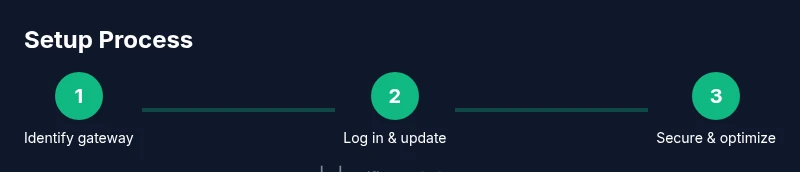
Identify gateway address and router model
Locate the gateway IP and device model from the router label or service documentation. You will use this address to access the admin interface and begin configuration.
Tip: Use a wired connection during the first login to avoid Wi‑Fi drops. - 2
Log in to the admin interface
Open a browser and enter the gateway address. Sign in with the current admin credentials; if you never changed them, use the default values from Verizon’s docs and then update them immediately.
Tip: Change the admin password after your first login to prevent unauthorized access. - 3
Check for and install firmware updates
In the admin panel, check for firmware updates and install any available releases to improve security and performance.
Tip: Maintain a wired connection during updates to prevent interruptions. - 4
Configure Wi‑Fi name and password
Set distinct SSIDs for 2.4 GHz and 5 GHz bands and choose strong, unique passwords for each network.
Tip: Avoid common names and reuse of old passwords across networks. - 5
Enable security features and disable unnecessary options
Turn on the firewall, apply WPA2/WPA3 security, and disable remote management if not needed.
Tip: If you can, disable WPS to reduce potential exploitation vectors. - 6
Optimize wireless performance
Tune channel settings, enable auto-channel selection if interference is low, and consider using separate SSIDs for 2.4 GHz and 5 GHz.
Tip: Test device performance at different locations to find the best balance of speed and coverage. - 7
Decide on IP Passthrough / Bridge mode
If you plan to use your own router, enable IP Passthrough or Bridge mode as appropriate and reconfigure the new device accordingly.
Tip: Document any IP or DHCP changes to avoid conflicts with connected devices. - 8
Test network coverage and finalize settings
Run speed tests around the home, move the router to optimize coverage, and confirm all devices reconnect successfully.
Tip: Aim for consistent performance in high-traffic areas like living rooms and home offices.
People Also Ask
What is the best way to access the Verizon FiOS router admin page?
Access is typically via the gateway IP printed on the device label or included in your service materials. Log in with the current credentials, then update them to secure strong access.
Open a browser, enter the gateway address found on the router, and sign in with your admin credentials.
Can I use my own router with FiOS?
Yes. Enable IP Passthrough or Bridge mode on the FiOS gateway to pass the public IP to your own router, then configure your device accordingly.
Yes, you can, by using IP Passthrough or Bridge mode on the FiOS gateway.
Should I enable WPS on the FiOS router?
WPS is a known security risk. If possible, disable WPS and use manual WPA2/WPA3 credentials for each network.
If available, disable WPS and rely on strong passwords for each network.
How do I reset the FiOS router safely?
Use the reset button or admin panel option to restore factory settings if credentials are lost or settings become corrupted. This will erase custom configurations.
Use the reset button to restore factory settings if you’re locked out.
What is IP Passthrough and when should I use it?
IP Passthrough forwards your public IP to another router, which is useful when you want full control with a third-party router or a mesh system.
Use IP Passthrough if you want to manage your own router setup.
Watch Video
What to Remember
- Secure the router with updated firmware and strong credentials.
- Optimize placement and separate 2.4 GHz and 5 GHz networks for better performance.
- Use IP Passthrough only if you need to run your own router system.
- Regularly review device connections and firmware status to maintain reliability.