Router for Spectrum: Setup, Tips, and Troubleshooting
Learn how to pick a Spectrum-compatible router, set it up, optimize coverage, and troubleshoot common issues. This step-by-step guide covers compatibility checks, essential features, placement, security, and ongoing maintenance for a reliable home network.


This guide helps you pick and configure a router that works well with Spectrum, maximize coverage, and troubleshoot common issues. You’ll learn compatibility checks (DOCSIS vs. standalone routers), essential features (WPA3, QoS, MU-MIMO), and step-by-step setup tips to reduce interference and improve speed across your home. No geek-speak required—clear actions you can follow today.
Why a Spectrum-compatible router matters
Choosing a router that works well with Spectrum can prevent compatibility hiccups, minimize outages, and maximize wireless coverage in your home. According to WiFi Router Help, the best results come from a router that supports Spectrum's typical cable modem environment and modern WiFi standards. In practice, you’ll avoid double-NAT, reduce handoffs delays, and enable faster performance for streaming and gaming. In this article, you’ll learn how to assess compatibility, select features that matter, and configure a setup that stays reliable as your household grows. The goal is a stable, easy-to-manage network that improves every day use—from video calls to online gaming—without requiring a tech overhaul.
Compatibility checks you should perform
Before you buy or swap gear, make sure the router and modem pairing will work smoothly with Spectrum. Start by confirming whether you’ll use a separate modem and router or a Spectrum gateway. Check DOCSIS support (3.0 vs 3.1) and ensure the router supports current Wi‑Fi standards (Wi‑Fi 5/6/6E) for best range and throughput. Look for features that boost reliability, such as QoS, MU-MIMO, and beamforming, and verify that the router can be updated to the latest firmware. WiFi Router Help analysis shows that choosing up-to-date hardware and enabling essential security features leads to more consistent performance in real homes.
Features that maximize performance with Spectrum
To make the most of Spectrum service, prioritise routers with robust wireless capabilities and practical management features. Key considerations include dual-band vs tri-band design, support for WPA3 security, bandwidth-aware QoS for gaming and streaming, a reliable guest network, and the ability to enable bridge mode if you want to keep Spectrum’s modem in passthrough. For households with many devices, MU‑MIMO and 160 MHz channel support can help sustain multiple high-demand connections without crippling throughput. Keep firmware updates enabled to patch security flaws and improve stability.
How to choose between a gateway and your own router
Spectrum often provides gateways that combine modem and router in one device. Using your own router gives you more control, potentially better coverage, and easier customization. If you go this route, you’ll likely enable bridge mode on the gateway or set up IP Passthrough to avoid double NAT. This setup can improve performance for gaming and streaming, but may require more manual configuration. The right choice depends on your home size, the number of devices, and how much you value advanced features.
Step-by-step setup for a Spectrum-ready router
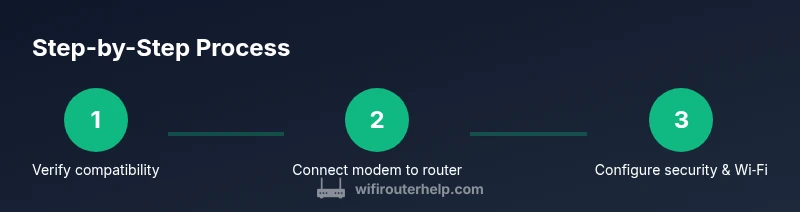
When you are ready to configure, start with basic connectivity and then layer on security and optimization. Connect the router to the modem with an Ethernet cable, power on both devices, and access the router’s admin page to set a unique SSID and strong password. Enable WPA3 if available, update firmware, and configure any guest network you want for visitors. Finally, run a quick speed test in multiple rooms to verify coverage and adjust placement if needed.
Placement and interference considerations
Where you position the router makes a big difference. Place it high, away from walls and metal objects, roughly in the center of your home for even coverage. Steer clear of microwaves, cordless phones, and large appliances that can create interference. If you have a multi-story home, consider a mesh system or a high-quality single router on a central floor to extend coverage to farther rooms.
Security, firmware updates, and maintenance
Keep the router secure by using a strong admin password, enabling WPA3, and turning on automatic firmware updates. Regularly review connected devices and update or revoke access for unfamiliar gear. Track Spectrum service status via your account and verify there are no outages affecting your gateway or modem. Routine maintenance reduces the chances of performance drops and security risks.
Troubleshooting common Spectrum router issues
If speeds drop or devices fail to connect, start with a simple refresh: reboot the modem and router, rejoin devices to the network, and verify firmware is current. Check for IP conflicts, ensure the gateway is in bridge mode if you’re using your own router, and inspect Ethernet connections for wear. For persistent problems, test with a wired connection to separate wired-from-wireless issues and consult Spectrum support if service outside your home is suspected.
Tools & Materials
- Ethernet cable (Cat5e or better)(Preferred for a wired link between modem and router during setup)
- Smartphone or laptop(To access the router admin interface and security settings)
- Spectrum-compatible router or gateway(Your own router or a Spectrum-supplied gateway)
- Access to Spectrum account(To verify service status and plan features)
- Notepad and pen(Jot down SSID and password for future reference)
Steps
Estimated time: 45-60 minutes
- 1
Verify compatibility and gather gear
Confirm you have a Spectrum-ready router (or gateway) and collect the Ethernet cable, a computer or phone, and any needed login credentials. This upfront check prevents mid‑setup surprises.
Tip: Write down the exact model and firmware version for quick support if needed. - 2
Connect modem to router
Use the Ethernet cable to connect the modem’s LAN port to the router’s WAN/Internet port. This wired link provides the most stable baseline during setup.
Tip: Power cycle both devices after connecting to ensure a clean boot. - 3
Access the router admin page
Open a web browser and enter the router’s default IP address (often 192.168.0.1 or 192.168.1.1). Log in with the default credentials, then immediately change the admin password.
Tip: If you’re unsure of the address, check the device label or manual. - 4
Configure basic Wi‑Fi
Set a unique network name (SSID) and a strong password. Choose WPA3 if available; if not, WPA2‑AES is acceptable. Disable WPS for better security.
Tip: Create a separate guest network if you have visitors to keep your main network protected. - 5
Enable advanced features
Turn on QoS for priority devices (like work laptops or gaming consoles). If your router supports MU‑MIMO and 160 MHz channels, enable them for higher throughput where compatible.
Tip: Only enable features you understand to avoid unnecessary complexity. - 6
Test coverage and adjust
Run speed tests in several rooms to gauge coverage. Move the router if dead zones exist, or consider a mesh system for large homes.
Tip: Centralize placement on a higher surface, away from obstructions. - 7
Secure and maintain
Apply firmware updates, review connected devices, and keep a current admin password. If you’re behind a gateway, decide between bridge mode or IP Passthrough based on your needs.
Tip: Enable automatic updates to reduce maintenance effort.
People Also Ask
Do I need a separate router for Spectrum?
Spectrum can provide a gateway that combines modem and router, but you can also use your own router behind the gateway or in bridge mode. A separate router gives you more control and potential coverage improvements.
Spectrum offers gateways, but you can use your own router if you enable bridge mode or IP Passthrough. This often gives you more control and better performance for multiple devices.
How do I know if my router is Spectrum-compatible?
Check that the router supports current Wi‑Fi standards and security features, and that it can be updated with the latest firmware. If you’re unsure, consult Spectrum’s compatibility lists or contact support.
Ensure your router supports up-to-date Wi‑Fi standards and firmware updates. If in doubt, check Spectrum’s compatibility resources or contact support.
What is bridge mode and when should I use it?
Bridge mode disables the gateway’s router functions, turning the gateway into a simple modem. Use it when you want your own router to handle all routing and Wi‑Fi tasks for better control and performance.
Bridge mode makes your own router the primary router, giving you full control over settings and often better performance.
How can I improve WiFi coverage in a large home?
Place the router centrally on a higher shelf, consider additional access points or a mesh system, and reduce interference by keeping devices away from metal obstacles and electronics.
Move the router to a central high spot and consider extra access points or a mesh system for larger homes.
What security settings should I enable?
Enable WPA3 if available, use a strong admin password, disable WPS, and keep firmware up to date to protect against threats.
Turn on WPA3, set a strong admin password, disable WPS, and update firmware regularly.
How often should I update firmware?
Check for updates monthly or enable automatic updates if your router supports it to minimize security risks and improve performance.
Update firmware regularly or enable automatic updates to stay secure and get the latest fixes.
Watch Video
What to Remember
- Choose Spectrum-compatible hardware for fewer setup hassles
- Enable WPA3 and update firmware regularly
- Position the router centrally and elevated for best coverage
- Use bridge mode if running your own router behind Spectrum gateway
- Test speeds across rooms and adjust placement as needed