Router Extender WiFi: A Step-by-Step Guide to Extending Coverage
A practical, step-by-step guide to using a router extender wifi to eliminate dead zones and improve home WiFi performance. Learn placement, setup, and security to boost signal in every room.


Learn how to extend your router’s reach with a router extender wifi. This guide covers choosing between repeaters and extenders, optimal placement, basic setup, and security steps to ensure reliable coverage throughout your home. By following these steps, homeowners and tech enthusiasts can achieve stronger signals in bedrooms, basements, and garages without costly mesh systems.
Why extender solutions matter for router performance
A router extender wifi is a practical option when you want to improve coverage without replacing your existing router with a whole mesh system. In many homes, signals struggle behind thick walls, multiple floors, or large rooms. A dedicated extender can pick up the existing signal and rebroadcast it into dead zones, helping devices like phones, tablets, and smart speakers stay connected. According to WiFi Router Help, starting with a simple coverage map and a clear goal for which areas need better signal helps you choose the right device and placement. Remember, an extender doesn’t magically create more bandwidth; it helps you use what you already have more effectively by filling gaps in coverage. This approach works well for homes with a few stubborn corners rather than ultra-large properties.
Understanding extender types: repeaters, range extenders, and mesh alternatives
There are several flavors of devices marketed as router extenders wifi. A repeater typically captures the existing wireless signal and rebroadcasts it, which can help reach farther rooms but may sacrifice speed. A range extender is designed to fill in gaps with a stronger link to the main router, often offering several placement options and features like backhaul options. Mesh systems, while not extenders per se, provide seamless roaming and consistent speeds across many nodes, but at a higher cost. When deciding, consider how much coverage you need, how many walls you must cross, and whether you value simplicity over peak performance. WiFi Router Help recommends mapping your space, noting where signals drop, and then selecting a device that aligns with those realities.
Placement strategies for best signal: where to put your extender
Placement makes or breaks extender performance. Place the extender halfway between the router and the area that needs coverage, ensuring a strong signal from the main router. Elevation matters—aim for a high shelf rather than a dark corner. Avoid placing devices behind large metal appliances, inside cabinets, or behind bulky electronics that can absorb or reflect signals. If your layout allows, test a few spots by checking device signal strength and speed in the rooms you care about. Small shifts can yield meaningful gains, especially in multi-story homes.
Wired backhaul vs wireless backhaul: when to run Ethernet
If you can run an Ethernet cable between the router and the extender, that wired backhaul typically yields the most stable and fastest performance. This arrangement minimizes wireless contention and keeps the extended network fast for streaming, gaming, and video calls. If running a cable isn’t feasible, a robust wireless link is still effective, but you should expect some speed trade-offs in busy networks. When using wireless backhaul, ensure both devices support the same band and consider enabling band steering to help clients connect to the best signal automatically.
Setup options: app-based vs web interface
Most modern extenders offer an app-based setup that guides you through pairing and configuration. Alternatively, you can use a web interface by connecting a device to the extender’s default network and entering its IP address in a browser. Regardless of the method, update firmware during setup and reset to factory defaults if you encounter issues. Keep a record of your SSID and password, noting whether you want the extender to broadcast a separate network or share the same network name as your router for seamless roaming.
Security and network hygiene: keep things locked down
Security matters as you extend coverage. Always enable WPA2 or WPA3 encryption on both devices, set a strong passphrase, and disable WPS if possible. Regularly check for firmware updates on both the router and extender, and reboot devices if you notice unexplained slowdowns. If you enable guest networks for visitors, isolate them from the main network to protect your devices and data. A clean, well-managed extended network reduces risk while delivering consistent performance throughout your home.
Troubleshooting common issues: symptoms and quick fixes
If you experience reduced speeds after adding an extender, try repositioning it closer to the router or using a wired backhaul option if available. If devices drop connections, check for interference from cordless phones, microwaves, or Bluetooth devices that share nearby frequencies. Power-cycle both devices and re-run the setup process if necessary. For persistent problems, consult the extender’s logs via the admin interface and verify that both devices run the latest firmware. If in doubt, a factory reset followed by a fresh setup can resolve many stubborn issues.
Quick tips to maximize performance and reliability
- Keep firmware up to date on both router and extender.
- Use a single SSID when possible to simplify roaming for devices moving around your home.
- Prefer Ethernet backhaul when feasible for the most stable experience.
- Place extenders away from large metal objects and inside open spaces for better propagation.
- Regularly test coverage in all critical rooms and adjust placement as needed.
Monitor performance and plan maintenance
After setup, monitor your network for consistency. Use speed tests in each room to verify that performance is meeting your needs, especially in bedrooms and basements where signals tend to falter. If performance declines over time, check for interference changes, nearby new electronics, or changes in your ISP plan that could affect throughput. A periodic review of placement and firmware keeps your extended network reliable.
Tools & Materials
- WiFi Router(Main wireless access point broadcasting your network)
- Router Extender wifi(Compatible with your router model and supports backhaul options)
- Ethernet cable (optional)(For wired backhaul between router and extender)
- Smartphone or computer(To run app-based setup or web admin interface)
- Extender/manual setup guide(Useful for model-specific steps)
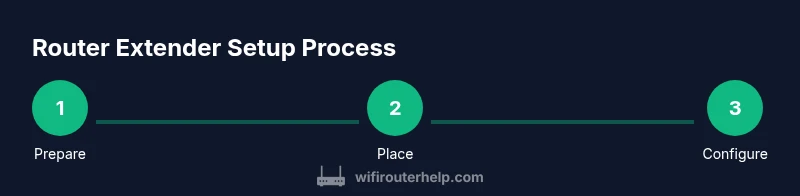
Steps
Estimated time: 30-60 minutes
- 1
Gather and prep equipment
Collect your router, extender, power supplies, and a device to configure the setup. This prep reduces back-and-forth and helps you follow the steps smoothly.
Tip: Have the extender's manual handy and note the default IP address. - 2
Choose a placement location
Select a spot roughly midway between the router and the area needing coverage. Ensure the extender has a strong signal from the main router.
Tip: Avoid placing the extender behind furniture or inside cabinets to prevent signal absorption. - 3
Power up and reset if needed
Plug in the extender and perform a quick reset to factory defaults if you’ve changed settings before. This ensures a clean slate for setup.
Tip: Wait for the LED indicators to show a stable power and link status before proceeding. - 4
Connect to the extender
Connect your smartphone or computer to the extender’s default network and open the setup page via the provided IP address or app.
Tip: If using a cable, you can start setup with a wired connection for stability. - 5
Configure network parameters
Choose whether to use the same SSID as your router or a separate one for the extended network. Set encryption to WPA2/WPA3 and enter your password.
Tip: Enable band steering if available to help devices pick the best signal automatically. - 6
Test coverage and adjust
Run a quick speed test in target rooms and move the extender slightly if needed to improve signal strength.
Tip: Aim for consistent signal in the most used spaces, not just the strongest single room.
People Also Ask
What is the difference between a router extender and a repeater?
A router extender wifi connects to your existing router and rebroadcasts the signal to reach farther areas. A repeater can capture and rebroadcast the signal but may reduce speed depending on distance and interference.
An extender connects to your router and shares the signal again; a repeater repeats the signal but may slow things down.
Will using an extender reduce my internet speed?
Some speed loss can occur when relaying signals through an extender, especially with wireless backhaul. Wired backhaul minimizes this effect.
There may be some speed loss with wireless backhaul, but wired backhaul helps keep speeds up.
Should I use a mesh system instead of a router extender wifi?
Mesh systems offer seamless roaming across many rooms, but at a higher cost. An extender is often a cost-effective solution for a few weak areas.
Mesh can be better for large homes, but an extender is a cheaper option for specific dead zones.
How do I secure my extended network?
Enable WPA2 or WPA3 on both devices, use a strong password, and keep firmware updated. Consider guest networks for visitors to protect your main network.
Use strong encryption, update firmware, and manage access with guest networks if needed.
What should I do if performance drops after setup?
Re-test placement, check for interference from household electronics, and update firmware. If needed, try a wired backhaul or adjust SSID settings.
Move the extender slightly, check for interference, and update firmware if problems persist.
Watch Video
What to Remember
- Identify dead zones and target them with strategic extender placement
- Use wired backhaul when feasible for best performance
- Keep firmware up to date for stability and security
- Test coverage after setup and adjust as needed