Router AI: Setup, Optimization & Troubleshooting
Learn how to enable and optimize Router AI features for faster, smarter home networks. This practical guide covers setup, configuration, privacy, and troubleshooting from WiFi Router Help.


Goal: Enable and customize Router AI on a compatible router to optimize performance, security, and device priorities. Before you start, ensure your firmware supports AI features and you have admin access. This quick guide outlines the exact steps to enable AI, review recommended configurations, and tailor rules for your home network.
What is Router AI?
Router AI refers to built-in, machine-learning driven features in modern routers that automatically optimize traffic, adjust wireless channels, and prioritize devices. This intelligent layer can improve stability and bandwidth utilization without constant manual tweaks. The WiFi Router Help team finds that most AI-enabled routers learn typical usage patterns, then adjust in real time to reduce congestion and improve responsiveness for streaming, gaming, and video calls. When enabled, AI can suggest configuration tweaks or auto-apply rules that fit your household. Understanding what Router AI can and cannot do helps set realistic expectations and avoid over-reliance on automation.
In many homes, router AI acts as a smart assistant for your network, analyzing factors such as device count, app types, and time-of-day usage. It can dynamically adjust channel selection, beamforming, and congestion controls to maximize throughput where it matters most. Remember, AI is a helper—not a magic switch—so you’ll still want to verify its recommendations occasionally and fine-tune settings to reflect your priorities.
How AI features improve home networks
AI-driven features translate into tangible improvements for most households. You’ll typically see more stable streaming and video calls during peak hours, less buffering on shared Wi-Fi, and smoother gaming experiences as AI learns which devices should receive priority. AI can smooth out conflicts like multiple 4K streams or large file transfers by balancing bandwidth allocation in real time. Additionally, AI can automate maintenance tasks, such as deciding when to run firmware checks or optimize radio settings during idle periods. For tech enthusiasts, router AI provides a foundation for adaptive network management without requiring intricate, constant manual adjustments.
It also helps with network health by spotting anomalies early—like unusual traffic spikes or rogue devices—then suggesting or applying protective measures. This proactive approach can reduce troubleshooting time and improve long-term stability for your smart home ecosystem.
Compatibility and prerequisites
Before you enable Router AI, confirm your router supports AI features either natively or via a firmware update. Check the manufacturer’s documentation for a feature named “AI,” “AI-assisted optimization,” or similar. Ensure you have admin access to the router’s web interface or app, and back up current settings in case you need to revert. A stable wired or wireless connection during setup helps prevent misconfigurations. Finally, keep your router firmware up to date so AI features run on a secure, optimized platform.
If you’re using a mesh system, verify that AI features are supported at the mesh level as well as the individual node. Not all hybrid setups expose AI capabilities uniformly, so consult the manual or support site for guidance on enabling AI across the entire network.
Step-by-step: Enable Router AI
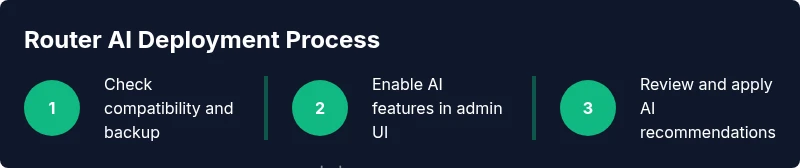
Locate the AI settings in your router’s admin interface. Enable AI features, then review any recommended profiles, such as “Smart Home,” “Streaming,” or “Gaming.” If available, enable automatic learning so the AI can adapt over time. Apply the changes and reboot if prompted, then monitor the initial recommendations for 24–48 hours to allow learning.
Tip: Use a wired connection for first-time setup to avoid interference and ensure you’re changing the correct device in your admin interface.
How to tailor AI recommendations (QoS, device priorities)
After enabling AI, customize how it prioritizes traffic by adjusting QoS rules and device priorities. Start with your most important activities (e.g., work video calls, gaming, or streaming) and assign higher priority to those devices or apps. Use AI suggestions as a baseline, then refine by time-of-day or day-of-week patterns. Keep defaults simple at first and expand rules gradually as you verify impact.
Tip: Document any changes you make so you can revert easily if something doesn’t perform as expected.
Privacy, data sharing, and security considerations
Router AI often requires data to learn usage patterns. Review privacy options in the AI settings, opting for local processing when possible and disabling telemetry if you’re uncomfortable sharing data with the manufacturer. Ensure robust admin credentials and enable features like two-factor authentication if available. Regularly review which devices have access to the router’s AI controls and periodically audit the AI’s actions to keep control in your hands.
Warning: Some AI features collect network analytics; understand what data is collected and adjust settings to align with your comfort level.
Common pitfalls and troubleshooting tips
AI features can underperform if devices are misclassified or if firmware is outdated. Always start with a backup, verify the correct router is targeted during configuration, and confirm that there are no conflicting QoS rules. If AI recommendations make performance worse, revert to a known good baseline and re-run the learning period. When in doubt, disable AI temporarily to confirm baseline performance before re-enabling.
Tools & Materials
- Admin access to router interface(Typically a web URL like http://192.168.1.1 or a mobile app)
- Current router firmware version(Check for latest version before enabling AI features)
- Stable wired Ethernet connection(USB tethering or wireless can work but wired is preferred for setup)
- Backup of current settings(Export or save current config to restore if needed)
- Smartphone or computer(Used to access admin page and apply changes)
- ISP credentials (if required)(Only if your setup requires them for certain features)
Steps
Estimated time: 45-75 minutes
- 1
Verify prerequisites and backup
Confirm AI features are supported or can be added via firmware update. Back up current router settings to a safe location before making changes.
Tip: Backing up ensures you can restore the exact previous configuration if something goes wrong. - 2
Access AI settings in the admin UI
Open the router’s web interface or app and locate the AI or automated optimization section. Ensure you are editing the correct device if using a mesh system.
Tip: Use a wired connection during this initial access to minimize dropouts. - 3
Enable Router AI and learning mode
Turn on AI features and enable any learning or automatic adjustment mode so the router can start observing traffic patterns.
Tip: If offered, enable local processing to protect privacy while still gaining optimization benefits. - 4
Review AI recommendations baseline
Look at the initial AI-suggested profiles or rules and compare them with your typical usage. Decide which ones to apply.
Tip: Start with the most impactful options (QoS for primary devices) and leave others off until you confirm impact. - 5
Customize QoS and device priorities
Adjust QoS rules to prioritize work devices, conferencing apps, and gaming consoles. Assign priority levels and create time-based schedules if available.
Tip: Document changes so you can revert if needed. - 6
Test performance and refine
Run routine tasks (video calls, gaming, streaming) for 24–48 hours and monitor performance. Tweak AI rules based on observed results.
Tip: If performance worsens, revert to baseline and reintroduce changes gradually.
People Also Ask
What is Router AI and how does it work?
Router AI uses machine learning to analyze network traffic and optimize performance. It can adjust channels, allocate bandwidth, and prioritize devices automatically, reducing manual tweaking.
Router AI uses smart learning to balance network traffic automatically, so you don’t have to tinker with settings constantly.
Is Router AI safe for my privacy?
Most systems offer privacy controls to limit data sharing. Enable local processing when possible and disable telemetry if you prefer not to share usage data.
You can usually turn off data sharing and keep important functions while AI runs locally.
Do I need a special router or firmware for Router AI?
You need a router that supports AI features, either built-in or via a firmware update. Check the vendor’s documentation before buying or updating.
Yes, you should have an AI-capable router or a firmware update that brings AI features.
Why aren’t AI recommendations improving my WiFi?
Initial AI suggestions may reflect current usage; if performance remains flat, review and refine QoS rules, or revert some changes and re-learn.
Sometimes you need to fine-tune which devices get priority before the AI can optimize well.
How do I revert changes if Router AI causes issues?
Use the backup you created before enabling AI or reset to factory defaults, then reapply settings gradually.
If things go wrong, restore your backup and try changes one at a time.
Watch Video
What to Remember
- Enable Router AI on compatible devices for automatic optimization
- Back up settings and verify AI recommendations before applying
- Be mindful of privacy—prefer local processing when available
- Test changes over at least 24 hours and iterate for best results