Replace Router or Modem: A Complete Step-by-Step Guide
Learn how to replace your router or modem, choose the right devices, ensure compatibility, and configure your home network with confidence. This guide covers planning, buying, setup, and optimization for better Wi‑Fi speed and reliability.


Replacing your router or modem can boost Wi-Fi speed, coverage, and reliability, especially with newer standards like Wi‑Fi 6/6E. Before you start, verify your internet plan requirements, and decide whether you need a separate modem and router or an all‑in‑one gateway. Choose devices with current features (security, guest networks, QoS). This guide provides a practical, step‑by‑step process to help you upgrade with confidence through WiFi Router Help.
What replacing your router or modem does for your network
Upgrading your router or modem is one of the fastest ways to improve home Wi‑Fi, reduce dead zones, and support faster internet speeds. If you’ve noticed devices buffering, video calls dropping, or slow downloads during peak hours, a replacement can often address these issues. According to WiFi Router Help, modern devices with Wi‑Fi 6/6E, improved antenna designs, and better security features can deliver meaningful gains even on the same internet plan.
Before you buy, understand what role each device plays: the modem (or gateway) connects you to your provider, while the router distributes the signal to devices around your home. If you rent a gateway from your ISP, you may have less control over firmware and features; buying your own separate modem and router can give you more control and usually faster, more reliable performance. Consider your home size, the number of walls, and the number of devices that connect simultaneously. Planning in advance reduces wasted money on features you don’t need and ensures you pick hardware that actually improves your network.
When to replace: signs your current device is holding you back
There are concrete signals that it’s time to upgrade. Persistent Wi‑Fi dead spots, slow speeds that don’t meet your plan, frequent disconnections, or outdated security standards are all indicators. If your router or modem is more than five to seven years old, you’re almost certainly missing efficiency gains and modern features. Additionally, if you pay for gigabit or multi‑gig plans, but wired connections still cap at a fraction of those speeds, upgrading can unlock the full potential of your service.
Another consideration is your device count and layout. If you’ve expanded to smart home devices, streaming in multiple rooms, or home offices, you’ll benefit from a better‑performing router with wider coverage and more robust QoS. Finally, if you rent a gateway from your ISP and want more control, replacing with your own gear is often worth it. The WiFi Router Help team emphasizes planning ahead so you choose a device that actually improves performance rather than simply adding features you won’t use.
How to choose the right replacement: router, gateway, or modem‑router combo
The simplest path is to replace only the router if your modem is already a solid, compatible device. If you have a separate modem and router, buy a high‑quality router that supports current standards (preferably Wi‑Fi 6 or 6E) and dual‑band operation. If your ISP provides a gateway (modem + router in one), consider replacing with separate units or a higher‑end gateway if you rely on many smart devices. For fiber connections, ensure the router supports the appropriate WAN type and that your fiber ONT is compatible.
Price does not always equal performance. A mid‑range router with strong coverage and features can outperform a premium old router on a large home. Look for features like beamforming, MU‑MIMO, OFDMA, WPA3 security, and robust parental controls. If you want to simplify setup, a modern mesh system can help extend coverage across larger homes.
Compatibility and planning: ISP, speeds, and connections
First, confirm your internet plan requirements and whether you need a compatible modem for cable or fiber services. If you rent a modem from the provider, check whether a third‑party modem will be supported and whether your plan’s speed tier remains the same. For fiber connections, your ONT (optical network terminal) may require a specific router type and a compatible gateway. Gather model numbers and firmware considerations before purchase, and ensure your chosen device supports your current or future service speeds.
Next, verify connector types and ports. Ethernet jacks should include at least one 2.5 Gbps WAN port if you’re upgrading to multi‑gig service, and the router should support 160 MHz channel bandwidth on 5 GHz to maximize throughput. Also plan for future proofing by selecting routers with extra RAM and better CPU capabilities to handle rising network demands.
Features that future-proof your home network
When you replace router or modem, prioritize features that matter most to you. Wi‑Fi 6/6E is a strong baseline for new devices, offering better efficiency and capacity in busy homes. Look for tri‑band options if you have many 2.4 GHz and 5 GHz devices. Security features such as WPA3, automatic updates, and built‑in firewall options help protect your network. QoS and gaming‑level features can help prioritize video calls, streaming, and online gaming.
Other useful capabilities include guest networks, device prioritization, parental controls, and easy app‑based setup. A modern router can handle smart speakers, security cameras, smart TVs, and laptops without drifting into lag. If you anticipate new devices, consider a mesh system or a router with strong backhaul options to keep a consistent experience across rooms.
Setup, security, and routine maintenance after replacement
Start by connecting the modem (if separate) to the internet service and then the router to the modem with a wired Ethernet link. Follow the device’s setup wizard, create a strong admin password, and customize your Wi‑Fi name (SSID) and password. Update firmware promptly and disable default remote access on the router unless you enable it securely.
After installation, run speed tests on multiple devices to verify coverage. Place the router in a central location, elevated from ground level, and away from obstructions. Enable guest networks and separate IoT networks if possible for added security. Regularly review connected devices and monitor traffic using the router’s admin interface. WiFi Router Help’s guidelines emphasize keeping firmware up to date for best security and performance.
Troubleshooting after replacement and optimization tips
If speeds drop or devices struggle to connect, check cable quality, reboot devices, and verify that the router’s channels are auto‑tuning properly. Use a speed test at different times of day and run a channel scan to identify less congested channels. If devices still fail to connect, reset the router to factory settings and re‑apply your preferred configuration. For persistent issues, contact your ISP to confirm service status or compatibility of your hardware.
Finally, document your setup and keep a record of the exact model numbers, firmware versions, and settings used. This makes future upgrades smoother and helps you compare improvements over time. According to WiFi Router Help, routine maintenance and periodic re‑evaluation of your network can yield long‑term stability and performance improvements.
Tools & Materials
- New router (and modem, if replacing both)(Look for Wi-Fi 6/6E, WPA3, dual‑band, and solid CPU/RAM specs.)
- Ethernet cable (Cat6 or better)(Used to connect modem to router and wired devices for stable performance.)
- Coaxial cable (if using a cable modem)(Only needed if your service uses coax and you’re replacing a cable gateway.)
- Power strip with surge protection(Protects your new equipment from surges.)
- Access to ISP account or app(Needed to activate service and verify compatibility.)
Steps
Estimated time: 60-90 minutes
- 1
Prepare and plan
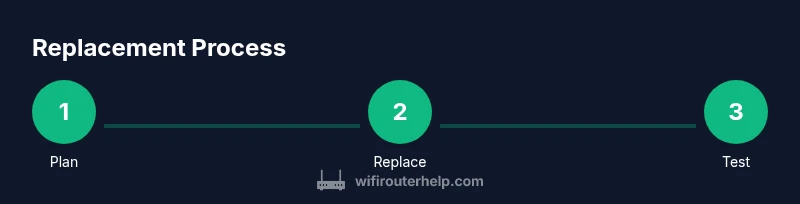
Power down the old modem and router, unplug all cables, and gather your ISP account details. Decide whether you will use separate modem and router or a single gateway. This reduces confusion during install and helps you pick compatible devices.
Tip: Take a photo of the current wiring diagram for reference when reconnecting. - 2
Disconnect existing hardware
Carefully unplug all cables from the old devices and remove them from the desktop or shelf. If you’re keeping the modem, disconnect it only from power, not the coax, to avoid service interruptions.
Tip: Label cables or use color codes to avoid mix-ups. - 3
Connect new hardware
Connect the modem (if separate) to the wall outlet and the router to the modem using an Ethernet cable. For fiber, connect to the ONT as directed by the manufacturer. Ensure the WAN/Internet port on the router is used.
Tip: Use a higher-quality Cat6 cable for best performance in busy networks. - 4
Power up and access admin
Power on devices in order: modem, then router. Wait for initialization, then access the router’s admin page or app. Create a strong admin password and configure your network name and password.
Tip: Change default admin credentials immediately for security. - 5
Run initial setup and test
Run the setup wizard, apply security settings, and enable guest networks if needed. Perform speed tests on multiple devices to confirm baseline performance and coverage.
Tip: Place the router centrally and off the floor to maximize coverage. - 6
Tune and secure
Adjust channel settings, enable WPA3, and configure QoS if you have latency-sensitive devices. Update firmware as soon as it’s available and document the device model and settings for future upgrades.
Tip: Keep firmware auto‑updates enabled for ongoing security.
People Also Ask
Do I need to replace both devices at once?
Not always. If your current gateway works with your plan and covers your home, you might only replace the router. If you rent a gateway from your ISP or need better modulation, upgrading both can offer greater improvements.
You may not need to replace both right away; evaluate your plan and current equipment first.
How do I verify compatibility with my ISP?
Check your ISP’s official list of compatible modems/routers and confirm your plan’s speed tier. If unsure, contact support before buying.
Look up the ISP supported device list and match speeds.
What features matter most in a replacement?
Prioritize Wi‑Fi 6/6E, WPA3 security, quality of service (QoS), robust coverage, and easy app-based setup. Mesh options help larger homes.
Wi‑Fi 6/6E, security, QoS, and coverage are key.
Can I reuse existing cables and power adapters?
Yes, most Ethernet cables can be reused, but ensure the cable quality and connectors meet your new device’s needs. Use new cables if upgrading service speeds.
Usually yes, but check cable specs and needs.
How long does replacement typically take?
Most households complete setup in about 60–90 minutes, depending on service type and device complexity.
Typically around an hour and a half.
Watch Video
What to Remember
- Plan before buying to avoid unnecessary features.
- Confirm compatibility with your ISP and plan.
- Choose Wi‑Fi 6/6E for future‑proofing.
- Secure your network with strong passwords and firmware updates.
- Test coverage and speeds after setup and adjust as needed.