Optimal Router Settings: A Practical 2026 Guide for Home Networks
Step-by-step guide to optimize your home router: secure encryption, separate bands, QoS, and testing for reliable, fast Wi‑Fi in 2026.


This guide helps you achieve optimal router settings by securing your network, enabling current encryption, separating 2.4 GHz and 5 GHz bands, and applying thoughtful QoS rules. Follow a practical, repeatable setup process designed for today’s home networks, with clear checks and testing to verify performance.
Why optimal router settings matter\n\nAccording to WiFi Router Help, optimal router settings matter most when they balance security with performance. A well-tuned router protects your family while ensuring that every device—from smartphones to streaming boxes—receives reliable bandwidth. In many homes, the bottleneck isn't the internet plan itself but the way the router is configured. Suboptimal defaults can leave doors open to attackers or create ghost congestion that slows you down during peak hours. By taking a practical, structured approach to settings, you can reduce interference, minimize dropped connections, and shorten buffering times. The goal is not to chase the fastest possible speeds in isolation, but to create a stable, predictable experience across all rooms and all devices. Over time, consistent configuration checks—firmware updates, password changes, and regular channel optimization—pay dividends, especially as new devices join your network. The WiFi Router Help team emphasizes that small, verified changes are far more effective than sweeping, untested tinkering. A methodical start with the fundamentals lays the groundwork for more advanced tweaks later on. This foundation helps maintain consistent performance as your household adds devices and bandwidth-heavy activity.
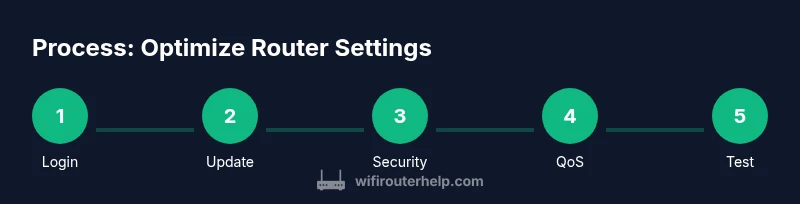
Core settings to optimize\n\nTo lay a solid foundation, focus on three core settings: access, encryption, and naming. Start by logging into the router's admin page and confirming that the device is reachable. Then update the firmware to the latest version—outdated software is the most common source of security holes and performance problems. Next, replace the default admin password with a long, unique passphrase and enable two-factor authentication if the option exists. Choose WPA3-SAE if your hardware supports it; otherwise select WPA2-PSK with AES. Create separate, clearly named SSIDs for 2.4 GHz and 5 GHz bands, or at minimum keep the two bands separate on devices that support it. Finally, review DHCP settings to ensure your router issues IPs in a reasonable range and avoids conflicts with other network devices. These foundational moves reduce risk and set the stage for more targeted optimizations without complicating day-to-day use. When done, recheck connectivity and document the exact settings you changed for future reference.
Wireless security and guest networks\n\nSecurity is the backbone of a reliable network. Use a strong, unique password for your Wi‑Fi and avoid common phrases or default credentials. If possible, enable WPA3 and disable WPS, which can be exploited in some setups. Consider turning off remote administration unless you truly need it, and disable UPnP if you don’t require it for specific devices. Set up a dedicated guest network with its own password and limited access to your main devices. This keeps guest traffic separate from your main network, reducing the chance of a compromised guest device affecting your primary equipment. Regularly review connected devices and remove anything unfamiliar. Finally, enable a firewall on the router and keep logs available for monitoring unusual activity. Strong security with proper segmentation yields safer performance and fewer disruptions.
Prioritizing traffic with QoS and device-level rules\n\nQuality of Service (QoS) helps you allocate bandwidth by device or app. If your router supports it, enable QoS and set priorities for real-time applications—video calls, gaming, and streaming—above bulk file transfers. Start with a simple rule: prioritize your work laptop or main streaming device during work hours, and adjust as needed. Use application-based QoS if available to target services like video conferencing or cloud backups. If your router supports per-device MAC or IP-based rules, pin higher priority to essential devices. Watch for conflicts between QoS rules and automatic bandwidth allocation, which can lead to underutilization or unpredictable performance. After applying QoS, test with common scenarios: a 4K movie, a Zoom call, and a game in progress. If you notice lag, rebalance priorities or increase overall bandwidth by upgrading your plan or offloading nonessential devices. The aim is smooth essential activities without starving background tasks.
Wired vs wireless optimization: using Ethernet where possible\n\nWired connections typically outperform Wi‑Fi and should be preferred for stationary devices like desktops, game consoles, and smart TVs. When you can, connect critical devices with an Ethernet cable to reduce wireless interference and latency. If you must rely on wireless, place the router in a central elevated location, away from thick walls and metal appliances. Use the 5 GHz band for devices near the router and the 2.4 GHz band for farther rooms where walls degrade signal. If your router supports link aggregation or multiple ethernet ports, consider a gigabit switch to expand wired capacity. Disable unused features that can introduce interference, such as extra guest networks or additional radios. Finally, keep firmware up to date to ensure compatibility with newer security standards and improvements in interference handling. The result is a more stable network with fewer interruptions and faster responses for wired devices, while wireless devices get the most out of the remaining signal.
Advanced features and how to use them safely\n\nModern routers include features such as beamforming, MU‑MIMO, band steering, and advanced monitoring dashboards. Use beamforming if your devices are mostly stationary and within a predictable range; it helps focus signal toward supported devices. MU‑MIMO can improve multi‑device throughput but depends on client compatibility—enable it if your hardware and devices support it. Band steering automatically nudges devices to the faster band, but monitor for devices that stubbornly stay on the slower band. When enabling any advanced feature, test individually to understand its impact on latency and stability. Turn on network analytics or logging to spot recurring interference or devices that dominate bandwidth. If a feature seems to degrade performance, disable it and re‑run tests. Remember that older devices may not benefit from the newest features, so consider compatibility, not just novelty. WiFi Router Help recommends testing gradually and keeping a record of what works for your home.
Testing and validating your changes\n\nAfter applying changes, measure real‑world results to confirm improvement. Use a mix of speed tests, streaming checks, and latency measurements in multiple rooms. Start with a baseline speed test near the router, then repeat from a distant room. Check simultaneous usage scenarios: a video call, several devices streaming, and a game in progress. Compare results to the baseline and note where improvements or regressions occur. If performance drops in certain areas, reposition the router, adjust antenna directions if available, or tweak channel selection. Document each modification and its outcome so you can roll back if needed. Schedule regular checks every few months or after major network changes, such as adding a smart home hub. Finally, keep a backup of your current configuration for rapid recovery if something goes wrong. The WiFi Router Help team stresses that a disciplined testing routine yields long‑term confidence in your home network.
Tools & Materials
- Computer or smartphone with web browser(Connect to your router’s admin interface at the default gateway (often 192.168.1.1 or 192.168.0.1).)
- Stable connection to the router(Prefer wired Ethernet during configuration when possible.)
- Current firmware version information(Check the router’s status page for the latest available version.)
- Strong admin password(Use a long passphrase; store in a password manager.)
- Wi‑Fi names and credentials(Prepare distinct SSIDs for 2.4 GHz and 5 GHz if supported.)
- Notepad or device for recording changes(Document each change for future reference.)
Steps
Estimated time: 20-40 minutes
- 1
Log in to the router admin page
Open a web browser and enter the router's IP address (commonly 192.168.1.1 or 192.168.0.1). Authenticate with the current credentials. If you can't reach the page, verify your device is connected to the router's network and try again.
Tip: If you’re unsure of the gateway, check the device label on the router or use your computer's network settings to discover the default gateway. - 2
Update the router firmware
Navigate to the firmware update section and apply any available updates. Reboot the router after installation to ensure changes take effect. Check the changelog to confirm what issues were addressed.
Tip: Back up current settings before updating in case a rollback is needed. - 3
Change the default admin password
Set a new, unique admin password that is long and hard to guess. If available, enable two-factor authentication for the web interface. Do not reuse passwords across devices.
Tip: Use a password manager to store and autofill complex credentials securely. - 4
Set security to WPA3 or WPA2-PSK
Under wireless security, select WPA3-SAE if supported. If not, choose WPA2-PSK with AES. Avoid WEP or WPA3-WPA2 mixed modes. Ensure you’re using the strongest protocol your hardware allows.
Tip: If clients don’t support WPA3, your network will still be protected with WPA2-AES; consider upgrading devices over time. - 5
Configure SSIDs for 2.4 GHz and 5 GHz
Create or label separate SSIDs for the 2.4 GHz and 5 GHz bands to help devices connect to the appropriate channel. If you prefer a single name, disable band separation and rely on band steering sparingly.
Tip: Note device capabilities: some devices may not switch bands smoothly; separate names can reduce confusion. - 6
Optimize channels and bandwidth
Set the 2.4 GHz channel to auto or manually choose a clear channel (1, 6, or 11 in the US). For 5 GHz, use a wider channel width (eg 80 MHz) if interference is low. Enable automatic channel selection if your router supports it.
Tip: Use a site survey app to identify the least congested channels in your area. - 7
Configure QoS and device priorities
If available, enable QoS and create rules to prioritize real‑time applications like video calls and gaming. Pin higher priority to work devices during business hours and adapt as needed. Ensure the rules don’t starve background tasks.
Tip: Test QoS with multiple devices active to avoid over-prioritizing one service. - 8
Enable guest network with restrictions
Set up a guest network with its own password and limited access to your main devices. This protects your primary network from guest devices that may be compromised. Disable guest network access to your LAN if not needed for better security.
Tip: Regularly rotate guest credentials and monitor guest traffic. - 9
Save, reboot, and back up configuration
Save all changes and reboot the router to apply them. After the reboot, re-check connectivity and performance. Create a backup of the current configuration for quick recovery if something goes wrong.
Tip: Store the backup in a secure location and label it with the date of changes.
People Also Ask
What are optimal router settings?
Optimal router settings balance security, reliability, and performance. Key elements include up-to-date firmware, strong encryption, unique admin credentials, clearly named networks, and sensible QoS rules.
Optimal router settings balance security, reliability, and performance with updated firmware, strong encryption, and sensible QoS.
How often should firmware be updated?
Check for firmware updates monthly and after major changes. Apply updates promptly to fix security flaws and improve compatibility.
Check for firmware updates monthly and after major changes to stay secure.
Should I separate 2.4 GHz and 5 GHz SSIDs?
Separating SSIDs helps devices connect to the best band and reduces interference. You can use a single name with band steering if your devices support it, but separate names are clearer for troubleshooting.
Separating SSIDs helps devices pick the right band and makes troubleshooting easier.
Is Wi‑Fi 6 necessary for most homes?
Wi‑Fi 6 offers efficiency and capacity benefits, but not every home needs it yet. Choose devices and routers that fit your usage and budget rather than chasing the latest spec.
Wi‑Fi 6 helps efficiency, but it's not essential for every home yet.
Why might changes not improve performance?
Some changes can backfire due to interference, wrong channel selection, or QoS misconfiguration. Test changes incrementally and revert if performance worsens.
Changes can hurt performance if misconfigured; test step by step and rollback if needed.
Watch Video
What to Remember
- Secure admin access before changing any settings.
- Separate 2.4 GHz and 5 GHz networks for clarity and performance.
- Prioritize critical devices and services with QoS.
- Test performance after each major change.
- Document changes for easy rollback.