Optical Network Terminal Router Guide
Learn how to set up and optimize an optical network terminal router for reliable fiber connectivity. This guide covers installation steps, configuration, security basics, and troubleshooting tips for a robust home network.


By following this ONT router guide, you will install, configure, and optimize your optical network terminal router for reliable fiber-to-home performance. You’ll wire the gateway to your ONT, tune WAN and Wi‑Fi settings, secure the network, and confirm connectivity across devices. This step-by-step approach emphasizes wired setup first, then wireless optimization, with practical safety tips.
What is an optical network terminal router?
An optical network terminal (ONT) router is a gateway device provided by your Internet Service Provider that connects your fiber network to your home. It combines a modem function (modulating light signals into electrical signals) with routing capabilities to distribute Internet access to your devices. The ONT converts the fiber signal into a standard Ethernet connection and, in most home setups, includes built-in Wi‑Fi access. According to WiFi Router Help, understanding the ONT/router combination helps you plan where to place equipment, how to manage IP addressing, and when you should introduce your own dedicated router for improved performance. For many households, this device becomes the central hub of online activity, handling guest networks, parental controls, and firewall protections. Knowing its role prevents misconfigurations that disrupt streaming, gaming, or work-from-home tasks.
Key takeaways:
- The ONT is the fiber-to-Ethernet bridge at the home edge.
- A separate router can often improve control, features, and wireless reach.
- Placement and configuration choices determine overall stability.
ONT vs traditional home routers: key differences
Traditionally, households used a single consumer router to provide Internet access. When you use an optical fiber service, an ONT sits at the edge of your network and translates fiber signals into Ethernet. In many setups, the ONT also includes a built-in router, but it may be limited in features compared to a standalone consumer router or mesh system. Bridge mode is a common option that allows your own router to handle routing tasks, NAT, and firewall rules, while the ONT simply passes Internet access through. The WiFi experience also changes: some ONTs output Wi‑Fi through the built-in radio, while others require you to disable ONT wireless and rely on your own router for Wi‑Fi. The WiFi Router Help analysis shows that using a separate router or mesh network often yields better coverage and more consistent throughput in multi‑story homes.
When deciding between keeping the ONT’s built-in features or adding your own device, consider:
- Coverage goals: large homes benefit from multiple access points or a mesh system.
- Feature needs: guest networks, advanced QoS, or robust security settings may exceed ONT capabilities.
- ISP constraints: some providers require bridge mode for third‑party routers to work optimally.
This understanding helps you plan a scalable, future‑proof network without sacrificing reliability.
Planning your ONT router deployment: bridging vs router mode
Before you begin, map out your network needs. If you want full control, enable bridge mode on the ONT and connect your own router to handle DHCP, NAT, and firewall policies. If you prefer a simpler setup, you can rely on the ONT’s built‑in routing while using a separate access point to extend Wi‑Fi. Bridging can reduce double NAT issues, improve port forwarding, and simplify ISP configurations for certain services. However, some providers or services require the ONT to manage PPPoE or DHCP directly, so you must verify with your ISP.
To prepare:
- Check your ISP’s documentation for bridge mode availability.
- Have your chosen router ready with up-to-date firmware.
- Decide whether you’ll use a single router or a mesh system for broader coverage.
Bridging is typically more effective when you want advanced features from a third‑party router, while router mode can be more convenient for basic households.
Step-by-step setup overview (high level) you’ll perform
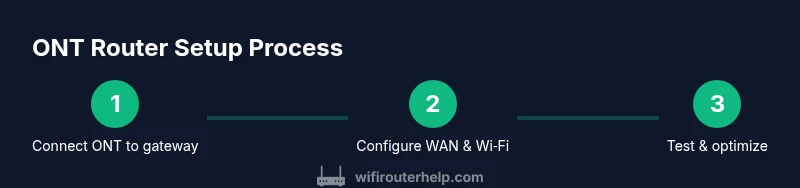
This section outlines the core actions you’ll perform during set‑up. The actual, detailed steps are in the dedicated STEP-BY-STEP block, but here’s the logical flow you’ll follow to ensure a smooth configuration:
- Prepare your workspace and verify all components are present.
- Power down devices and locate your ONT and the WAN/LAN ports.
- Connect your router to the ONT with a reliable Ethernet cable.
- Power up devices in the correct order and access the router’s admin page.
- Configure WAN settings according to your ISP (DHCP, PPPoE, or static if applicable).
- Set up your Wi‑Fi network (SSID, security, guest network).
- Enable essential security features (admin password, firewall, and firmware updates).
- Test connectivity, optimize placement, and document settings for future reference.
For many users, following wired-first setup and then distributing Wi‑Fi optimizes stability and reduces troubleshooting time.
Fine-tuning performance: placement, channels, and security
Performance hinges on hardware placement, channel selection, and security posture. Place the router or primary access point high, away from walls, and away from dense metal objects or appliances that cause interference. Use the 2.4 GHz band for wider coverage but reserve the 5 GHz band for high‑throughput devices nearby. When possible, enable WPA3 security and disable legacy protocols that modern devices no longer require. If you’re in a crowded apartment, consider manual channel selection to minimize overlap with neighbors. Regularly review connected devices and QoS rules to ensure bandwidth‑hungry apps get priority when needed. This proactive tuning helps maintain smooth video calls and online gaming across all rooms.
Security and maintenance fundamentals
Security isn’t a one‑time task; it is a continuous practice. Start by changing the default admin username and password for the ONT/router interface. Keep firmware up to date by enabling automatic updates when available, and periodically check for new releases. Disable remote management unless you need it, and limit admin access to trusted devices on your network. Enable a firewall and review port forwarding rules to prevent unnecessary exposure. Create separate guest networks if you have guests, and monitor connected devices for unfamiliar activity. Regular maintenance reduces the risk of intrusions and ensures your network remains reliable over time.
Troubleshooting common issues
When issues arise, isolate the source with a methodical approach. Start by verifying physical connections: ensure the Ethernet cable is firmly connected to the ONT and your router, and check that the ONT is powered. If you cannot obtain an IP address, reboot the ONT, router, and connected devices, then check DHCP settings. If wireless performance is poor, test with a wired connection to confirm if the problem is Wi‑Fi related. Interference from microwave ovens, Bluetooth devices, or neighboring networks can degrade signal; switching channels or relocating access points often helps. If problems persist, consult your ISP’s support article on bridge mode settings and confirm whether a replacement ONT or router is needed. Persistence is key; most home network issues resolve with careful re‑routing and firmware updates.
Buying considerations and compatibility notes
When selecting hardware, focus on compatibility with your ISP’s ONT and your home layout. A modern router or mesh system with strong security features and good Wi‑Fi coverage will usually deliver better results than older gear. Look for devices that support current security standards (such as WPA3), regular firmware updates, and QoS for prioritizing work devices or gaming consoles. If you’re renting equipment from your ISP, verify whether you can replace the ONT/firmware and whether you can enable bridge mode. The WiFi Router Help team recommends choosing devices that offer easy management, robust parental controls, and reliable customer support. Ensure the hardware can support your current Internet plan and has room to grow as you add smart home devices.
Always document your configuration so you can revert a change if something doesn’t work as expected. Consider future upgrades and the possibility of expanding with mesh points to cover larger homes.
Maintaining and updating your ONT router long-term
Long-term maintenance includes staying current with firmware updates, reviewing security settings, and periodically testing network performance. Establish a routine to check for new firmware releases from the manufacturer and your ISP portal. Reassess your Wi‑Fi layout after moving furniture or adding new devices, ensuring that coverage remains consistent. Keep a written log of changes, including port forwards, QoS rules, and network name/password information. By treating your ONT router as a living component of your home, you’ll minimize outages and maximize reliability across devices, from laptops to smart TVs and IoT devices.
Tools & Materials
- Ethernet cable (Cat5e/6)(At least 1.5 meters; longer for convenient placement)
- Laptop or smartphone(Access the ONT/router admin interface via a browser)
- Power outlet and surge protector(Provide stable power and reduce risk of surges)
- Optional external router or mesh system(For extended coverage and advanced features)
- Notepad or digital note app(Document settings and changes for future reference)
Steps
Estimated time: 30-75 minutes depending on home size and ISP requirements
- 1
Prepare workspace and identify devices
Power down the ONT and your router. Locate the ONT’s Ethernet port and the router’s WAN port. Have a laptop or phone handy to access the admin interface. This step ensures you won’t accidentally interrupt other devices beginning you setup.
Tip: Keep the Ethernet cable unplugged until you’re ready to make the WAN connection to avoid any unintended DHCP assignments. - 2
Connect the router to the ONT
Use a reliable Ethernet cable to connect the router’s WAN/Internet port to the ONT’s Ethernet port. If your ISP requires bridge mode, you may need to enable it on the ONT or in their portal before proceeding.
Tip: If you don’t see an Internet connection immediately, try a different cable or port on the ONT to rule out a faulty link. - 3
Power up and access the admin page
Power on the ONT first, then the router. Open a browser and enter the router’s default IP address or domain name from the manual to reach the admin interface.
Tip: Bookmark the login page for quick future access and avoid sharing login credentials with guests. - 4
Configure WAN settings
Set WAN type to DHCP if your ISP assigns addresses automatically, or PPPoE if your service requires it. Enter any credentials provided by the ISP if required.
Tip: Document the exact WAN settings you used so you can replicate or revert them later. - 5
Set up Wi‑Fi network
Create a unique SSID, enable WPA3 security if available, and set a strong password. Consider a separate guest network for visitors.
Tip: Use a long, complex password and avoid reuse across networks. - 6
Enable security features
Change the admin password, enable the firewall, and disable remote management unless needed. Update firmware to the latest version.
Tip: Turn off UPnP unless you specifically need it for a device; this reduces attack surface. - 7
Test connectivity and optimize
Test wired and wireless devices for speed and stability. Move the router to an optimal location and adjust antenna alignment if applicable.
Tip: Use a wired test to gauge baseline performance before troubleshooting Wi‑Fi. - 8
Document and back up settings
Save the current configuration as a backup and take screenshots of key screens. Keep notes on network layout, SSIDs, and IP ranges.
Tip: Store backups in a safe place and update them after any major change.
People Also Ask
What is an optical network terminal router?
An ONT router is the gateway that connects a fiber connection to your home network, translating optical signals into Ethernet and often providing Wi‑Fi. It can include routing features, or you may use a separate router for more control.
An ONT router is your fiber-to-home gateway, sometimes with built-in Wi‑Fi. It may be combined or paired with your own router.
Do I need to enable bridge mode on the ONT?
Bridge mode disables the ONT’s routing functions so your own router handles NAT and firewall. Use it if you want full control of your network; some ISPs require it for third‑party routers.
Bridge mode hands off routing to your own device; check with your ISP before enabling.
Can I replace the ONT’s Wi‑Fi with a separate router?
Yes. Connect your own router to the ONT and disable the ONT’s wireless radio if possible to avoid interference and double coverage. This often yields better performance and features.
You can reuse your own router and disable the ONT’s Wi‑Fi.
What are essential security settings for the ONT router?
Use WPA3 if available, disable WPS, change the default admin password, and enable the firewall. Keep firmware up to date to protect against new vulnerabilities.
Enable strong security like WPA3, change default passwords, and update firmware regularly.
What should I do if I cannot obtain an IP address?
Check the physical connections, verify DHCP is enabled on the WAN interface, and reboot the ONT and router. If the problem persists, contact your ISP for guidance on DHCP assignment.
Recheck cables and DHCP, reboot devices, and contact ISP if needed.
How can I improve Wi‑Fi performance in a multi‑room home?
Optimize placement, choose appropriate channels, and consider a mesh system for broader coverage. Use wired backhaul where possible for the best stability.
Place the router well, pick good channels, and think about mesh for larger homes.
Watch Video
What to Remember
- Plan wired-first set up for stability.
- Bridge mode vs router mode depends on ISP and needs.
- Secure the network with strong passwords and updated firmware.
- Test and optimize placement for best coverage.
- Document settings for easy recovery.