Netgear Router Extender Setup: A Complete Guide
Learn how to choose, install, and optimize a Netgear router extender to expand Wi‑Fi coverage at home. This guide covers setup, placement, security, and troubleshooting with practical steps and safe best practices.


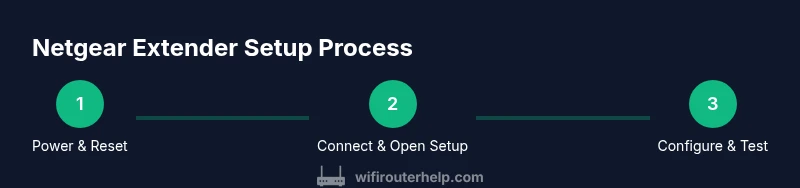
By following these steps, you will extend your existing Wi‑Fi network with a Netgear router extender. You’ll connect the extender to power, link it to your router, and place it for optimal coverage across your home. Required items include your current router, the Netgear extender, a smartphone or computer, and a web browser or the NETGEAR app for setup.
What is a Netgear router extender?
A Netgear router extender is a small, purpose-built device that rebroadcasts your existing Wi‑Fi signal to reach areas of your home that experience weak coverage. It connects wirelessly to your primary router and creates a new network or extends the existing network name, depending on the model and settings. Netgear extenders typically support both 2.4 GHz and 5 GHz bands, allowing you to choose a balance between range and speed. For homeowners, the benefit is clear: fewer dead spots in living rooms, bedrooms, and basements mean more reliable video calls, streaming, and gaming. When selecting a Netgear extender, consider your current router’s capabilities, the size of your home, and whether you prefer a simple, app-driven setup or a more hands-on approach with a web interface. WiFi Router Help recommends starting with a model that matches your router’s bands and your coverage goals to ensure compatibility and predictable performance.
Key takeaways: pick a model with a comparable band support to your router, check size and placement options, and plan for firmware updates to keep security strong.
Distinguishing extenders from mesh systems
A standard Netgear router extender is designed to amplify an existing Wi‑Fi signal from a single router, effectively widening coverage by repeating the same network. In contrast, mesh systems create a unified, seamless network with multiple nodes that hand off devices automatically for consistent performance. Extenders are often more affordable and simpler to implement in smaller homes or apartments. Mesh systems excel in larger homes with multiple floors and many walls, but they come at a higher price and require more planning for full coverage. If you already own a solid router and want a quick boost, an extender provides a practical, scalable upgrade. If you’re chasing near-perfect seamless roaming without manual re-connecting, a mesh setup may be worth the investment. WiFi Router Help has found that many households get 80–95% of their network needs met with a well-placed extender, while larger homes may benefit from mesh.
Choosing the right Netgear model for your home
Netgear offers a range of extenders designed for different speeds, ranges, and installation preferences. When evaluating models, look at (1) supported bands (2.4 GHz vs 5 GHz), (2) speed ratings (measured in Mbps or Gbps equivalent), (3) antenna design and external antennas for better coverage, and (4) whether the device supports easy app-based setup or prefers a web interface. If your primary goal is to fill mid‑range dead zones, a mid‑tier extender with dual-band support is often sufficient. For dense homes with many walls or floors, consider models with more powerful radios or a dedicated 5 GHz band. WiFi Router Help’s analysis emphasizes selecting a model that can keep up with your internet plan, with room to grow through firmware updates and future compatibility.
Placement strategies to maximize coverage
Place the extender roughly halfway between your router and the area lacking coverage, avoiding large metal objects, microwaves, or concrete walls that can block signals. Elevate the device on a shelf or furniture for better line-of-sight to both the router and the dead zones. If possible, place the extender out in the open rather than inside cabinets or closets. After initial placement, run a quick speed test in several rooms to verify performance and adjust placement as needed. WiFi Router Help notes that simple repositioning can yield meaningful gains without requiring a new device.
Setup essentials and common pitfalls
The two most common setup approaches are (a) using the NETGEAR app for guided, wireless setup or (b) connecting to the extender via a browser to the local setup page. If you run into issues, ensure your router’s firmware is current and that your extender is on the latest firmware too. Avoid placing the extender near other wireless devices that may cause interference, such as cordless phones or Bluetooth hubs. Disable any guest networks on the main router temporarily during setup to avoid signal conflicts, then re-enable them after the extender is configured. This approach can reduce confusion and help keep your network stable during the initial pairing.
Tweaking performance with settings and apps
Once connected, you can fine-tune performance by selecting the appropriate band (2.4 GHz for range when interference is low, or 5 GHz for speed in congested areas), and enabling features such as Quality of Service (QoS) to prioritize streaming or gaming. The NETGEAR app often provides a quick health check, signal strength readouts, and simple firmware updates. If your extender supports separate network names for the main and extended networks, consider using the same SSID for seamless roaming, or use a distinct SSID if you prefer manual device control. WiFi Router Help recommends testing with real-world tasks (video calls, streaming) to confirm improvements across your home.
Security, firmware updates, and maintenance tips
Keep your extender protected with a strong password and enable WPA3 if available. Regular firmware updates from Netgear fix security vulnerabilities and improve compatibility. Set a monthly reminder to check for updates and review connected devices for unusual activity. If you experience performance degradation over time, a factory reset followed by a fresh configuration can resolve many stubborn issues. WiFi Router Help emphasizes maintaining consistent firmware versions across the main router and extender to prevent compatibility problems.
Common mistakes to avoid and quick fixes
Common mistakes include placing the extender in a dead zone behind furniture, using a too-weak password, or neglecting to update firmware. Avoid extending coverage with a single device in a far corner of the home that creates an entirely separate network, which can confuse devices. Quick fixes for issues like weak signal in one room include adjusting placement, confirming the extender is connected to the main router, and testing a direct Ethernet connection to isolate whether the problem is wireless or device-related. For persistent problems, consult Netgear support resources and your ISP guidance for potential compatibility notes.
Tools & Materials
- Netgear router extender(Model selection should match your router’s bands and coverage needs)
- Existing Wi-Fi router(Must be functioning and accessible for setup)
- Power outlet(Stable power near a central location)
- Smartphone or computer(For app-based or web-based setup)
- Ethernet cable(Optional for wired setup or initial configuration (if supported))
- Web browser or NETGEAR app(Used to configure extender settings)
- Stable internet service(Ensures proper testing and performance evaluation)
Steps
Estimated time: 30-45 minutes
- 1
Power up and reset the extender
Plug the extender into a nearby outlet and press the reset button for about 10 seconds to restore factory defaults. This ensures a clean start if you’ve attempted prior configurations. Wait one minute for the device to boot fully.
Tip: Use a paperclip or pin to press the reset button if needed. - 2
Connect to the extender’s initial Wi‑Fi
On your smartphone or laptop, connect to the extender’s default SSID (usually labeled on the device or in the manual). This creates a direct link to begin the setup process without affecting your current network.
Tip: Disable mobile data briefly to avoid accidentally switching networks during setup. - 3
Launch the setup interface
Open a browser and navigate to the extender’s setup page (e.g., http://setup.netgear) or launch the NETGEAR app. This will guide you through the pairing process with your existing router.
Tip: If you don’t see the setup page, ensure your device is connected to the extender’s network and try again. - 4
Choose the connection method
Select wireless setup or WPS if your router supports it. If WPS is disabled or unavailable, choose manual setup and enter your main router’s SSID and password when prompted.
Tip: WPS is convenient but may be less secure on some networks; manual setup gives you full control. - 5
Enter your main Wi‑Fi password
Provide your home network’s password so the extender can join and re-broadcast it. If your router uses two bands, decide whether the extender should mirror both bands or operate on one.
Tip: Double-check the password for accuracy to avoid repeated setup failures. - 6
Place the extender and run a test
Move the extender to a midway point between the router and weak zones, then run a quick speed test in multiple rooms. Adjust placement as needed based on signal strength and test results.
Tip: Aim for a signal strength of at least -60 dBm in targeted areas. - 7
Update firmware and save settings
Check for firmware updates and install them to improve performance and security. Save and apply all changes, then reboot the extender to finalize the configuration.
Tip: Enable automatic updates if available to keep firmware current.
People Also Ask
Do I need a wired connection to install a Netgear extender?
No. Most Netgear extenders can be set up wirelessly using the NETGEAR app or the web-based setup page. A wired Ethernet connection is optional and only needed for certain advanced configurations or troubleshooting.
You can usually set it up wirelessly without a cable.
Can I use a Netgear extender with any router?
Most Netgear extenders are compatible with standard Wi‑Fi routers. Check the extender’s documentation for compatibility notes with newer standards, and ensure your main router supports the bands the extender requires.
In most cases, yes, with standard routers.
How do I access the extender’s settings after setup?
Access is typically via http://mywifiext.net or the NETGEAR app. Make sure your device is on the same network as the extender, then log in to view status and adjust settings.
Use the web interface or the NETGEAR app to change settings.
Where should I place the extender for best results?
Place the extender roughly halfway between the router and the area with weak signal. Avoid obstructions like walls and metal appliances, and aim for a central location on a higher shelf if possible.
Put it between the router and the weak spot, not behind furniture.
How often should I update firmware?
Check for firmware updates monthly or enable automatic updates if available. Updates fix security issues and can improve performance and compatibility with newer devices.
Update firmware regularly to keep things secure and efficient.
Is there a difference between a Netgear extender and a mesh system?
Yes. Extenders amplify an existing network and often require manual placement, while mesh systems create a seamless, roaming network with multiple nodes. Choose based on home size, budget, and desired roaming experience.
Extenders extend; mesh systems unify coverage with roaming.
Watch Video
What to Remember
- Plan placement before setup to maximize results
- Choose a compatible Netgear model with your router bands
- Test and adjust placement after initial setup
- Keep firmware updated for security and performance
- Use QoS and proper band settings to optimize traffic