How to Router Configuration: A Step-by-Step Guide for 2026
A practical, step-by-step guide to router configuration: access the admin panel, configure WAN and wireless settings, secure the network, and maintain the setup for a reliable home network.


You will learn how to access your router’s admin page, set up your internet connection, secure your Wi‑Fi, and optimize performance. This guide covers wired/wireless basics, common pitfalls, and safe defaults. Before you begin, have your router model, admin credentials, and your internet plan handy. It also explains terminology and troubleshooting steps if something goes wrong.
Understanding the basics of router configuration
According to WiFi Router Help, proper router configuration starts with a plan. In this section we cover the foundational concepts behind how a home router works, including IP addressing, DHCP, NAT, and wireless security. You’ll understand why the WAN vs LAN roles matter and how a stable configuration supports reliable internet access. By mastering these fundamentals, you’ll approach setup calmly, avoid common missteps, and prepare for efficient troubleshooting later. The WiFi Router Help team emphasizes that a solid foundation reduces total setup time and minimizes frustration when you make changes or add new devices to your network.
Preparing before you begin
Before touching the router, outline your goals, gather the required details, and create a simple plan for the configuration. Collect the router model, current admin credentials, your ISP details, and (if applicable) PPPoE or static IP information. Have a device with a web browser ready and, if possible, connect via Ethernet for a stable setup session. Write down your preferred network name (SSID) and a strong password, and decide in advance which features you will enable (guest network, QoS, firewall).
Accessing the router admin page securely
Access is typically through a local IP address such as 192.168.0.1 or 192.168.1.1. Connect your computer directly with an Ethernet cable or join the router’s Wi‑Fi, then open a browser and enter the IP address. Log in using the admin username and password; if you have never changed these, refer to the label on the router or the quick start guide. Immediately change the default credentials to a strong, unique password. If your model supports it, enable two‑factor authentication for extra protection.
Configuring WAN and Internet connection
Identify the ISP connection type: DHCP (most home setups), PPPoE (often required by fiber providers), or Static IP. For DHCP, the router can usually obtain an address automatically. If PPPoE is required, enter the provided username and password. After saving changes, test connectivity by loading a webpage or running a ping test to confirm the connection works. If you lose access, recheck cables and ensure you’re using the correct WAN port on the device.
Wireless settings, SSID, and guest networks
Set distinct, memorable SSIDs for each band (2.4 GHz and 5 GHz) and create strong passwords. Prefer WPA3 security if all your devices support it; if not, use WPA2‑WPA3 mixed mode as a fallback. Disable WPS to prevent easy unauthorized access. Use separate names for the two bands to help devices connect to the best signal, and enable a guest network if you regularly give visitors internet access while isolating their devices from your LAN.
Security hardening and maintenance
Regularly change the admin password and disable remote management unless you need to administer the router from outside your home network. Enable the built‑in firewall, and consider turning off UPnP if you do not require it. Keep firmware up to date by checking the vendor site or enabling automatic updates if available. Back up your configuration after major changes and store the backup in a safe location. Plan quarterly or semiannual reviews to verify settings remain aligned with your security needs.
Performance optimization and troubleshooting basics
To maximize performance, position the router centrally, away from thick walls, and elevate it off the floor if possible. If speeds feel slow, run tests from multiple devices and check channel usage to ensure you’re on the best 2.4 GHz or 5 GHz band. For persistent issues, perform a power cycle, verify cables, and review router logs for clues. Make changes one at a time to identify the root cause and avoid introducing new problems.
Tools & Materials
- Computer or mobile device with a web browser(Must be on the same network as the router)
- Ethernet cable (recommended for stability)(Use for initial wired connection to the router)
- Router model and admin credentials(Admin username and password; label may show defaults)
- Current ISP information (connection type, login if PPPoE)(Needed for WAN configuration)
- Firmware update access (optional)(Check for updates before changing settings)
Steps
Estimated time: 45-90 minutes
- 1
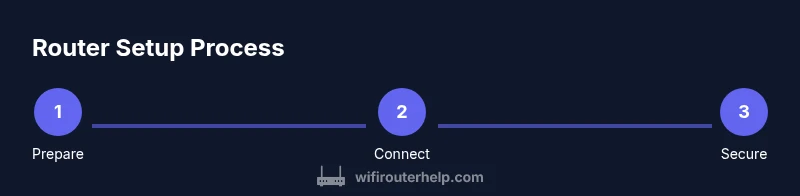
Prepare your workspace
Clear your desk, gather the equipment, and outline a plan for configuration. Confirm you have the router model, current admin credentials, and your ISP details. Decide on an initial network name and a strong password before you touch any settings.
Tip: Have everything ready to avoid interruptions mid-setup. - 2
Connect to the router
If possible, connect your device to the router with an Ethernet cable for stability. If you must use Wi‑Fi for the initial login, ensure you are joining the router’s own network. This step ensures you can access the admin page reliably.
Tip: Wired connections are less prone to dropouts during setup. - 3
Log in to the admin page
Open a browser and enter the router’s local IP (commonly 192.168.0.1 or 192.168.1.1). Enter the default or current admin credentials. If you haven’t changed them, update to a strong password immediately.
Tip: If you forget the password, use the reset procedure only as a last resort. - 4
Back up current settings
If your router offers a backup/export option, save a copy of the current configuration before making changes. This makes it easy to restore if something goes wrong.
Tip: Store the backup in a safe location, not on the router itself. - 5
Update firmware (if needed)
Check for firmware updates and install any available security and stability fixes. Ensure the power supply remains stable during the update to prevent bricking the device.
Tip: Avoid updating over a flaky power source or during a storm. - 6
Configure WAN/Internet
Select your ISP’s connection type (DHCP, PPPoE, or Static IP) and enter required credentials. Save changes and test connectivity by loading a page or pinging a site.
Tip: If PPPoE is required, ensure the precise username and password are entered. - 7
Set up wireless networks
Create distinct SSIDs for 2.4 GHz and 5 GHz, and choose strong passwords. Prefer WPA3 if supported; otherwise use WPA2‑WPA3 mixed mode. Enable a guest network if needed and disable WPS.
Tip: Use unique, memorable names to help devices connect quickly. - 8
Enable security features
Turn on the router firewall, disable remote management, and consider turning off UPnP unless needed. Review admin access logs and set up a rotation for admin passwords.
Tip: Record credentials securely for future reference. - 9
Save, reboot, and test
Apply changes, reboot if required, and verify internet connectivity on multiple devices. Document the new settings for future troubleshooting.
Tip: Test from both wired and wireless devices to ensure coverage.
People Also Ask
What is the difference between WAN and LAN on a router?
WAN is the connection to the internet provided by your ISP; LAN is your local home network. The router uses WAN to access online resources and LAN to connect your devices. Understanding these roles helps you configure correct network boundaries and routing rules.
WAN is your internet connection; LAN is your home network. The router uses WAN to reach the internet and LAN to connect devices at home.
How do I find my router's IP address?
Check the device label on the router or its manual for the default gateway address. You can also find it in your computer’s network settings, typically listed as the gateway. This IP is what you enter in your browser to access the admin page.
Look for the gateway IP in your device’s network settings or on the router label.
Should I enable WPA3 or use mixed mode?
If all devices support it, enable WPA3 for strongest security. If some devices don’t, use WPA2‑WPA3 mixed mode as a fallback but plan to upgrade devices over time.
Enable WPA3 if possible; otherwise use mixed mode tied to your device capabilities.
What should I do if I forget my admin password?
Use the router’s reset button to restore factory defaults, then reconfigure. After resetting, change the password immediately and keep it in a secure record.
If you forget it, reset the router, then set up a new password right away.
How often should I update firmware?
Check for updates monthly and install important security updates promptly. Enable automatic updates if your router offers this option and you trust the vendor.
Check for updates regularly and apply security fixes as they become available.
Can I configure a guest network safely?
Yes. A guest network isolates visitors from your main devices. Use a separate password and limit access to the internet only, if possible.
Guest networks are helpful for visitors and keep your main network safer.
Watch Video
What to Remember
- Change the default admin password immediately
- Choose strong WPA3 security and separate guest networks
- Back up configuration after major changes
- Keep firmware updated to reduce vulnerabilities
- Test connectivity after each major change