How a Router Is Used: A Practical Home Networking Guide
Learn how a router is used in a modern home network. Step-by-step setup, secure configuration, device management, and troubleshooting tips from WiFi Router Help to optimize coverage and performance.


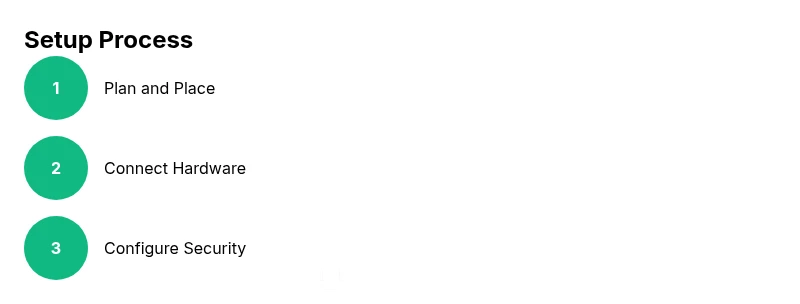
Goal: understand how a router is used in a home network, what you need, and the basic setup. You’ll need a modem, a router, and a computer or mobile device. Steps: connect the router to the modem, access the admin interface, configure the SSID and password, enable security, test connectivity, and adjust settings as needed.
How the question 'how is a router used' fits into modern home networks
Understanding how a router is used is the foundational step in building a reliable home network. According to WiFi Router Help, a router is the central device that shares your internet connection, directs traffic, and enforces basic security policies. The WiFi Router Help team found that most households benefit from clarifying this role before diving into setup. In practice, a router sits between your modem and your devices, creating a local network and providing controls for wireless access, device management, and quality of service. This section unpacks the core idea: a router doesn’t create internet by itself, it manages data flow between the internet and every connected device, while offering essential configuration options to tailor performance and security to your home. When you know how the pieces fit, you can plan placement, security, and features more effectively.
Core roles of a router in home networks
A router serves several essential functions in a typical home network:
- NAT and DHCP: The router assigns local IP addresses to devices and translates them for internet access, keeping your internal network private.
- Wireless access point: The router broadcasts Wi‑Fi so phones, laptops, and smart devices can connect without cables.
- Firewall and security: The router provides basic protection against unsolicited traffic and helps you manage trusted vs. guest devices.
- Network management: You can set parental controls, QoS rules, and device limits to optimize performance for streaming, gaming, or work.
By understanding these roles, you’ll see why placement, configuration, and ongoing maintenance matter for reliability and safety.
Hardware setup: planning and placement
Before you plug anything in, decide where the router should live to maximize coverage. Aim for a central, elevated location away from thick walls or metal appliances that block signals. Consider a simple floor plan and mark where devices commonly connect. If your home has multiple floors, you might place the router on a central stair landing or use a mesh system for wider coverage. Use a sturdy power source and keep cords organized to avoid unplugging by accident. Planning now saves time during the actual hookup and reduces the need for later reconfiguration.
Accessing the router admin interface
Once the hardware is in place, connect a computer or phone to the router’s network and open its admin page. The address is usually a local IP like 192.168.x.1 or 192.168.0.1, printed on the router label or in the manual. Log in with the default credentials and immediately change the admin password. If your model uses a mobile app, you can complete many settings there, but a desktop or laptop browser often gives the clearest view of advanced options. Keep a quick reference for the login URL and credentials so you can revisit settings without frustration.
Configuring wireless networks safely
Set up the primary wireless network (SSID) with a unique name that doesn’t reveal your address or identity. Choose a strong passphrase using a length of at least 12 characters with a mix of letters, numbers, and symbols. Prefer the latest encryption standard your router supports, ideally WPA3; if unavailable, WPA2 is acceptable with modern devices. Avoid WPS and disable UPnP if you don’t need it for gaming or certain devices. Consider enabling a guest network to isolate visitors’ devices from your main network to improve security and privacy.
Security features and advanced options you should know
Beyond basic Wi‑Fi, most routers include security features like a firewall, traffic filtering, and parental controls. Turn on automatic firmware updates if available, and periodically check for new features like VPN support, DNS-over-HTTPS, or enhanced QoS. Create separate networks for guests and IoT devices to reduce risk from vulnerable devices. If you enable port forwarding or DMZ, understand the risks and only do so for trusted services. Regularly review connected devices and revoke access for anything unfamiliar.
Managing devices and performance: practical steps
To keep performance steady, assign bandwidth priorities for critical activities (work videoconferencing, gaming, streaming). Check signal strength in different rooms and adjust placement or add a mesh node if coverage is inconsistent. Label devices in the admin interface so you can quickly identify who is connected and terminate unknown sessions if needed. Regularly schedule maintenance checks—firmware updates, password changes, and a quick audit of device list—to sustain reliability over time.
Troubleshooting common issues and maintenance
If devices can’t connect, start with the basics: reboot the modem and router, verify lights indicate a healthy connection, and ensure cables are firmly seated. If speeds seem slow, run a wired speed test to separate network vs. ISP issues and check for firmware updates. A factory reset should be a last resort, after noting down current settings. If problems persist, consult the manufacturer’s support resources and your ISP for compatibility questions, especially when replacing hardware.
Authority sources and further reading
For ongoing guidance, refer to authoritative sources and best practices. This section draws on established guidelines and tutorials to reinforce what you’ve learned here. The following sources provide high-quality information about router security, configuration, and home-network topologies: https://www.fcc.gov, https://www.cisa.gov, and https://www.nist.gov. These references are intended to supplement practical steps with official recommendations and standards from trusted government and educational institutions.
Authority sources (expanded): practical links and reading
- FCC: Home networking guidance and consumer tips: https://www.fcc.gov
- CISA: Cybersecurity and home network protection: https://www.cisa.gov
- NIST: Public guidance on network security and configuration: https://www.nist.gov
Note: Always verify page dates and updates since security guidance evolves over time. The recommendations here align with general best practices and official standards.
Tools & Materials
- Modem(Provided by ISP; connects to the router via Ethernet)
- Router(Wi‑Fi capable; consider Wi‑Fi 6/6E or newer for future-proofing)
- Ethernet cable (Cat5e or better)(Used to connect modem to the router's WAN port if needed)
- Computer or mobile device(Web browser or router app for configuration)
- Power supply(Ensure uninterrupted setup; surge protection recommended)
- Optional: notebook or label maker(Helpful for labeling networks, passwords, and device names)
Steps
Estimated time: 60-90 minutes
- 1
Plan placement and goals
Decide where the router will sit for best coverage and note which devices require priority (work, gaming, streaming). A centralized, elevated position reduces dead zones and improves signal strength. Create a simple map of where your devices live to guide placement and future expansion.
Tip: Pro tip: test signal in key rooms after mounting; minor adjustments can significantly improve coverage. - 2
Connect the hardware
Plug the modem into power and connect its Ethernet port to the router’s WAN or internet port. If you’re using a standalone modem, verify you have a live internet connection before proceeding. Avoid using long extension cables that can degrade signal.
Tip: Pro tip: use a straight-through Ethernet cable for the WAN link to prevent confusion with crossover cables. - 3
Power on and access the admin interface
Power up both devices and connect a computer to the router’s network. Open the router’s admin page using the default gateway address shown on the device label. Log in with the default credentials and change the admin password immediately.
Tip: Pro tip: write down the new login details in a secure place to prevent lockouts. - 4
Update firmware
Check for the latest firmware in the admin panel and apply updates. Firmware updates fix security issues and improve performance and compatibility with devices.
Tip: Pro tip: enable automatic updates if your router supports it and verify the update after installation. - 5
Configure the primary wireless network
Set a unique SSID and a strong password. Choose WPA3 if available; otherwise WPA2 with a long passphrase. Ensure the network mode supports your devices and avoid broadcast of sensitive identifiers.
Tip: Pro tip: disable guest network access on devices you trust to minimize unnecessary isolation. - 6
Set up security features
Turn on firewall protection and consider disabling WPS. Create a separate guest network for visitors and IoT devices to isolate them from your primary network. Review port forwarding only for trusted services.
Tip: Pro tip: regularly review connected devices and revoke unknown access quickly. - 7
Adjust DHCP and IP planning
Leave DHCP enabled for automatic IP assignment, but define a reasonable IP range that avoids conflicts with static devices. Document reserved addresses for servers or printers to prevent address changes after reboots.
Tip: Pro tip: keeping a simple network diagram helps avoid future misconfigurations. - 8
Test, optimize, and document
Run speed tests wired and wireless, identify weak spots, and adjust placement or add a mesh node if needed. Save your configuration as a backup file and store it with notes about each device.
Tip: Pro tip: back up your settings after every major change. - 9
Plan ongoing maintenance
Schedule periodic checks for firmware updates and device list reviews. Revisit security settings at least every few months and adapt to new devices or usage patterns.
Tip: Pro tip: set a quarterly reminder to audit network security and performance.
People Also Ask
Do I need a modem to use a router?
Yes. A router connects to a modem to access the internet. If you have a modem-router combo, you already have both in one device. You’ll still use the router’s controls to manage your local network.
Yes, you need a modem to reach the internet, and a router connects to it to create your home network. If you have a combined modem-router, you’ll still use the router features to manage devices.
What is the best security setting for home routers?
Use WPA3 if available; otherwise WPA2 with a long, unique passphrase. Disable WPS and review guest network access to protect main devices. Regular firmware updates are essential for ongoing security.
Use WPA3 if you can; if not, WPA2 with a long password. Turn off WPS and keep firmware up to date.
Can I use a router without a modem?
Not for internet access. A router without a modem cannot connect to the wider internet. You can use it as an access point or for local network management if you have other means of internet.
No, you need a modem for internet access. A router alone handles local networking, not the internet itself.
How often should firmware be updated?
Check for updates monthly and apply them when available. Automatic updates are convenient if supported. Updating firmware keeps security features current and improves compatibility.
Check monthly for updates and install them when available. Automatic updates are best if your router supports them.
What is a guest network and should I enable it?
A guest network isolates visitors’ devices from your main network, improving security. Enable it for guests and IoT devices, and monitor what joins your network.
Yes, enable a guest network to keep visitors and IoT devices separate from your main devices.
What is the difference between a router and gateway?
A gateway combines modem and router functions in one device, usually provided by your ISP. A router connects multiple devices on a local network and manages traffic to the internet when paired with a modem.
A gateway blends modem and router; a router alone connects multiple devices. If you have a separate modem, you’ll connect a router to it.
Watch Video
What to Remember
- Plan placement before wiring to maximize coverage.
- Secure the network with strong passwords and current standards.
- Separate guest and IoT networks from the main LAN.
- Regularly update firmware and audit connected devices.