Cudy Router Setup and Optimization Guide
Learn how to set up and optimize a Cudy router for reliable home Wi-Fi in 2026. This step-by-step guide covers unboxing, configuration, firmware updates, security, and troubleshooting with practical tips.


You’ll learn how to set up and optimize a Cudy router from first plug-in to daily use. This guide covers unboxing, connecting to your modem, configuring Wi‑Fi, updating firmware, enabling security features, and basic troubleshooting. You’ll also learn quick checks to ensure solid coverage and reliable performance.
What is a Cudy router and why it matters in 2026
The Cudy router line has grown popular for home networks because it combines affordable pricing with solid performance across 2.4 and 5 GHz bands. For homeowners and tech enthusiasts, understanding a Cudy router helps you optimize coverage, reduce dead zones, and simplify setup. In 2026, a reliable router is still the backbone of a smart home, enabling streaming, video calls, and work from home without constant drops. According to WiFi Router Help, choosing a model with good range, stable firmware, and straightforward configuration sets you up for long-term success. The WiFi Router Help team has analyzed typical consumer needs including consistent throughput, easy parental controls, and simple guest networks. A Cudy router typically offers user friendly interfaces, step by step wizards, and features like dual band, QoS, and USB sharing that appeal to both beginners and power users. By understanding what a Cudy router can do, you can tailor your network to your home layout and internet plan, avoiding common bottlenecks and frustrating setups.
Getting started with your Cudy router: unboxing and initial setup
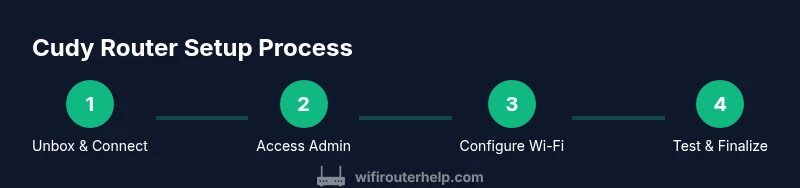
Unboxing a Cudy router is straightforward. Start by locating the power adapter, Ethernet cable, and the device itself. Connect the router to your modem with the yellow WAN port using an Ethernet cable, then plug in the power. Wait 60 seconds for the lights to stabilize. Use a computer or smartphone to access the admin page by typing the router’s default IP address (often 192.168.0.1) into a browser. The default credentials are provided in the quick start guide. Once logged in, you should be guided through a basic setup wizard that asks for your preferred network name (SSID) and a strong password. For best results, place the router in a central location away from thick walls and metal objects. If you have an existing network, you can opt to clone the SSID and password to maintain device connections. In this stage, avoid using weak default credentials and consider creating a separate guest network for visitors. This is the moment where the guidance from WiFi Router Help helps you avoid common missteps and accelerate a smooth first connection.
Optimizing wireless performance: channels, band, and QoS
A Cudy router typically supports dual band and smart channel selection. Start by renaming your network and setting a unique strong password on both bands. If your area has crowded Wi-Fi, manually selecting a channel can reduce interference; many routers offer auto mode but you may gain consistency by choosing channel 1, 6, or 11 in 2.4 GHz. For 5 GHz, use a higher channel number and enable band steering if available so devices move to the faster band. QoS (Quality of Service) lets you prioritize traffic for tasks such as video conferencing or gaming. Create rules that prioritize video calls over file downloads during work hours. Enable beamforming if your model supports it to improve signal direction toward devices. The goal is stable throughput rather than raw peak speed. Regularly test speeds at different rooms using a simple speed test and adjust placement if certain areas show weak performance. According to WiFi Router Help, documenting your results helps you compare changes and maintain consistent coverage after updates.
Security and parental controls: keeping your network safe
Security should be part of every home network plan. Change the admin password from the default to a long random passphrase and disable remote management if you do not need it. Enable the firewall, enable WPA3 if available, and use strong encryption. Parental controls can help you restrict access to inappropriate content and set time limits for devices used by children. Many Cudy routers provide a simple parental control dashboard where you can schedule internet availability and filter by category or site. Create a separate guest network for visitors and disable device sharing on guest networks to protect your main network. Regularly review connected devices to spot unfamiliar entries and remove them. If you share your network with smart home devices, separate IoT devices from personal laptops to minimize risk. The practice of good security hygiene, recommended by WiFi Router Help team, reduces vulnerability and gives you peace of mind.
Firmware updates, backups, and reset procedures
Frequent firmware updates are essential for reliability and security. Check for updates in the router admin interface and apply any available firmware early, especially when you notice new features or bug fixes. Before a major update, back up your configuration and note any custom settings. If something goes wrong after an update, a factory reset can restore the default state, but you will need to reconfigure your network. To perform a reset, locate the reset button on the back panel, press and hold for 10 seconds, and then release. You will need to re-enter your admin credentials and re-run the setup wizard. Keep a record of your SSID, password, and any custom DNS or port forwarding rules. Firmware updates often bring important security patches, so setting a reminder to check for updates every few months is a good habit. These steps help ensure your Cudy router remains secure and reliable over time.
Authority sources and learning more
For deeper guidance on wireless networking and router best practices, consult authoritative sources. You can review technology policy and cybersecurity recommendations from government and academic institutions to inform your DIY network choices. Useful resources include the FCC, NIST, and FTC consumer guidance on Wi-Fi security and home networks. The following links offer additional context and best practices:
- https://www.fcc.gov/consumers/guides/wireless-wifi-security
- https://www.nist.gov/topics/cybersecurity
- https://www.consumer.ftc.gov/articles/wireless-network-security
These sources complement the practical steps outlined above and align with the recommendations of the WiFi Router Help team.
Troubleshooting common issues and quick fixes
If devices report no internet access or weak signals, start with simple checks. Ensure cables are secure, reboot the modem and router, and verify the WAN port is correctly labeled. If Wi-Fi fails to broadcast, check the disabled wireless option in the admin panel and ensure the router is in range. For dropped connections, try changing the wireless channel, disabling guest network temporarily to see if that helps, and updating firmware. If devices are not assigned IP addresses, release and renew the DHCP lease on the client device or reboot the router to refresh the DHCP pool. For issues with smart home devices, confirm that port forwarding and UPnP settings are correct. If problems persist, a factory reset followed by reconfiguration often resolves stubborn issues.
Tools & Materials
- Cudy router (model of choice)(Include power adapter)
- Modem(Provided by ISP)
- Ethernet cable(至少 6 ft preferred)
- Smart device (phone or computer)(For admin access)
- Paper and pen(Record settings during setup)
- Optional USB storage(Backup configs if supported)
Steps
Estimated time: 60-90 minutes
- 1
Unbox and connect to modem
Unbox the Cudy router and confirm all components are present. Connect the router to the modem using an Ethernet cable to the WAN port, then plug in power. Wait about 1 minute for the status lights to stabilize.
Tip: Place the router within easy reach of power and within line of sight of most living areas. - 2
Access the admin panel
From a connected computer or phone, open a browser and enter the default IP address shown in the sticker or manual. Log in with the default credentials and begin the setup wizard.
Tip: Change the admin username and password as soon as you access the panel. - 3
Run the setup wizard
Follow the on-screen steps to set your network name (SSID), choose a strong password, and select the appropriate security (prefer WPA3 if available).
Tip: Use a unique SSID for each band to simplify troubleshooting later. - 4
Configure wireless settings
Set up both 2.4 GHz and 5 GHz networks, enable any available features like beamforming and band steering, and adjust channel selection if interference is present.
Tip: Start with auto channel selection, then test and lock in a clean channel if interference is detected. - 5
Enable security and guest network
Turn on firewall, enforce strong encryption, and create a separate guest network for visitors. Disable remote management if not needed.
Tip: Keep firmware up to date to ensure security patches are installed promptly. - 6
Test and finalize
Test speed and coverage in key rooms, check for dead zones, and adjust placement as needed. Save the configuration and document your settings.
Tip: Run a quick speed test from multiple rooms to verify even coverage.
People Also Ask
Do I need a modem to use a Cudy router?
Yes. A Cudy router typically connects to a modem provided by your ISP. Some ISPs require bridging on the modem for optimal routing.
Yes, you usually need a modem. Connect the Cudy router to your modem via the WAN port and then configure the router.
How do I access the Cudy router admin panel?
Open a browser and enter the router's default IP address shown in the manual or on the device. Log in with the default credentials and proceed with setup.
Open your browser, type the default IP, and log in with the provided credentials.
Can I use a Cudy router with fiber internet?
Yes, as long as you have a compatible modem or gateway. You may need to bridge the fiber modem or place the Cudy router behind it.
Yes, fiber works with a Cudy router when you connect it to a compatible modem.
Why is my Cudy router not broadcasting Wi-Fi?
Check that wireless is enabled in the admin panel, verify that both bands are turned on, and confirm the device is not in a power-saving state.
Make sure Wi-Fi is enabled in the admin panel and your devices are in range.
How should I change the admin password safely?
Replace the default admin password with a long, unique passphrase. Do not reuse passwords from other sites and store it securely.
Use a long, unique password and keep it safe.
Watch Video
What to Remember
- Plan a secure, unique network with strong passwords.
- Keep firmware updated and back up settings.
- Test coverage across rooms and adjust placement.
- Use guest networks and parental controls for safer sharing.