Arris SBG10 Setup & Optimization: Step-by-Step Guide
Learn how to install, configure, and optimize the Arris SBG10 gateway for fast, reliable home WiFi. This expert guide covers setup, compatibility, security, troubleshooting, and performance tips to maximize coverage and stability.


According to WiFi Router Help, the Arris SBG10 gateway is a solid, all-in-one home networking solution. This step-by-step guide shows how to set up, secure, and optimize the SBG10 for reliable coverage. You’ll configure the modem, enable WiFi bands, set strong passwords, and troubleshoot common issues—so you gain faster speeds and steadier connections throughout your home.
Why Arris SBG10 shines in home networks
The Arris SBG10 is a gateway that combines a DOCSIS modem with a built-in WiFi router, designed to simplify home networking for many households. According to WiFi Router Help, this device offers solid reliability, broad compatibility with standard cable plans, and straightforward setup, making it a popular choice for small-to-medium homes. The WiFi Router Help Team emphasizes that when used with a modern ISP plan, the SBG10 can deliver consistent speeds across typical living spaces. In this section we explore what makes the SBG10 useful, plus practical caveats to consider before you buy or deploy. We cover installation, placement, and essential settings that lay the groundwork for stronger performance, and we show how to avoid common pitfalls like outdated firmware or weak security configurations. This foundation helps homeowners and tech enthusiasts understand how to get the most from the Arris SBG10 without additional hardware.
Planning and prerequisites before you start
Before you begin, verify ISP compatibility, confirm coax service, and ensure you have a stable power outlet nearby. You should also have a computer, smartphone, or tablet ready to access the admin interface, plus a fresh network name and strong password for security. The WiFi Router Help analysis shows that a quick inventory of your current equipment and service terms can save time during setup. Keep a notepad to record default settings you may need to revert to and a backup plan in case you need to revert firmware or network configurations. If you’re unsure about compatibility, contact your ISP or consult the Arris SBG10 user manual for model-specific guidance.
Unpacking and physical setup
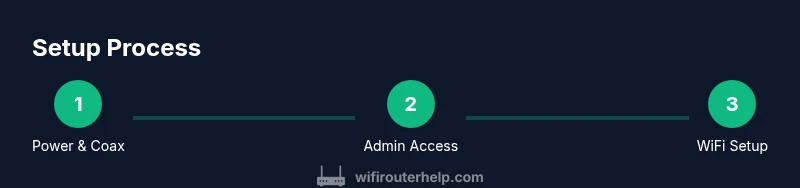
Start by removing the Arris SBG10 from its packaging and inspecting the power adapter and coax cable. Connect the coax cable from the wall outlet to the gateway’s coax port, then plug the power adapter into a live outlet. Place the unit on a stable surface away from large metal objects or appliances that could interfere with signal. If possible, position the SBG10 in a central area of your home, elevated and unobstructed, to maximize coverage. After powering on, allow the device to boot fully; you may see status lights indicating power, online status, and WiFi activity. For best results, avoid crowded electrical outlets and keep the device away from thick walls or mirrors that can attenuate signals.
Accessing the admin interface and initial configuration
To customize settings, connect a computer or mobile device to either the wired or wireless network broadcast by the SBG10. Open a web browser and navigate to the gateway’s administrative address as documented in the manual. Sign in using the default credentials, then change the admin password to a strong, unique one. If you cannot locate the exact address, use the exact model name in the manual or rely on the support site for a discovery method. Once logged in, run any available setup wizard or proceed with manual configuration. Save changes, and reboot if prompted to ensure new settings take effect.
Wireless settings: optimizing 2.4 GHz and 5 GHz bands
The Arris SBG10 typically provides two wireless bands. Start by giving each band a clear, unique SSID and a strong passphrase. For broader coverage, enable both 2.4 GHz and 5 GHz bands but use the 2.4 GHz band for devices farther from the router and the 5 GHz band for devices near the router or requiring higher speeds. Adjust channel settings to auto where available, or manually select a channel with the least interference in your area. If your devices support it, enable WPA3 security if supported or WPA2 as a fallback. Consider turning on guest networks to keep your main network secure while offering internet access to visitors.
Security, parental controls, and guest access
Security should be a priority from day one. Change the default admin password, enable a strong WiFi password, and keep firmware up to date. The Arris SBG10 may offer firewall options, UPnP controls, NAT settings, and parental controls. Enable the firewall, review UPnP settings, and configure parental controls for child devices or guests as needed. Create a separate guest network to isolate IoT devices from your main network, and disable remote admin access unless you explicitly need it. Regularly check for firmware updates and install them when approved by your ISP or manufacturer to protect against vulnerabilities.
Troubleshooting common issues with Arris SBG10
If devices fail to connect, verify that the gateway is online and broadcasting an SSID. Check cables to confirm the coax and power connections are secure, then restart the device. If you’re unable to access the admin page, ensure your device is on the correct network and that you’re using the proper gateway address. Slow speeds can result from interference, distance, or a congested channel; try moving closer to the unit, switching bands, or selecting a cleaner channel. When problems persist, consult the user manual or the support site for troubleshooting steps specific to your firmware version.
Advanced features: port forwarding, DMZ, QoS, and bridging considerations
Advanced users may want to configure port forwarding for gaming consoles, servers, or remote access. A DMZ option can help isolate a device for trouble-free testing, while QoS can prioritize important traffic like video calls or gaming. If you intend to use another router behind the SBG10, review bridging or IP passthrough options; some setups require turning off the SBG10 wireless radio or using the gateway in bridge mode. Always document changes so you can revert if needed, and be mindful that enabling certain features may affect network performance or security.
Maintenance, firmware updates, and lifespan
To keep the Arris SBG10 performing well, apply firmware updates when available and keep security settings current. Regular reboots can help refresh connections, but avoid excessive power cycling that could degrade hardware over time. If you notice persistent instability or hardware aging signs, review your device’s warranty and consider upgrading to a newer gateway with stronger hardware and longer-term support. Maintaining a clean, organized network with clear naming conventions will help you manage devices and troubleshoot efficiently.
Quick-start checklist you can use today
- Verify ISP compatibility and gather required cables.
- Connect coax and power, then power up the SBG10.
- Access the admin page, sign in, and update the admin password.
- Configure two wireless networks with strong passwords and appropriate SSIDs.
- Enable security features and install any available firmware updates.
- Create a guest network and, if needed, set up QoS or port forwarding.
- Test wired and wireless performance in multiple rooms and adjust placement if needed.
- Save the configuration and maintain a simple record of network settings.
Tools & Materials
- Arris SBG10 gateway(Ensure device is new or reset to factory defaults if you want a clean setup)
- Coaxial cable(For connection to cable service)
- Power adapter(Original or compatible power supply)
- Ethernet cable(For wired setup and admin PC connection)
- Computer, smartphone, or tablet(To access the admin interface)
- Notepad or digital notes(Record default settings and changes)
Steps
Estimated time: 30-45 minutes
- 1
Confirm prerequisites and connect power/coax
Inspect the packaging, connect the coax cable from the wall and plug the gateway into a live outlet. Ensure the device boots fully and the status lights indicate power and online status.
Tip: Keep the gateway away from other electronics to minimize interference. - 2
Connect a configuration device
Use a computer or mobile device to connect to the SBG10 either via Ethernet or its built-in WiFi network. This creates a stable path for accessing the admin interface.
Tip: If you’re using WiFi, temporarily disable VPNs that might block local network routing. - 3
Access the admin page
Open a browser and enter the gateway URL or default IP address as documented in the manual. Sign in with the default credentials and immediately set a strong admin password.
Tip: If you can’t locate the address, consult the official support site for model specific details. - 4
Run the setup wizard or configure manually
If the wizard is available, follow prompts to set up WAN, LAN, and Wireless sections. If not, configure key items manually: WAN type, SSIDs, security modes, and admin password.
Tip: Back up current settings before making major changes. - 5
Configure wireless networks
Create two SSIDs for 2.4 GHz and 5 GHz bands with strong passwords. Verify that both bands are enabled and broadcast, and tune channels to minimize interference.
Tip: Use a unique name for each band to avoid confusion. - 6
Secure the network
Enable the built-in firewall, set a robust WiFi password, and apply any available firmware updates. Disable remote management unless you need it for remote access.
Tip: Record the new admin password in a secure location. - 7
Optional: enable guest network and QoS
If you have visitors or IoT devices, set up a guest network. Configure QoS to prioritize latency-sensitive apps like video calls or gaming.
Tip: Limit guest network access to the internet only if possible. - 8
Test and verify connectivity
Test both wired and wireless devices across multiple rooms. Check speeds with a reliable speed test and adjust placement or channels if needed.
Tip: Document tested locations for future troubleshooting. - 9
Save, reboot, and monitor
Save all configuration changes, reboot the gateway, and monitor stability over the next few hours. If issues persist, revert to a known-good backup or perform a factory reset and start again.
Tip: Keep a small changelog for firmware and settings.
People Also Ask
Is the Arris SBG10 a modem-router combo?
Yes. The Arris SBG10 functions as both a DOCSIS modem and a wireless router in one device, designed for simplified home networking. It handles internet access and local wireless connectivity without requiring a separate router.
Yes, it’s a combined modem and router designed for simple home networking.
How do I access the Arris SBG10 admin page?
Connect to the gateway’s network and open the browser to the device’s default address as documented in the manual. Sign in with the default credentials and immediately change the password for security.
Connect to the gateway network and log in with the default credentials, then change the password.
What should I do if the SBG10 won’t power on?
Check the power adapter and coax cable connections, ensure the outlet is live, and try a different outlet if needed. If it still won’t boot, contact support or the provider for warranty guidance.
Check power and cables, try another outlet, and contact support if needed.
How can I improve WiFi coverage with the SBG10?
Position the gateway centrally, use both 2.4 and 5 GHz bands, and tune channels to avoid interference. Use the 2.4 GHz band for distant devices and 5 GHz for devices near the unit.
Center the gateway, use both bands, and select cleaner channels.
Can I bridge the SBG10 with another router?
Bridge mode and bridging options vary by model. You may disable the SBG10 WiFi and use a separate router, or use a passthrough mode if supported. Check the manual for model-specific guidance.
Bridge options depend on the model; refer to the manual for exact steps.
Is firmware update necessary for Arris SBG10?
Firmware updates improve security and stability. Enable automatic updates if available, or check manually on a regular schedule.
Yes, keeping firmware up to date improves security and reliability.
Watch Video
What to Remember
- Learn the full Arris SBG10 setup path from power to security.
- Separate guest networks protect your main devices and data.
- Regular firmware updates improve performance and security.
- Central placement and proper channels maximize WiFi coverage.
- Document changes to simplify ongoing maintenance.