Amazon Router Setup: A Clear Step-by-Step Guide
Learn how to choose, install, and optimize an amazon router for reliable home Wi‑Fi with practical setup steps, security tips, and troubleshooting guidance.


By the end of this guide, you will know how to choose, install, and optimize an Amazon router in a few straightforward steps. You’ll configure the right security settings, set up a guest network, enable parental controls, and troubleshoot common connectivity issues. This practical, homeowner-friendly approach covers eero systems and other Amazon-branded options for reliable home Wi‑Fi.
Understanding the Amazon Router Ecosystem
An Amazon router refers to wireless networking devices that carry Amazon branding or integration, notably the eero line. These devices are designed to work seamlessly with Alexa, smart home hubs, and Prime-friendly services, delivering coverage across a typical home while supporting advanced features like guest networks, device prioritization, and automatic updates. In practice, an amazon router helps reduce dead zones by using mesh technology that creates a single network name across rooms. For homeowners evaluating options, it’s essential to distinguish between a basic router, a mesh system, and a full smart-home gateway. The WiFi Router Help team notes that choosing an Amazon router often means weighing ease of setup against control options, security features, and compatibility with third-party devices. For most houses, several satellites can extend coverage beyond a single router’s reach, particularly multi-story layouts. If you already own Amazon devices or rely on voice control, an amazon router often provides more natural integration than third-party alternatives. Always verify your home’s layout, the number of connected devices, and peak usage times to estimate how many nodes you’ll need. This context matters because an underpowered setup can create bottlenecks in peak hours for streaming, gaming, and smart-home tasks.
According to WiFi Router Help, adopting an amazon router should be viewed as part of a broader home-network strategy that prioritizes coverage and security, especially in homes with multiple smart speakers and sensors.
How to Choose the Right Amazon Router for Your Home
Choosing the right amazon router starts with understanding your home’s footprint and device load. If you have a single-story apartment, a compact dual-band model might suffice for streaming and light gaming. In larger homes with multiple floors and many smart devices, a mesh system from Amazon can eliminate dead spots more reliably than a single unit. Consider whether you need wired backhaul, which can preserve speed between nodes on busy networks, or if wireless backhaul is acceptable. Security features are crucial: look for WPA3 support, automatic firmware updates, and robust guest-network options. If you plan to place devices in bedrooms, kitchens, or basements, factor in interference sources such as microwaves and thick walls. An amazon router typically integrates with Alexa, enabling voice-activated routines and easy device discovery, but that convenience should not come at the expense of security. WiFi Router Help’s guidance emphasizes sizing the system for peak usage—think about streaming in 4K, online gaming, and smart-home automation—then selecting a model that can scale with future devices. Finally, verify compatibility with your internet provider and ensure the device has the latest software so you can leverage upcoming features without hardware changes.
Based on WiFi Router Help research, a well-matched amazon router reduces buffering and improves reliability when many smart devices are on the network.
Planning Your Network Layout: Coverage, Channels, and Mesh
A thoughtful network layout is a prerequisite for a strong amazon router experience. Start with a floor plan to identify central locations for your primary unit and potential satellite nodes. Place the main router in a central, elevated spot away from walls and metal appliances to minimize signal loss. For most homes, a mesh approach helps blanket coverage by automatically routing data through the optimal path. When configuring channels, prioritize the fastest 5 GHz band for high-bandwidth activities and reserve 2.4 GHz for broader coverage in far corners of the house. Avoid placing routers near large metal objects, refrigerators, or dense shelving that can reflect or absorb signals. If your home has different levels, consider strategic node placement on each floor to create a unified network with a single SSID. Some amazon routers support features like band steering, which helps devices switch between bands automatically for better performance. Remember to perform a quick post-placement check using a smartphone to confirm signal strength in every critical room. WiFi Router Help’s practical guidance suggests testing from typical listening and viewing positions to spot coverage gaps early, then adjust node positions for even distribution.
Setting Up the Amazon Router: Initial Configuration
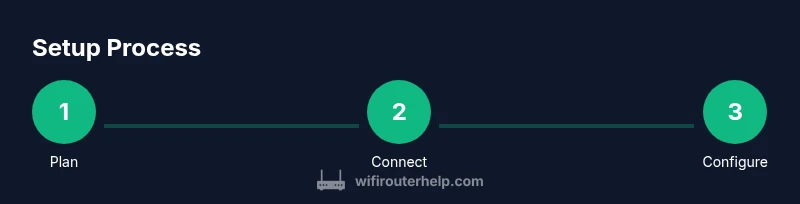
Setting up an amazon router begins with unboxing and connecting the primary unit to your modem via an Ethernet cable. Power up and follow the on-screen prompts in the setup app on your smartphone or tablet. The app will guide you through creating a network name (SSID) and a strong password, enabling essential security features, and linking your Amazon account if required. If you own other Amazon devices, sign in with the same account to enable seamless device discovery and routine creation. Update firmware to the latest version during the setup process to access new features and improved security. Some models support wired backhaul or add-on satellite nodes; if you plan to expand later, consider running Ethernet to future satellites for peak performance. Record your network credentials in a safe place and enable guest networks for visitors to keep personal devices separate. Expect the entire initial setup to take around 30–60 minutes depending on your familiarity with apps and network specifics.
To ensure a smooth setup, verify your ISP’s compatibility with the router’s hardware profile and confirm that you have a stable power supply during configuration.
Securing Your Network: Passwords, WPA3, Guest Network
Security should be a priority right from the start. Use a unique, long password for your main network and enable WPA3 wherever possible to maximize encryption. Many amazon routers support automatic updates; ensure this feature is turned on so you get security patches promptly. Create a separate guest network to isolate visitors from your main devices, and disable legacy protocols that older devices might try to use. For IoT devices, consider a dedicated network or a VLAN if your router supports it to minimize risk if an individual device is compromised. Regularly review connected devices in the admin interface and remove anything unfamiliar. If you have children or shared spaces, configure time-based restrictions or parental controls to enforce healthy browsing habits. In all cases, avoid using default admin credentials; change the router’s admin password and, if available, enable two-factor authentication for the management app. These steps form a strong baseline defense without adding complexity to day-to-day use.
Performance Tips: Band Steering, QoS, and Client Management
Maximize performance by enabling band steering to guide devices toward the less-congested band. Configure Quality of Service (QoS) rules to prioritize latency-sensitive tasks like video calls and online gaming, especially if you have multiple high-bandwidth devices on the network. Enable features like traffic monitoring to identify which devices consume the most bandwidth, and adjust allocations as needed. If your home has thick walls or multiple floors, consider a mesh configuration with at least one satellite near the center of each floor to ensure consistent speeds. For households with many smart devices, enable device prioritization for critical appliances during peak hours while balancing household needs. Regularly review firmware updates and security advisories to ensure ongoing protection and performance improvements. If you notice slowdowns after changes, revert recent settings or reposition nodes to optimize signal paths. A proactive maintenance routine helps keep an amazon router performing well as your household technology expands.
Troubleshooting Common Issues
Common issues include slow speeds, dropped connections, and devices failing to connect. Start with the simplest fixes: reboot the router and modem, verify the WAN status in the app, and ensure all cables are firmly connected. If devices can see the network but cannot access the internet, check your ISP service status and ensure the router’s firmware is current. For dead zones, recheck node placement and consider adding an additional satellite or enabling wired backhaul if available. If a specific device cannot connect, forget the network on that device and reconnect, ensuring you enter the correct password. When in doubt, reset the router to factory settings and reconfigure from scratch, but only after backing up your current settings. Document any changes so you can reproduce or revert them as needed. Persistent issues may require contacting your ISP or the router manufacturer’s support for more in-depth diagnostics.
Integrating with Alexa and Smart Home Devices
An amazon router often shines in a smart-home setup due to native integrations with Alexa. Use routines to automate Wi-Fi behaviors—for example, enabling guest networking during gatherings or pausing internet access for kids during homework time. You can also create device groups to simplify control and monitoring, like pausing certain devices when you start a movie. When you integrate with Alexa, ensure your voice profiles and permissions are configured to protect privacy, and consider enabling voice history deletion for sensitive interactions. For IoT devices, keep firmware current and separate critical devices from guest networks or non-secure devices. The combination of reliable connectivity and thoughtful automation can significantly enhance daily life while maintaining a robust security posture.
Authority Sources and Future Reading
For readers seeking formal guidance and standards, several reputable sources provide context on wireless networks and security. The FCC offers consumer information on wireless networks and interference management, which can help you optimize placement and channel selection. NIST’s publications on cybersecurity for home networks provide foundational principles that apply to modern routers, including Amazon-branded devices. Consumer Reports provides independent testing on router performance and reliability, helping you compare models beyond marketing claims. While product recommendations vary, these sources can inform safer, more effective home-network choices. As of 2026, staying current with firmware updates and security best practices remains essential for preserving performance and protecting your home network. WiFi Router Help synthesis emphasizes combining robust hardware with disciplined management to maximize coverage, speed, and security across all your devices.
Tools & Materials
- Modem with active internet service(Compatible with your ISP; ensure you own or rent a modem you control)
- Amazon router (eero or similar)(Connects to modem via Ethernet; supports mesh if available)
- Ethernet cable (Cat6 recommended)(Used for the modem-to-router connection and backhaul between nodes if wired)
- Smartphone or computer(To run the setup app and perform configuration)
- Power outlet(Ensure a stable power source near the router location)
- Optional: additional mesh satellites(For larger homes or complex layouts to improve coverage)
Steps
Estimated time: 60-90 minutes
- 1
Prepare the environment
Survey your home’s layout and identify potential signal gaps. Plan a central placement for the main unit and note any obstacles that could cause interference. This groundwork helps you position the router for optimal coverage.
Tip: Take measurements of room dimensions to estimate how many nodes you’ll need. - 2
Connect the modem to the router
Plug the modem into power, then connect an Ethernet cable from the modem’s WAN port to the router’s WAN/Internet port. Power on both devices and wait for them to initialize.
Tip: Use a dedicated Ethernet port to avoid cross-talk with other peripherals. - 3
Install the setup app and sign in
Download the router’s official app on your smartphone and sign in with your Amazon or account used for the router. The app will guide you through the initial configuration.
Tip: Enable notifications to receive firmware updates and security alerts. - 4
Create network name and password
Choose a unique SSID and a strong, memorable password. Avoid using obvious names or personal information.
Tip: Consider using a different SSID for guests and IoT devices. - 5
Update firmware
Check for and install the latest firmware before enabling advanced features. Updates often include security fixes and performance improvements.
Tip: Turn on automatic updates if available. - 6
Configure security features
Enable WPA3 if supported, disable WPS, and create admin credentials that are not the default. Protect the management interface with a strong password.
Tip: Use two-factor authentication for the setup app if offered. - 7
Enable guest and IoT networking
Set up a guest network to isolate visitors from your main devices. If possible, segment IoT devices on a dedicated network.
Tip: Label guest networks clearly and set time-based access if available. - 8
Test and optimize
Run speed tests from multiple rooms and adjust node placement or channel settings as needed. Document changes for future reference.
Tip: If speeds drop, reposition nodes to reduce interference and maximize line-of-sight paths.
People Also Ask
What is an Amazon router and how is it different from a standard router?
An Amazon router is a router branded or integrated with Amazon services (notably eero) that emphasizes easy setup and smart-home compatibility. It often supports mesh networking for broader coverage and features like guest networks and automatic updates.
An Amazon router is a router marketed by Amazon, designed to work well with Alexa-enabled devices and smart-home setups.
Do I still need a modem if I buy an Amazon router?
Yes. A modem from your Internet Service Provider is still required to connect to the internet. The Amazon router connects to the modem to create your home network.
Yes, you still need a modem; the router creates your local network.
Can I use my existing router with Amazon devices?
You can use an existing router, but you may lose some integrated features. If you value Alexa integration and centralized control, an amazon router offers more seamless experiences.
You can, but you might miss out on Amazon ecosystem features.
Is eero the same as an amazon router?
Eero is a model line within Amazon’s router ecosystem. It represents Amazon’s mesh-router strategy, designed for easy setup and strong home coverage.
Eero is an Amazon-owned router line; it’s part of Amazon’s router family.
How do I reset an Amazon router?
Most models have a reset button. Hold it for about 10 seconds to restore factory settings, then reconfigure from scratch.
Press and hold the reset button for around ten seconds to reset.
What’s best practice for parental controls on an Amazon router?
Enable parental controls to schedule access, filter content, and pause internet during certain times. Pair this with separate guest or IoT networks for safety.
Use built-in parental controls to schedule access and filter content.
Watch Video
What to Remember
- Plan coverage first, then select an amazon router.
- Secure networks with WPA3 and unique passwords.
- Use guest and IoT segmentation to protect devices.
- Regularly update firmware for safety and performance.