AI Router Setup and Optimization: A Practical How-To
A comprehensive, step-by-step guide to choosing, installing, and tuning an ai router for a faster, more reliable home network. Learn features, security, and troubleshooting to get the most from your smart WiFi.


By the end of this guide, you will be able to set up and optimize an ai router for a faster, more reliable home network. You’ll learn how AI features auto-tune performance, secure your WiFi, and troubleshoot common issues. This step-by-step approach covers hardware prep, initial configuration, feature tuning, and practical tips for busy households.
What is an AI router and why it matters
The AI router represents the next evolution in home networking. It leverages artificial intelligence to optimize traffic flow, select the best wireless channels, and strengthen security without constant manual fiddling. According to WiFi Router Help, these devices adapt in real time to changing conditions, helping you avoid bottlenecks and dead zones. The WiFi Router Help team found that many households benefit from automatic tuning when devices proliferate, streaming, or gaming. For homeowners and tech enthusiasts, understanding these capabilities is the first step to a calmer, faster network. In practical terms, an ai router monitors usage patterns, prioritizes critical traffic (like video calls or gaming), and can shield your network from intrusions with learned security profiles. This section will outline how AI-enabled routing works, what features to expect, and how to evaluate an option that fits your home.
Core AI features you should understand
Key features include automatic channel optimization, adaptive QoS, smart band steering, anomaly detection, and user-friendly apps. Automatic channel optimization allows the router to switch between channels to avoid interference; adaptive QoS prioritizes latency-sensitive tasks; smart band steering directs devices to the best band. Anomaly detection watches for unusual traffic and can block threats or trigger alerts. A good AI router should provide a clear dashboard, recommendations, and simple toggles to enable advanced features. The goal is to make complex tuning accessible, so you can focus on using your network rather than managing it. Real-world setup benefits come from understanding that AI is a tool, not a magic wand, and requires sound network design and regular maintenance.
Planning your ai router refresh: choosing a model and plan
Before buying, assess your current network, device count, and internet plan. An ai router pairs best with homes that have multiple devices, smart home hubs, and variable usage. Compare features such as AI-driven optimization, mesh compatibility, guest networks, and security options. WiFi Router Help recommends considering firmware update cadence, vendor support, and ease of use. Budget ranges vary, but look for devices that offer strong coverage, reliable speeds, and future-proofing features like flexible backhaul and WPA3 security. In short, pick a model that aligns with your home size, device mix, and anticipated growth, then verify ongoing software support and update frequency.
Step-by-step integration: from unboxing to daily use
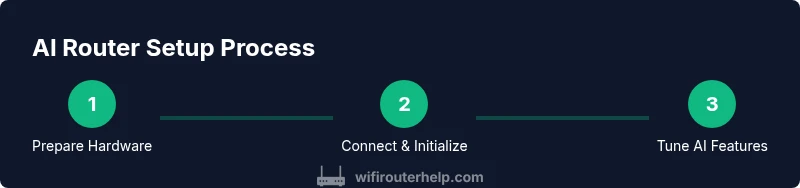
Getting an AI router set up properly starts with a clean slate. Place the unit in a central, elevated spot away from thick walls or large metal appliances to maximize coverage. Connect the AI router to your modem using a wired link for the most stable backbone. Use a computer or smartphone to access the setup wizard, name your network, and choose a strong password. Enable core AI features first (auto channel optimization, QoS, and basic security) before fine-tuning advanced options. Regularly review the dashboard to identify devices that may require priority rules or device-level profiles. This approach helps you balance performance with security over time.
Everyday tips to maximize AI router performance
To maximize efficiency, keep your router firmware up to date, as updates include performance improvements and security patches. Use wired backhaul for bandwidth-heavy devices like desktops or game consoles when possible, and create a separate guest network for visitors to reduce traffic on your main network. Consider enabling traffic monitoring so you can observe which devices consume the most bandwidth and adjust priorities accordingly. Place away from microwave ovens, cordless phones, and large metal furniture to minimize interference. Finally, document your settings so you can reproduce or roll back changes if needed.
Troubleshooting common AI router issues
If you notice slowdowns, start with a simple reboot to clear temporary states. Check for firmware updates and perform a manual update if automatic updates seem delayed. If AI recommendations contradict your experience, override them temporarily and monitor results. Verify device placements: a poor location can negate AI optimizations. For persistent issues, reset to factory defaults and re-run the setup wizard, but back up your current configuration first so you can revert if needed.
Tools & Materials
- AI-enabled router with built-in AI features(Ensure it has CPU-based AI optimization, auto channel selection, QoS, and security protections.)
- Modem compatible with your ISP(Check compatibility for hybrid fiber/coax networks and any ISP-provided firmware requirements.)
- Ethernet cable (Cat6 or better)(For wired backhaul and a stable connection during setup.)
- Smartphone or computer with the latest browser/app(Needed to access the router admin interface and AI features.)
- Stable power supply and surge protector(AI features rely on consistent power; outages disable automatic tuning.)
- Latest firmware update (optional during setup)(Install before starting for best AI performance and security.)
- Network map worksheet (optional)(Plan wired vs wireless devices to optimize placement and backhaul.)
Steps
Estimated time: 45-75 minutes
- 1
Power down and connect hardware
Power off your modem and any existing router. Disconnect power and unplug cables as needed. Connect the modem to the AI router's WAN port with an Ethernet cable to establish a solid backbone.
Tip: Keep all cables organized and label which device goes where to avoid confusion during setup. - 2
Connect to the admin interface
Use a computer or smartphone to connect to the AI router either via Ethernet or the initial Wi‑Fi network the device broadcasts. Open the setup URL or app and begin the guided configuration wizard.
Tip: If you use Wi‑Fi for the initial setup, temporarily disable guest networks to minimize interference during the wizard. - 3
Run the initial setup wizard
Follow on-screen prompts to name your network (SSID), choose a secure password, and select basic AI features you want enabled. Verify that both 2.4 GHz and 5 GHz bands are active and visible.
Tip: Choose a unique, strong password and enable WPA3 if available. - 4
Enable AI features and basic security
Turn on automatic channel optimization, adaptive QoS, and smart band steering. Review the security settings and enable firewall protections and automatic threat alerts.
Tip: Start with core features and gradually enable advanced options as you observe network behavior. - 5
Optimize for your home layout
Place the router in a central, elevated location. If you have dead zones, consider a wired backhaul or a mesh satellite if your model supports it. Run the AI-assisted spectrum optimization and observe changes in coverage.
Tip: Avoid stacking the router with metal objects and keep it away from microwaves and cordless phones. - 6
Validate performance and back up settings
Run a speed test from multiple rooms and devices. Check device-specific performance and save a configuration backup for quick restoration if needed.
Tip: Document your network name, password, and important AI settings for future reference.
People Also Ask
What is an AI router?
An AI router uses artificial intelligence to optimize network performance, select optimal channels, and strengthen security. It adapts in real time to changing traffic and device patterns, reducing manual tuning.
An AI router uses smart software to automatically optimize your home network, making setup easier and improving performance as devices change.
Do I need an AI router for my home?
Not every home needs an AI router. If your current network handles typical tasks like streaming and web browsing without issues, you may not require an upgrade. For busy households with many devices, AI features can offer meaningful improvements.
If you have lots of devices or gaming in the house, an AI router can help, but it isn’t strictly necessary for every home.
What features should I look for in an AI router?
Look for automatic channel optimization, adaptive QoS, smart band steering, strong security options, and a clear mobile app. Mesh compatibility and regular firmware updates are a plus for future-proofing.
Key features to check are auto channel optimization, adaptive QoS, and robust security controls, plus easy app-based management.
How do I set up an AI router?
Most AI routers guide you through a setup wizard. Connect to power and your modem, follow the prompts to name your network, set a strong password, and enable AI features.
Run the setup wizard, name your network, set a strong password, and turn on the AI features to begin.
Can AI routing improve gaming performance?
AI routing can help by prioritizing gaming traffic and reducing congestion, which can lead to steadier latency. Real-world results depend on home layout and device mix.
Yes, AI routing can help gaming by prioritizing the game traffic, though results vary by home setup.
Is it safe to enable AI-assisted security features?
Yes, as long as you keep firmware current and use strong passwords. Review AI-recommended settings and adjust to your comfort level to avoid exposure of services.
Yes, keep firmware updated and use strong passwords; review AI suggestions and tailor them to your network.
Watch Video
What to Remember
- Enable AI features to automate optimization and security.
- Place the router centrally for best coverage and active backhaul when possible.
- Keep firmware up to date and document settings for easy recovery.
- Use QoS and device priorities to balance gaming, video, and IoT traffic.