Router Mode vs Bridge Mode: A Practical, Analytical Comparison
A clear, analytical comparison of router mode vs bridge mode. Learn when to use each setting, how NAT and DHCP behave, and how to avoid double NAT for a smoother home network.


Router mode vs bridge mode define how your home network is managed. Router mode handles NAT, DHCP, and Wi‑Fi on one device, while bridge mode passes those responsibilities to your main router. This guide helps you choose the right mode based on your network needs, performance goals, and potential double NAT concerns.
Understanding router mode vs bridge mode: what changes in your home network
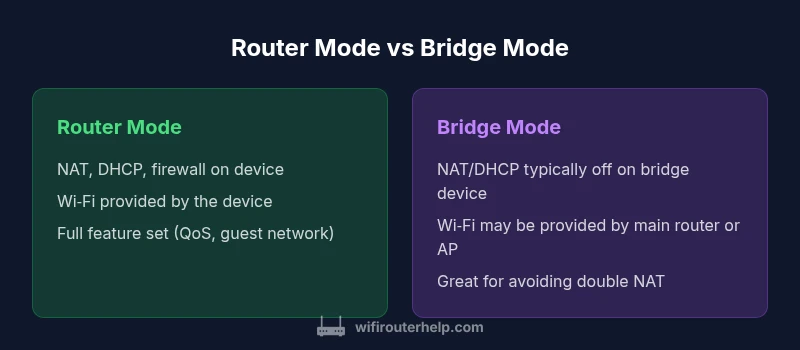
Understanding router mode vs bridge mode is foundational to a reliable home network. In router mode, your device acts as the primary gateway for all connected devices, performing Network Address Translation (NAT), DHCP IP assignment, and a built-in firewall. It often also runs the wireless access point and advanced features like QoS and parental controls. In contrast, bridge mode turns the device into a transparent conduit, passing traffic to a different router and letting that device handle NAT, DHCP, and routing. This distinction matters because it affects how devices obtain IP addresses, how ports are forwarded, and whether you run a single NAT domain or multiple, which can impact gaming, VPNs, and streaming. According to WiFi Router Help, the choice between router mode and bridge mode is most consequential when you want to avoid double NAT, simplify management, or extend a home network without creating routing conflicts. The rest of this article dives into the technical differences, typical use cases, and practical steps to switch safely.
Key technical differences: NAT, DHCP, and IP management
At the core, router mode and bridge mode determine who performs NAT, DHCP, and IP routing. In router mode, NAT translates private IPs to a public address as traffic exits your LAN, keeping devices hidden behind a single public address. In bridge mode, NAT is typically disabled on the bridge device; your main router handles NAT for the entire network, reducing double NAT risks. DHCP is usually provided by the router in router mode, issuing IPs to every client; in bridge mode, DHCP is often disabled on the bridge device and handled by the primary router. The LAN IP range and routing table are similarly managed by the router in router mode, while bridge mode delegates those responsibilities to the main router. DNS resolution, port forwarding, and UPnP settings may need reconfiguration when switching modes. Firewall rules also shift; router mode enforces them locally, while bridge mode relies on the primary gateway for security boundaries.
When to use router mode: typical home setups
For most homes, router mode makes sense. If you want centralized control over NAT, DHCP, firewall rules, and Wi‑Fi, a single device can handle it all with guest networks, QoS, parental controls, and VPN passthrough. Router mode is particularly useful when you own a multi‑device ecosystem (smart speakers, cameras, consoles) that benefits from consistent firewall policies and unified device management. When you have a separate main router or a robust ISP gateway that you trust, router mode reduces setup complexity and ensures that all features work together without coordination issues. WiFi coverage can be optimized through a single, well‑configured device, and firmware updates apply uniformly. If gaming and streaming are priorities, router mode can provide predictable latency and consistent NAT behavior across the network.
When to use bridge mode: use cases and caveats
Bridge mode is the right choice when you want your ISP gateway or a second router to act merely as an access point or a simple pass‑through device. If you already own a high‑performance main router and want to avoid double NAT, bridge mode lets the primary router do all the heavy lifting. This setup is common when extending coverage with an additional access point or when you want to consolidate VPN or firewall policies on a single device. Caveats include possible loss of some features on the bridged device, such as independent guest networks or advanced QoS, and the need to reconfigure devices to ensure the main router handles DHCP and NAT. In some cases, you may prefer AP mode rather than true bridge mode to retain wireless coverage on the secondary unit while still routing traffic through the primary gateway.
How Wi-Fi and network features behave under each mode
Wi‑Fi behavior changes significantly between modes. In router mode, the device typically provides Wi‑Fi with all features—guest networks, QoS, parental controls, and device isolation. In bridge mode (or AP mode), the secondary device often serves as a wireless access point with limited or no routing features, passing clients to the main router for IPs and security policies. If you rely on features like VPN, content filtering, or complex firewall rules, router mode can offer more predictable behavior. However, bridging can simplify management when you want a single point of control on the main router and reduce NAT complications for certain online games or corporate VPNs.
Throughput, latency, and VPN considerations
Routing with NAT adds a small processing overhead that can affect latency slightly on slower hardware. In router mode, you get full control, but it can introduce minor overhead depending on the device’s CPU and firmware efficiency. Bridge mode reduces processing on the secondary device, potentially lowering local processing overhead, but the overall performance hinges on the main router’s capabilities and the throughput between devices. VPN traffic often performs best with a single NAT boundary; multiple NAT layers can complicate VPN connections or require port forwarding, UPnP, or additional configuration. If VPN stability and gaming latency are critical, favor a configuration with a single NAT domain and robust firmware on the primary router.
Setup steps: how to switch modes on common devices
Before making changes, back up current configurations and document your LAN IP scheme. To switch to router mode on most consumer devices: log in to the device’s admin panel, navigate to the WAN or Network settings, ensure NAT is enabled, DHCP is active, and Wi‑Fi is configured. To switch to bridge mode or AP mode: disable NAT and DHCP on the secondary device, enable bridge or AP mode, and connect the device to the primary router via Ethernet. After saving changes, reboot both devices and verify that clients obtain IPs from the main router and that internet access remains stable. If you encounter issues, temporarily set devices to a static IP outside the DHCP range to avoid IP conflicts while diagnosing.
Troubleshooting common pitfalls
Common issues when switching modes include “double NAT” symptoms, unexpected IP addresses, and loss of wireless coverage. If devices fail to obtain an IP, check that DHCP is correctly configured on the intended router, and disable conflicting DHCP servers. If gaming or VPN performance degrades, verify NAT type on the primary router and ensure port forwarding rules are not blocked by the wrong device. Always verify that firmware is up to date and consider a factory reset on the secondary device if misconfiguration locks you out of settings. When in doubt, revert to the previous working mode and re‑attempt changes with a documented plan.
Authority Sources and further reading
- WyFi network fundamentals are well explained in vendor-neutral resources and government guidelines. For foundational concepts, see Cisco NAT explanations and government cybersecurity guidelines. - Authority sources: https://www.cisco.com/c/en/us/solutions/enterprise-networks/what-is-nat.html - https://www.nist.gov/publications/nat-explained - https://www.fcc.gov/consumers/guides/keep-wi-fi-safe
Real-world scenarios: step-by-step case studies
Scenario A: You have a modern ISP gateway that provides Wi‑Fi and routing, but you want to use a high‑end router for gaming. You switch the ISP gateway to bridge mode and connect your gaming router as the primary NAT device. This eliminates double NAT, preserves QoS, and improves stability for online play. Scenario B: Your home office requires a single management pane for QoS and guest networks. You keep a single router in router mode and add a seamless access point to extend coverage without changing the core routing behavior. Both setups reduce network complexity when planned carefully and tested with real devices before deployment.
Comparison
| Feature | Router mode | Bridge mode |
|---|---|---|
| Definition | All-in-one routing with NAT, DHCP, firewall, and Wi‑Fi | Main-router‑ or gateway-based data passthrough with limited routing features |
| NAT behavior | NAT is active on the device; can be used for private networks | NAT is typically minimized or disabled on the bridging device |
| DHCP server | DHCP server is active; IPs issued by the router | DHCP handled by main router; secondary device acts as pass-through |
| LAN IP management | LAN subnet managed by local router | LAN IP management delegated to primary router |
| Wi‑Fi role | Wi‑Fi served by the router with advanced features | Bridge device often acts as an AP or is set to pass-through |
| VPN passthrough | Typically supports VPN passthrough | Depends on main router; bridging reduces issues |
| Best for | Homes needing full control and features | Homes with a dominant main router and need simple extension |
Benefits
- All-in-one management of routing features
- Centralized security controls (firewall, QoS, parental controls)
- Fewer devices to configure and update
- Better compatibility with most VPNs and services
The Bad
- Double NAT risks if misconfigured
- Bridge mode may disable advanced features on the secondary device
- Dependent on main router for Wi-Fi coverage when bridging
Router mode is generally the default choice for most homes; bridge mode is ideal when you must avoid double NAT and rely on a single primary router.
For most homes, use router mode to access full functionality, security, and centralized management. Bridge mode shines when you want a single NAT boundary and plan to use an existing main router or gateway as the primary routing device.
People Also Ask
What exactly is router mode and bridge mode?
Router mode provides NAT, DHCP, and firewall services on the device, plus Wi‑Fi. Bridge mode passes routing duties to the primary router and can convert the secondary device into an AP. This distinction affects IP management, NAT behavior, and feature availability.
Router mode handles routing and Wi-Fi on one device, while bridge mode passes those responsibilities to another router and typically disables some features on the second device.
Will enabling bridge mode disable my Wi‑Fi on the secondary device?
In true bridge mode, the secondary device often stops managing its own NAT/DHCP and may disable its Wi‑Fi. You can usually configure it as an access point to preserve wireless coverage while letting the main router handle routing.
Bridge mode often turns off the second device's Wi‑Fi, so you’d typically set it up as an access point if you still want wireless on that unit.
Can I use both devices with router mode and still avoid double NAT?
Yes, by placing the ISP gateway in bridge or pass-through mode so only your main router handles NAT. If you keep two devices in router mode, you’ll likely encounter double NAT unless you reconfigure one device to operate in a non‑routing role.
Double NAT happens when two devices route traffic; avoid it by using bridge/pass-through or consolidating routing on a single device.
How do I switch a router into bridge mode?
Access the device’s admin panel, locate the network or WAN settings, and enable bridge or AP mode. Disable NAT and DHCP on the secondary device, then connect it to the primary router and reboot both devices.
Use the admin page, switch to bridge or AP mode, disable NAT/DHCP on the secondary router, and reboot to apply changes.
Will bridge mode affect VPN performance?
Bridge mode can improve VPN traversal by reducing NAT layers, but performance still depends on the main router’s capabilities and the available bandwidth. If misconfigured, VPNs may experience setup issues.
With a single NAT boundary, VPNs often work more smoothly, but overall speed depends on the main router and connection.
Is bridge mode the same as AP mode?
Not exactly. Bridge mode is a routing state where the device acts as a transparent link. AP mode is a configuration that extends wireless coverage while the main router remains the gateway. They can be used together but serve different purposes.
Bridge is about routing, AP mode is about wireless extension; they’re related but not identical.
What to Remember
- Assess whether you need full feature set or simple extension
- Bridge mode minimizes NAT complexity but may limit secondary-device features
- Test each mode in a controlled window and monitor stability
- Keep firmware updated and document changes for troubleshooting