How to Check If Your Router Is on 5GHz
Learn how to check if your router broadcasts on the 5GHz band and how to optimize your home network. Step-by-step checks, device tests, and practical tips from WiFi Router Help.


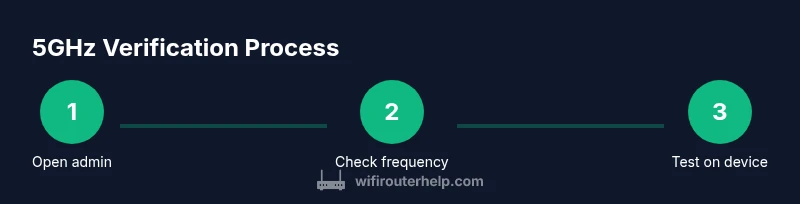
Goal: determine if your router supports and is currently broadcasting on 5GHz. To verify quickly, log into your router’s admin page, open the Wireless or Wi‑Fi settings, and check the frequency listed for each band. On your connected device, confirm the network frequency in the Wi‑Fi details. If 5GHz isn’t shown, enable the 5GHz band or mix mode.
how to check if router is 5ghz
Understanding whether your router broadcasts on 5GHz can boost performance in busy homes with many devices. how to check if router is 5ghz is a common question for homeowners. According to WiFi Router Help, the quickest method is to inspect both the router’s admin interface and the wireless details on a connected device. This approach avoids guessing and helps you identify which devices truly use the 5GHz band. In practice, you’ll look for a distinct 5GHz network name (or separate SSID) and verify the frequency in device settings. The end result should be confirmation that a dedicated 5GHz band exists, is enabled, and is reachable by your typical devices. If you don’t see 5GHz, you might need to adjust settings, update firmware, or reconfigure the network to broadcast two bands separately.
Understanding dual-band networks
Dual-band routers offer two radio frequencies: 2.4GHz and 5GHz. The 2.4GHz band travels farther and penetrates walls more easily, but it is more congested and offers lower maximum speeds. The 5GHz band delivers higher data rates and less interference from nearby networks, but its signal attenuates more with distance and obstacles. This distinction is why the phrase 'how to check if router is 5ghz' matters: you want to place devices on the band that matches your needs in each room. When you log into the admin panel, you may observe that the router either uses separate SSIDs for each band (MyWiFi-2.4, MyWiFi-5) or a single SSID with band steering that attempts to connect devices to the best band. WiFi Router Help notes that band selection is influenced by device capabilities, channel width, and the router’s firmware. In scenarios with many competing networks, forcing devices to 5GHz for high-bandwidth tasks can reduce buffering and increase throughput, provided you are within a reasonable range of the router.
Identify bands in the admin interface
Identifying which band is active starts in the router's admin interface. Log in using a web browser and navigate to Wireless settings. Look for sections labeled '2.4GHz' and '5GHz' or check for color-coded tiles that indicate frequency. If your vendor uses generic labels like 'Band 1' and 'Band 2', map them to 2.4GHz and 5GHz based on the listed speed caps (for example 150 Mbps for 2.4GHz vs 867 Mbps for 5GHz). Some routers also display the current status of each band, such as 'Enabled' or 'Disabled', and the broadcast channel. If you see separate SSIDs, note which one corresponds to 5GHz. If you only see a single SSID, look for an option to disable band steering or create a separate 5GHz SSID to simplify testing. The crucial point is to confirm that the 5GHz band is enabled and advertising a distinct network name that you can connect to with a compatible device.
Verify on a connected device
Next, verify via a device you normally use for Wi‑Fi. On Windows, go to Settings > Network & Internet > Wi‑Fi and click the connected network to view its properties; the frequency or channel will be shown if your wireless adapter reports it correctly. On macOS, Option-click the Wi‑Fi icon in the menu bar to reveal the current network details, including the channel and, sometimes, the band. On iOS and Android, open the Wi‑Fi settings and tap the connected network to expose frequency information or the network label that ends with '5G' or '5GHz'. If you see a 2.4GHz network instead, relocate closer to the router and re-test. This device‑level check helps validate that a 5GHz network is actually reachable for your use cases.
Common pitfalls and how to handle them
Several common situations can make 5GHz tests confusing. Some routers broadcast a single SSID for both bands with band steering enabled, so devices may switch to 2.4GHz automatically if the signal is stronger there. If you cannot see a 5GHz network, consider giving the 5GHz band its own distinct SSID name (for example 'MyWiFi-5G') to avoid ambiguity, then reconnect a device to that network. Another pitfall is distance: 5GHz signals lose strength quickly, so tests should be performed at varying distances. Finally, ensure your device’s Wi‑Fi adapter actually supports 5GHz; older hardware often does not. WiFi Router Help recommends confirming compatibility before troubleshooting, and keeping firmware up to date to ensure 5GHz functionality remains stable.
Enabling or optimizing the 5GHz band
If the 5GHz band doesn’t appear, you’ll need to enable it in the router’s Wireless settings. Turn on the 5GHz radio, ensure the correct mode is selected (for example 802.11ac/ax), and set a channel width (20/40/80MHz) that matches your devices and channel availability. Choose a less congested channel by checking nearby networks with a Wi‑Fi analyzer or the router’s built-in spectrum view. After applying changes, reboot the router if required and recheck the admin page to confirm the setting took effect. Finally, if you have a newer router, consider updating firmware to fix known 5GHz issues and improve performance.
Practical tips for reliable 5GHz performance
To maximize 5GHz reliability, place the router high and near the center of your home, away from metal appliances and thick walls. A wall or floor can significantly reduce 5GHz signal, so check coverage in rooms where you use high-bandwidth apps. For homes with multiple floors or many connected devices, a mesh system or backhaul configuration can stabilize performance by dedicating a 5GHz path for backhaul data. If you rely on streaming or gaming, prioritize 5GHz for those devices and keep 2.4GHz for legacy devices only. WiFi Router Help emphasizes testing across rooms and floors after each change to verify real-world performance.
Quick verification checklist
- Confirm the router shows a distinct 5GHz band in Wireless settings.
- Verify the connected device reports 5GHz in its network details.
- Ensure signal strength in the target room meets your needs (speed test or file transfer).
- Reboot after firmware updates and re-test to confirm stability.
Tools & Materials
- Computer or smartphone with a web browser(Needed to access the router's admin page)
- Router admin credentials(Username and password)
- Router IP address or hostname(Common defaults: 192.168.0.1 or 192.168.1.1)
- Ethernet cable (optional)(Useful for a stable login on a desktop)
- Primary device to test Wi‑Fi (phone/laptop)(To verify 5GHz on the client side)
Steps
Estimated time: 10-20 minutes
- 1
Access the router’s admin page
Open a web browser and enter the router's IP address. Enter the admin credentials to gain access. If you don't know the IP, check the label on the router or consult the manual. This step establishes the control panel where you can view both bands.
Tip: If you can't reach the login page, try a wired connection and disable VPNs that may block local traffic. - 2
Navigate to Wireless settings
In the admin dashboard, locate the Wireless or Wi‑Fi section. Identify the sections for 2.4GHz and 5GHz, or find Band 1/Band 2 options. Make a note of how each band is labeled and whether a separate SSID is assigned to the 5GHz network.
Tip: Vendor language varies; if you see Band 1/2, map them to 2.4GHz and 5GHz using the speed or frequency indicators. - 3
Check the 5GHz band status
Confirm that the 5GHz radio is enabled and broadcasting. Verify the channel and mode (e.g., 802.11ac/ax). If the 5GHz band is disabled, enable it and apply changes. Some routers require a reboot after enabling a new band.
Tip: Enable a distinct 5GHz SSID if you previously used a single shared name. - 4
Verify the 5GHz SSID
If the router uses separate SSIDs, confirm the 5GHz name is active and unique (e.g., MyWiFi-5G). If there is only one SSID, consider disabling band steering to test the two bands separately.
Tip: Note the exact SSID string to identify it quickly on devices. - 5
Test on a connected device
On your test device, open Wi‑Fi settings and connect to the 5GHz network. Check the device’s network details to ensure the connection frequency shows 5GHz. Move around the home to verify signal strength and throughput.
Tip: Use a quick speed test or file transfer to gauge real-world performance. - 6
Apply changes and verify again
Click Save or Apply in the router interface, then reconnect your device to the 5GHz network. If issues persist, reboot the router and run the checks again. Keep firmware up to date as needed.
Tip: Document settings before changing; you can revert if something goes wrong.
People Also Ask
Can a router broadcast both 2.4GHz and 5GHz at the same time?
Yes. Most dual‑band routers transmit both bands simultaneously, though some models use band steering to manage connections.
Yes, most routers broadcast both bands at once, and you can connect to either depending on distance and device capability.
Why can’t I see a 5GHz network on my device?
Possible causes include distance from the router, disabled 5GHz band, or band steering preventing a distinct 5GHz SSID. Check the admin page and try closer placement.
It could be out of range or the 5GHz band is disabled; check the router settings and test closer to the router.
Is 5GHz better for streaming and gaming?
Generally yes, because 5GHz offers higher speeds and less interference, especially within a shorter range. Test in your home to confirm.
Yes, when you’re near the router, 5GHz usually performs better for streaming and gaming.
Will older devices support 5GHz?
Some older devices only support 2.4GHz. Check the device specs to confirm compatibility before troubleshooting.
Some old devices only work on 2.4GHz, so you may need a separate 2.4GHz network for those.
How should I rename the 5GHz network?
In Wireless settings, assign a distinct SSID to the 5GHz band so you can easily identify and connect to it.
Give the 5GHz network its own name in the router’s wireless settings.
What if there is no 5GHz option after updates?
Firmware or hardware issues can hide 5GHz. Check for firmware updates, reboot, and consult vendor docs for restoration steps.
If 5GHz disappears after an update, check for firmware updates and reboot; some models need vendor guidance.
Watch Video
What to Remember
- Check for a distinct 5GHz network name to confirm availability.
- Use device network details to verify actual band connection.
- Enable 5GHz with appropriate channel width and firmware updates.
- Test across rooms to ensure reliable performance.