Can You Use an Old Router? A Practical Guide to Reuse
Learn how to repurpose an aging router to extend Wi‑Fi coverage, create a guest network, or work as an access point. Step-by-step setup, safety tips, and best practices for secure home networking.


Yes. You can reuse an old router by assigning it roles such as an access point, range extender, or guest network, rather than replacing your entire setup. Ensure firmware is up to date, reset to factory defaults, and secure the device with a strong password and proper WPA2/WPA3 settings. Your exact steps depend on hardware compatibility and your ISP configuration.
Why Reusing an Old Router Makes Sense
According to WiFi Router Help, many aging routers still have value if repurposed rather than discarded. Homeowners typically want to extend coverage, segregate traffic for IoT devices, or provide a guest network without purchasing new gear. Reusing hardware reduces electronic waste and can lower costs while preserving a familiar admin interface. The WiFi Router Help team notes that even older chipsets can perform adequately for simple tasks if configured correctly and placed strategically. This section helps you understand the core advantages and limits you’ll face, including speed ceilings, feature gaps, and compatibility considerations with modern modems and gateways.
If you’re wondering can you use an old router in a modern home, start with a clear plan: identify its role, verify compatibility, and prepare to adjust network addresses and security settings. The goal is to get reliable, safe performance without creating management headaches or security gaps. A thoughtful approach ensures you don’t waste effort on a device that can’t meet your needs.
Hardware viability: can your old router keep up?
The short answer to can you use an old router effectively is that it depends on the task. Older devices may support 802.11n/g, have modest CPU and RAM, and lack newer security features. In many homes, a legacy router struggles to handle high-speed fiber connections or crowded 2.4 GHz bands. WiFi Router Help analysis shows that even if a device can connect, you may experience stability issues if you push it beyond its design. Use it as a supplemental device rather than the main router when your internet plan exceeds the router’s capabilities. This section helps you gauge the real-world performance you can expect and sets the stage for smarter placement and role selection.
Key checks before reuse include: CPU/RAM capacity, supported Wi‑Fi standards, presence of a gigabit WAN port, USB features, and current firmware availability. If your hardware is too old or lacks essential security features, consider upgrading rather than repurposing as a primary router.
Repurposing options: roles and settings
There are several ways to breathe new life into an old router. As an access point, it becomes a wired/wireless bridge off your main router, spreading coverage without NAT conflicts. As a range extender, it rebroadcasts your primary network signal, though efficiency decreases with distance. Bridge mode can minimize double NAT issues, while a dedicated guest network isolates visitors from your main devices. The key is to pick a role that aligns with the device’s capabilities and your home layout, then configure the hardware accordingly. Remember: even if you can’t run the latest firmware, you can often secure the device with a strong password and updated encryption settings.
Security and configuration essentials
Security should guide every reuse decision. Before enabling any feature, update firmware to the latest stable release and disable remote management unless you need it. Create a strong, unique admin password and enable a modern encryption standard such as WPA2 or WPA3. If you’re using the old router as an AP, disable DHCP to avoid IP conflicts with your main router. For IoT devices, segment traffic and consider a separate network name (SSID) that you can easily monitor. These steps reduce exposure to attackers and help your extended network stay reliable. The dedicated security mindset keeps you protected while you enjoy the added coverage.
Troubleshooting common issues and optimization
Inevitably, you’ll run into hiccups when reusing an old router. Common problems include no internet access after enabling bridge mode, conflicting IP ranges, or weak performance. Start with a factory reset if things go wrong, then reconfigure step by step, checking each time that the old router’s LAN and WAN ports are set correctly. Placement matters: central locations with minimal interference usually yield better results. If speed remains slow, test with a wired client to isolate wireless issues and consider reducing channel interference by choosing a less crowded channel.
Authority sources and final notes
For further guidance, see authoritative sources below. The WiFi Router Help team emphasizes verifying device compatibility, applying firmware updates, and following best practices for secure home networks. Understanding the limits of aging hardware helps you decide whether reuse makes sense in your own home environment. This section closes with practical reminders and a brief look at how to document adjustments for future reference.
Tools & Materials
- Laptop or smartphone with a web browser(Access the router’s admin interface and test settings)
- Ethernet cable(For wired setup and testing connectivity)
- Power adapter(Keep the router powered during configuration)
- Internet service credentials (SSID/password) or current network details(Needed to reconfigure and test the network)
- Firmware update source or access to manufacturer site(Ensure latest security updates before reuse)
Steps
Estimated time: 60-90 minutes
- 1
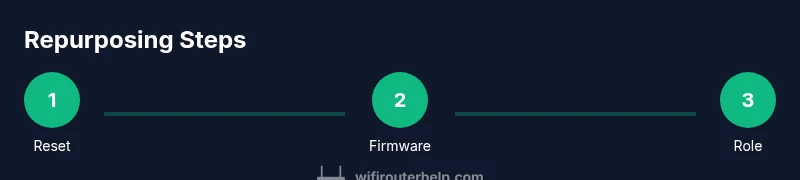
Reset the old router to factory defaults
Power on the router and locate the reset button. Hold it for 10–15 seconds until the lights flash, indicating a reset. This clears previous configurations and passwords, giving you a clean slate for setup.
Tip: Label the reset button location on the device or in the manual to avoid guessing. - 2
Update firmware to the latest stable version
Connect your computer to the router and log in to the admin interface. Check the firmware section and install the latest available release. Updates fix security issues and improve compatibility with newer devices.
Tip: Back up current settings before updating, in case you need to revert. - 3
Decide the old router’s role
Choose between access point, range extender, bridge, or dedicated guest network. The choice determines how you’ll configure DHCP, NAT, and SSID settings.
Tip: If your main router supports AP mode, use it to minimize NAT complexity. - 4
Configure network and security settings
Set a descriptive SSID, enable WPA2 or WPA3 security, and create a strong password. Decide whether to enable DHCP on the old router or disable it to avoid conflicts.
Tip: If using as AP, disable DHCP to let the main router handle IPs. - 5
Position and test coverage
Place the old router halfway between the main router and areas with weak signal. Test with multiple devices and run speed tests to confirm improvements.
Tip: Experiment with placement before finalizing the setup. - 6
Secure admin access and documentation
Change the router’s admin password from the default and note the new settings in a safe document. Keep firmware up to date and monitor for unusual activity.
Tip: Create a simple diagram of your network topology for future reference. - 7
Review and adjust as needed
Review coverage, speed, and device behavior after a few days. If performance is lacking, consider alternate placements or a dedicated upgrade.
Tip: Don’t rely on a single placement—test multiple locations.
People Also Ask
Can I use an old router with my ISP gateway?
Yes, many ISPs allow you to use a separate router behind their gateway by enabling bridge or AP modes. This can help you extend coverage without losing control over your home network.
Yes, you can usually use an old router with your ISP gateway by enabling bridge or AP mode.
What features should I expect from an older router?
Older routers typically offer basic Wi‑Fi and security options, with slower speeds and fewer modern standards like WPA3 or MU‑MIMO. Your experience will depend on role and placement.
Expect basic Wi‑Fi and security; performance depends on role and placement.
Do I need to reset the router before repurposing?
Yes. A factory reset removes prior configurations, reducing conflicts when you set up the device in a new role.
Yes, reset to factory defaults before repurposing.
Will a legacy router slow down the network?
If the device struggles to handle current speeds or has misconfigured NAT, it can bottleneck performance. Proper placement and role selection mitigate this.
A legacy router can slow things if not configured properly, but placement helps.
Is it secure to reuse old routers?
Yes, when you update firmware, disable remote management, use strong passwords, and enable current encryption like WPA2/WPA3.
Security improves with firmware updates and strong configuration.
Watch Video
What to Remember
- Repurposing can extend coverage and save money
- Update firmware before enabling features
- Disable DHCP on the old router if used as AP
- Secure admin access with strong passwords and encryption