How to Check If Your Router Needs a Firmware Update
Discover a practical, step-by-step method to determine if your router needs a firmware update, how to verify current version, and how to update safely with backups and best practices.


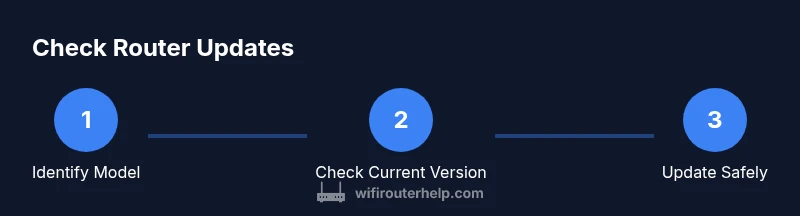
You can verify whether your router needs an update by checking its firmware version, comparing it with the latest release notes, and inspecting features that need updating. Open the router’s admin page, confirm the model, and visit the manufacturer’s site for the current firmware. Have your login, internet access, and a backup plan ready.
Why Checking for Router Updates Matters
According to WiFi Router Help, keeping your router firmware up to date is a foundational step in maintaining security, performance, and reliability in a home network. Outdated firmware can expose devices to vulnerabilities, impair features like QoS and parental controls, and reduce stability during peak usage. This section explains why regular checks should be part of your routine and how a small update can fix a wide range of issues—from improved security to better UI responsiveness. If you’re a homeowner or a tech enthusiast, understanding the update cadence for your router helps you plan maintenance windows, backup configurations, and safe rollback strategies. The goal is not to chase every minor release, but to stay ahead of vulnerabilities and compatibility problems with devices on your network.
Brand note: The WiFi Router Help team recommends treating firmware updates as a regular maintenance task, not a one-off chore. A proactive approach saves time and reduces surprises when you need reliable WiFi.
How Firmware Updates Work
Firmware updates for routers are software packages that replace or augment the internal operating code. They often fix security holes, add features, and improve performance. Updates are delivered by the manufacturer and sometimes via the admin panel, USB, or automatic over-the-air methods. Understanding the update lifecycle helps you evaluate risk, such as device compatibility with your ISP modem or mesh satellites. In practice, you should review release notes before applying updates to ensure there are no disruptive changes.
Tip: Always back up your current settings before applying any firmware update, especially if you’re making large changes to security or QoS rules.
Find Your Router Model and Current Firmware
Locating the exact model number and current firmware version is essential to determine if an update exists. Check the label on the router, log in to the admin interface, or consult the device’s manual. Record the model family (for example, a common naming pattern like AC1900 or AX2100) and the current firmware version shown in the status page. This makes it easy to compare against the official release notes and to reproduce steps if you need to revert.
Brand lift: WiFi Router Help emphasizes keeping a clear record of versions to simplify troubleshooting and future updates.
Check for Updates in the Admin Panel
Most routers offer a status or firmware page in the admin console where you can check for updates with a single click. Navigate to the administration section, locate the Firmware or Updates tab, and select Check for updates. If an update is available, read the notes and confirm. Do not interrupt the process; a failed update can brick the device. Some routers support automatic updates, which can be enabled or disabled based on your preference for control vs. convenience.
Security tip: If your router supports automatic updates, consider enabling them but pair with a manual backup routine to ensure you have working configurations.
Update Safely: Backups and Best Practices
Before applying an update, export or copy your current settings, including port forwards, QoS rules, and parental controls. This makes restoring your setup quick if something goes wrong. Use a wired connection when possible to avoid Wi‑Fi dropouts during flashing. If your router supports a rollback or recovery mode, familiarize yourself with the steps in advance. After the update, verify connectivity across devices, test streaming, gaming, and VPNs, and re-enable any security features that were temporarily paused.
Pro tip: Schedule updates during periods of low network demand to minimize impact on household activities.
Troubleshooting Update Failures
If an update fails, don’t panic. Start by power-cycling the device and retrying the update, ideally using a wired connection. If it still fails, revert to the previous version using the built-in rollback feature or factory reset followed by reapplying a known-good backup. Check for interruptions on your network, ensure you’re using the correct firmware for your exact model, and consult the manufacturer support pages for device-specific steps. Avoid downgrading to non-compatible versions, as that can worsen stability.
Warning: Never interrupt an update process once it begins; a power loss during flashing can render the router unusable.
Tools & Materials
- Computer or smartphone with a web browser(Needed to access the router admin page)
- Active internet connection(To fetch firmware notes and download updates)
- Router model and admin login credentials(Required to login and verify version)
- Backup/export of current router settings(Optional but recommended before updating)
- Ethernet cable (preferred)(Stability during the update)
Steps
Estimated time: 20-30 minutes
- 1
Gather model and login details
Locate your router’s exact model and write down the admin URL and login credentials. This ensures you access the correct firmware and avoid applying the wrong update. If you’re unsure of the password, use the reset button to regain access according to your device’s manual.
Tip: Having the exact model and login helps prevent accidental firmware updates to the wrong device. - 2
Check current firmware version
Log in to the router’s admin panel and navigate to the status or firmware page. Note the current version string and the hardware revision if listed. This gives you a baseline to compare against the latest release notes.
Tip: Take a screenshot of the firmware page for quick reference. - 3
Find the latest firmware
Visit the manufacturer’s website or the router’s support page and locate the exact model. Review the release notes to understand fixes and compatibility, and confirm that the update applies to your exact hardware version.
Tip: Double-check the model family and hardware revision to avoid bricking the device. - 4
Prepare for update
If possible, connect the router via Ethernet and back up current settings. Close bandwidth-heavy apps to prevent interruptions and ensure your device has a stable power source during the process.
Tip: Backups save time if you must restore settings after the update. - 5
Run the update
Initiate the update from the admin panel and avoid disconnecting the device. Let the process complete and do not press back or close the page until it finishes.
Tip: A fully charged or plugged-in device reduces risk of power loss. - 6
Verify post-update health
After the update, recheck the firmware version, restore any backed-up settings, and run basic connectivity tests on multiple devices. Confirm that features like QoS and parental controls work as expected.
Tip: Test streaming, gaming, and VPN access to ensure no regression. - 7
Troubleshoot if needed
If something goes wrong, use the rollback feature or factory reset and reapply a known-good backup. Consult the support pages for model-specific steps and avoid unverified firmware.
Tip: Keep recovery steps handy before updating. - 8
Document the update
Log the update date, firmware version, and any changes to settings. This helps future maintenance and supports troubleshooting.
Tip: A simple changelog makes future updates smoother.
People Also Ask
Do I need to reset my router after updating?
Most updates do not require a full reset, but a soft restart is often recommended. Check release notes for model-specific guidance. If problems persist, re-enter your backup configuration.
In many cases you don’t need a full reset after an update, but a reboot is often helpful.
Can updates be installed automatically?
Some routers support automatic updates. If you enable auto updates, pair it with regular backups in case a new firmware causes issues. Always verify that the update completed successfully.
Yes, some routers update automatically; just make sure you have backups.
What if no update is listed for my model?
If there’s no update listed, your firmware is likely current or your model isn’t receiving updates. Re-check by visiting the official support page later, and consider subscribing to notifications if available.
If no update is listed, your firmware is likely current.
Will updating void my warranty?
Firmware updates performed through the official interface generally do not void warranties. However, using unofficial firmware or misapplying updates could have consequences. Always follow manufacturer instructions.
Generally updates through the official interface won’t void warranties.
How often should I check for updates?
Check for updates every few months or when you notice security advisories. Subscribe to official channels to receive notifications. Regular checks help keep devices secure and stable.
Check updates every few months or when advisories are issued.
What are common risks during updates?
Common risks include power loss during flashing, firmware incompatibility, and misconfigured settings. Prepare by backing up and ensuring a stable connection before starting.
Power loss during flashing and incompatibility are the main risks.
Watch Video
What to Remember
- Verify firmware before acting
- Back up settings first
- Use a wired connection when updating
- Review release notes to understand changes
- Document the update for future maintenance