How Often Should You Update Your Router
Discover how often you should update your router, why firmware updates matter, and a clear step-by-step approach to keep your home network secure and fast.


Regular router firmware updates are essential for security and performance. How often should you update your router? In general, check for updates every 1–3 months and enable automatic updates when possible. Install critical patches immediately and reassess if you notice firmware changes. Also verify that your network devices stay connected after updates.
Why firmware updates matter
Firmware updates patch security vulnerabilities, fix bugs, and improve router stability and performance. Keeping your device current reduces the risk of malware accessing your home network and helps ensure compatibility with new devices and features. The WiFi Router Help team emphasizes that timely updates are a cornerstone of ongoing network health. Updates can also improve QoS features, USB sharing reliability, and parental controls, making it easier to manage your home network. While not every update is transformative, the cumulative effect over time can noticeably improve reliability and security. Think of firmware updates as ongoing maintenance for your digital home, much like software updates on your computers and phones. Regular updates also prepare your router to handle evolving Wi‑Fi standards and security best practices.
How often should you check for updates
If you want a practical cadence, plan to check for updates at least every 1–3 months. This window balances the need to catch important security patches with the effort of performing updates. Some brands push automatic updates, but many devices still require manual checks for major firmware releases. In environments with higher security needs or more devices, monthly checks are sensible. Always review the release notes before updating to understand what changes are introduced and whether there are any known issues with your model.
Automatic updates vs manual updates
Automatic updates can minimize risk by applying patches as soon as they are available, but they may reboot devices at inconvenient times and occasionally change settings. Manual updates give you control over when updates install, allowing you to back up configurations and test compatibility first. For most home networks, enabling automatic updates is the simplest and safest choice, provided you have a recent backup and a reliable power source. If your router offers staged rollout or selective update options, you can opt in to a conservative approach that reduces disruption.
Safe pre-update checklist
Before updating, gather essential items and prepare your network:
- Confirm you know the router’s admin credentials and the current Wi‑Fi password.
- Back up the current router configuration if the option is available.
- Ensure a stable power source or use a UPS; avoid updating during an expected outage or storm.
- If possible, connect the router to the network with an Ethernet cable to reduce the chance of a dropped connection during the update.
How to update your router safely: a step-by-step approach
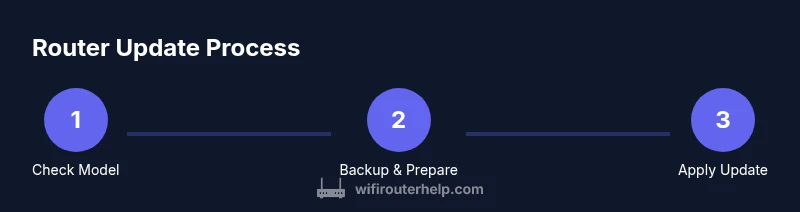
The update process can vary by model, but the general workflow is consistent across brands. Start by logging in to the router’s admin interface and locating the Firmware or Update section. If automatic updates are offered, you can enable them; otherwise, download the official firmware from the manufacturer’s site or use the built-in update tool. After initiating the update, do not power off the device as it installs. Once completed, verify the firmware version and re-enter any customized settings if needed. Finally, test your network for stability and speed to confirm the update took effect properly.
Common pitfalls and how to avoid them
- Interrupting the update: This can brick the router. Always allow the process to finish and avoid power cycling mid‑update.
- Installing from untrusted sources: Only use manufacturer-provided firmware to prevent malware or bricked devices.
- Skipping backups: A local backup helps you recover quickly if something goes wrong.
- Forgetting to reconfigure settings: After a reboot, your SSID, password, and QoS rules may revert; have your configuration notes handy.
After updating: verification and security enhancements
Verify the update by checking the firmware version in the admin panel and reviewing the release notes for your model. Reassess security settings—re‑enable features like firewall rules, UPnP (if needed), and default admin protections. Consider enabling automatic updates if your device supports them, and schedule regular maintenance windows to stay ahead of future patches. After any update, run a quick speed and connectivity test to confirm all devices can connect smoothly and that throughput meets expectations.
Brand and model considerations
Different brands implement updates with varying interfaces and cadences. Some devices push updates automatically, while others require manual steps. If you own a network with multiple routers or mesh nodes, ensure each node is updated in a coordinated fashion to avoid coverage gaps. Always consult the official user manual for your exact model to follow model‑specific instructions. The overarching principle remains: keep firmware updated, back up configurations, and monitor the network for any changes after the update.
Quick references and further reading
For deeper dives and model-specific guidance, refer to your vendor’s firmware release notes, support pages, and official forums. Keeping a log of updates, versions, and reboots can help you troubleshoot future issues and track the impact of each patch on performance and security.
Tools & Materials
- Computer, smartphone, or tablet with internet access(Used to access the router’s admin interface via a web browser or app)
- Stable internet connection(Needed to download firmware from the manufacturer)
- Router admin credentials (username/password)(Required to log in and apply updates)
- Backup of current router settings(Export a configuration backup if your router supports it)
- Ethernet cable (optional)(Wired connection can stabilize updates on some devices)
- Uninterruptible power source (UPS) or fresh battery(Minimize dropout during update)
Steps
Estimated time: Total time: 25-60 minutes
- 1
Log in to router admin
Open a web browser or app, enter the router’s IP address (commonly 192.168.1.1 or 192.168.0.1), and log in with your admin credentials. This step verifies you have access to update the firmware and lets you review the current version.
Tip: If you cannot find the address, check the label on the router or your device’s network settings. - 2
Back up current configuration
Export or save the router’s current configuration so you can restore it if needed. Store the backup in a safe location.
Tip: Note critical settings like SSID, password, and any custom QoS rules. - 3
Check for firmware updates
Navigate to the Firmware or Update section and click 'Check for updates' or 'Check now'. If an update is available, review the release notes before proceeding.
Tip: If no updates appear, visit the manufacturer site to see if a manual download is available for your model. - 4
Choose update method
Decide between automatic updates and manual installation. Automatic updates simplify maintenance; manual updates give you more control over timing and impact.
Tip: Automatic updates can reboot the router; plan downtime accordingly. - 5
Initiate the update
Start the update and avoid powering off the device during the process. Do not interrupt the update even if it seems slow.
Tip: If the progress seems stuck for an extended period, consult the vendor’s guidance before retrying. - 6
Wait for completion and reboot
Allow the router to finish upgrading and reboot. This may take several minutes depending on the device and firmware size.
Tip: Do not unplug the router during reboot; a temporary loss of connectivity is normal. - 7
Verify the update and test
Log back in, verify the firmware version, and re-check your SSID/password and any custom settings. Run basic speed tests and verify device connectivity.
Tip: If settings did not survive, re-enter them using your backup notes. - 8
Enhance security post-update
Review security features (firewall, remote admin, UPnP) and re-enable them as needed. Consider enabling automatic updates for future patches.
Tip: Keep a recurring maintenance window to repeat this process regularly.
People Also Ask
What happens if I skip firmware updates?
Skipping updates can leave your router exposed to known vulnerabilities and bugs. You may miss performance improvements and new features that enhance security and reliability.
Skipping updates can leave your router exposed to security risks and miss performance improvements.
Can I update my router using a smartphone?
Many routers support updates via vendor apps on smartphones. Check your model’s app or the admin interface to see if mobile updates are available.
Yes, many routers let you update from a phone or tablet using the vendor app.
Is automatic updates safe for all routers?
Generally, automatic updates are safe and convenient, but ensure you have a backup and a reliable power source in case of reboots.
Automatic updates are usually safe; backup first and ensure power stability.
What should I do if the update bricks the router?
If the update fails, try a power cycle and then reset to factory settings if needed. If problems persist, contact the manufacturer’s support.
If it bricks, try a reset and contact support if needed.
Do updates affect my Wi-Fi password or settings?
Most updates keep existing settings, but some updates may reset or change certain options. Have your configuration notes handy.
Usually your settings stay the same, but you might need to re-enter your password.
How can I verify I have the latest version?
Check the firmware version in the admin panel and compare it with the vendor’s release notes for your model.
Check the version in the admin panel and read the release notes.
Watch Video
What to Remember
- Update firmware regularly to improve security and stability.
- Automatic updates reduce the risk of missing patches.
- Back up settings before updating to prevent loss.
- Check release notes for new features and potential changes.
- Test network performance after updates to confirm success.