Can You Get a New Router from Xfinity? A Practical Guide
Explore how to obtain a new router from Xfinity, compare rental vs BYO options, and follow step-by-step setup tips from WiFi Router Help to keep your home network fast and secure.


Yes. can you get a new router from xfinity? Xfinity provides replacement router options through rental gateways or by purchasing a compatible router via their store. This guide explains eligibility, pros and cons, and the simple steps to upgrade or replace without interrupting service. By the end, you’ll know whether rental or BYO is best for your home network.
Understanding Your Xfinity Router Options
When you sign up for Xfinity Internet, you typically receive a gateway that combines a modem and router. If you need a fresh device, you have two main paths: rent a gateway from Xfinity or buy a compatible router you own and connect it to your Xfinity service. According to WiFi Router Help, many homeowners benefit from understanding both routes: rental hardware for convenience and BYO routers for flexibility and advanced features. The WiFi Router Help team found that the decision often hinges on how much you value control over settings, firmware updates, and long-term costs. In either case, your goal is to achieve stable coverage, simple management, and strong security. This section explains how each path works and what to expect in terms of compatibility, setup, and ongoing maintenance.
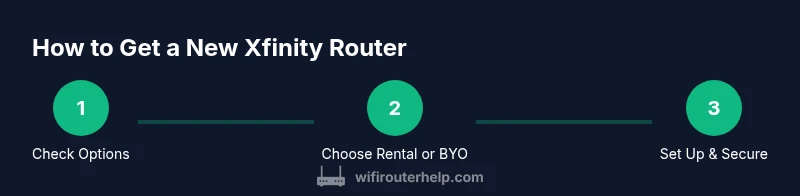
The reader journey in this article is guided by practical steps and clear comparisons for a smooth transition to a new router.
Tools & Materials
- Xfinity account access (My Account or xFi app)(Needed to request a replacement device or manage settings)
- Compatible router (BYO option)(Choose a router that supports your plan and users' needs; check compatibility with Xfinity's network requirements)
- Modem/gateway(If you’re BYO-ing a router, you’ll still need a modem that works with Xfinity or put the gateway in bridge mode)
- Ethernet cable(For wired setup and initial configuration)
- Basic network credentials (SSID and password)(Have them handy for quick setup or reconfiguration)
Steps
Estimated time: 45-90 minutes
- 1
Assess your needs and options
Decide whether you want to rent Xfinity’s gateway or bring your own router. Consider coverage in your home, the features you need (QoS, MU-MIMO, Wi‑Fi 6/6E compatibility), and long‑term cost. If you have a strong existing device, BYO can be cost-effective and offer greater control.
Tip: If you’re unsure, start with a trial period using Xfinity’s gateway and compare performance to your current router. - 2
Check compatibility and eligibility
If you’re BYO-ing, verify that your router is compatible with Xfinity service and whether any modem is required. For rentals, confirm whether your plan includes a gateway upgrade and what models are currently offered.
Tip: Note that some advanced features may require firmware updates or a specific Wi‑Fi standard. - 3
Request a replacement via your Xfinity account
Log in to My Account or the xFi app to request a new gateway or replacement device. You can often select delivery or arrange a pickup at a local store. Having your account details ready speeds things up.
Tip: If you’re replacing a faulty device, use the device diagnostic tools available in the app to verify the issue. - 4
Set up your hardware
Connect the gateway or your BYO router as directed: if using Xfinity gateway, follow the on-screen prompts; if using a new router, connect it to the modem, then power on and wait for the indicator lights to stabilize.
Tip: For a BYO router behind a gateway, enable bridge mode to avoid double NAT and simplify network management. - 5
Configure security and Wi‑Fi settings
Change the default admin password, create a strong Wi‑Fi network name (SSID), and set a robust passphrase. Update firmware if prompted and enable features like WPA3 where available.
Tip: Disable WPS if your router supports it to reduce potential attack vectors. - 6
Test, optimize, and monitor
Run a quick speed test, check device connectivity, and place the router centrally for best coverage. Adjust channel settings if interference is detected and set up guest networks if needed.
Tip: Use a mesh-capable router or a second access point to improve coverage in large homes.
People Also Ask
Can I get a new router from Xfinity without changing my plan?
Yes. Xfinity offers replacements through their rental program or by selling compatible routers in their store, typically without requiring a plan change. Your service remains active while the new device is arranged.
Yes. You can replace your router through Xfinity without switching plans.
Should I bring my own router or use Xfinity's gateway?
If you value advanced features and potential cost savings over time, a BYO router is worth it. If you prefer simplicity and consistent support, Xfinity’s gateway is convenient. Consider bridging if you use both.
BYO can offer more features, but the gateway keeps setup simple.
What is bridging mode, and do I need it?
Bridge mode disables the gateway’s router features, letting your own router handle all routing duties. It’s useful to avoid double NAT when using a separate router.
Bridge mode lets your own router manage network duties without the gateway interfering.
Will renting a gateway cost money, and are there fees for upgrade?
Xfinity rental typically involves a monthly charge. Upgrading to a newer model is usually included in the rental program or available at the store if you BYO.
There’s generally a monthly rental fee; upgrades follow the program terms.
What if my router isn’t compatible with Xfinity?
Check the official Xfinity compatibility list or contact support. If incompatible, you may need to use Xfinity’s gateway or switch to a different model that is supported.
If it’s not compatible, use Xfinity’s gateway or pick a supported model.
How long does the replacement process take?
It varies by method. In-store pickups are immediate; online replacements may take a few days for shipping or curbside pickup.
Replacement timing depends on whether you pick up or ship it to you.
Watch Video
What to Remember
- Decide rental vs BYO based on coverage needs and long-term costs
- Verify compatibility before purchasing or replacing hardware
- Bridge mode can simplify a mixed gateway + router setup
- Prioritize security by changing defaults and updating firmware