Asus Gaming Router: Setup, Optimize, Troubleshoot for Gamers
Learn how to choose, install, and optimize an Asus gaming router to minimize latency, maximize gaming performance, and secure your home network. A practical, step-by-step guide with tips, FAQs, and buying guidance.


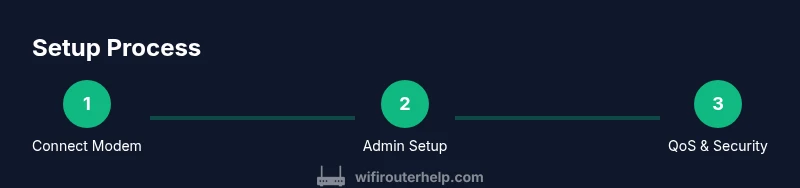
Set up an Asus gaming router to prioritize online gaming, reduce latency, and secure your home network. This quick answer highlights the essential steps: connect your modem, access the router’s admin interface, run the setup wizard, update firmware, and enable QoS and security features. You’ll achieve a stable gaming experience with optimized bandwidth.
Why an Asus Gaming Router Delivers Latency-First Gaming
For many gamers, the right router is as important as a fast modem. An Asus gaming router is designed to reduce jitter, prioritize interactive traffic, and maintain stable performance across hours of play. At the center of this approach is the idea that every packet matters: gaming traffic should take the fastest path, while less important tasks run in the background. Asus integrates features like Adaptive QoS, Game Boost, beamforming, and robust hardware to support smooth online experiences, even in crowded homes with multiple devices. In practice, choosing an Asus gaming router means prioritizing low latency over pure throughput, ensuring that your ping stays predictable during competitive matches. For households with consoles, PCs, mobile devices, and smart TVs, the router's ability to allocate bandwidth intelligently reduces slowdowns during important moments in games or streaming alike. A well-configured Asus gaming router also includes strong security options by default, helping protect your gaming devices from common threats as you focus on winning matches. In short, the right Asus gaming router becomes a central tool in a reliable home network designed for gaming, productivity, and family use, not just speed.
Core Technologies That Power Gaming Performance
Gaming performance is not just about raw speed; it's about consistent responsiveness. Asus gaming routers bring together several technologies to keep your games smooth even when your whole family is active online. QoS, or Quality of Service, lets you set rules that prioritize game traffic over less time-critical tasks such as software updates or video streaming. Adaptive QoS in many Asus models automatically recognizes gaming apps and devices, reducing the manual setup burden while preserving fastest routes for play. MU-MIMO and OFDMA spread resources efficiently across multiple devices without delaying your gameplay. Beamforming focuses Wi‑Fi signals toward connected devices, improving range and reliability in rooms with thick walls or interference from neighboring networks. AiProtection, powered by Trend Micro technology, adds real-time protection and parental controls without extra configuration. AiMesh support allows you to extend coverage with other Asus routers, creating a seamless mesh network for apartments or homes with several floors. These technologies work together to deliver consistent latency, high signal quality, and better stability for latency-sensitive tasks, while still offering ample bandwidth for streaming, downloads, and smart-home devices.
How to Set Up Your Asus Gaming Router: Quick Start
To get started, gather your internet service equipment, a computer or smartphone, and an Ethernet cable. Begin by turning off power to the modem and any existing router. Connect the modem's Ethernet port to the router's WAN/Internet port using the Ethernet cable, then power on both devices. In most cases, the Asus setup process is guided by a web interface or a mobile app. On first boot, connect a computer or phone to the router's default network name (SSID) and use the default login credentials printed on the device or in the quick-start guide. The setup wizard will guide you through internet connection type detection, device naming, and admin password creation. After the basic connectivity is established, you can personalize your network name, password, and security settings. If your internet provider requires you to login via PPPoE or uses a dynamic IP, the wizard will prompt you to enter those details. Depending on the model, you may also access advanced features like gaming-specific profiles, firewall settings, or VPN options. Finally, perform a quick speed test from your main gaming device to confirm the connection meets your expectations.
Fine-Tuning for Gaming: QoS, Game Accelerator, and Priority Rules
Once the basic setup is complete, it's time to tailor the router for gaming performance. Start with QoS: enable it and create explicit rules that give higher priority to traffic from your gaming console, PC, or streaming device during peak hours. Many Asus routers offer a Game Booster or Gaming Center that can automatically classify and prioritize gaming traffic, reducing the chance that background updates or cloud syncs compete for bandwidth. If you play on multiple devices, consider creating separate profiles for each device type (PC, console, mobile) so you can adjust settings without affecting the entire network. For cloud gaming services or streaming only during certain times, you can schedule QoS rules or apply time-based profiles. You should also enable features like beamforming and MU-MIMO to improve signal quality for prioritized devices. Remember to balance throughput with latency: overly aggressive rules can backfire if other devices become starved. At the end of this step, run a quick in-game latency check and compare numbers before and after optimization to quantify improvements.
Security and Maintenance for a Gaming Network
Security should be proactive, not reactive. Asus routers include built-in protections with AiProtection and WPA3 by default, which help block common threats and keep your gaming devices safer on shared networks. Update firmware regularly through the admin interface or mobile app to patch vulnerabilities and improve stability. Consider enabling a VPN for added privacy on public networks, while noting that some VPN services may introduce slight latency. Create guest networks to separate visitors from your main gaming devices and enable parental controls if needed to manage kids' online activity. Maintain a hardware-first approach: keep the router in an elevated, central location away from obstructions, and keep the casing clean to prevent overheating. Finally, back up your configuration periodically so you can restore your settings quickly after a factory reset, should that ever be necessary. A well-maintained Asus gaming router reduces exposure to threats and helps you keep a reliable gaming environment without sacrificing usability for other smart devices.
Troubleshooting Common Issues with Asus Routers
Even the best routers can face hiccups. If your games experience random disconnects, check that the Ethernet cable is secure and that the modem is functioning properly. A simple power cycle—power off, wait 30 seconds, and power back on—solves many connectivity problems on entry-level networks. If latency spikes persist, review QoS rules to ensure they assign priority to gaming devices and test with wired connections to confirm the issue isn’t wireless interference. If you cannot reach the admin interface, verify IP settings and ensure you are connected to the router’s network. Firmware updates occasionally reset settings; if a feature you rely on disappears after an update, reconfigure it using the setup wizard or a saved backup profile. For mesh setups, ensure all nodes are correctly connected and that backhaul paths remain stable. If you suspect the problem is device-specific, test with another gaming device to determine whether the issue lies with hardware or software on your primary device.
A Buying Guide: Choosing the Right Asus Gaming Router
Selecting the right Asus gaming router depends on your home size, the number of connected devices, and your preferred gaming platforms. Look for robust QoS features that let you assign traffic priority by device and by game, not just by app category. Check for hardware support such as a capable CPU, sufficient RAM, and adequate flash storage to handle firmware updates and future features. WiFi standards (such as Wi-Fi 6/6E) influence both speed and latency; if you have a crowded home with many devices, a model that supports MU-MIMO and OFDMA will help maintain stable performance. Consider the availability of gaming-focused features like Game Boost or dedicated gaming profiles, as well as compatibility with mesh networking if you plan to expand coverage. Finally, factor in build quality and cooling, because longer gaming sessions can heat devices; choose a chassis design that dissipates heat effectively. Price ranges vary widely, so map features to your budget and avoid overspending on capabilities you won’t use. This balanced approach helps you select an Asus router that protects your investment while delivering consistent gaming performance.
Real-World Scenarios: Optimizing for Multi-Device Homes
Many homes host a mix of PCs, consoles, streaming devices, and smart home gadgets. In such environments, prioritization becomes even more critical. A typical strategy is to set gaming devices to high priority during known gaming times while letting other devices use best-effort bandwidth. For households with streaming services in the same hours, consider enabling a separate gaming network or VLAN to ensure isolation and predictable latency for competitive play. Mesh networking can help fill dead spots, but it also adds latency if backhaul links aren’t well configured. In practice, test the network with common gaming loads—live multiplayer sessions, large game updates, and cloud gaming—to observe how latency changes as devices appear and disappear from the network. If latency remains high on some devices, consider relocating the router or adding a mesh node closer to them, and ensure firmware is up to date to take advantage of new performance features.
WiFi Security and Parental Controls for Gamers
Security matters for gamers who trust their devices with online services and cloud saves. Use strong admin passwords, enable WPA3, and disable remote admin unless you need it. Parental controls can help limit access during late hours or manage bandwidth usage for younger players while preserving a responsive network for adult gaming sessions. When visitors bring devices, they should connect to a guest network to avoid compromising your main gaming environment. If you rely on VPNs, ensure they are compatible with your router’s firmware and perform regular speed tests to check for noticeable latency changes. Regularly auditing connected devices also helps identify unknown clients that could impact performance. Finally, document security settings and keep a log of firmware updates to maintain a secure, gamer-friendly network over time.
Tools & Materials
- Internet connection (modem + service)(Ensure service is active)
- Computer or smartphone for setup(Wi-Fi or wired connection to the router)
- Ethernet cable (Cat5e or better)(For first-time wired setup)
- Power adapter for the router(Keep stable power during setup)
- Pen and notebook or digital notes(Optional for recording settings)
- Admin credentials from ISP or router defaults(You may need PPPoE details)
Steps
Estimated time: 60-120 minutes
- 1
Connect the Router to the Modem
Power off the modem and router. Connect the modem to the router's WAN/Internet port with an Ethernet cable, then power both devices back on. Wait for the router to initialize and show a stable connection indicator.
Tip: If you don't see a connection, reseat cables and perform a quick power cycle of both devices. - 2
Access the Admin Interface
Connect a computer or phone to the router's network and open the admin page or app. Enter the default credentials and start the setup wizard. Change the admin password immediately for security.
Tip: Use a device you trust and keep the admin password offline from others. - 3
Run the Setup Wizard
Follow the guided steps to select your internet type (DHCP/PPPoE), name your network, and configure a strong Wi‑Fi password. Let the wizard scan for connected devices and enable baseline protections.
Tip: Note your network name and password in a secure place for future reference. - 4
Update Firmware
Check for and install the latest firmware to ensure bug fixes and new features are available. Reboot the router after updating and re-check connectivity.
Tip: Avoid interrupting the update; a failed update can leave the router in a non-functional state. - 5
Enable QoS and Security Features
Turn on QoS and configure device- or game-based priorities. Enable AiProtection/WPA3 and set VPN options if needed, noting potential latency changes.
Tip: Create a dedicated gaming profile to keep prioritization consistent during play. - 6
Set Up Guest Network and Parental Controls
Configure a guest network to keep visitors off your main gaming devices. Enable parental controls if needed and set time limits or usage boundaries.
Tip: Use separate passwords for guest and main networks to prevent cross-access. - 7
Test and Validate Network Performance
Run wired and wireless speed tests on primary gaming devices. Check latency in-game and compare before/after optimization. Adjust QoS rules if needed.
Tip: If latency remains high, relocate the router to a central, elevated position and reduce interference. - 8
Document Settings and Create Backups
Save a backup of your configuration. Document key settings like QoS rules, SSID/password, and admin credentials for quick recovery after resets.
Tip: Store the backup file securely and consider keeping a separate note with changes you’ve made.
People Also Ask
What is the main benefit of using an Asus gaming router?
The main benefit is robust QoS and gaming-centric features that prioritize latency-sensitive traffic, helping to keep gameplay smooth even when other devices are active on the network.
The main benefit is that Asus routers prioritize gaming traffic, which helps keep your gameplay smooth even when others are online.
Can I use AiMesh with an Asus gaming router?
Yes. AiMesh lets you add compatible Asus routers to create a seamless mesh network for wider coverage and consistent performance across larger homes.
Yes, AiMesh lets you extend coverage with other Asus routers for a seamless mesh network.
Why should I update firmware regularly?
Regular firmware updates patch security vulnerabilities, fix bugs, and unlock improved features for better stability and performance.
Regular updates fix bugs and improve stability and performance.
Is a guest network a good idea for gamers?
Yes. A guest network keeps visitor devices separate from your main gaming network, protecting your gaming performance and reducing risk to your primary devices.
Yes—guest networks keep guests off your main gaming network for better security and performance.
Should I enable QoS for every device?
You can, but a focused approach—prioritizing gaming devices and critical peripherals—typically yields better results than trying to fine-tune every device.
QoS helps when focused on gaming devices; you don't need to tune every single device to get good results.
What’s the difference between a gaming router and a standard router?
Gaming routers offer advanced QoS, gaming-centric features, and often more powerful hardware to reduce latency and support multiple high-demand devices.
Gaming routers have advanced QoS and stronger hardware to minimize latency for gaming.
Watch Video
What to Remember
- Identify latency priorities with QoS and Game Boost features.
- Keep firmware updated and secure admin access.
- Isolate gaming devices with proper networks and mesh placement.
- Test performance before and after tuning to quantify gains.
- Document and backup your router configuration for quick recovery.