Are Routers Worth It? A Practical Guide for Home Networks
Discover whether a dedicated Wi‑Fi router is worth your investment. Learn how to evaluate needs, features, and setup for a fast, secure home network.


Are routers worth it? For most homes, yes—the right router dramatically improves Wi‑Fi coverage, security, and control over your network. If you’re upgrading from a basic modem, replacing an aging router, or expanding a mesh system, a dedicated router often pays for itself with faster speeds and fewer dead zones. This guide explains who benefits, what features matter, and how to choose and configure the right device.
Are Routers Worth It: A Practical View for Home Networks
Are routers worth it? The short answer is yes for most households, but the value depends on space, internet plan, and device count. According to WiFi Router Help, are routers worth it becomes clear when you map coverage, security needs, and usage patterns across rooms and devices. A modern router can turn a congested, patchy network into a reliable backbone for streaming, gaming, video calls, and smart-home devices. If your current setup relies on an ISP-provided gateway, you may notice dead spots in the living room, basement, or home office. Upgrading to a dedicated router—or adding a secondary unit in a mesh system—often yields more consistent speeds and simpler management. This guide will walk you through how to evaluate your needs, compare features, and set up a router that fits your home, budget, and future plans. The goal is not to chase the fastest numbers but to create a reliable, secure, and user-friendly home network that scales with your family’s devices.
How a Router Improves Your Home Network
A router is more than a fancy modem; it acts as the traffic controller for every device in your home. With a capable router, you gain improved coverage through multiple antennas, smarter steering of devices between bands, and better handling of simultaneous tasks. Security features keep your data safer on shared networks, while admin tools let you customize guest networks, parental controls, and device access. A modern router also enables Quality of Service (QoS) configurations so you can prioritize getting video calls to run smoothly or ensure gaming packets get priority during online sessions. In short, a good router reduces congestion, increases reliability, and gives you more control than an older gateway.
Key Features That Drive Value
When evaluating routers, certain features consistently translate into real-world benefits. Look for a modern Wi‑Fi standard (preferably Wi‑Fi 6/6E or newer), which delivers better efficiency in crowded environments. MU‑MIMO and beamforming improve throughput for multiple devices, not just a single hotspot. QoS helps prioritize traffic for critical tasks like video conferencing or online gaming. Security matters too: WPA3 should be available, and the admin interface should offer easy password management, guest networks, and parental controls. Additional niceties include USB ports for printers or storage, robust parental controls, and a strong CPU that handles updates and complex tasks without slowing down. Based on WiFi Router Help analysis, features that align with your home size and device mix deliver the most noticeable improvements.
When to Stick with Your ISP Gateway vs Upgrade
ISP-provided gateways can be adequate for small, one- or two-bedroom apartments with light usage. If you have a larger home, multiple floors, a high-speed plan, or many smart devices, upgrading to a dedicated router typically yields better coverage and reliability. Consider bridge mode if you want to avoid double NAT when using a separate modem and router, but be aware that some features may be limited in bridge mode. The decision also depends on your willingness to manage more settings and your budget. A modern standalone router can offer longer-term value and easier future upgrades than a fixed gateway from an ISP.
Real-World Use Cases: A Spectrum of Homes
- Small apartment or dorm: A compact, high‑quality router can provide strong coverage for one or two devices, plus guest access. In compact spaces, prioritize a compact form factor and strong 5 GHz performance.
- Suburban family home: A mid‑sized router or small mesh system often delivers reliable coverage across several floors and a dedicated guest network for visitors. QoS helps keep video calls steady even when kids are gaming.
- Home office or remote work: Stability and VPN compatibility matter. Look for routers with strong security features, robust firmware support, and reliable WAN performance. A mesh setup can eliminate dead spots in large rooms or basements.
Each scenario shows that the decision to buy a router isn’t about a single feature—it’s about how the device meets real-world needs and the way your family uses the network.
Setup and Security Best Practices
Getting a router up and running securely doesn’t have to be hard. Start by choosing a unique, strong administrator password and enabling WPA3 if available. Rename the network with a non-identifying SSID, and disable WPS to reduce attack surfaces. Update firmware before first use to patch known vulnerabilities. Configure a guest network for visitors, restrict access to local devices, and enable automatic firmware updates where possible. Finally, back up your configuration so you can recover quickly after a reset or replacement. These steps create a strong foundation for a reliable, secure home network.
Cost Considerations and ROI
Router prices span a broad range, influenced by standards, features, and build quality. Entry-level models cover essential needs, while mid-range devices add better range, faster speeds, and more features like QoS and parental controls. Premium routers deliver advanced security, higher throughput, and longer support lifecycles. When evaluating ROI, consider not just the price but the benefits: fewer dead zones, smoother streaming, and fewer support calls. A router upgrade can also extend the usable life of your home network as devices and services demand more bandwidth.
Maintenance and Long-Term Upkeep
A router isn’t a set‑it‑and‑forget‑it device. Schedule periodic firmware checks, and enable automatic updates if you value simplicity. Periodically review connected devices and update passwords for devices that don’t use modern security. If you notice slower performance, re‑check placement, run a simple speed test, and consider resetting to factory defaults before reconfiguring. Maintain documentation of your settings for quick recovery after power outages or hardware changes. A well‑maintained router stays responsive to evolving home network needs.
The ROI of Upgrading: Practical Takeaways
A modern router can noticeably improve coverage, reliability, and security for many households. If you upgraded from an older router with weak signals, you’ll likely observe fewer buffering incidents and more consistent speeds during peak usage times. The value increases as your family adds devices, moves to higher speed plans, or expands to a larger house. In many cases, the improvement in daily experiences—streaming, gaming, video calls—outweighs the upfront cost over a few months to a year.
Tools & Materials
- New router (Wi‑Fi 6/6E or newer)(Prefer WPA3-capable devices; ensure CPU/memory are adequate for your needs)
- Ethernet cable (Cat 5e or better)(Used for a stable uplink to the modem during setup)
- Modem (existing) or ISP gateway(Have it powered on and accessible for bridging or split network tests)
- Computer or smartphone(Used to access the router’s admin interface)
- Power adapter for the router(Keep handy in case of power outages or reconnects)
- Optional: USB storage or printer(For shared network resources via USB ports on some routers)
Steps
Estimated time: 20-40 minutes
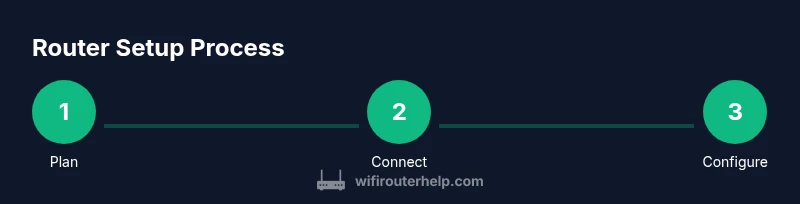
- 1
Plan your network layout
Before plugging anything in, sketch your home’s layout and identify likely dead zones. Decide whether you’ll use a single router or a mesh system, and choose a strong administrator password. This planning minimizes later reconfigurations.
Tip: Map high‑use areas (living room, home office) and place the router roughly midway for best coverage. - 2
Connect the router to the modem
Power down the modem, connect the router’s WAN/Internet port to the modem with an Ethernet cable, and then power on both devices. Give the router a minute to boot.
Tip: If you plan to bridge, ensure you disable NAT on the gateway or follow your ISP’s bridge mode instructions. - 3
Access the router admin page
Connect a device to the router via Wi‑Fi or Ethernet and open the router’s admin page using the default IP address. Create a unique admin password and update the firmware before making changes.
Tip: Use a secure device to access the admin page and avoid using public networks for initial setup. - 4
Set up basic wireless and security
Change the SSID to something non-identifying, enable WPA3 (or WPA2‑WPA3), and set a strong, unique Wi‑Fi password. Disable WPS to reduce vulnerability.
Tip: Create separate 2.4 GHz and 5 GHz networks if you have mixed devices for better performance. - 5
Configure advanced features
Enable a guest network, adjust QoS if needed, and set up parental controls or device access rules. Save and back up the configuration.
Tip: Test critical services (video calls, gaming, streaming) after enabling QoS to verify improvements. - 6
Test, monitor, and tune
Run speed tests in multiple rooms, check coverage with a mobile device, and adjust placement if gaps remain. Schedule firmware checks and keep logs of changes.
Tip: If you notice slowdowns, try repositioning the router or adding a mesh node in a distant area.
People Also Ask
Do I still need a router if I have a modern ISP gateway?
For many households, a dedicated router improves range and control, though a modern gateway may suffice for light usage. If you notice dead spots or want finer security controls, a separate router is worth considering.
A dedicated router can give you better coverage and control, especially if your current gateway is slow or unstable.
What is the difference between Wi‑Fi 5 and Wi‑Fi 6 routers?
Wi‑Fi 6 offers higher efficiency and better performance in crowded environments, especially with many devices. Wi‑Fi 5 is adequate for basic tasks but may lag with multiple streams.
Wi‑Fi 6 is more future-proof and handles many devices more efficiently than Wi‑Fi 5.
Is a mesh system worth it for a large home?
In large or multi‑story homes, mesh systems reduce dead zones and provide seamless roaming across rooms. They are most beneficial when a single router cannot cover the entire space.
If you have a big home or lots of walls, a mesh system can be a smart investment.
How often should I update router firmware?
Check for updates monthly or enable automatic updates. Firmware patches often include security fixes and performance improvements, keeping devices safer and faster.
Update firmware regularly to stay protected and maintain performance.
Can I use my old router with a new modem?
Yes, you can connect an old router to a new modem, but you may need to configure bridge mode or adjust NAT settings. Compatibility and features like QoS may be limited.
You can use an old router with a new modem, but expect potential limits and extra setup steps.
What most affects speed more, the plan or the router hardware?
Both matter. Your plan sets the ceiling, while the router determines how efficiently you reach that ceiling across devices and rooms. A capable router often yields meaningful gains even on high‑speed plans.
Your plan sets the ceiling, but a good router helps you hit it across your home.
Watch Video
What to Remember
- Assess space and device counts before buying.
- Security and firmware updates protect long‑term value.
- Mesh often helps large, multi‑story homes; single routers fit small spaces.
- Expect a broad price range; features align with budget and needs.