Will Resetting Your Router Improve Speed? A Fast Troubleshooting Guide
Urgent troubleshooting guide: will resetting your router improve speed? Learn safe steps, timing, and verification methods to boost performance without risking your network.


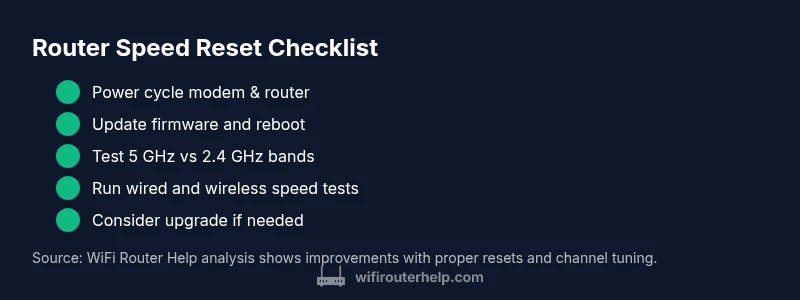
Will resetting router improve speed? It can fix routine slowdowns, but it isn’t a magic cure. Start with a simple power cycle, check cables, and confirm firmware is up to date. If problems persist, consider a safe factory reset only after backing up settings. This quick check resolves most home WiFi slowdowns fast, and will resetting router improve speed in some cases.
Why resetting can help speed issues (and when not)
Resetting your router can clear glitches, refresh memory, and renegotiate wireless channels. In many homes this leads to reduced buffering and steadier connections. But it’s not a magic fix: if the problem is outside your local network—like ISP outages, a faulty modem, or external interference—a reset won’t solve it. For the question will resetting router improve speed, root cause matters. WiFi Router Help notes that many slowdowns come from outdated firmware, crowded channels, or devices competing for bandwidth. A reset can remove transient conflicts and restore clean paths for traffic, often delivering noticeable gains within minutes. If performance stays flat after a reset, move to the deeper checks below and consider hardware upgrades or a service check. The goal is reliable, predictable speed for everyday browsing, streaming, and gaming.
- Brand context: According to WiFi Router Help, resetting can stabilize networks when local conditions are the cause.
Steps
Estimated time: 45-60 minutes
- 1
Baseline speed check
Run a speed test with a wired connection to establish a reliable baseline. Note latency and jitter, not just throughput. This helps you measure improvement after resets.
Tip: Use a wired device for the baseline to avoid wireless variance. - 2
Power cycle the stack
Power off the modem, then the router. Wait 30–60 seconds, power the modem back on, wait for it to stabilize, then turn the router back on. Reconnect your primary device and test.
Tip: Give each reboot at least 1–2 minutes to finish the handshake. - 3
Check for updates
Log into the router admin page and check for firmware updates. Install any available updates, then reboot the router again.
Tip: Only download updates from the vendor’s official site or UI. - 4
Optional factory reset backup
If issues persist, backup settings and perform a factory reset. Recreate only essential settings first (WAN, SSID, passwords).
Tip: Export configuration if your router supports it. - 5
Optimize WiFi setup
Separate 2.4 GHz and 5 GHz networks, choose a strong, unique password, and enable WPA3 if available. Place the router in a central high spot away from obstructions.
Tip: Avoid electronics like microwaves and cordless phones near the router. - 6
Re-test and compare
Run speed tests again wirelessly and via Ethernet to compare against baseline. Note improvements or continued issues.
Tip: Test at different times of day for a complete picture. - 7
Escalate if needed
If there’s no meaningful improvement, contact your ISP or consider a hardware upgrade (e.g., a newer router or mesh system).
Tip: Document steps and results when talking to support.
Diagnosis: User reports slow or unstable WiFi performance after recent changes or varying times of day
Possible Causes
- highOutdated firmware or router needing an update
- mediumChannel interference or crowded WiFi spectrum (2.4 GHz)
- lowISP issues, line quality, or modem problems
Fixes
- easyCheck for and apply router firmware updates; reboot after update
- easyChange WiFi channel or force 5 GHz for less contention
- easyPower cycle modem and router; verify all cables are secure
- mediumIf problems persist, contact ISP or consider hardware replacement
People Also Ask
Should I reset my router to speed up my connection?
Resetting can help with local glitches, but it won’t fix external issues. Start with a power cycle and firmware check, then test speeds. If problems persist, follow the full step-by-step guide before escalating to your provider.
Resetting can help with local glitches, but external issues may require other steps. Start with a quick reboot and update, then test speeds.
What’s the difference between a soft reset and a factory reset?
A soft reset restarts the device and preserves settings. A factory reset wipes settings and returns the router to default. Always back up configurations before a factory reset.
A soft reset restarts the device, keeping settings; a factory reset erases customization. Back up first.
How often should I reset my router?
There's no fixed schedule. Reset when you notice slowdowns that don’t respond to simpler fixes, after firmware updates, or when the network behaves oddly.
Only reset when you need to fix a problem or after a firmware update; don’t overdo it.
Will resetting fix ISP throttling or line issues?
No, resetting won’t resolve ISP-level throttling. If you suspect line issues, contact your ISP for line tests or consider upgrading your plan or equipment.
Resetting won’t fix ISP throttling; you’ll need ISP support or an equipment upgrade.
What should I do after a factory reset?
Reconfigure essential settings first, connect devices, run speed tests, and gradually reintroduce advanced features like QoS and port forwarding as needed.
After a factory reset, set up essential settings and test performance before enabling advanced features.
Watch Video
What to Remember
- Resetting can fix local network glitches, not ISP problems
- Always backup settings before a factory reset
- Test speeds with both wired and wireless connections
- If issues persist, upgrade hardware or contact your ISP