Why Does My Router Stop Working Randomly? A Step-by-Step Troubleshooting Guide
A concise, urgent guide to diagnosing why your router stops working randomly, with a step-by-step diagnostic flow, fixes, and prevention tips from WiFi Router Help.


Most random outages come from interference, flaky power, or firmware bugs. Start with easy fixes: reboot both router and modem, check power and cables, and update firmware. If the problem returns, move the router away from electronics, switch channels to avoid interference, and run a diagnostic flow to isolate the culprit. Persistent drops may require hardware replacement or service inspection.
What 'random outages' look like
If you notice your devices sporadically losing internet access, you may call it a random outage. You might see the Wi-Fi icon drop to a yellow triangle, streaming freezes, calls drop, or page load times spike only on some devices. The phrase why does my router stop working randomly is common in homeowner forums because symptoms can hop between 2.4 GHz and 5 GHz networks. In practice, the problem often manifests as intermittent drops that recover after a minute or two, followed by normal performance, only to return later. In many homes, the culprit isn’t the entire internet but the local network itself: a misbehaving device, a congested channel, or a power issue that briefly interrupts the router’s hardware. The WiFi Router Help team notes that documenting when the outages occur—time of day, devices affected, and whether wired connections are impacted—helps isolate root causes. If you’re currently dealing with this, stay calm: a structured approach speeds up the fix and reduces guesswork.
Common causes of random router failures
There are several frequent culprits behind why does my router stop working randomly. Interference from neighboring networks on crowded channels is a leading cause, especially in apartment buildings. Power issues—an unstable adapter or a loose outlet—can produce momentary resets that feel random. Firmware bugs and misconfigurations can appear after an automatic update, leading to periodic drops. ISP problems or a faulty modem can manifest as router outages that look like local issues. Finally, hardware wear or a failing port/cable adds to the mystery. By checking each likely cause in order, you can often pinpoint the trigger without replacing hardware unnecessarily. The goal is to separate symptoms caused by the router from issues on the line or in the environment, using a consistent testing routine.
Quick checks you can do now
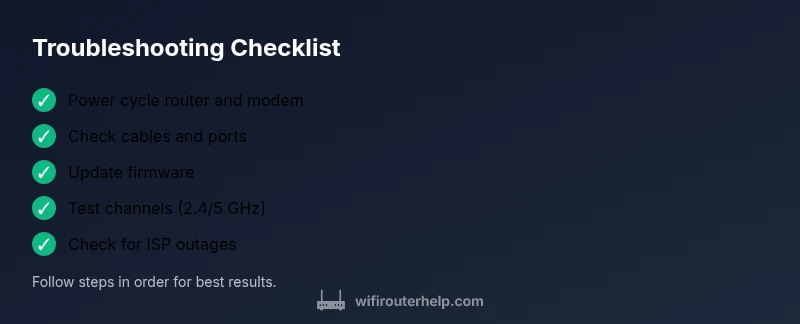
Before diving into deep diagnostics, run these quick checks to rule out obvious issues. Start by power cycling the router and modem, then verify all power cables are snug. Check LED indicators for errors or warning signs and confirm you’re on the latest firmware. Test both 2.4 GHz and 5 GHz bands, and see if the problem affects all devices or only one. Inspect Ethernet cables and ports for damage and replace any suspect cables. Relocate the router away from microwaves, baby monitors, and dense metal objects that can cause interference. Finally, temporarily disable VPNs or firewalls that might be adding latency or dropping connections, then retest.
A systematic diagnostic approach you can follow
To determine why the router stops working randomly, follow this logical flow: observe symptoms across devices, perform controlled restarts, and verify external factors like the modem or ISP. Start by pinging the gateway and testing wired connections to confirm the issue isn’t limited to Wi‑Fi. If outages persist only on wireless clients, experiment with different channels and SSIDs to identify interference. Check logs in the router’s admin panel for reboot events or error messages. If you spot a specific device or protocol triggering resets, isolate it with a guest network or MAC filtering. Finally, test after firmware updates or resets to confirm stability. This disciplined approach reduces guesswork and accelerates resolution.
Fixes for the most common causes
If the outage pattern matches common culprits, here are targeted fixes you can attempt in order. First, improve power stability by using a reliable outlet or a surge protector, and ensure the adapter isn’t overheating. Clean the router vents and place the unit in an open, elevated spot to prevent thermal throttling. Update to the latest firmware, and if stability remains elusive, perform a factory reset and reconfigure the essential settings from scratch. For interference, switch to a less congested channel or enable auto-channel selection; consider using 5 GHz for nearby devices and 2.4 GHz for longer range. Check cables: replace worn Ethernet cables and test ports. If the problem continues, test with a different router or contact your ISP for line checks.
When to call the pros and how to prevent future outages
Some outages demand professional help, especially when hardware is aging or the problem reappears after all standard fixes. If you’ve exhausted power, firmware, channel changes, and replacement of cables, it’s time to consult a technician or request a service visit from your ISP. In the meantime, follow preventive habits: keep devices away from heat, dust out of vents, and schedule periodic firmware updates. Use a dedicated surge-protected outlet for all networking gear, and maintain a basic network map so you can quickly spot recurring patterns. The WiFi Router Help team emphasizes proactive maintenance and documentation as the best defense against unexpected drops.
Steps
Estimated time: 25-45 minutes
- 1
Verify outage pattern
Observe whether outages affect multiple devices, both wired and wireless, and note the time of day. This helps distinguish a local network issue from an external service outage. Keep a short log for reference.
Tip: Document timing and affected devices to spot repeating patterns. - 2
Power cycle everything
Power off the router and modem, wait 60 seconds, then power the modem first followed by the router. This clears temporary faults and refreshes DHCP leases. Test if connectivity returns after reboot.
Tip: Avoid unplugging all devices at once; reboot in sequence for clarity. - 3
Check physical connections
Inspect power adapters, Ethernet cables, and modem-router link lights. Replace any frayed cables and ensure connectors are snug. A loose cable is a common but fixable cause of outages.
Tip: Swap in a known-good Ethernet cable to test a bad line. - 4
Update firmware and reset if needed
Log into the router admin page, check for firmware updates, and install them. If stability remains, perform a factory reset and reconfigure essential settings from scratch.
Tip: Backup current settings before a reset to save time. - 5
Assess overheating and placement
Check for warm vents and ensure the router sits in a well-ventilated area. Clean dust from vents and relocate away from heat sources or electronics that cause interference.
Tip: A cooler router stabilizes performance and reduces resets. - 6
Test channels and bands
Switch between 2.4 GHz and 5 GHz, or set auto-channel selection. Run tests with different devices to identify interference patterns from neighbors or appliances.
Tip: Channel optimization often yields quick stability gains. - 7
Rule out ISP and hardware issues
Check your service status page or contact your ISP to rule out outages. If the problem persists despite a solid connection, consider modem replacement or upgrading your router.
Tip: If the line is fine, the router/modem is likely at fault. - 8
Plan for next steps
If issues persist after all steps, decide between upgrading to a newer router or scheduling a professional diagnostic visit. Maintain a proactive maintenance routine to prevent future outages.
Tip: Regular firmware checks and a healthy hardware cycle extend reliability.
Diagnosis: Router randomly loses internet connectivity across multiple devices
Possible Causes
- highPower issue or unstable adapter
- mediumRouter overheating or poor ventilation
- mediumFirmware bug or corrupted settings
- highISP outage or modem issue
- lowFaulty Ethernet cable or port
- mediumInterference from neighboring networks
Fixes
- easyTest with a known-good power outlet and replace the adapter if suspect
- easyClear vents, improve airflow, and reposition the router
- mediumUpdate firmware or reset to factory settings and reconfigure
- easyCheck service status with your ISP and restart the modem with the router
- easyReplace damaged cables or reseat ports and test
- easyChange Wi‑Fi channel or enable auto-channel selection to reduce interference
People Also Ask
What is the most common reason a router stops working randomly?
Interference, power issues, or firmware bugs are the most frequent culprits. Run through the diagnostic flow and apply the fixes in order to isolate the cause.
Most outages are due to interference, power issues, or firmware bugs. Start with a reboot and firmware update, then test channels and power.
Why does this happen only on Wi‑Fi and not on wired connections?
Wireless is more sensitive to interference and environmental factors. A drop on Wi‑Fi but not Ethernet usually points to channel, band, or placement issues.
If it’s only on Wi‑Fi, chances are it’s interference or range, not the line itself.
Is resetting the router to factory settings safe?
A factory reset erases all custom settings. Back up configurations first, then reconfigure essential features like your SSID and password.
A factory reset clears your setup—back up settings before proceeding.
When should I replace my router?
If outages persist after all fixes and firmware updates, or hardware is aging, replacement is often the best long-term solution.
If problems keep coming back after fixes, consider upgrading your router.
Can a surge protector help with outages?
A surge protector can reduce power-related resets by stabilizing the power supply to your networking gear.
Yes, a good surge protector helps guard against power-related outages.
Should I use a guest network while testing?
Using a guest network isolates testing devices from your main network, which can help pinpoint issues without risking main devices.
A guest network is handy to isolate tests and protect your main setup.
Watch Video
What to Remember
- Identify outages by testing both wired and wireless devices.
- Power, firmware, and interference are the top culprits.
- Follow the diagnostic flow before hardware replacement.
- Preventive maintenance reduces future outages.