Load Balance Router: Step-by-Step Setup and Tips
Learn how to set up a load balance router to share traffic across multiple WAN links and devices. Step-by-step guidance, best practices, and troubleshooting for a faster, more reliable home network.


In this guide you will learn to implement a load balance router to distribute traffic across multiple WAN links or internal paths. You'll cover core concepts, prerequisites, and a practical, step-by-step setup for common consumer and business routers. Whether you aim to improve throughput, resilience, or both, this quick answer frames goals, required hardware, and the minimal configuration steps.
What is a load balance router and why it matters
A load balance router is a networking device that distributes outgoing traffic across multiple internet connections or across multiple paths in your local network to optimize throughput and resilience. For homeowners and tech enthusiasts, the main appeal is smoother streaming, faster downloads, and continued connectivity when a single line drops. The term is sometimes used interchangeably with multi-WAN or link-balance routers, but the core idea remains the same: balance load, prevent bottlenecks, and reduce single-point failure. According to WiFi Router Help, a well-planned load balancing setup takes into account link speeds, latency, and the types of traffic your family uses most. This means not just spreading packets evenly, but smartly routing time-sensitive traffic (like gaming or video calls) where it will perform best. Keep in mind that the actual approach depends on your hardware and firmware; consumer dual-WAN routers offer simpler presets, while advanced users may customize rules via policy routing or third-party firmware. A good starting point is to map your network goals: do you want maximum throughput, higher uptime, or both? The answers will guide your hardware choices and configuration strategy.
WAN vs LAN load balancing: two sides of the same coin
When we talk about load balancing on a router, it helps to distinguish between WAN load balancing and in-network load distribution (LAN). WAN load balancing uses multiple internet connections (two or more external links) to spread outbound traffic, reduce congestion, and provide failover if a primary link drops. LAN distribution, on the other hand, balances traffic among devices inside your home—ensuring that bandwidth-heavy devices don’t monopolize the connection, and that critical apps receive a fair share. WiFi Router Help emphasizes that most home users start with WAN load balancing on a dual-WAN router; this approach can improve peak throughput and continuity during ISP outages. For gaming or video conferencing, you may also want policy-based routing rules to steer specific devices or applications to the best path. Finally, remember that some consumer routers offer basic load-balancing presets, while advanced setups may require manual rules or flashing custom firmware. The key is to align the technical capability with your real-world needs and your willingness to tinker with settings.
Hardware and firmware options: what to buy and how to prepare
Choosing the right hardware is the single most important step in a successful load balance router deployment. If you have two reliable internet connections, a consumer dual-WAN router with built-in load balancing is usually enough for a family home. For more demanding environments, enterprise-grade routers, or devices that run custom firmware, offer deeper control and more precise traffic shaping. When evaluating devices, check for the number of WAN ports, support for session persistence, and the ability to set weights or priorities for each link. Firmware also matters: stock firmware on many routers provides easy presets, but third-party options like OpenWrt or DD-WRT unlock more granular control. WiFi Router Help recommends verifying compatibility between your hardware and firmware before buying; this reduces the risk of bricking a device or losing essential features. In addition to the router itself, you’ll need reliable modems or gateways, Ethernet cabling, and a plan for labeling connections (WAN1, WAN2, LAN). A well-documented topology will pay off during troubleshooting and future upgrades. If you’re unsure, start with a tested consumer model and upgrade later as you gain experience.
Planning your deployment: goals, topology, and expectations
Before touching the router interface, take a few minutes to articulate your goals. Are you trying to improve streaming quality, reduce buffering in multi-user households, or ensure connectivity in case one ISP link fails? Create a simple topology diagram showing WAN1, WAN2 (if present), and the main LAN segments. Consider where you need low latency (gaming consoles, work-from-home gear) and where you can tolerate a bit more delay (bulk downloads, backups). WiFi Router Help advises documenting the typical traffic profile of your family and assigning devices or apps to appropriate paths. Realistic expectations matter: load balancing can improve overall throughput and resilience, but it won’t magically exceed the available speeds of your internet plan. You may also want to plan for QoS (quality of service) rules to prioritize important traffic. Finally, ensure you have a rollback plan—know how to restore a previous working configuration if something goes wrong during setup. This phase sets the foundation for a stable, maintainable system.
Step-by-step overview
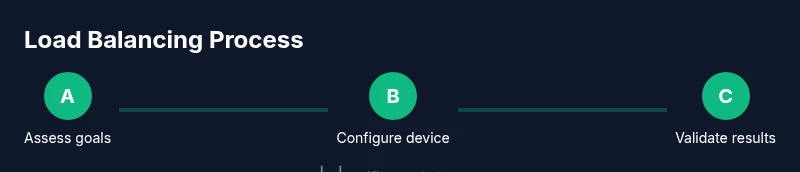
Implementing a load balance router involves careful planning, configuration, and validation. Start by clarifying goals and ensuring you have compatible hardware. Map your WAN connections and LAN devices to understand how traffic will flow. Decide the balancing method (round-robin, weighted, or rules-based) and whether to enable failover or active-active mode. Configure NAT and firewall rules to maintain security across multiple links, then enable session persistence to avoid traffic bouncing between links. Finally, test each path with real workloads, measure results, and adjust weights, timeouts, or QoS rules as needed. This overview helps you stay organized while you execute the detailed steps in the next section.
Performance expectations and caveats: what load balancing can and cannot do
Load balancing can improve overall throughput by utilizing multiple paths and increase uptime by providing failover. In practical terms, you won’t beat the physical speed limits of your internet plans, and some traffic may not benefit equally from multiple paths. Latency-sensitive applications (gaming, VoIP, video calls) may behave unpredictably if rules don’t prioritize them correctly. Some setups require session persistence so a device continues to use the same path during a transfer; without it, you may experience bouncing between links. NAT behavior and firewall rules become more complex with multiple paths, so misconfigurations can block traffic or expose your network. The best results come from a measured approach: start with a simple, supported scheme on the router’s stock firmware, then layer in weights, QoS, and policy routing as you gain confidence. WiFi Router Help’s guidance reinforces testing before deployment and continuous tuning based on real-world usage, not theoretical gains.
Troubleshooting common issues and quick fixes
If traffic seems uneven or some devices lose connectivity, double-check cable labeling and WAN status indicators first. Ensure both internet connections are actually up and delivering expected speeds. If you notice one device consistently sticking to a single path, review session persistence and routing rules. When traffic spikes or streams keep buffering, adjust weights or enable QoS for critical applications. If the router’s UI becomes unresponsive after a change, perform a safe reset and restore from a backup rather than reconfiguring from scratch. Finally, verify that NAT rules are consistent across both paths and that port forwarding settings aren’t duplicating across interfaces. A careful rollback plan is invaluable when changes don’t behave as expected.
Security, maintenance, and best practices
Keep firmware up to date to patch security flaws and add stability fixes. Back up configurations before making changes, and keep a network diagram for reference. Where possible, use a UPS to avoid sudden power loss during changes or outages. Limit exposure by restricting remote management and using strong, unique admin credentials. When enabling multi-WAN features, test any firewall or NAT rules to prevent accidental exposure of internal devices. Finally, consider a periodic review: after major ISP changes or new devices, revisit your load balancing rules to ensure continued alignment with your goals.
Tools & Materials
- Dual-WAN router or multi-WAN gateway(Two active WAN connections or a device with multi-WAN ports)
- Ethernet cables(Cat5e or better; label cables for WAN1, WAN2, and LAN)
- Modems/ISP connections(Two separate internet connections or two gateways from providers)
- Computer or mobile device for admin access(Access the router's web UI or CLI to configure)
- Firmware with load-balancing features(Stock firmware with LB presets or a compatible third-party option)
- Network topology diagram(Helpful for planning, not strictly necessary)
- UPS or reliable power backup(Keeps router running during outages for testing and stability)
Steps
Estimated time: 60-90 minutes
- 1
Define goals and gather hardware
State the primary objective (throughput, uptime, or both) and confirm you have a multi-WAN capable router and active internet connections. This step sets expectations and prevents scope creep.
Tip: Document goals in a short plan before touching the UI. - 2
Verify WAN ports and compatibility
Check that both WAN ports (or multiple WAN interfaces) are functional and show online status. Verify firmware compatibility for load balancing features.
Tip: Label cables WAN1 and WAN2 to avoid misrouting during setup. - 3
Update firmware and back up
Update to the latest stable firmware and back up the current configuration. This reduces risk if you need to revert after a misconfiguration.
Tip: Always create a restore point before making changes. - 4
Enable load balancing and select method
In the router UI, enable the multi-WAN or LB feature and choose a balancing method (round-robin, weighted, or policy-based).
Tip: Start with a simple round-robin approach and test before adding weights. - 5
Configure NAT and firewall rules
Ensure correct NAT behavior across both links and set rules to protect your LAN. Avoid double-NAT where possible by bridging modems.
Tip: Test connectivity after each rule change to catch misconfigurations early. - 6
Set up QoS and session persistence
Create QoS rules to prioritize critical apps and enable session persistence to avoid path-hopping for ongoing transfers.
Tip: Prioritize work apps and gaming traffic for the best experience. - 7
Test with real workloads
Run speed tests, streaming tests, and file transfers on multiple devices to observe how traffic distributes. Adjust weights as needed.
Tip: Test with both peak and off-peak conditions to understand behavior. - 8
Document, backup, and monitor
Save the final configuration, export the rules, and enable logging to monitor long-term performance.
Tip: Schedule a quarterly review to adjust settings as your network evolves.
People Also Ask
What is load balancing on a router?
Load balancing distributes outbound traffic across multiple WAN links or paths to improve throughput and resilience. It can also balance traffic inside a LAN to prevent bottlenecks. The exact behavior depends on hardware and firmware.
Load balancing on routers spreads traffic across multiple links or paths to improve speed and reliability. The exact setup depends on your device, but the goal is to use available paths efficiently.
Can consumer routers support load balancing?
Many consumer dual-WAN routers offer basic load-balancing features, and some higher-end models support advanced rules or policy routing. If your current device lacks LB, consider firmware upgrades or a dedicated multi-WAN unit.
Yes, many consumer dual-WAN routers support load balancing, and some offer advanced rules. If yours doesn’t, you may need a different device or firmware.
Difference between load balancing and link aggregation?
Load balancing distributes traffic across multiple links; link aggregation combines multiple links into a single logical channel. LB improves reliability and throughput across disparate paths, while LAG requires compatible hardware and switch configurations.
Load balancing spreads traffic across links; link aggregation combines links into one channel. They’re similar but not the same, and require compatible gear.
Is LB suitable for gaming?
LB can help if it prioritizes gaming traffic and reduces jitter, but improper tuning may cause path hopping. Use QoS and persistent sessions to keep gaming traffic stable.
LB can help gaming by prioritizing traffic and reducing jitter, but set it up carefully and test.
Do I need two ISPs to use LB?
No, LB can work with a single ISP using multiple paths within your network, but two Internet connections enhance redundancy and throughput.
Not always—you can use load balancing with one ISP, but two ISPs improve redundancy and capacity.
How do I monitor performance after setup?
Use router logs, traffic graphs, and periodic speed tests to gauge how links are utilized. Adjust weights and QoS rules based on observed results.
Check logs and graphs, run speed tests, and tweak settings as you observe how traffic flows.
What security considerations exist with LB?
Ensure firewall rules are consistent across all paths, disable unnecessary remote management, and keep firmware up to date to prevent exploits.
Keep firmware updated, use solid firewall rules, and disable remote access to stay secure.
Can LB replace my VPN needs?
LB is for traffic distribution; VPNs secure data. If you need private connectivity, use a VPN in combination with LB or apply it to specific devices.
LB helps route traffic; VPN secures it. Use both if you need secure, distributed traffic.
Watch Video
What to Remember
- Define your goal and hardware before configuring
- Choose the right multi-WAN router and firmware
- Test with real workloads and measure outcomes
- Document changes and preserve a recovery plan
- Monitor performance and refine rules over time