How to Make Router Prioritize My Computer
Learn how to make your router prioritize your computer using QoS, MAC/IP rules, and practical testing. This educational guide covers setup, configuration, troubleshooting, and best practices for reliable performance.


To prioritize your computer on a home router, enable QoS (Quality of Service) and set your PC as a high-priority device. Assign a higher bandwidth share, or reserve a fixed allocation if the router supports it. Start by logging into your router’s admin page, navigate to QoS or Traffic Control, and add your computer (MAC or IP) to the high-priority list.
What QoS is and why it matters for home networks
According to WiFi Router Help, QoS (Quality of Service) prioritizes traffic so essential tasks get bandwidth first. The WiFi Router Help team found that many households see noticeable improvements in video calls and online gaming when QoS is configured, even on consumer-grade routers. In simple terms, QoS acts like a traffic cop, guiding packets to the right lanes. Without QoS, your router treats all data equally; as a result, your PC's latency-sensitive activities may suffer when someone starts a large download or streams 4K video. This section explains what QoS does, what it doesn't do, and why it's a smart first step toward more predictable performance.
Key concepts: priority levels, bandwidth allocation, device-based vs application-based rules, and the difference between QoS and bandwidth throttling. We'll cover practical approaches you can implement on most modern routers and how to verify gains with real-world tests.
Identify your devices and traffic types
Identifying which devices and applications should receive priority is the first practical step. Start by listing the devices on your network: your PC, phones, tablets, smart TVs, and any gaming consoles. Then categorize traffic by application: video calls (Zoom, Teams, Meet), real-time gaming, streaming (Netflix, YouTube), and large file transfers (cloud backups, software updates). In many homes, video calls and gaming benefit the most from QoS because they are sensitive to latency and jitter. For best results, document typical peak usage times (evenings or weekends) so QoS rules stay effective under load. This stage often reveals a few devices that should always be high priority during work hours or gaming sessions.
Choose the right QoS method for your router
Not all QoS implementations are the same. Routers often offer device-based QoS (prioritize by MAC address or IP), application-based QoS (prioritize certain apps or ports), or a mix of both. Some routers include built-in “gaming mode” or “voice/video” presets that can speed up specific traffic. If your router allows bandwidth reservations, you can set a fixed allocation for your PC, ensuring a measurable share of the total bandwidth. For best results, prefer device-based prioritization for a single PC and application-based rules for critical services (video conferencing or online gaming) when possible. Keep in mind that QoS is a tool to manage competing traffic, not a way to exceed your ISP’s advertised speeds.
High-level steps to enable QoS and prioritize your computer
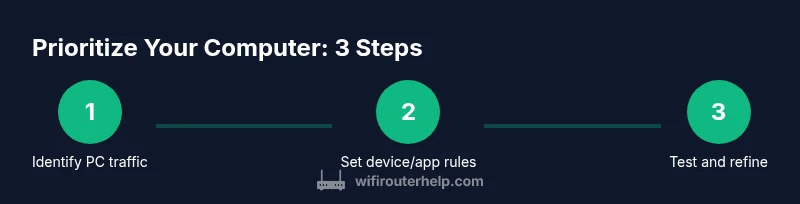
The general approach to configuring QoS follows a consistent pattern across brands, even though the navigation paths vary. First, log into the router’s web interface or mobile app using the admin credentials. Then locate the QoS or Traffic Control section and enable QoS. Next, choose your prioritization method—device-based, application-based, or a combination. Finally, add your computer as a high-priority device by its MAC address or IP address, set the priority level, apply changes, and reboot if required. This high-level overview provides the scaffold; the STEP-BY-STEP block contains the exact actions for your device.
Static IP vs MAC-based prioritization
To reliably target your computer every time, you have two solid options: assign a static IP to your PC, or use its MAC address for device-based rules. A static IP keeps the same address even after reconnecting, which makes your QoS rule stable. MAC-based prioritization identifies your PC by its hardware address, which is particularly useful if your PC’s IP might change. If you use DHCP (dynamic IP addressing), pairing a reserved DHCP lease with a high-priority rule is a practical alternative. In all cases, ensure the device you want prioritized is singled out clearly and protected from conflicting rules on other devices.
Testing and validating QoS results
Validation is essential to confirm that QoS changes deliver tangible benefits. After applying QoS settings for your PC, run simultaneous tests to measure improvements under load. Use a fast local network test (ping to your router, traceroute, and a file transfer) alongside an online speed test. During peak usage, compare metrics like average latency (ping), jitter, and bandwidth utilization for your PC versus other devices. A successful QoS setup should show lower latency and more stable performance for your PC while overall network speed stays within your ISP’s advertised limits. Keep a short log of results so you can adjust settings if needed.
Common obstacles and troubleshooting tips
QoS configuration can be sensitive to router model differences and firmware versions. If you don’t see the expected gains, try the following: (1) ensure QoS is enabled globally, not just for a single device; (2) check for conflicting rules that might override your PC’s priority; (3) reboot the router after saving changes; (4) update firmware to the latest version because QoS behavior often improves with updates; (5) test with both Ethernet and Wi‑Fi connections to understand how each medium behaves. If your router lacks robust QoS features, consider limiting background tasks (cloud backups, automatic downloads) during peak work or gaming periods as a workaround.
Advanced tips and best practices
For more precise control, combine MAC-based device prioritization with application-level rules where possible. Use a fixed allocation for critical services (e.g., video calls) rather than a blanket high-priority rule across your PC. Regularly revisit QoS settings when new devices join the network or when you upgrade your router. Document changes and keep firmware up to date to maintain predictable performance. Finally, remember that QoS cannot increase your internet plan’s maximum bandwidth; it simply prioritizes how available bandwidth is shared among devices.
Final thoughts and ongoing maintenance
Maintaining a healthy home network requires periodic checks to ensure QoS remains effective as usage patterns change. The WiFi Router Help team recommends a quarterly QoS audit: re-run device inventories, re-test performance under load, and adjust priorities as needed. Keeping notes on changes helps you reproduce successful configurations and troubleshoot when something regresses. With careful setup and ongoing tweaks, you can sustain smoother video calls, steadier gaming, and a more reliable overall experience for all members of your household.
Tools & Materials
- Router admin login (web interface or app)(You need the router's IP address and admin credentials.)
- PC MAC address or IP address(Used to create a targeted QoS rule for your computer.)
- Modern web browser(Chrome, Edge, Firefox, or Safari work fine.)
- Ethernet cable (optional but recommended)(Wired connection provides a more stable admin session.)
- Router model documentation(Check exact navigation steps for QoS in your model.)
Steps
Estimated time: 20-40 minutes
- 1
Prepare and access your router
Power on the router and connect to it with a computer. Open a browser and enter the router’s IP address to access the admin interface. Log in with admin credentials.
Tip: Use a wired connection on the admin PC to avoid drops during setup. - 2
Navigate to the QoS section
Find the QoS or Traffic Control page in the settings menu. If there are multiple QoS options, choose the most general one first (e.g., Basic QoS) to test fundamentals.
Tip: If you can’t find QoS, check the firmware update page; some models add QoS with newer firmware. - 3
Choose prioritization method
Decide whether to base priority on devices (MAC/IP) or on applications/ports. A device-based rule is simpler for a single PC; app-based is better for specific services like video calls.
Tip: Document which method you choose so you can adjust later without confusion. - 4
Add your computer to the high-priority list
Enter your PC’s MAC address or IP address (depending on your method) and assign High priority. If your router supports bandwidth reservation, enable it and allocate a fixed share to the PC.
Tip: If using DHCP, pair the reserved IP with a high-priority rule for stability. - 5
Apply changes and reboot if required
Save the changes and reboot the router if the interface requests it. Some devices apply changes immediately, while others require a restart.
Tip: After reboot, re-login to verify the settings are saved. - 6
Test PC performance under load
Run a quick speed test and perform a video call or game session to assess latency and stability. Compare results with and without QoS enabled.
Tip: Use consistent test conditions to get reliable comparisons. - 7
Tune based on results
If buffering persists or other devices suffer, adjust the priority level, or switch between device-based and app-based strategies. Iterate until the desired balance is reached.
Tip: Aim for tangible gains in latency rather than large bandwidth swings. - 8
Document and maintain settings
Record the final QoS configuration for future reference. Schedule periodic reviews and firmware updates to keep performance steady.
Tip: Create a simple checklist to track changes and test results.
People Also Ask
What does QoS do on a home router?
QoS prioritizes network traffic to prevent latency-sensitive tasks from being disrupted by other activities. It does not increase your total available bandwidth, but it can improve the user experience for video calls, gaming, and critical applications when the network is congested.
QoS prioritizes traffic so important tasks get bandwidth first. It won’t create more speed, but it helps video calls and games stay smooth when the network is busy.
Can I prioritize more than one device at once?
Yes. You can create multiple rules—one per device or per app—though the more rules you add, the more careful you must be to avoid conflicts. Start with your PC and one critical service, then expand as needed.
Yes, you can prioritize several devices, but avoid overcomplicating rules to prevent conflicts.
Will QoS make my internet faster?
QoS does not increase your total bandwidth. It improves perceived performance by reducing latency and jitter for prioritized traffic, which makes real-time tasks feel faster and more stable.
QoS won’t add speed, but it makes important tasks feel smoother by managing traffic.
Should I always enable QoS?
If multiple devices regularly use your network simultaneously for latency-sensitive tasks, enabling QoS is beneficial. If your network rarely gets congested, QoS may not yield noticeable gains.
If you have busy network usage, enable QoS; otherwise it may be unnecessary.
What if my router doesn’t have QoS options?
If QoS isn’t available, consider upgrading to a router with QoS features or using a wired backbone for critical devices and limiting bandwidth on nonessential devices during peak times.
If QoS isn’t present, upgrade or use wired connections and limit background tasks during busy periods.
Is MAC-based prioritization safer than IP-based?
MAC-based prioritization targets the hardware address and remains stable with DHCP. IP-based rules depend on DHCP reservations to stay consistent, which can be disrupted if the lease changes.
MAC-based rules are typically more stable when devices may change IPs.
How often should I review QoS settings?
Review QoS whenever a new device joins, your usage patterns change, or you upgrade your router. Regular checks help maintain intended performance.
Review QoS anytime you add devices or changes in usage; keep firmware updated.
Watch Video
What to Remember
- Enable QoS and prioritize your PC via MAC or IP.
- Choose the right QoS method for your router model.
- Test performance under load and adjust rules as needed.
- Document settings and maintain firmware for stability.