What is the Jio Router Default Password? A Practical Guide
Learn what is jio router default password, where to locate it on the device, how to reset it, and best practices to keep your home network secure. A practical guide by WiFi Router Help.


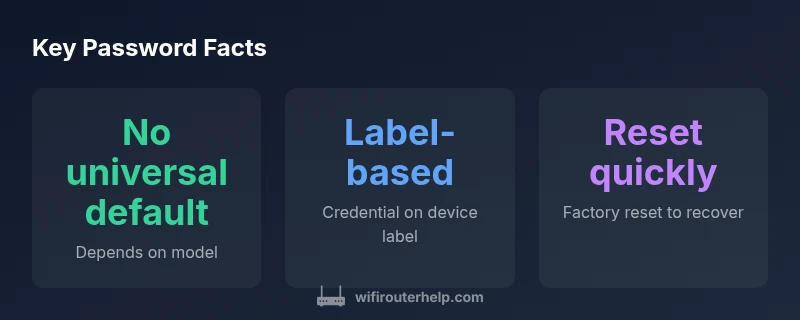
There is no single universal default password for Jio routers. The login credentials for the admin interface and the Wi‑Fi keys are device‑specific and are typically printed on the router’s label or documented in your setup packet. If you cannot locate them there, refer to the official Jio setup guide or contact WiFi Router Help for a step‑by‑step recovery. For security, reset only if you truly cannot log in.
what is jio router default password
In the world of home networks, there is no single universal value for what is jio router default password. The login used to access the router’s admin interface and the credentials for the Wi‑Fi network are typically defined by the model, firmware version, and even the carrier’s distribution method. For most Jio router devices, the precise credential set is printed on the device itself or documented in the setup guide you received with the box. This means you must verify the exact text on your model rather than assuming a single, shared password across all Jio equipment. The WiFi Router Help team emphasizes that treating credentials as unique to each unit reduces risks and helps you locate the correct information quickly when you first set up or troubleshoot your home network. If you cannot find the password there, consult the official Jio setup documentation or contact your provider for guidance.
How default passwords are typically set on Jio routers
Jio routers distinguish between admin login credentials and the Wi‑Fi network password. Some devices use separate codes for these two access points, while others rely on a single pair of credentials for both. The manner in which these credentials are delivered can vary by model, firmware revision, region, and whether the router was supplied via Jio Fiber or a third‑party reseller. In many cases, the default credentials are embedded in the setup guide or printed on a sticker affixed to the device. If you see a single code listed on the label, assume that it governs one access path (commonly the admin login) and look for a separate Wi‑Fi password elsewhere. Always treat these defaults as provisional and plan to change them during initial setup to reduce risk. This approach aligns with guidance from the WiFi Router Help team who emphasize model‑level verification and proactive security.
Where to look for the default password
To locate the default password for a Jio router, start with the device itself. Most models print credentials on a label under the router, on the back panel, or on the bottom where a QR code may be present. If that label is damaged or illegible, check the setup card or the box’s documentation that came with the device. If you still cannot find the credentials, visit the official Jio support site or your account’s setup portal for model‑specific guidance. In some cases, the default password information is included in the user manual or in the quick‑start guide that accompanied the device when you first received it. If you’ve changed the password previously, you’ll need to reset the router to restore the factory defaults before setting a new password. The goal is to align the steps with the exact model to avoid guessing. WiFi Router Help recommends verifying against model‑specific documentation to ensure accuracy.
How to safely reset or recover access
If you cannot log in because you forgot or misplaced the default, the safest route is to perform a factory reset. Locate the reset button on the back or underside of the router, press and hold it for 10–15 seconds with a paperclip or similar tool, then release. The device will reboot and revert to factory defaults. Reconnect using the default network name (SSID) and credentials printed on the label, then immediately change the admin password and the Wi‑Fi password to strong, unique values. After the reset, reconfigure security settings (prefer WPA3 if supported), disable remote management if not needed, and set up a guest network for visitors. Document the new credentials in a secure password manager. This sequence minimizes risk and aligns with best practices outlined by the WiFi Router Help team.
Best practices for password security on Jio routers
Security starts with a strong password strategy. Use a long passphrase that combines letters, numbers, and symbols, and avoid common words or dates. For admin access, restrict login attempts and enable two‑factor authentication if the feature is available. Change both admin and Wi‑Fi passwords after setup, and avoid reusing passwords across devices. If possible, enable WPA3 security mode and disable WPS to reduce vulnerability. Regularly review connected devices and consider setting up a separate guest network for guests. Keeping firmware up to date is essential, as updates often include security fixes that protect your network from known threats. The WiFi Router Help team emphasizes routine password hygiene as a cornerstone of home network security.
Common scenarios and troubleshooting
You can encounter several scenarios when dealing with default passwords. If you cannot log in, first verify you’re using the correct model and label. If the credentials do not work, you may need to reset. If you forgot both admin and Wi‑Fi passwords after login, perform a factory reset and reconfigure. For cases where you can log in but the password is unknown, use the account recovery options provided by Jio’s setup portal or contact customer support. In some instances, the router might be in bridge mode or managed by another device; ensure you’re using the intended device and not a secondary access point. In all cases, document changes and store credentials securely to prevent future lockouts.
What to do if your password is compromised
If you suspect a password has been compromised, take immediate action. Change the admin and Wi‑Fi passwords, enable notifications for new devices, and review the list of connected devices for unfamiliar entries. Consider disabling remote administration and ensuring the router’s firewall is enabled. Update firmware to the latest version and perform a network audit to identify any security gaps. If you cannot regain control, perform a factory reset and reconfigure from scratch, following the model‑specific instructions. The WiFi Router Help team recommends a proactive security posture to safeguard your home network.
Additional resources and next steps
For model‑specific instructions, consult the official Jio support pages and the router’s user manual. If you still need help, you can reference WiFi Router Help’s step‑by‑step recovery guides, which cover common Jio router models and firmware variations. Consider bookmarking the support page and keeping your documentation organized so you can quickly locate model details in the future. Finally, maintain a habit of updating passwords regularly, backing up your configuration, and reviewing device access logs to stay ahead of potential issues.
Password recovery flow: a quick reference
- Locate credentials on the device label or in the setup docs. 2) If not found, access the admin panel to confirm the current credentials. 3) If forgotten, perform a factory reset. 4) Reconnect and immediately change the passwords. 5) Enable security best practices (WPA3, disable remote management).
Finding and recovering Jio router passwords
| Finding the password source | Where to look | Notes |
|---|---|---|
| Device label | On the router sticker or underside | Often includes admin login and Wi‑Fi password |
| Setup documentation | Manuals or vendor site | May list default credentials by model |
| Admin interface | Address like 192.168.x.x | If you can login, you can view/change credentials |
| Factory reset | Physical reset button | Restores to factory defaults; requires reconfiguring |
People Also Ask
Is there a universal default password for all Jio routers?
No universal default exists. Credentials vary by model and firmware. Always verify the exact text on the device label or in the setup documentation.
No universal default; check the device label or setup docs.
Where can I find the default password for my Jio router?
Look on the router label, check the manual, or sign in to the admin UI to see the default credentials for your specific model.
Check the router label or the manual.
What should I do if I changed my password and forgot it?
Use the factory reset procedure to restore defaults, then create a new, strong password and update both admin and Wi‑Fi credentials.
Reset and reconfigure with new passwords.
How long does a factory reset take?
A typical reset is a quick operation—usually a few seconds to reinitialize, followed by reconfiguration.
Quick reset; then you reconfigure.
How can I secure my Jio router after finding or resetting the password?
Change both admin and Wi‑Fi passwords, enable WPA3 if available, disable remote management, and consider a guest network for visitors.
Change passwords and enable strong security.
What if I can’t log in after a reset?
Double‑check the model, retry with the exact credentials, and if needed, perform a second reset or contact support for model‑specific steps.
Try standard recovery steps or contact support.
“Credential defaults are model-specific; always verify with the device label or official docs, then secure your network with a strong password.”
What to Remember
- Check the router label first
- Never share credentials publicly
- Change default passwords after setup
- If compromised, reset and reconfigure