How Long Do Router Logs Last? A 2026 Retention Guide
Discover how long router logs last across home and business devices, what factors affect retention, how to view and adjust logs, and best practices for balancing troubleshooting needs with privacy in 2026.


How long do router logs last? In most home routers, logs are kept for a short window, typically 24 to 72 hours, with longer retention possible if the device supports extended log rotation or syslog export. Enterprise-grade routers and certain gateways may preserve logs for weeks or months, sometimes configurable to years with external storage. Retention is highly dependent on firmware, hardware, and configured logging levels.
What router logs are and why retention varies
According to WiFi Router Help, router logs are records generated by your device that capture events such as device authentication attempts, DNS queries, IP connections, firmware failures, and firewall blocks. The retention window—how long these records stay on the device or within a centralized store—depends on several factors: the firmware version, whether logging is local or sent to a remote server, the log level configured (minimal vs verbose), and the hardware’s storage capacity. In 2026, most consumer-grade routers store a short, local history because of RAM and flash constraints, while more capable models offer longer retention through external storage like a connected NAS or a cloud/syslog service. This variability matters not just for troubleshooting but also for privacy and compliance, as longer retention increases both the value and the risk of exposed data.
Understanding what gets logged helps you decide what retention window you actually need. Typical logs include connection attempts, DNS queries, firewall decisions, and device status changes. Some devices also log routing events or WAN status. If you regularly diagnose slow connections, you may benefit from keeping a longer window; if privacy is a concern or you have limited storage, a shorter window may be preferred. Your goal is to balance visibility with security, avoiding unnecessary data collection while retaining enough history to diagnose issues.
Factors that influence log retention
Retention is not a one-size-fits-all setting. Several levers shape how long logs remain accessible:
- Device class: Home consumer routers generally rotate logs quickly to save memory, while business-class or enterprise devices can be configured for longer windows and more detailed logging.
- Firmware and vendor defaults: Some vendors set conservative default retention but allow longer periods if you enable advanced logging or syslog export.
- Local storage vs remote storage: Logs kept locally are constrained by flash/RAM; exporting to a NAS, server, or cloud service usually enables longer retention without clogging internal storage.
- Log level and event types: Verbose logging captures more data but consumes space faster. You can tune log levels to match your troubleshooting needs.
- Rotation and archiving policies: Many devices overwrite old entries; enabling external archiving preserves older data but requires setup.
- Privacy and regulatory considerations: Environments with stricter privacy requirements may favor shorter retention and encryption of log data.
In short, the retention window is a product of hardware limits, software features, and your chosen balance between visibility and privacy.
Logs by device class: home vs business vs ISP gateways
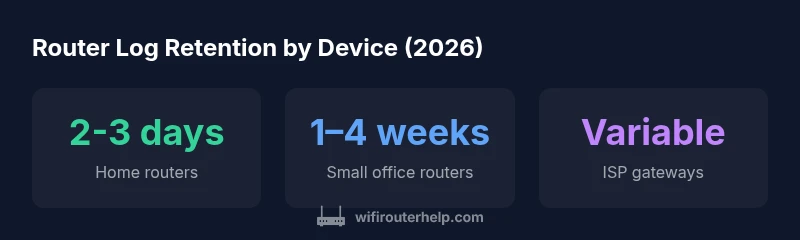
Home routers typically maintain a short, local history—often measured in hours or a couple of days. These devices are optimized for simplicity, with firmware that prioritizes stability over exhaustive auditing. Small office or SMB routers may offer longer retention windows, commonly a week to a month, especially if the device supports remote logging or continues to push entries to a centralized server.
ISP gateways and modem/routers supplied by internet providers frequently have retention dictated by the ISP’s own systems. In some cases, the gateway forwards logs to the provider’s cloud or a customer portal, while in others the device keeps a limited local log. Your ability to extend retention on these devices depends on the provider’s firmware and whether you can enable remote syslog or export.
Regardless of device type, setting expectations around retention helps you plan for diagnostics and auditing. If you routinely need a longer history, consider a local or cloud-based logging strategy that decouples retention from device storage.
How to view and adjust log retention on your router
Accessing log settings typically requires logging into the router’s admin interface. Common paths include System, Administration, Security, or Logs sections:
- Locate Logs or Log Settings: Look for terms like “Logs,” “System Log,” or “Event Log.”
- Review log types: Decide whether you want firewall logs, DNS queries, connection attempts, or WAN events.
- Adjust retention: If available, select a retention window (e.g., 24 hours, 7 days, 30 days) or enable log exporting.
- Enable export to an external server: If you want longer retention, set up a remote Syslog server, SIEM, or cloud storage, and point your router to forward logs there.
- Secure the channel: Use encryption (TLS) and strong credentials for remote log destinations to protect sensitive data.
If your device lacks retention controls, you’ll need to rely on external logging or upgrade to a model that supports longer storage or export.
Privacy, security, and regulatory considerations
Longer log retention can improve troubleshooting and security monitoring, but it also increases exposure risk if logs are compromised. You should:
- Encrypt logs in transit when exporting to remote destinations.
- Restrict access to the router’s admin interface and any remote logging endpoints.
- Retain only the data you truly need; avoid verbose logs unless necessary.
- Review privacy policies if you use a cloud logging service, especially for topics like DNS queries and authentication events.
- Consider anonymizing sensitive fields where possible before exporting.
Balancing privacy with operational needs is a core part of maintaining a secure home or small business network in 2026.
Practical defaults and recommended ranges for 2026
There isn’t a universal standard, but practical guidance helps most users make sane choices:
- Home users: 24–72 hours by default; enable local logging for quick diagnostics, and consider a remote destination for longer windows if you can secure it.
- SMBs: 7–30 days is common when a dedicated router or firewall exists with options to forward logs to a NAS or cloud service.
- ISPs: Expect variability; if permitted, set a local retention window and rely on provider logs for longer-term history.
For most households, a two-tier approach works well: keep a short, local window for immediate issues and export critical events to a centralized log server for longer-term analysis. Always tailor retention to your diagnostic needs, privacy preferences, and storage capacity.
Common myths about router logs debunked
Myth: Logs last forever on every device. Reality: Most routers overwrite old data to keep space free; longer retention is achieved only with exports to external storage.
Myth: Longer retention means better security. Reality: It can aid forensics, but if logs are accessible by attackers, longer retention increases risk. Security hinges on access controls and encryption.
Myth: All logs are equally useful. Reality: Relevant data depends on your goals; for routine troubleshooting, DNS and firewall logs may suffice, while verbose logs are necessary for deep-dive investigations.
Myth: You must enable cloud logging to get value. Reality: Cloud logging offers persistence, but local storage can be adequate when secured and backed up.
These myths often lead to misconfigurations. Focus on practical retention aligned with your needs and threat model.
Step-by-step checklist for managing logs
- Define your goals: troubleshooting vs auditing vs privacy. 2) Review your device’s logging capabilities and retention options. 3) Determine whether local retention suffices or if remote logging is required. 4) Set a reasonable retention window (e.g., 7–30 days for SMBs; 24–72 hours for homes). 5) Enable remote logging only to trusted endpoints with encryption. 6) Regularly review and rotate credentials for log destinations. 7) Create a simple data retention policy and document the steps for team members or family members who manage the network. 8) Test log exports to ensure data is arriving correctly. 9) Periodically audit your logs for sensitive information and adjust filters accordingly.
Typical log retention by device class
| Device Type | Retention Window | Notes |
|---|---|---|
| Home consumer router | 24-72 hours | Locally stored; logs rotate |
| Small office router | 7-30 days | Local + optional syslog export |
| ISP gateway | Variable | ISP-controlled; may override |
People Also Ask
How long do router logs last on typical home networks?
Most home routers retain logs for 24-72 hours by default. Longer retention is possible if the device supports extended logging or external exports, but it depends on firmware and storage.
Home routers usually keep logs for a day or two unless you enable longer storage.
Can I extend log retention on consumer routers?
Some consumer routers allow longer retention or remote logging to a NAS or cloud service. Check the firmware options and set up a secure remote destination if long-term history is needed.
Yes, if your device supports it, you can extend retention via remote logging.
Do ISP gateways log more data than standard routers?
ISP gateways can log a broader set of data and may retain it based on provider policies. Retention is often determined by firmware and provider terms; contact your ISP for specifics.
ISPs can log more data and for longer; policies vary by provider.
Is there a privacy risk with longer log retention?
Longer retention increases the potential impact if logs are compromised. Use encryption, access controls, and minimize stored data to reduce risk.
Yes—more data means more to protect.
How do I view or adjust log settings?
Log in to your router’s admin panel, find the Logs section, and adjust log level and retention. Consider enabling remote logging to a secure destination for longer history.
Open your router’s settings and check the Logs area to adjust things.
Should I use a centralized syslog server?
Using a centralized syslog server can extend retention and simplify analysis, especially in homes with multiple devices. Ensure encryption and access controls are in place.
A syslog server helps keep logs longer and organized.
“Log retention is a balance between being able to diagnose issues and protecting user privacy. Keep logs concise, secure, and accessible only to authorized users.”
What to Remember
- Define your logging goals before configuring retention
- Prefer external logging for longer history when possible
- Secure remote log destinations with encryption
- Regularly audit what data is stored and who can access it
- Balance privacy with troubleshooting needs for 2026