US Cellular Outdoor Router Setup and Optimization
Learn how to select, install, and optimize a us cellular outdoor router for reliable home coverage. Step-by-step guidance from WiFi Router Help, with safety tips and practical setup insights.


By the end of this guide, you will know how to select, install, and optimize the us cellular outdoor router for reliable, wide-area coverage. You’ll need a compatible cellular plan, a weatherproof outdoor router, a power source, and basic network tools. This article from WiFi Router Help walks you through setup, security, and ongoing maintenance.
What is a us cellular outdoor router and why it matters
A us cellular outdoor router is a purpose-built device that uses cellular networks to provide Wi-Fi coverage outside or across large areas where traditional wired broadband is unavailable or impractical. For homeowners and remote properties, these devices can extend internet access to workshops, sheds, decks, or guest cottages without digging lines. The key is choosing a model with weather-rated hardware, reliable SIM access, and robust security features. According to WiFi Router Help, understanding network requirements and expected usage helps you pick a unit that balances speed, range, and durability. When you pair an outdoor router with a weatherproof enclosure and proper mounting, you achieve stable connectivity even in harsh conditions. This is especially important for smart cameras, irrigation controllers, and outdoor speakers that depend on consistent uplink. A well-chosen unit also reduces dead zones and improves device performance across your property, ensuring you stay connected where you need it most.
Key factors to consider when selecting an outdoor router
Choosing the right outdoor router involves evaluating several core features. Look for weather resistance (IP rating), LTE/5G bands supported, SIM card compatibility, number and type of WAN ports, and the presence of external antennas. Antenna configuration affects coverage patterns; consider dual-band radios for better handling of cluttered environments. Security features such as a built-in firewall, VPN support, and strong default password protection are essential for outdoor deployments. Aesthetics and mounting options matter too, since the unit will be exposed to sun, rain, and wind. WiFi Router Help emphasizes balancing cost with performance, ensuring the device can handle your expected peak load without dropping connections. Keep in mind that cellular networks vary by location—urban cells tend to be denser, while rural areas may require higher-gain antennas or external boosters. A solid plan also accounts for power availability and potential interference from neighboring networks.
Planning your outdoor network: location, power, and cabling
Effective outdoor networking starts with precise planning. Identify a mounting spot that offers clear line-of-sight to the cell tower, enough height to avoid obstructions, and convenient access to power and the SIM slot. Ensure you have a weatherproof power source or a guarded power entry to reduce the risk of short circuits. Plan cable routes that minimize exposure to rain and UV damage, using conduit or weatherproof glands where needed. If you must route through walls, seal any penetrations to prevent water intrusion. WiFi Router Help recommends sketching a floorplan indicating router coordinates, power outlets, and nearby devices to anticipate interference and optimize placement before unboxing. A thoughtful plan helps you reduce rework and speeds up the actual installation, especially in challenging outdoor environments.
Setup workflow: from unboxing to online sign-in
The initial setup is a sequence of practical actions that culminate in an online configuration. Unbox the router, insert any required SIM card, and connect the power supply. Power on and allow the device to boot; this often takes a few minutes. Use an Ethernet connection or supported Wi-Fi network to access the admin interface via a browser. Follow the manufacturer’s guidance to configure the cellular WAN, set the APN if needed, and verify signal strength. Create a strong admin password, enable automatic updates, and adjust default settings to align with your network plan. The process is straightforward for most users, but always keep the warranty and weather seals intact while you work outdoors.
Security and access control for outdoor routers
Security is critical when an outdoor router is exposed to the elements and accessible from outside your home network. Change default login credentials, enable a strong password policy, and disable remote management unless you explicitly need it. Activate a firewall, enable WPA3 on the wireless network, and segment IoT devices from primary network traffic. Regularly monitor connected clients and review access logs for unusual activity. Keep firmware up to date to mitigate vulnerabilities; automatic updates are preferable but verify compatibility with your network requirements. If you have guests, set up a guest network with limited access and a separate password. Effective security reduces risk from both weather-related outages and cyber threats, helping you protect sensitive devices on your property.
Optimizing performance: placement, antennas, and failover
Performance optimization focuses on maximizing signal reach while avoiding interference. Position the router high enough to clear nearby obstacles and orient external antennas with a clear path to intended zones, such as a workshop or yard. If your unit supports external antennas, test different orientations to identify the best pattern for your space. Consider enabling failover if your device supports multiple SIMs or a dual-WAN setup; this can keep you online if one carrier experiences a temporary outage. Regularly check signal strength, latency, and uptime across critical areas, and adjust the location or antenna settings as needed. WiFi Router Help highlights that optimal placement often requires a few iterations to balance coverage with reliability across multiple outdoor zones.
Troubleshooting common issues
Outdoor deployments can encounter unique problems like weather-induced outages, SIM authentication failures, or poor signal in shaded areas. Start by verifying the SIM is recognized, the device boots properly, and power connections are secure. If you see a carrier error, confirm APN settings and SIM activation with your provider. For weak signals, try relocating to a higher point or adding an external antenna if supported. Check for firmware updates and reboot the device after applying changes. If problems persist, consult the vendor’s support resources or WiFi Router Help’s troubleshooting checklist to isolate whether the issue is hardware, firmware, or location based.
Maintenance, firmware updates, and best practices
Regular maintenance keeps your outdoor router performing well over time. Schedule periodic checks for firmware updates, battery condition if applicable, and physical integrity of mounting hardware. Before applying updates, back up current configurations and ensure you have a recovery plan in case a new firmware introduces issues. Keep physical security in mind—store devices in weatherproof housings and use tamper-evident seals where appropriate. Document changes so you can reproduce a working setup if you move equipment. WiFi Router Help advocates a proactive maintenance mindset to prevent surprises and ensure long-term reliability across your outdoor network.
Real-world scenarios and quick-start checklist
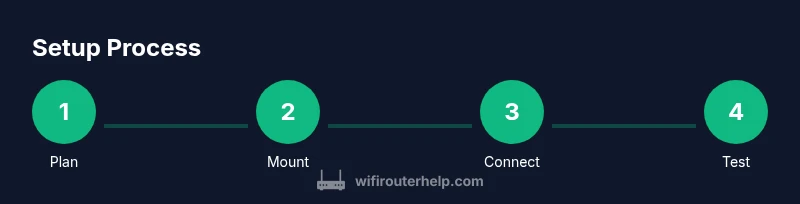
In practical terms, a well-planned outdoor router setup serves several scenarios: a detached shop, a deck lounge with Wi-Fi, or a farm office with remote devices. The quick-start checklist helps you get running quickly: (1) verify power and SIM availability, (2) place the router at an elevated, sheltered point, (3) connect and sign in to the admin panel, (4) configure cellular WAN and security, (5) test coverage with targeted devices, (6) optimize placement based on test results, and (7) enable firmware updates and backups. This approach aligns with WiFi Router Help’s recommended best practices for durable outdoor networks.
Tools & Materials
- Weatherproof outdoor router(IP67 or higher rating preferred)
- Cellular SIM plan(Active data plan with enough data for usage patterns)
- Power supply suitable for outdoor use(Weatherproof outlet or enclosure)
- Ethernet patch cable (Cat5e or better)(For initial management connection)
- Mounting hardware (brackets, screws, anchors)(Corrosion-resistant material)
- Weatherproof conduit or glands(Optional but recommended for cable protection)
- Screwdriver set(Phillips and flathead sizes as needed)
- Cable cutters/strippers(Useful for clean cable runs)
- Multimeter or signal tester (optional)(Helpful for verifying power and signal levels)
Steps
Estimated time: 60-90 minutes
- 1
Identify a suitable outdoor mounting location
Select a spot with good line-of-sight to the cell tower, minimal shading, and access to a weatherproof power source. Consider height to reduce obstruction from nearby structures and plants. Take photos and note potential cable routes before touching the device.
Tip: Check for local code requirements and avoid mounting near electrical panels or gas lines. - 2
Verify power and connectivity requirements
Confirm there is a reliable outdoor power option and that the SIM slot or eSIM is ready for activation. Ensure your cellular plan supports the router’s data needs and that you have any required APN settings handy.
Tip: Test the power source with a temporary load before mounting the device. - 3
Insert SIM and verify cellular signal
Power off the device, insert the SIM as per the manufacturer’s instructions, and power it on. Check the status indicators or admin UI to confirm an active cellular connection with adequate signal strength.
Tip: Use a signal meter in the admin page to locate the strongest signal within your property. - 4
Mount the device securely
Mount the router using weatherproof hardware at your chosen location. Route cables through protective conduits and seal any entry points to prevent water ingress. Ensure the device is level and stable.
Tip: Avoid mounting near direct rainfall paths or flood-prone areas. - 5
Connect cables and power on
Run Ethernet or management cables from the router to your management device. Power on and wait for the device to boot fully. Verify LEDs indicate normal operation and cellular connection.
Tip: Label cable runs to simplify future maintenance. - 6
Access the admin interface
Open a browser on a connected device and enter the router’s IP address or hostname. Log in with the new admin credentials and navigate to WAN or cellular settings to enable the SIM network.
Tip: Change the default username and enable two-factor authentication if available. - 7
Configure cellular WAN and Wi-Fi basics
Set up the APN if required and configure the wireless SSID, password, and security mode. Decide on a guest network if you plan to share access with visitors. Adjust DHCP scope as needed.
Tip: Use WPA3 for best wireless security where supported. - 8
Enable security features
Turn on firewall settings, enable automatic firmware updates, and disable unused services like remote management unless you need them. Create strong admin credentials and regularly review connected devices.
Tip: Keep a backup of the working configuration in a secure location. - 9
Test coverage and finalize placement
Walk around the property with a test device to measure signal quality in each area. If dead zones appear, adjust the router’s position, antennas, or channel settings until coverage is even. Document the final layout and backup settings.
Tip: Aim for redundancy: consider a secondary AP or extender for critical zones.
People Also Ask
What makes a router 'outdoor' suitable for US cellular networks?
Outdoor routers are designed with weatherproof enclosures and hardware that tolerates sun, rain, and temperature fluctuations. They support cellular WAN connections to bridge your cellular network to a local Wi‑Fi network. Always verify IP ratings, SIM compatibility, and security features before purchase.
Outdoor routers have weather-rated builds and cellular WAN support. Check IP rating and SIM compatibility for reliability.
Do I need a data plan and SIM card?
Yes. A data plan and SIM are required for most cellular outdoor routers. Ensure the plan offers sufficient data for your intended usage, and check coverage in your area before committing to a device.
A data plan and SIM are generally needed; choose a plan that fits your usage and coverage area.
Can I use a cellular router indoors?
Cellular routers are optimized for outdoor environments, but some models can operate indoors if there is adequate ventilation and a strong cellular signal through windows. However, performance and weatherproofing considerations may be less relevant indoors.
They can be used indoors in some cases, but outdoor-rated features aren’t necessary indoors.
How do I secure an outdoor router from weather and hackers?
Use strong admin passwords, enable firewalls, and keep firmware up to date. Disable unnecessary remote access and segment IoT devices on a separate network. Weatherproof mounting and proper cable sealing protect against environmental hazards.
Enable strong security, keep firmware updated, and protect the device from weather with proper mounting.
What kind of antenna should I look for?
Consider routers that support external antennas or offer multiple indoor/outdoor antenna options. Higher-gain antennas can improve range in challenging layouts, but ensure compatibility with your device and carrier bands.
Look for external antennas or high-gain options compatible with your router.
How often should I update firmware?
Regular firmware updates are recommended to address security and performance improvements. Verify compatibility before updating and maintain a backup configuration.
Update firmware when available, after backing up your settings.
Watch Video
What to Remember
- Choose a weather-rated outdoor router with strong security features.
- Plan placement to maximize coverage and minimize interference.
- Securely configure WAN, Wi‑Fi, and admin access with updates.
- Test and iterate to achieve reliable, everyday performance.