Travel Router Hotel WiFi: A Practical Guide for 2026
Learn how to use a travel router to secure hotel WiFi, create a private network, and protect devices on the road with a step-by-step guide from WiFi Router Help.


Using a travel router, you can securely share hotel WiFi by creating your own private network. Set the router to AP or client mode, connect to the hotel’s network, and enable WPA2/WPA3 encryption. You’ll need a portable router, a power source, and access to the hotel login if required. This approach keeps your devices isolated from the hotel's public network and reduces risk from captive portals.
Overview: Why use a travel router in hotels
In many hotel rooms, the built-in WiFi is convenient but not ideal for privacy, security, or consistent performance. A travel router acts as a private hub that sits between your devices and the hotel’s network, letting you create a single, encrypted network you control. According to WiFi Router Help Analysis, 2026, using a travel router in hotels can reduce exposure to insecure networks and provide predictable connections for multiple devices. With a compact device in your bag, you can select the safest operating mode for your situation and avoid sharing a single hotel login with every gadget. Whether you’re streaming on a laptop, conferencing on a tablet, or checking work email on a phone, a travel router gives you a stable, private perimeter while traveling.
Choosing a travel router for hotel WiFi
When selecting a travel router for hotel use, prioritize portability, reliable firmware, and flexible network modes. Look for models that support AP (access point) mode, Client mode, and a dedicated guest network. A robust device should offer WPA2/WPA3 encryption, a firewall, and VPN passthrough so you can add an extra layer of privacy easily. Battery life or a compact power adapter helps you stay online in places with limited outlets. Also verify that the router supports firmware updates, since ongoing updates improve security and compatibility with new hotel network configurations. If you travel internationally, check for global voltage compatibility and power adapters. In practice, a mid-range travel router with a clear user interface and decent community support is usually enough for most travelers.
Understanding hotel network basics: captive portals, NAT, and DHCP
Hotel networks often use captive portals that require login credentials or a room key to access the internet. Your travel router can operate in a way that creates a separate private LAN behind a NAT firewall, while the hotel network handles the external connectivity. DHCP within your router assigns IPs to your devices, ensuring they can communicate with each other and reach the internet via the router. Understanding these concepts helps you choose the right mode (AP vs. Client) and configure proper NAT rules, DNS settings, and port forwarding where needed. If you rely on streaming or video calls, enabling QoS on your router can help prioritize critical traffic.
How hotel policies can affect your setup
Some hotels discourage or restrict the use of personal routers, while others are more permissive. Always check the hotel’s policy before plugging in your device to avoid service interruptions or policy violations. In many cases, using a travel router in AP mode to create a private network is acceptable, whereas direct bridging to public networks may require explicit permission. If a front desk inquiry is needed, be respectful and explain that you’re creating a private, encrypted network for your personal devices. Keeping a polite, proactive approach reduces the chance of conflicts and helps you stay connected without hassle.
Optimizing performance: placement, channels, and interference
Placement matters. Keep your travel router elevated off the desk to reduce interference from metal surfaces and nearby electronics. If your router supports 2.4 GHz and 5 GHz bands, prefer the 5 GHz band for shorter range and less interference in crowded hotel rooms, while enabling 2.4 GHz as a fallback for devices with older WiFi radios. Use a unique SSID and strong WPA2/WPA3 passphrase to protect your network; disable WPS to lower risk of credential compromise. If the hotel forces you into a login page, use a small, dedicated device to complete the portal quickly and then reconnect your router for continued private access.
Security practices on the road: encryption, updates, VPN
Security upgrades are essential when using hotel WiFi. Always enable strong encryption (WPA2/WPA3), change router admin passwords, and keep firmware up to date. Consider adding a VPN to encrypt traffic beyond the router’s firewall; this helps protect sensitive data on public networks. Disable remote management unless you need it, and restrict admin access to your local network. Regularly back up router settings and keep a note of your configuration in case you need to reset.
Troubleshooting common issues when on the go
If devices fail to connect through the travel router, verify the router is connected to the hotel network and that DHCP is enabled. Reboot both the router and the devices, then recheck the client mode or AP configuration. When the portal prompts for login, complete it on a connected device and then allow your router to renew its DHCP lease. If your devices report limited connectivity, inspect DNS settings and ensure the router Firewall isn’t accidentally blocking necessary traffic. For stubborn issues, consult the router’s user manual or online community for model-specific guidance.
Real-world examples: scenarios and setups
Scenario A: A family with a laptop, tablet, and two phones uses AP mode to create a private network, with a single login to the hotel portal on one device. Scenario B: A digital nomad relies on Client mode to connect the router to the hotel’s network, then shares internet via a private SSID with WPA3 encryption. Both setups isolate devices and reduce exposure to the hotel’s shared network while preserving performance through proper QoS settings. The key is choosing the mode that aligns with the hotel’s network behavior and your device mix.
Maintenance and long-term considerations when traveling
Pack your travel router in a dedicated compartment with its power supply and a short Ethernet cable. Before international trips, verify voltage compatibility and regional settings in the firmware. Keep a backup configuration on your phone or cloud storage so you can restore quickly if the router is reset. Finally, periodically review your security posture—change passwords, keep firmware current, and evaluate whether a VPN remains worth the extra setup time for your travel needs.
Tools & Materials
- travel router(Portable, supports AP/client modes; check for VPN passthrough and secure firmware updates)
- power supply / USB-C charger(Compact, compatible with hotel outlet voltage)
- laptop or smartphone(For initial configuration and portal login if needed)
- hotel WiFi login credentials (or lobby portal knowledge)(Needed to authenticate the hotel network during setup)
- Ethernet cable (optional)(Useful for initial wired setup if supported by the router)
- backup configuration plan(Keep a saved copy of your router settings in case of reset)
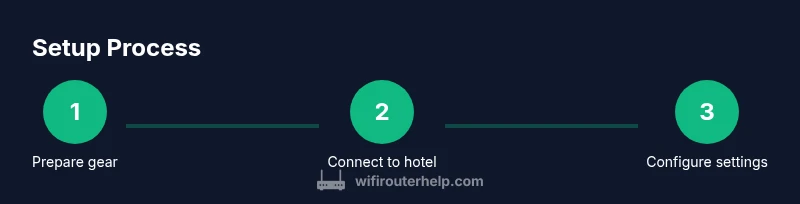
Steps
Estimated time: 20-40 minutes
- 1
Assess policy and mode
Check hotel policy on personal routers and decide whether to use AP or Client mode based on network behavior. This prevents policy violations and ensures you’re choosing the correct configuration from the start.
Tip: If in doubt, ask the front desk quickly to avoid disruption; a quick confirmation saves time later. - 2
Power up and reset the router
Plug in the travel router and perform a factory reset if you’re using a used device or if you’re unsure of the current settings. A clean slate reduces misconfigurations when connecting to the hotel network.
Tip: Reset prompts a clean interface; document the default login details in case you need them again. - 3
Connect to the hotel network from the router
Using AP mode, connect the router’s WAN/Internet port (or its wireless client option) to the hotel’s network signal. If the portal appears, complete it on a connected device and then return to router settings.
Tip: Keep the hotel login device nearby until portal authentication completes. - 4
Configure SSID, password, and security
Broadcast a private SSID with WPA2/WPA3 encryption and a strong, unique password. Disable WPS to prevent easy exploitation and ensure devices will connect securely.
Tip: Use a password manager to generate a long, unique passphrase. - 5
Enable firewall and VPN considerations
Turn on the router’s firewall and consider VPN routing for sensitive traffic. A guest network can isolate devices, further reducing risk on shared networks.
Tip: If you routinely work remotely, test VPN throughput before critical calls. - 6
Test connectivity and adjust
Test with multiple devices for streaming, browsing, and video calls. Confirm all devices reach the internet through your private router, then tweak QoS as needed.
Tip: Document any tweaks you make so you can replicate them elsewhere.
People Also Ask
Will hotel Wi-Fi block my travel router?
Most hotels allow private routers when used in AP or Client mode, but some may restrict bridging or require portal authentication. Always check policy and obtain permission if needed. A private router helps keep your devices secure even if the hotel portal is unavoidable.
Most hotels allow a private router when used correctly, but check policy and obtain permission if needed. A private router helps keep your devices secure even if the portal is unavoidable.
What is AP mode vs client mode?
AP mode creates a new private network your devices connect to, while the router connects to the hotel network as a client. Choose AP when you want all devices on your private network; choose client mode when the hotel network should be extended through the router.
AP mode makes a private network for your devices; client mode connects the router to the hotel's network so you can share it privately.
Do I need a VPN on public wifi?
Using a VPN adds a layer of encryption for traffic that leaves your router. It’s a good practice for sensitive activity, especially on open or shared networks. However, ensure the VPN provider is trusted and operates without leaking DNS data.
Yes, using a trusted VPN on public Wi‑Fi helps protect your data. Make sure the VPN is reliable and doesn’t leak DNS.
How can I tell my devices are protected?
Verify that devices connect to your private SSID and that traffic routes through your router. Check firewall status, ensure encryption is enabled, and test DNS resolution and speed to confirm your network behaves as expected.
Make sure devices connect to your private SSID, firewall is on, and traffic routes through your router.
Can a travel router speed up my hotel connection?
A travel router won’t magically increase hotel bandwidth, but it can organize connections, reduce login prompts, and optimize traffic with QoS and a stable private network. Real-world speeds depend on the hotel's overall network capacity.
It won’t increase the hotel's total bandwidth, but it can improve stability and manage traffic for you.
Is it legal to share hotel wifi with others in my room?
Sharing within your own room on a private network you control is typically fine, but you should respect hotel terms of service. Avoid sharing with people outside your room if the policy prohibits it, and don’t compromise other guests’ access.
As long as you stay within your room and follow hotel terms, sharing through your private network is generally acceptable.
Watch Video
What to Remember
- Identify AP vs Client mode based on hotel network behavior
- Protect privacy with WPA2/WPA3 and a strong password
- Isolate devices using a guest network when possible
- Respect hotel policies and portal requirements
- Test connectivity on multiple devices and document settings