How a Router Assigns IP Address: A Practical Guide
Learn how your router assigns IP addresses, including DHCP, static IPs, reservations, and best practices for a stable home network.


According to WiFi Router Help, most home networks assign IP addresses automatically using DHCP, so you rarely need to touch each device. In this guide you’ll learn how the router assigns IPs, the difference between dynamic and static addresses, and how to reserve or fix IPs when needed. By the end you’ll manage IP assignments confidently and avoid conflicts.
How IP Address Assignment Works in Home Routers
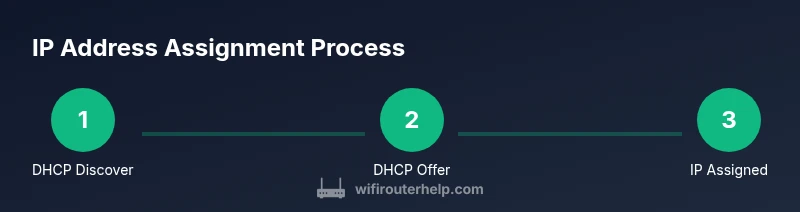
In a typical home network, the router acts as the central gateway and IP address manager. The router runs a DHCP server that maintains a pool of private addresses (for example, 192.168.0.x or 192.168.1.x). When a device joins the network, the DHCP server checks its MAC address and hands out the first available address from its pool, along with a lease duration. This means devices don’t need manual configuration every time they connect. The router also translates private addresses to a public address on the internet using NAT, so all devices share a single outbound connection. Understanding this flow is essential to diagnose problems such as an unassigned device, IP conflicts, or inability to reach local resources. Note that a device’s address is temporary unless you reserve it or assign a static IP.
Key concept: IP address assignment is about mapping devices to addresses for seamless communication on your LAN. When you "how router assign ip address," you’re really looking at a DHCP-driven workflow that keeps devices reachable without manual setup. This approach also simplifies device mobility across rooms and reboots.
DHCP vs Static IP: When to Use Each
Dynamic Host Configuration Protocol (DHCP) makes life easy by automatically assigning addresses. Static IPs give you predictable, unchanging addresses for devices that host services or require consistent access.
Use DHCP for everyday devices like phones, laptops, and tablets. Reserve IPs for printers, servers, or home automation hubs that benefit from a fixed address without configuring them manually every time. If a device must be reachable at a known address (e.g., a security camera with port forwarding), consider a static IP or a DHCP reservation tied to that device’s MAC address. Keep in mind that static IPs on devices bypass the router’s DHCP pool, so plan your LAN subnet and address plan to avoid conflicts and misconfigurations.
How to Find Your Router's DHCP Range and Lease Settings
To understand how the router assigns IPs, you need to locate the DHCP range (the pool) and the lease duration. Open a web browser and enter the router's management address (commonly http://192.168.1.1 or 192.168.0.1). Log in with admin credentials. Navigate to the LAN or DHCP section to view the current pool, the starting and ending IPs, and the lease time. If you see a mismatch between the pool and your devices, you may need to adjust the range or enable the DHCP server. Remember, changes typically take effect after saving and may require a reboot of the router or a renewal of device leases.
How to Reserve an IP Address for a Device (DHCP Reservation)
DHCP reservations map a device’s MAC address to a fixed IP, ensuring that device always receives the same address when it connects. In the DHCP settings, add a new reservation by entering the device MAC address and the desired reserved IP within the pool. Save changes and, if needed, reboot the device to force a lease renewal. This method keeps the convenience of DHCP while providing a stable address for critical devices like printers or home servers.
How to Set a Static IP for a Device (Windows, macOS, Linux)
A static IP is manually configured on the device itself rather than through the router. On Windows, go to Network & Internet settings, select your connection, and configure the IPv4 address within the LAN subnet (e.g., 192.168.1.x) while avoiding the router, gateway, and DNS addresses. On macOS, open Network preferences and choose Ethernet or Wi-Fi, then set IPv4 to Manual and enter the address details. On Linux, edit the interface configuration file or use NetworkManager. For mobile devices, static IPs are available in the IPv4 settings. Remember to document the chosen address to prevent conflicts with the DHCP pool.
Advanced IP Assignment Scenarios for a Modern Home (Guest, IoT, and Segmented Networks)
Many routers support multiple LANs or guest networks with separate DHCP scopes. This lets you isolate IoT devices on a dedicated subnet or apply different security rules. When creating a guest network, ensure it uses its own IP pool and, if possible, limits access to your main network. VLANs and mesh systems can complicate IP assignment, so consult your router’s manual to configure subnets and inter-network rules correctly.
Security Considerations and IP Management Best Practices
Treat IP assignment as part of your overall home-network security. Use strong admin passwords, disable remote management when not needed, and keep firmware up to date. Only enable features you understand, and avoid exposing devices through exposed ports. Proper labeling of devices and maintaining a current IP plan helps prevent conflicts and makes troubleshooting faster.
Troubleshooting DHCP Failures and IP Conflicts
If a device does not receive an IP, first verify the DHCP server is enabled and the device is set to obtain an IP automatically. Check for IP conflicts by scanning the network for devices using the same address. Reboot the router and renew leases on affected devices. If issues persist, you might temporarily increase the DHCP lease duration to reduce churn or revert to a known-good backup configuration.
Best Practices for Stable IP Management in a Smart Home
Document your IP plan, including the DHCP range and reserved addresses. Use reservations for devices that host services, like printers and media servers. Maintain separate subnets or guest networks for IoT devices to minimize risk. Regularly review connected devices and remove unused DHCP leases to keep the pool healthy.
Tools & Materials
- Web-enabled device (computer, tablet, or phone)(Used to access the router's admin page via a browser.)
- Router admin credentials(Username and password from the box or label.)
- Ethernet cable (optional)(Helpful for wired setup or initial configuration.)
- Device MAC addresses(Needed for DHCP reservations.)
- Notebook or digital note app(Record the IP plan and reserved addresses.)
Steps
Estimated time: 60-90 minutes
- 1
Open the router admin page
Open a browser and enter the router’s management address (e.g., http://192.168.1.1). Log in with the admin credentials.
Tip: If you don’t know the address, check the router label or your network settings. - 2
Navigate to DHCP settings
Find the DHCP or LAN settings section to view the DHCP server status and IP pool.
Tip: Look for terms like DHCP Server, LAN Setup, or IP Address Pool. - 3
Note the DHCP range and lease time
Record the start/end IPs of the pool and how long an address is leased.
Tip: Lease times vary; shorter times improve mobility but increase leases refreshes. - 4
Enable DHCP if disabled
If the DHCP server is off, enable it and save changes.
Tip: Disabling DHCP will require all devices to be set with static IPs. - 5
Add a DHCP reservation (optional)
Enter a device MAC address and the desired reserved IP within the pool.
Tip: Reservations are best for printers or servers that must keep a fixed address. - 6
Set a static IP on a device (if needed)
Configure the device itself to use an IP within the LAN subnet, avoiding the pool and gateway IP.
Tip: Document the chosen IP to prevent future conflicts with DHCP. - 7
Test connectivity and lease renewal
Reboot or renew leases on the devices to confirm proper addressing.
Tip: Ping the gateway or a local device to verify reachability. - 8
Review and save changes
Double-check the pool, reservations, and subnet settings, then apply and reboot if prompted.
Tip: Back up the current router config before major changes. - 9
Document your IP plan
Keep a written record of the DHCP range, static addresses, and reservations.
Tip: A small notebook helps when troubleshooting years later.
People Also Ask
What is DHCP and why is it used?
DHCP automates IP address assignment, reducing manual configuration. It assigns an available address from a pool and provides network settings to devices. This keeps devices reachable as they join, disconnect, or reboot.
DHCP automatically assigns IPs from a pool, so devices connect without manual setup. It’s the standard way home networks work.
Can I assign static IPs to all devices?
You can, but it’s usually impractical for everyday devices that frequently join or leave the network. Static IPs require careful tracking to avoid conflicts and may complicate mobility.
Yes, but it’s cumbersome and risky for devices that move around the house.
What is DHCP reservation vs static IP?
A DHCP reservation fixes an IP address for a device within the router’s pool by MAC address. A static IP is set on the device itself and bypasses the router’s DHCP pool. Reservations are easier to manage while keeping DHCP controls.
Reservation ties a device to an IP via the router; static IP means the device uses an address itself.
Where can I find DHCP settings on most routers?
DHCP settings are usually under LAN or DHCP sections in the router's admin interface. Look for terms like 'DHCP Server', 'IP Pool', or 'Lease Time'.
Check the LAN or DHCP area in your router's admin page for the address pool.
Will changing IP settings affect my internet connection?
Changing the DHCP pool or static IPs can affect connectivity if misconfigured. After changes, devices may need to renew addresses and you may need to reboot devices or the router.
Yes, incorrect changes can disrupt connectivity until devices renew addresses.
What if two devices get the same IP?
IP conflicts usually occur when static IPs collide with DHCP leases. Resolve by ensuring unique addresses, renewing leases, and updating reservations if needed.
Fix conflicts by giving each device a unique address and renewing its lease.
Watch Video
What to Remember
- Let DHCP manage daily IP assignment by default.
- Use reservations or static IPs for stable devices.
- Regularly document your IP plan and leases.
- Isolate IoT/guest devices with separate subnets when possible.