Can You Put Router and Modem in a Cabinet? A Practical Guide
Learn whether you can safely place a router and modem inside a cabinet, with airflow, heat management, cabling, and performance tips for a tidy, reliable home network in 2026.


You can put a router and modem inside a cabinet, but it requires planning. Ensure airflow, ventilation, and cable access; leave at least 2-3 inches of clearance around each device; avoid blocking vents; use a cabinet with perforated panels or a small fan for cooling; separate power from data lines to reduce interference. According to WiFi Router Help, proper placement is key to preserving signal quality while keeping your space tidy.
Can a router and modem live in a cabinet? Key considerations
In many homes, homeowners want a clean, uncluttered living space. The question often comes up: can you put a router and modem in a cabinet without sacrificing network performance? According to WiFi Router Help, it's possible if you plan for airflow, heat, cabling, and access. The cabinet should not feel like a sealed box; it should feel like an optimized enclosure that lets heat escape and cables breathe. Consider how often you access the devices and how nearby electronics, lighting, or HVAC might affect them. Poor airflow can lead to throttling, longer boot times, and reduced reliability, especially if your modem or router supports high-speed plans or multi-device households.
Another crucial factor is placement relative to walls and vents. A cabinet that sits flush against a wall with little back or side venting can trap heat. If you must put equipment in a cabinet, choose a setup that favors air circulation, such as a cabinet with perforated doors, back panels, or dedicated vent holes. Finally, remember that widening the cabinet’s footprint (opening doors, removing a drawer, or widening the vented area) can dramatically improve performance without changing your hardware.
Choosing the right cabinet setup for networking gear
The cabinet you select should explicitly support electronics that generate heat and require stable air flow. Look for perforated panels or mesh doors, expandable shelves, and at least one passive ventilation path on the back or sides. An ideal cabinet offers adjustable shelves so you can stack devices with proper spacing rather than cramming them into a tight space. If you already own a traditional wood cabinet, you can retrofit with vent panels or a side or rear fan. The goal is to prevent heat buildup and to allow warm air to escape rather than circulate stagnantly around the devices. Consider also the surrounding environment: avoid damp basements or hot attics and maintain a consistent room temperature wherever possible. A well-chosen cabinet reduces clutter while preserving performance and longevity.
When planning cabinet placement, map out where each cable will go and determine if you need pass-through holes or grommets for clean routing. Label cables for quick servicing and future upgrades. If your home has multiple floors, you may opt for a vertical rack or a two-shelf layout that minimizes cable lengths and interference. WiFi performance is not only about the devices themselves; cabinet location, cable routing, and ventilation profoundly influence stability, speed, and reliability.
Ventilation, heat, and airflow strategies
Heat is the silent enemy of networking gear. In a closed cabinet, even small increases in temperature can affect performance, update times, and lifespan. Use at least one active cooling method if your cabinet traps heat: a small 12V DC fan, a quiet clip-on fan, or a rear-mounted exhaust fan can dramatically improve airflow. If you can't add fans, maximize airflow by placing devices on a rack with space between shelves and with vents unobstructed. Avoid stacking devices directly on top of each other; instead, stagger the router and modem to encourage heat dissipation. Additionally, consider placing the cabinet away from direct sunlight and away from heat sources like space heaters, lamps, or electronic equipment with high exhaust.
Cabling, access, and serviceability
Plan for future maintenance. Route Ethernet and coax cables through dedicated channels or grommets to keep them out of the way of fans and vents. Use cable ties or Velcro straps to create tidy bundles and prevent accidental unplugging or strain on the connectors. Keep the power and data cables separated when possible to minimize electrical interference. A short, clean run with gradual bends helps maintain signal integrity for both Ethernet and coax connections. Document which port on the router connects to which device to simplify future upgrades or troubleshooting.
Wireless performance considerations inside a cabinet
Metal cabinets and dense wood can reflect and absorb wireless signals, leading to dead zones or weaker performance. If the cabinet is near the network’s core, position the router so its antennas have some clearance and are not blocked by shelves or metal components. If possible, place the cabinet in a central location rather than tucked in a corner. For rooms that rely on Wi-Fi from the router, consider adding a mesh extension or a dedicated access point on another floor to preserve coverage. In many cases, keeping the router roughly at chest height within the cabinet can offer a better balance between aesthetics and performance. The WiFi Router Help team recommends periodic testing after rearrangements to verify coverage.
Safety, power, and maintenance checklist
Always use a surge-protected power strip with individual on/off switches for devices in the cabinet. Do not daisy-chain power bricks or place high-wattage devices on an undersized strip. Keep liquids away and ensure no cables rest on hot surfaces. Periodic dusting reduces heat buildup: vacuum vents and fans gently and replace any worn cables. If you notice unusual heat signs or audible fan noises, pause, re-evaluate placement, and test performance. In 2026, staying proactive about maintenance helps keep your home network stable.
Tools & Materials
- Cabinet with ventilation (perforated doors or mesh panels)(Choose size to fit router, modem, and power strip with room for airflow)
- Router(Place on top shelf for airflow)
- Modem(Position to minimize cable length)
- Ethernet cables (Cat6 or better)(Label each run)
- Coax cable (if needed) and splitter( kept tidy)
- Power strip with surge protection(Use on a dedicated circuit if possible)
- Cable management kit (zip ties, Velcro straps, cable clips)(Prevent tangles and strain)
- Cable grommets or pass-throughs(For clean cable routing)
- Small cooling fan (optional)(Quiet 12V fan helps heat management)
- Dust cover or wipe(Keep vents clear during cleaning)
Steps
Estimated time: 45-75 minutes
- 1
Plan the layout
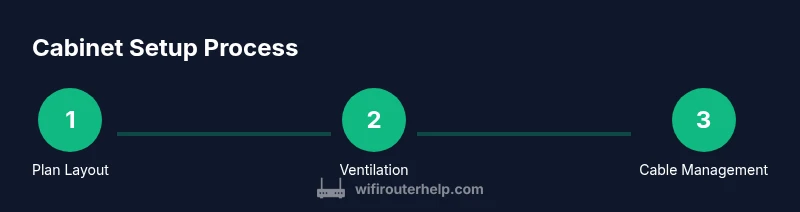
Measure the cabinet interior, note vent locations, and plan where the router, modem, and power strip will sit. Sketch a simple floor plan showing device placement and cable routes. This ensures you don’t realize too late that a shelf blocks a vent or a pass-through is misaligned.
Tip: Keep the router and modem on the top or middle shelves with space above for heat to escape. - 2
Check ventilation options
Evaluate whether the cabinet provides adequate airflow. If not, choose a model with perforated panels or add a small fan. Avoid sealed, full-height wooden boxes that trap heat.
Tip: Prefer cabinets with rear or side vents and at least 1-2 inches clearance behind the devices. - 3
Prepare power and data routes
Install the surge-protected power strip in a reachable location. Plan Ethernet and coax runs with pass-throughs or grommets to keep cables tidy and reduce wear.
Tip: Label each cable to simplify future replacements or reconfigurations. - 4
Place devices with airflow in mind
Mount the router and modem with space around them; avoid stacking and ensure vents are not blocked. If possible, keep the modem closer to a coax line and the router near central cables.
Tip: Keep antennas unobstructed and avoid burying the router behind other gear. - 5
Route and secure cables
Run cables along the cabinet using clips and ties. Use short runs to minimize noise and interference and prevent accidental unplugging.
Tip: Color-code cables to distinguish between WAN, LAN, and coax at a glance. - 6
Test performance and adjust
Power up and run a quick speed test across devices. Check for warm spots and overall signal strength in the main living areas. Re-position shelves or add ventilation if needed.
Tip: Keep spare cables accessible for quick tweaks or upgrades. - 7
Document and maintain
Create a simple diagram of your cabinet layout and cable routes. Schedule periodic dusting, heat checks, and firmware updates for your devices.
Tip: Update the wiring diagram after any change. - 8
Finalize and monitor
Observe network reliability for a week. If you notice instability, consider adding a separate access point or relocating the cabinet to a more favorable location.
Tip: Regular checks prevent long-term issues.
People Also Ask
Can placing a router and modem in a cabinet affect Wi‑Fi signal?
Yes, cabinet placement can affect signal, especially if metal, wood, or dense panels obstruct antennas. To minimize impact, ensure ventilation and avoid blocking the router's antennas. If coverage is weak, consider moving the cabinet or adding a mesh extender nearby.
Yes, placement can affect Wi‑Fi. Improve it with ventilation and keeping antennas clear; if needed, add a mesh extender.
Is it safe to run modem and router in a closed cabinet?
It is generally safe when the cabinet is ventilated and the devices have room to dissipate heat. Use surge-protected power and avoid overloading a single outlet. Regularly check for overheating and adjust placement if necessary.
It's safe if ventilated and on surge protection. Watch for overheating and adjust as needed.
What kind of cabinet works best for networking gear?
A cabinet with perforated doors or mesh panels, adjustable shelves, and rear or side ventilation works best. It should offer easy access for maintenance and cable management without blocking airflow.
Choose a ventilated cabinet with adjustable shelves for easy access and tidy cables.
Should I separate power from data cables inside the cabinet?
Yes. Keep power cables and data cables separate when possible to minimize interference and improve reliability. Use labeled cables and a dedicated surge-protected strip for networking gear.
Yes—separate power and data to reduce interference and improve reliability.
How can I monitor cabinet temperature effectively?
Use a small temperature sensor or a digital thermometer placed inside the cabinet. Regular checks help you catch heat buildup early and adjust ventilation or layout accordingly.
Use a small sensor to monitor temperature and adjust airflow as needed.
Watch Video
What to Remember
- Plan airflow and spacing before installing.
- Use a ventilated cabinet and label cables for easy upgrades.
- Test network performance after setup and monitor heat.
- Prioritize safety with surge protection and clean power routing.