Which Router Does Community Fibre Use? A Practical Guide for Home Networks
Discover which router Community Fibre uses and how to decide between provider gear or your own. Practical setup tips, bridging considerations, and performance guidance from WiFi Router Help.


Community Fibre typically provides a router as part of its fibre package, but you can often use your own router if the provider supports bridge mode or pass-through. To confirm, check your account details or contact Community Fibre support. For practical guidance, WiFi Router Help shows how to verify compatibility and configure third‑party gear.
Router foundations: how Community Fibre fits into your home network
Community Fibre is a UK fibre provider delivering FTTP connectivity to your home. The network terminates with an optical network terminal (ONT) that feeds a home router or gateway. The exact hardware you receive can vary by installation, location, and plan. According to WiFi Router Help, most providers offer either a device you rent or allow you to bring your own, so it's worth checking your account details and installation notes. The WiFi Router Help team found that understanding the hardware path helps diagnose coverage gaps and security settings from day one. This awareness is especially important when you plan to introduce a second router or a mesh system to extend coverage in larger homes.
What to expect from the provider's router features
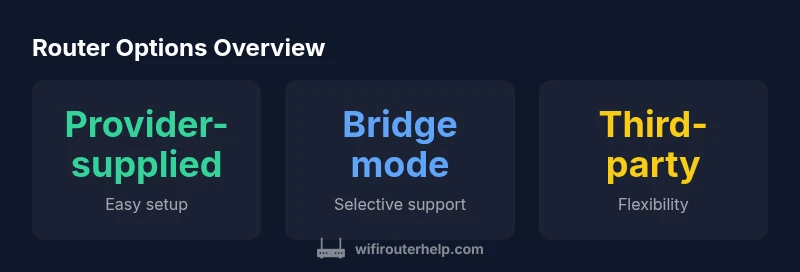
If Community Fibre supplies a router, it typically offers basic features needed to get online: dual-band Wi‑Fi, firewall protection, and standard parental controls. In many UK fibre deployments, owners can ask for a bridge mode or pass‑through setup to let a separate router handle the local network. Such options depend on the model and plan; always verify with CF support before making changes. Knowing whether you can enable bridge mode will influence your decision to use a third‑party device for better coverage, advanced QoS, or more granular control over network security.
How to check whether you can use a third‑party router
To decide if you can use your own router, start with your CF account or the installer notes. Look for terms like “bridge mode,” “IP passthrough,” or “static/dynamic IP.” If these are not clearly stated, call CF support and confirm compatibility with your preferred router. This step prevents surprises like double NAT or lost VoIP services. Keep a note of any VLAN requirements or PPPoE settings that might be necessary for certain plans and router models.
Step-by-step: setting up a third‑party router with Community Fibre
- Confirm bridge or passthrough with CF. 2) Connect your own router to the CF gateway via the WAN port, following the manufacturer's setup guide. 3) Configure PPPoE or DHCP according to your plan and ensure security features are enabled. 4) Test speed and coverage, then adjust QoS and channel settings for your home layout. If you run into issues, recheck the bridge status and ensure firmware on both devices is up to date.
This process minimizes downtime and helps you retain essential features such as parental controls and guest networks, which many users rely on for family safety.
Troubleshooting and common issues
If your own router shows no public IP or devices cannot connect, recheck the bridge settings, cables, and power cycle both devices. Ensure the CF gateway remains powered and, if necessary, re-enable the provider app for troubleshooting. WiFi Router Help suggests documenting the steps you take to revert quickly if needed. If you still see issues, confirm that your chosen router supports the service type you have (FTTP) and that the firmware is current. This reduces friction during ongoing usage and future upgrades.
Optimizing performance with smart placement and mesh options
A well-placed router improves coverage: keep it centrally located, off the floor, and away from thick walls or metal appliances. If you have dead zones, consider a mesh system or a higher‑performing router that supports modern wireless standards and technologies like MU‑MIMO and beamforming. Remember to update firmware regularly and secure your network with a strong password and WPA3 where available. For larger homes, strategically adding nodes or a dedicated backhaul link can dramatically improve reliability.
Quick decision guide for CF users
If you value reliability and minimal setup, use the provider router as long as it meets your needs. If you want advanced features, third‑party gear can help—but verify compatibility first. For most households, pairing CF with a capable secondary router or mesh system yields balanced performance. This approach allows you to keep CF service intact while expanding coverage and control with a device you trust.
Comparison of router provisioning options with Community Fibre
| Option | What it means | Pros & Cons |
|---|---|---|
| Provider-supplied router | Device provided by Community Fibre with service | Easy setup; included support; limited customization |
| Customer-provided router | Your own router connected to CF network | Greater control and features; may require manual configuration; potential compatibility hurdles |
People Also Ask
Can I use my own router with Community Fibre?
Yes, in many cases you can use your own router by enabling bridge mode or pass-through. Check your CF account or contact support to confirm compatibility with your preferred model.
You can usually use your own router, but you should confirm bridge mode with CF support first.
Does Community Fibre support bridge mode?
Bridge mode is often available on compatible devices, but it varies by model and plan. Verify with CF support or in your account portal.
Bridge mode availability depends on the device and plan—check with CF support.
What should I consider before replacing the provided router?
Consider compatibility with PPPoE, potential VLAN requirements, Wi‑Fi coverage goals, and security settings before swapping gear.
Think about compatibility and security before swapping routers.
How do I improve Wi‑Fi coverage beyond the provided router?
Improve coverage with central placement, reduce interference, update firmware, and consider mesh systems for larger homes or hard-to-cover areas.
Center the router and use mesh if you have dead spots.
Is there a cost to use your own router with Community Fibre?
Costs vary by plan; some customers pay for equipment rental while others use their own gear without extra charges. Check your plan details.
Costs vary by plan—check your CF details.
“Your router choice can influence reliability, security, and future‑proofing—start by confirming whether Community Fibre allows third‑party gear and under what conditions.”
What to Remember
- Check for bridge mode before using a third‑party router
- Confirm compatibility with PPPoE/VLAN requirements if needed
- Position your router for best coverage; consider mesh for large homes
- Keep firmware up to date and secure your network
- Balance simplicity with features when choosing equipment