How to Know If Your Router Is 2.4 GHz or 5 GHz
Learn practical, step-by-step methods to identify whether your router broadcasts 2.4 GHz or 5 GHz bands, and optimize devices for faster, more reliable Wi-Fi at home.


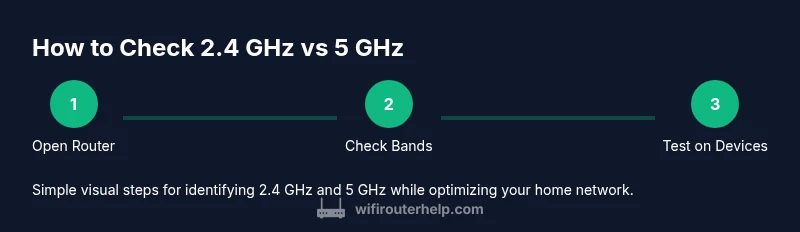
Discover whether your router uses 2.4 GHz or 5 GHz by checking network names, the router’s admin page, or device connection details. Dual-band routers broadcast two networks; use these indicators and the outlined steps to confirm the active band for each device and optimize your coverage.
Why knowing your router's bands matters
According to WiFi Router Help, understanding whether you’re connected to the 2.4 GHz or 5 GHz band helps you optimize coverage, reduce interference, and improve speeds in different parts of your home. Dual-band routers broadcast two separate networks, and devices can choose either. By recognizing which band a device uses, you can troubleshoot slow connections, plan better placements, and design an effective home network strategy. Recognizing the strengths and weaknesses of each band can inform decisions about the layout of your rooms, the use of range extenders, and whether a mesh system might be a better fit for your space. This knowledge translates into tangible improvements in everyday tasks like streaming, video calls, and online gaming. Throughout, you’ll gain a practical framework for diagnosing band-related issues and a clearer sense of when to push for a hardware upgrade or a simple configuration tweak to reap faster speeds and more consistent performance. It’s about turning guesswork into measurable gains and more reliable connections in real-world conditions.
Quick checks you can do now
If you want to know how to identify the current band quickly, start with two fast checks: look at your device’s Wi‑Fi settings for the network name and the connection label; and check the router’s status page to see band allocations. In many homes, the 2.4 GHz network has a longer range but slower speeds, while the 5 GHz network delivers higher speeds over shorter distances. This practical distinction underpins many optimization strategies, from room-by-room placement to selective device assignments. With the right approach, you can map coverage areas and reduce dead zones. If you encounter a single network name for both bands, note that some routers use a single SSID with smart steering, which can complicate manual selection but often improves overall performance when devices move around the home. In either case, the goal is to be deliberate about which devices connect where, so you experience predictable performance in the areas you use most.
How to view bands on your router's admin page
Most modern routers provide a web interface or mobile app that lists the active bands. Start by logging into the admin page with your network credentials. Navigate to the Wireless or Status section and look for entries labeled 2.4 GHz and 5 GHz, or for a combined label like Dual-Band. Some routers show connected devices with the specific band; others show a color code. If you don’t see both bands listed, your device may have a single-band mode or you might have a guest network isolating the 2.4 GHz band. For many users, enabling the second network (or renaming the bands) makes future checks faster and reduces the chance of misconnecting devices.
Understanding SSIDs, channel widths, and bands
A common source of confusion is how SSIDs relate to bands. Many routers name the two bands distinctly (for example, 'MyWiFi-2.4' and 'MyWiFi-5'). If you don’t see two networks, enable the second SSID in the router settings. Channel width and channel selection also influence performance; 5 GHz often benefits from wider channels (40 or 80 MHz) than 2.4 GHz (20 MHz). The goal is to reduce interference and ensure devices connect to the fastest available path. Some routers also offer “band steering,” which automatically moves compatible devices to the best band, but this can be imperfect in busy homes or with older devices. When in doubt, separate SSIDs give you direct control over device connections and simplify troubleshooting.
How to differentiate 2.4 GHz and 5 GHz on devices
On phones, tablets, and laptops, you can simply check the connected network label or the device’s Wi‑Fi settings. Some devices display a note like 'Connected to MyWiFi-5' or '2.4 GHz'. If your device doesn’t reveal the band, you can run a quick speed test on each network or use a network analyzer app that shows the signal band. This is especially helpful in multi‑story homes where signals vary by floor. Remember that walls, appliances, and even people can affect signal quality, so verify performance by moving around your space while testing.
Troubleshooting common issues when devices won't use the right band
If devices stubbornly stay on the 2.4 GHz network, try these steps: ensure the 5 GHz network is enabled and named distinctly; check for compatibility issues with older devices; reboot the router and client device; update firmware where available. Some devices remember the last connection; forgetting the network and reconnecting can force a band switch. If you suspect sustained interference, try changing channels or enabling band steering cautiously. In some homes, certain rooms benefit from a dedicated access point or a mesh node to preserve 5 GHz speed where you use high‑bandwidth apps.
Best practices to optimize band usage in a typical home
Practical optimization includes differentiating SSIDs, placing the router central to maximize coverage, and using a wired backhaul for devices that demand stable uplink. For larger homes or those with thick walls, a mesh system or a second access point can help preserve 5 GHz performance on the main floors while extending 2.4 GHz reach elsewhere. Regular firmware updates also improve stability and security. Scheduling periodic checks—every few months—helps you adapt to new devices and changing home layouts. Consider a simple, repeatable testing routine: map coverage, reassign a handful of devices, verify speeds, and document results for future tweaks. Over time, a disciplined approach yields a more reliable, fast home network.
When to consider upgrading or enabling mesh or a dedicated AP
If you consistently experience congestion on both bands, consider upgrading to a newer dual‑band or tri‑band router, or adding a mesh network. Mesh nodes can intelligently route clients to the best access point, preserving 5 GHz performance where it matters and providing broad coverage. The WiFi Router Help team recommends evaluating coverage maps, device density, and internet speed to decide between a higher‑end router, a mesh system, or a dedicated access point. Even if you don’t replace everything at once, a phased upgrade plan helps you measure impact and stay within a reasonable budget. After implementing changes, re‑test critical areas to confirm improvements and adjust as needed.
Tools & Materials
- Smartphone or laptop with Wi‑Fi(Used to check SSIDs, bands, and test speeds.)
- Router login credentials(Needed to access the admin interface.)
- Router manual or model info(Helps you locate exact menu names and options.)
- Notebook or digital note app(For tracking findings and test results.)
- Stable power for router and testing devices(Avoids mid-test reboots that complicate results.)
Steps
Estimated time: 15-25 minutes
- 1
Log into the router's admin interface
Open a web browser or the router’s mobile app and enter the router’s IP address (commonly 192.168.0.1 or 192.168.1.1). Enter the admin username and password. If you don’t know the credentials, check the device label or quick start guide. This step is essential to view current band statuses and to make any necessary changes.
Tip: If you can’t log in, reset the admin password or use the reset button on the router (hold for 5–10 seconds). - 2
Check the wireless status for each band
Navigate to Wireless or Status. Look for entries labeled 2.4 GHz and 5 GHz, or a Dual-Band indicator. Confirm both bands appear active and note which devices are shown as connected to each one. If you only see one band, you may need to enable the second network or disable a guest network that’s hiding it.
Tip: Take a screenshot or write down the exact names shown for future reference. - 3
Differentiate SSIDs and confirm device connections
If your router uses distinct SSIDs (for example, MyWiFi-2.4 and MyWiFi-5), ensure devices connect to the intended network. If you only have a single SSID, consider enabling a second one and giving it a unique name. This makes it easier to assign devices to the right band and verify performance on each network.
Tip: Prefer meaningful, distinct SSIDs so you can tell at a glance which band you’re on. - 4
Test performance on each network
Connect a device to the 2.4 GHz network and run a speed test; do the same on the 5 GHz network. Compare results to expectations based on distance and obstructions. This provides a real-world benchmark for your home layout and helps identify dead zones.
Tip: Keep other devices idle during tests to avoid bandwidth contention. - 5
Tweak channels and steering settings
If your router supports manual channel selection, try different channels on the 2.4 GHz band (typically channels 1, 6, or 11 in the US) to minimize overlap with neighbors. For busy homes, you can enable band steering, which guides devices to the best band, but test after changes to ensure devices don’t bounce between networks.
Tip: Document which channel worked best in which room to guide future adjustments. - 6
Plan long-term upgrades if needed
If you still encounter coverage gaps, consider upgrading to a newer dual-band or tri-band router, or adding a mesh system. A wired backhaul or a dedicated access point can dramatically improve 5 GHz performance in hard-to-reach areas. Re‑test after upgrades to confirm gains and adjust accordingly.
Tip: Set a quarterly review reminder to reassess your network layout and devices.
People Also Ask
Can I use both bands at the same time for different devices?
Yes. Most modern routers support dual-band operation and can allocate devices to either band. You can also use band steering to automate assignments, but manual control with distinct SSIDs often yields more predictable results.
Yes, dual-band routers can run both bands at once, and you can manually assign devices to the right one if you prefer.
Why do some devices stay on 2.4 GHz even when 5 GHz is available?
A device may be older and only support 2.4 GHz, or the router’s 5 GHz signal is weak near that device. Interference from neighboring networks can also steer devices to the more stable band.
Old devices or weak 5 GHz signals in a given spot can keep devices on 2.4 GHz.
How do I force a device to connect to 5 GHz?
Rename the 5 GHz network (or separate SSIDs) and connect the device to that network. You can also temporarily disable the 2.4 GHz network to push devices toward 5 GHz, then re-enable after setup.
Connect to the 5 GHz network in the device’s Wi‑Fi settings, or temporarily turn off 2.4 GHz.
What if my router doesn't show two bands?
Some older routers are single-band or require a firmware update to expose the second network. Check the model manual, confirm firmware version, and consider upgrading if dual-band isn’t available.
Older models may only offer one band; update firmware or upgrade if you need dual-band.
Is 5 GHz safer or more secure than 2.4 GHz?
Security protocols like WPA2/WPA3 apply to both bands, so your choice of encryption and a strong password matters more than the band itself. Keep firmware up to date and use robust credentials.
Both bands can be secure; use strong encryption and keep firmware current.
Will upgrading to a newer router automatically improve 5 GHz performance?
A newer router often brings better antennas, quicker processors, and improved interference handling, which can boost 5 GHz performance. Look for features like MU‑MIMO, beamforming, and smarter band allocation.
Upgrading can improve 5 GHz performance, especially with newer tech, but check the specs first.
Watch Video
What to Remember
- Identify each device’s current band and label networks clearly.
- Differentiate SSIDs to avoid confusion and misconnections.
- Understand 2.4 GHz vs 5 GHz trade-offs: range vs speed.
- Use the router admin page to verify active bands and connected devices.
- If coverage is poor, consider upgrades or mesh solutions for consistent performance.