How Router Works Step by Step: A Home Network Guide
Explore how a home router processes traffic from devices to the internet with a clear, step-by-step guide. Learn about NAT, DHCP, firewall rules, and practical setup tips for security and performance.


By the end of this guide, you will understand how a home router processes traffic from devices to the internet, using NAT, DHCP, and firewall rules. You’ll follow a clear, step-by-step walkthrough of packet flow, routing decisions, and common configurations, with practical tips to boost security, reliability, and speed. We’ll also show you how to verify your settings after configuration.
How a Home Router Sits at the Center of Your Network
A home router is the central coordinator of your digital life, connecting devices like phones, laptops, smart speakers, and cameras to each other and to the wider internet. According to WiFi Router Help, most households rely on a single device to manage local devices, assign IPs, and segment traffic. The WiFi Router Help team found that understanding the router’s roles—routing decisions, network address translation, and wireless access—helps homeowners troubleshoot issues without guessing. In this section we map the high‑level flow from a device in your home to the internet and back, highlighting where decisions are made and where potential bottlenecks appear. Expect to see simple diagrams later that show how packets travel through the LAN, through the router’s processing core, and out to the WAN via your ISP.
The Role of NAT, DHCP, and Firewall in Everyday Networking
NAT (Network Address Translation) is what lets many devices share a single public IP address. DHCP (Dynamic Host Configuration Protocol) assigns IP addresses to devices automatically, so you don’t have to set them manually. A basic firewall blocks unsolicited traffic from the internet while allowing approved traffic to reach your devices. Together, these features allow your home network to work reliably without exposing every device to the outside world. The WiFi Router Help team emphasizes that most households benefit from understanding these core concepts before tweaking advanced settings, as they affect both security and performance.
Core Pieces Inside Your Router: Hardware That Makes It Possible
A consumer router contains a small computer (CPU), memory (RAM and flash), a switching fabric to connect wired ports, wireless radios for Wi‑Fi, and sometimes USB ports for storage or printers. The CPU runs firmware that interprets commands, NAT tables that map private IPs to the public side, and a DHCP server that hands out IP addresses. The router’s firewall uses rules to permit or block traffic. Knowing these components helps you pinpoint where a misconfiguration may be causing a problem, such as a stale DHCP lease or an overly restrictive firewall rule.
How Data Flows: From Your Device to the Internet and Back
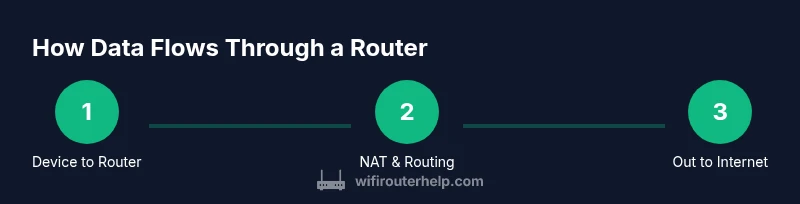
When you send a request from a device, the frame travels over Wi‑Fi or Ethernet to the router’s LAN interface. The router decides where to forward the packet next, often sending it through the NAT engine to translate your private IP into a public one. The packet then moves to the ISP over the WAN side, travels through the internet, and returns along the same path. The router’s firewall inspects inbound traffic, while the DHCP server maintains current IP assignments. Understanding this flow helps explain why quick fixes like renewing a DHCP lease or rebooting the router can restore connectivity.
Common Misconfigurations and Quick Fixes
Misconfigurations commonly involve DHCP ranges overlapping with static IPs, incorrect WAN settings, or weak Wi‑Fi security. A misconfigured firewall rule can block legitimate traffic or leave your network exposed. If you change settings and lose connectivity, a simple reboot or factory reset (after backing up your config) often recovers access. The guidance here aims to reduce guesswork by focusing on the most impactful settings first: WAN type, DHCP scope, and Wi‑Fi security.
Security, Privacy, and Performance: Practical Optimizations
Security begins with a strong admin password, disabling remote admin access, enabling WPA3 (or at least WPA2), and turning off WPS. Regular firmware updates close vulnerabilities and improve stability. For performance, separate 2.4 GHz and 5 GHz networks with distinct names, ensure optimal channel selection, and consider QoS rules for latency-sensitive apps like gaming or video calls. The goal is a stable, fast network that protects privacy without sacrificing usability.
Authoritative References and Practical Validation
For further depth and verification, consult authoritative sources such as government and university publications. These references reinforce best practices and provide external validation for the concepts discussed in this guide. The router basics covered here map to widely accepted networking principles and are consistent with professional guidance from reputable sources. Below are recommended references you can explore to deepen your understanding and confirm the guidance presented in this article.
Tools & Materials
- Computer or smartphone with web browser(Needed to access the router's admin interface)
- Ethernet cable (Cat5e+)(Helpful for a stable initial setup; optional if you can use Wi‑Fi reliably)
- Router login credentials(Admin username and password; have them handy or reset if forgotten)
- Documentation for your router model(Model-specific steps and defaults can save time)
Steps
Estimated time: 60-75 minutes
- 1
Prepare and identify your router
Locate your router, note its model, and find the default login details or confirm you know the current admin password. This helps you understand the supported features and firmware version before making changes. Why: knowing the exact model prevents attempting unsupported configurations and ensures you follow the correct instructions. If you can’t locate credentials, you may need to reset to factory defaults.
Tip: Label any changes you plan to make and keep notes for future reference. - 2
Connect and access the admin interface
Connect your device to the router via Ethernet or Wi‑Fi, then open a browser and enter the router’s IP address (often 192.168.0.1 or 192.168.1.1). Log in with admin credentials. Why: the admin panel is where you’ll view WAN status, LAN/DHCP settings, and Wi‑Fi configuration. If you can’t connect, verify your device’s IP settings and try a wired connection.
Tip: Use a wired connection if possible during initial setup to avoid wireless drops. - 3
Verify WAN and internet connectivity
Check the WAN/Internet status in the status panel. Confirm that the router has a valid IP on the WAN side or uses DHCP to obtain one from the ISP. Why: a failing WAN connection blocks all internet activity and signals broader issues with the ISP or modem. If there’s no upstream link, contact your ISP or check the coax/telephone line.
Tip: If you’re using a separate modem, ensure bridge mode is not unintentionally enabled unless desired. - 4
Configure LAN, DHCP, and Wi‑Fi basics
Set a sane DHCP range (e.g., 192.168.1.100 to 192.168.1.200) and ensure the router’s LAN address is in a stable subnet. Create a strong Wi‑Fi name (SSID) and select WPA2‑WPA3 security with a robust passphrase. Why: correct DHCP prevents IP conflicts, and strong wireless security protects devices. If you need guest access, enable a separate guest network.
Tip: Document the DHCP range and the router’s LAN IP for future troubleshooting. - 5
Strengthen security and enable essential features
Change the default admin password, disable remote administration, and consider enabling a guest network. If supported, enable automatic firmware updates and review UPnP settings. Why: security is a moving target; updates patch vulnerabilities and reducing exposure lowers risk.
Tip: Turn off UPnP if you don't need it to minimize attack surfaces. - 6
Test, document, and plan for maintenance
Run a quick speed test and ping tests to verify latency and reachability. Save a snapshot of the current configuration, and schedule regular checks for firmware updates. Why: testing confirms changes didn’t disrupt service, and documentation speeds future troubleshooting.
Tip: Create a small changelog and back up the current configuration after every major tweak.
People Also Ask
What does a router do in a home network?
A router directs traffic between devices on your local network and outward to the internet. It uses NAT to translate private addresses, DHCP to assign IPs, and firewall rules to protect devices. This combination keeps local devices reachable and the internet accessible in a controlled way.
A router directs traffic between your devices and the internet, translating addresses with NAT, assigning IPs with DHCP, and enforcing security with a firewall.
What is NAT and why is it used?
NAT lets many devices share a single public IP address. It translates private IPs to a public address when traffic goes to the internet and reverses the translation for responses, helping to conserve IP space and add a layer of security.
NAT allows multiple devices to share one public IP and translates addresses as traffic moves between your network and the internet.
Why can't I access the internet after setting up my router?
Check the WAN status and ensure the router is obtaining an IP from the ISP. Verify cabling, modem status, and that you selected the correct WAN type (DHCP, Static IP, or PPPoE). Reboot the modem and router if needed.
If the internet isn’t working after setup, check the WAN connection, then reboot your modem and router to refresh the link.
How do I change my router's admin password securely?
Log in to the admin panel and navigate to security or admin settings. Choose a strong, unique password, ideally 12+ characters with a mix of letters, numbers, and symbols. Do not reuse passwords from other sites.
Log in to the router and set a new strong admin password that you don’t use elsewhere.
What’s the difference between a modem and a router?
A modem connects your local network to your internet service provider. A router creates and manages your home network by directing traffic between devices and the internet. Some devices combine both functions in one unit.
A modem links your home to the ISP, while a router builds and manages your home network inside your home.
Watch Video
What to Remember
- Understand packet flow: device → router → Internet and back.
- NAT, DHCP, and firewall are core to home routing.
- Secure Wi‑Fi with strong encryption and a unique password.
- Document changes and keep firmware up to date for reliability.