Can You Route Plan with Google Maps? A Practical Guide
Learn how to route plan with Google Maps: set multiple stops, compare routes, monitor live traffic, save favorites, and share directions for smoother trips.


Yes. You can route plan with Google Maps to map multi-stop trips, compare routes, and see live traffic. Start by setting a starting point, add multiple stops, choose driving, walking, cycling, or transit, and adjust ETAs. You can save, share, and export directions for easy navigation.
What is route planning in Google Maps?
According to WiFi Router Help, route planning in Google Maps is a capability that helps you design a path from a starting point to one or more destinations, while considering traffic, transit options, and distances. The feature shines when you need to orchestrate multiple stops in a single trip, compare alternate routes, and adapt on the fly if conditions change. The core idea is simple: you specify where you are starting, where you want to go next, and in what order, and Google Maps provides a recommended sequence with ETAs based on live data. Regularly revisiting the plan is wise as traffic patterns shift or new stops are added. A stable home network helps keep the route accessible across devices, which WiFi Router Help emphasizes for syncing navigation between phones and desktops.
Beyond personal trips, businesses and teams can use route planning to coordinate deliveries or field work. The route you generate in Google Maps can be adjusted on mobile and desktop without losing context, so you don’t have to reinvent the wheel each time. As with any planning tool, the value comes from regular practice and consistent device access. By keeping your device software up to date and ensuring a reliable internet connection, you’ll experience smoother planning sessions aligned with real-world conditions.
descriptionHintEachBlockStartWithHeading
Tools & Materials
- Smartphone with Google Maps installed(Ensure the app is updated to the latest version for all features.)
- Stable internet connection(Wi‑Fi preferred for in-depth planning on a larger screen when possible.)
- Charger or power bank(Keep devices charged during long planning sessions.)
- Printed map or offline maps downloaded(Backup if you lose connectivity while traveling.)
- Desktop or laptop (optional)(Great for planning with a larger view.)
Steps
Estimated time: 30-60 minutes
- 1
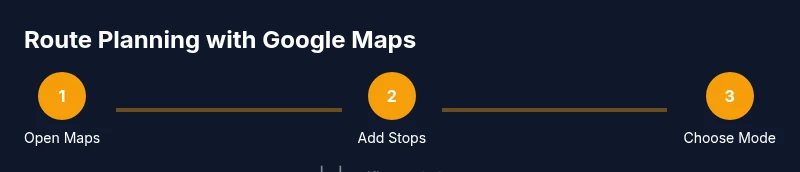
Open Google Maps and sign in
Launch Google Maps on your device and sign in with your Google account. Signing in lets you save routes for later, sync across devices, and maintain a consistent workspace. If you’re using a shared device, ensure you’re logged into the correct account to keep routes organized.
Tip: Use a clear label for your route (e.g., ‘Family trip 04/15’) so you can find it later. - 2
Set your starting point
Tap the search bar and set your starting location. You can type an address, a business name, or drop a pin on the map. This point anchors the route and determines initial ETAs based on current conditions.
Tip: Pin your home or office as a quick-start anchor for frequent trips. - 3
Add your first destination
Tap 'Directions', then enter your first stop. Google Maps will calculate a route from the starting point to this destination and display suggested lanes, turns, and distance.
Tip: If you’re unsure of the order, don’t worry—add all stops and reorder later. - 4
Add additional stops
Use the 'Add stop' option to insert more destinations in your desired sequence. You can drag stops to reorder them and optimize the route for shortest time or distance.
Tip: Group nearby stops to reduce backtracking and save time. - 5
Choose travel mode
Select driving, walking, biking, or transit to tailor the route to your mode of transport. Each mode uses different data sources for ETAs and suggested paths.
Tip: If you mix modes mid-trip, plan transitions (e.g., park-and-ride) to avoid delays. - 6
Review route options
Google Maps may present alternate routes. Compare ETAs, distances, and traffic predictions to pick the most efficient option for the current conditions.
Tip: Notice real-time traffic icons—shorter ETA isn’t always better if you’ll encounter a bottleneck later. - 7
Save or share the route
Save the route to your Google account, or share the directions via link, email, or messaging app. Saving lets you reopen and adjust later.
Tip: Sharing a live link keeps teammates aligned on the same route and ETA. - 8
Plan for offline use
If you expect spotty data, download offline maps for the area. This ensures you can still view your route and basic navigation without connectivity.
Tip: Offline maps may not display real-time traffic—plan accordingly. - 9
Export or print directions
For in-vehicle navigation or group planning, print the directions or save as a PDF where supported. This provides a non-digital backup during travel.
Tip: Always bring a physical backup when traveling in areas with poor signal. - 10
Test across devices
Open the route on a different device (phone or tablet) to confirm it synchronizes correctly. This step helps prevent surprises when you switch devices during a trip.
Tip: Keep your devices logged into the same Google account for seamless sync.
People Also Ask
Can I add multiple stops to a Google Maps route?
Yes. You can add several stops by using 'Add stop' and reorder them to optimize your route. You can adjust the sequence as needed before starting navigation.
Yes, you can add multiple stops and reorder them for efficient routing.
Can I switch between driving, walking, or transit while routing?
Google Maps supports driving, walking, biking, and transit. Choose the mode that best fits your trip and data will adapt accordingly.
Yes, you can switch modes to see how routes differ.
How do I save or share a planned route?
You can save routes to your Google account and share them via a link or email so others can follow along.
You can save and share routes easily.
Is offline routing available in Google Maps?
Yes. You can download offline maps for areas you’ll travel and view routes without an internet connection.
Offline maps let you view routes without data.
Why might ETA estimates differ from actual travel times?
ETAs are estimates based on live traffic data and road conditions; real-time events can cause differences.
ETAs are estimates and can vary with traffic.
Can I plan routes on desktop and mobile with the same results?
Yes. Routes created on desktop sync to mobile when you’re signed in to the same Google account, ensuring consistency.
Routes sync across devices when you’re signed in.
Watch Video
What to Remember
- Plan multi-stop trips efficiently with Google Maps
- Use live traffic to adjust routes in real time
- Save, share, or print routes for smooth coordination
- Offline maps are useful when data is unavailable
- Test route sync across devices before travel