Need Router and Modem? A Step-by-Step Setup Guide
A practical guide to decide if you need a router and modem, how to pick compatible devices, and how to configure a reliable home network with secure settings and practical tips.


By the end of this guide you will know whether you need a separate modem and router, how to pick compatible devices for your ISP and speed, and how to wire them for optimal coverage. You’ll learn the key steps to activate, configure, and test your home network, with practical tips to avoid common pitfalls.
Why You Might Need a Separate Modem and Router
Deciding whether you need a separate router and modem begins with understanding what each device does and how they affect your home network. According to WiFi Router Help, most households benefit from separating these functions when they want more control over coverage, security, and future-proofing. If your internet plan allows only a basic gateway, or your current device struggles to keep multiple devices online, a dedicated modem and a separate router can dramatically improve reliability and performance. The phrase "need router and modem" often describes homes where streaming, gaming, videoconferencing, and smart-home devices all compete for bandwidth. By isolating the gateway (modem) from the distribution point (router), you can troubleshoot, upgrade, and optimize one device at a time, which reduces downtime and gives you room to grow. In this section we’ll outline why this distinction matters and how to decide if it’s right for you.
Understanding the Modem vs Router: What They Do
A modem and a router serve different jobs in your home network. The modem connects you to your internet service provider (ISP) and translates the line signal into a digital signal your network can use. The router distributes that signal to all your devices, creates a local network, and manages traffic, security, and quality of service. In practical terms, the modem is the gateway to the internet, while the router is the traffic cop that decides which device gets bandwidth when. For many households, separating these roles yields better coverage and more predictable performance, especially with many smart devices and multiple users sharing bandwidth. Understanding this distinction helps you decide whether a single device can meet your needs or you should invest in separate hardware.
How to Determine If Your ISP Requires a Modem or Gateway
Some ISPs supply a gateway device that combines modem and router functionality in one box. If your plan includes this, you might still gain by adding a dedicated router for better coverage and features. Start by checking your service agreement and the list of compatible modems provided by the ISP. If the ISP insists on using their own gateway, you may still use a third-party router behind the gateway in bridge mode to improve routing, security, and control. If your plan allows a separate modem, look for a DOCSIS standard (3.0 or 3.1) that supports your speed tier, and ensure it is listed as compatible by the ISP. This upfront check saves headaches during activation and ensures you don’t buy gear that won’t work with your service.
How to Choose a Modem: DOCSIS Standard, Compatibility, and Specs
Choosing a modem starts with DOCSIS compatibility. DOCSIS 3.0 is adequate for many plans up to around 300 Mbps, while DOCSIS 3.1 is better for gigabit speeds and future-proofing. Verify the model against your ISP’s approved device list and ensure it includes a capable Ethernet port (most prefer at least 1 Gbps). Consider features like channel bonding, built-in routing is not needed if you’re using a separate router. If you’re renting from the ISP, compare monthly rental costs with a one-time purchase price, including potential activation fees and extended warranties. Remember that some areas still rely on older cable tech, so confirm you’re choosing a modem that matches your plan’s actual speed and technology. This choice affects latency, jitter, and streaming quality.
How to Choose a Router: Wireless Standards, Coverage, and Features
Your router choice should balance speed, coverage, and management features. Look for dual-band or tri-band support (2.4 GHz and 5 GHz, with a possible 6 GHz band in newer models) to handle devices with different needs. Evaluate the recommended coverage area for your home and consider mesh networking if you have multiple floors or thick walls. Features to prioritize include WPA3 security, guest networks, parental controls, QoS (quality of service) for prioritizing gaming or conferencing, and automatic firmware updates. Don’t forget practical details like the number of Ethernet ports, the ability to configure port forwarding for gaming or remote work, and the ease of use of the setup app. A good router provides strong signal strength, reliable performance across rooms, and straightforward ongoing maintenance.
When to Use a Modem/Router Combo vs Separate Devices
A combo device simplifies setup and reduces cable clutter, which can be attractive for small apartments or basic home networks. However, the trade-off is less customization, slower upgrades, and potential single-point-of-failure. If you frequently upgrade, demand strong security practices, or need robust coverage for a larger home, a separate modem and router typically offers better performance, flexibility, and longer device lifespans. For many households, a hybrid approach works: use a standalone modem with a high-performance router and consider a mesh system to blanket larger spaces in reliable Wi-Fi. This section helps you assess your own home layout, device count, and required reliability to decide the right path for you.
Compatibility and Activation: What You Need to Gather
Before activating new hardware, assemble a small bundle of information: your ISP’s name, the plan tier, the model numbers of the proposed modem and router, and any activation codes from your provider. If you’re replacing or upgrading, check whether bridge mode is needed to disable the router function in the gateway so your new router can manage your network. Activate the modem first with the ISP, then connect the router to the modem via an Ethernet link and power both devices. If activation requires calling the ISP or using their app, have patience and follow the prompts. Documentation and serial numbers should be kept handy in case you need to troubleshoot or swap gear later. Finally, secure access by choosing a strong admin password and updating firmware on both devices.
Activation and Initial Setup: Basic Configuration Steps
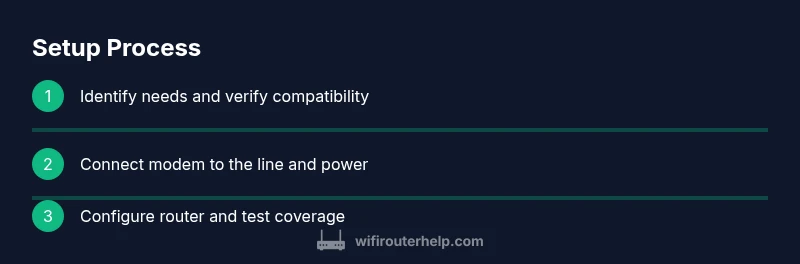
After confirming compatibility, perform a clean setup: connect the modem to the service line and power it up, wait for online indicators, then connect the router with an Ethernet cable and power it up. Access the router’s admin page from a connected computer or mobile device to configure the basic settings: change the default admin password, create a unique Wi-Fi name (SSID), and enable WPA3 if available. Set separate networks for guests to keep your main network safer. Disable remote management unless you need it, and enable automatic firmware updates. Finally, test with a speed test and verify that all critical devices can connect without issues. If you encounter problems, reboot devices in the correct order and check cables for proper connections.
Coverage and Performance: Placement, Channels, and Tests
Effective coverage depends on placement. Start by placing the router in a central, elevated location away from thick walls and appliances that can cause interference. Experiment with channel selection (auto vs manual) and consider 2.4 GHz for longer range and 5 GHz for speed in closer, less obstructed areas. If dead zones persist, a mesh extension or a Wi-Fi extender can fill gaps, but ensure you don’t create excessive hops that add latency. Schedule a diagnostic sweep using built-in network tools to identify congested channels and devices consuming bandwidth. Regularly test your network at different times of day to gauge performance and adjust QoS rules to prioritize essential activities like video conferencing and gaming.
Security, Maintenance, and Future-Proofing: Ongoing Care
Security should be a constant, not a one-time setup. Use a unique admin password, enable WPA3 in supported devices, and keep firmware up to date. Periodically review connected devices and remove unknown ones. Back up your router’s configuration after a successful setup so you can restore quickly if you need to reset. Consider newer standards and features as they become available, including faster speeds, more efficient security protocols, and improvements in parental controls and guest networks. Finally, monitor ISP changes and be prepared to adjust your modem and router if your plan increases or if you expand to a larger home network.
Real-World Scenarios and Troubleshooting Before and After Setup
In real homes, the need to upgrade a modem or router often arises from rising device counts, new smart devices, or a move to higher speed plans. Common problems include dropped connections, buffering during peak hours, and weak coverage in corners of the house. Start with simple checks: ensure all cables are secure, reset devices, and verify that firmware is current. If problems persist, test with a direct modem connection to verify the issue is router-related, then adjust placement or upgrade to a more capable router. For renters or apartments, consider a compact mesh system to minimize dead zones. This section offers practical troubleshooting steps that you can apply without professional help and helps you decide when an upgrade is warranted. It also discusses when bridging or a gateway replacement might be appropriate, to keep you in control of your home network.
Tools & Materials
- Broadband service information (ISP name, plan, account details)(Have activation codes and plan details ready for the setup.)
- DOCSIS-compatible modem(Prefer DOCSIS 3.0/3.1; ensure compatibility with your ISP.)
- Dual-band router (2.4 GHz + 5 GHz)(Choose a model with WPA3 and adequate Ethernet ports.)
- Ethernet cable (Cat5e or higher)(Use at least Cat5e for gigabit performance.)
- Coaxial cable (if using a cable modem)(Ensure correct connector type for your service.)
- Power adapters for both devices(Use surge-protected outlets where possible.)
- Computer or mobile device for configuration(You’ll access admin pages via a browser or app.)
- Pen and paper or digital notes(Record login details and settings for future reference.)
Steps
Estimated time: 45-60 minutes
- 1
Verify compatibility and gather details
Confirm with your ISP which modem DOCSIS standard and whether bridge mode is required. Check the ISP’s approved device list to avoid incompatibility. Collect plan name, account number, and activation codes before you begin.
Tip: Double-check the exact model numbers against the ISP list to prevent activation delays. - 2
Connect modem to the line and power
Connect the coaxial or fiber line to the modem, plug in the power adapter, and wait for the online indicator. If you’re using a gateway, identify whether bridge mode is needed to separate router duties.
Tip: Allow 2-5 minutes for the modem to boot before proceeding. - 3
Activate the modem with the ISP
Use the ISP’s activation method (phone, website, or app). Follow prompts to register the device and verify service. Once active, note down any activation ID.
Tip: If activation fails, restart the modem and retry; confirm that the device is on the approved list. - 4
Connect the router to the modem with Ethernet
Plug the router’s WAN/Internet port into the modem using an Ethernet cable. Power on the router and let it boot. You should see indicators for internet and Wi-Fi activity.
Tip: Use a short, quality Ethernet cable to ensure stable connection. - 5
Configure basic router settings
Access the router’s admin page, change the default password, and set a unique SSID for your network. Enable WPA3 (or at least WPA2) and create a strong admin password.
Tip: Avoid common SSIDs like ‘Linksys’ or ‘Admin’; customize to improve security. - 6
Test and optimize
Run a speed test and check coverage in key rooms. If needed, relocate the router, enable QoS for essential devices, and consider a mesh extender for larger homes.
Tip: Aim for at least 80% of your tested speeds across the home.
People Also Ask
Do I always need a separate modem and router, or can I buy a single device?
It depends on your home size, device count, and desired control. A separate modem and router often provide better coverage and upgradeability, while a combo unit can be simpler for small spaces. Evaluate your needs before purchasing.
You can start with a single device, but for better coverage and flexibility, a separate modem and router is usually preferable.
What is the difference between a modem and a router?
A modem connects to your internet service and brings the internet into your home. A router distributes that internet to multiple devices, creates a local network, and manages traffic. They serve different roles, which is why many homes upgrade to separate devices.
A modem brings in the internet; a router shares it with all your devices.
Can I use a modem/router combo with my existing network?
Yes, you can use a combo device, especially in smaller homes. However, if you need stronger coverage or advanced settings, you might benefit from a separate router behind the modem. Bridge mode can help when you want a third-party router to manage the network.
Yes, but for more control, a separate router often helps.
How do I know if my modem is compatible with my ISP?
Check your ISP’s approved modem list and DOCSIS requirements. If in doubt, contact customer support before purchasing to avoid activation problems.
Look up your ISP’s supported modems and DOCSIS standard before buying.
What is bridge mode, and should I use it?
Bridge mode disables the router function on a gateway so your own router can handle routing. Use it when you want the third-party router to manage all traffic for better performance and features.
Bridge mode lets your router handle everything instead of the gateway.
What speed should I expect after upgrading?
Actual speeds depend on your plan, the equipment, and home layout. Use a speed test at multiple times of day and adjust gear or placement to approach the advertised plan speeds.
Speeds vary; test under real conditions and optimize accordingly.
Watch Video
What to Remember
- Decide between a combined vs separate setup based on coverage and control
- Check ISP compatibility before buying hardware
- Secure your network with strong credentials and updated firmware
- Test coverage in all areas and adjust placement as needed
- Plan for future upgrades by choosing scalable gear