Is My Router 2.4 GHz or 5 GHz? A Practical Comparison
Learn how to tell if your router uses 2.4 GHz or 5 GHz, compare range and speed, and optimize home WiFi performance with practical checks and tips.


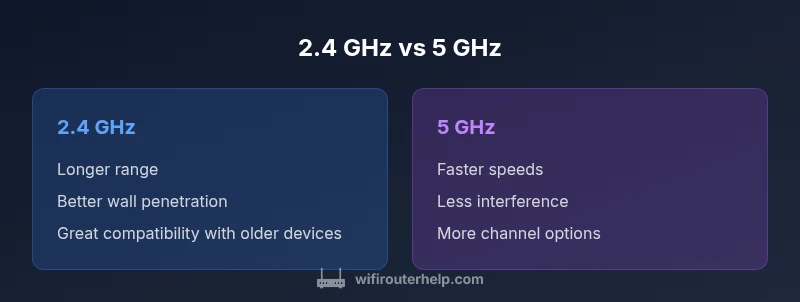
2.4 GHz and 5 GHz are two wireless bands broadcast by many modern routers. On dual-band devices, both bands may be available; 2.4 GHz travels farther and penetrates walls better but can be slower and more congested, while 5 GHz delivers higher speeds with less interference but shorter range. Test both bands in your home to find what works best, and consider separating SSIDs if you want precise control.
Understanding the 2.4 GHz and 5 GHz Bands
Understanding the two primary wireless bands your router can broadcast is foundational for optimizing home WiFi. According to WiFi Router Help, most households rely on a dual-band router these days. The 2.4 GHz and 5 GHz bands are broadcast simultaneously, but they behave very differently in practice. The 2.4 GHz band tends to travel farther through walls and across rooms, which makes it a solid choice for larger homes and devices that sit far from the router. The 5 GHz band, by contrast, offers higher raw speeds and often experiences less interference because there are fewer competing networks in that spectrum. This distinction matters for everyday tasks like web browsing, video calls, streaming, and gaming. Understanding which band your devices prefer—or how to route them to the correct band—can unlock more consistent connections and better overall performance. In short, the right band choice depends on where you are in your home, what you’re doing online, and the capabilities of your devices. WiFi Router Help analysis shows that a lot of speed complaints stem from misaligned band choices, not faulty hardware.
How to Check Your Router's Band(s) Today
To determine whether your router is broadcasting 2.4 GHz, 5 GHz, or both, start with the router’s admin page. Log in using the address your router uses (common defaults are 192.168.0.1 or 192.168.1.1), then navigate to the Wireless settings. If you see separate 2.4 GHz and 5 GHz networks or two distinct SSIDs, your router is dual-band and actively broadcasting both bands. If you see a single SSID that claims to cover both bands, the router may be using band steering to automatically route devices to the most suitable band. You can also scan for the networks with a smartphone; note which network names correspond to each band and which devices connect to which SSID. When in doubt, consult your router’s manual or the manufacturer’s support site for the exact steps.
The Practical Impacts: Range, Speed, and Interference
The practical differences between 2.4 GHz and 5 GHz bands show up in real-world performance. The 2.4 GHz band generally offers greater coverage and better penetration through walls, making it more forgiving for devices spread across a larger home. The 5 GHz band, with its higher data rates, shines for high-bandwidth tasks like 4K streaming, online gaming, and large file transfers on devices in close proximity to the router. Channel width and router features (such as MU-MIMO and beamforming) influence these outcomes. Keep in mind that many routers support 802.11n/ac/ax across both bands, so upgrading devices or firmware can improve overall performance. WiFi Router Help’s guidance emphasizes testing both bands in your own environment, as wall materials, interference from neighbors, and furniture placement can swing results significantly.
How to Tell if a Device Is on 2.4 GHz or 5 GHz
You can often infer the band from the device’s network name if you created separate SSIDs, such as MyHome_2.4 or MyHome_5. When separate SSIDs aren’t used, you can check from the device’s settings. On Windows, go to Settings > Network & Internet > Wi‑Fi > Advanced options and look for the network frequency/band. On macOS, Option‑click the Wi‑Fi icon to view details such as PHY mode or band. iOS and Android phones also expose the current connected band in the Wi‑Fi details. If you’re unsure, disconnect from one network and reconnect to the other to observe which frequency is in use. This helps you map devices to the right band for optimal performance.
How to Force a Device onto a Specific Band
A reliable approach is to run two separate SSIDs: one for 2.4 GHz and one for 5 GHz, and then manually connect devices to the desired network. In the router’s admin page, disable or tweak band steering to prevent automatic shuffling, if needed. For devices that don’t support 5 GHz, keep them on the 2.4 GHz SSID. Some modern routers also offer per‑device settings to prefer a specific band without creating two distinct SSIDs, but results vary by firmware. After configuring, test throughput and stability on each band to confirm the change.
Common Scenarios and Band Recommendations
In practice, most households benefit from a dual‑band setup. Use 2.4 GHz for devices that need reliable connectivity at a distance or through walls, such as smart home sensors, older laptops, and some IoT gear. Reserve 5 GHz for devices that demand high throughput and low latency, such as gaming consoles, streaming boxes, and premium laptops or desktops near the router. If your home has dead zones, consider mesh networking or a Wi‑Fi extender to extend coverage while maintaining both bands. In dense apartment buildings, 2.4 GHz might be congested; in larger homes with many neighboring networks, 5 GHz can offer a cleaner spectrum for critical devices.
Troubleshooting Band-Related Issues
Band selection problems are often caused by misconfigurations rather than faulty hardware. If you notice one device failing to connect or experiencing buffering, confirm it supports the 5 GHz band; some older devices only support 2.4 GHz. Ensure the 5 GHz network is enabled and has a reasonable signal strength in the area where you’re testing. If devices randomly switch between bands, consider turning off aggressive band steering or adjusting the router’s placement to improve line-of-sight and reduce interference. Finally, keep firmware up to date; firmware updates frequently address band optimization and stability.
Advanced Tips: QoS, Beamforming, and Mesh
For power users, enabling Quality of Service (QoS) can prioritize bandwidth for gaming, video calls, or streaming on the 5 GHz band, while leaving 2.4 GHz for basic tasks and IoT devices. Beamforming helps focus signals toward active devices, improving reliability on both bands when supported by your router. If your home is large or has many walls, a mesh system can distribute both bands more evenly across the space, reducing dead zones and ensuring consistent performance for mobile devices and smart home hubs.
Quick Setup Checklist
- Confirm your router is broadcasting both 2.4 GHz and 5 GHz bands.
- Decide whether to use a single SSID or two separate SSIDs for clarity.
- Enable band steering only if you want automatic allocation; otherwise, manually assign devices.
- Name the bands distinctly (e.g., Home_2.4 and Home_5) for easy identification.
- Place the router centrally and high to maximize coverage while minimizing interference.
- Test device performance across bands and adjust placement accordingly.
- Consider upgrading to a mesh system if you still see dead zones after optimization.
Comparison
| Feature | 2.4 GHz Band | 5 GHz Band |
|---|---|---|
| Coverage range | Longer range and wall penetration | Shorter range; better in close proximity |
| Speed potential | Lower theoretical speeds; good for basic tasks | Higher speeds; best for HD/4K streaming and gaming |
| Interference and congestion | Typically more crowded due to more devices and legacy tech | Usually less crowded; fewer competing networks |
| Device compatibility | Broad compatibility; essential for older devices | Newer devices benefit most from 5 GHz |
| Wall penetration | Excellent through walls, but slower through thick barriers | More quickly attenuated by walls |
| Best use case | IoT devices, remote corners of the home | Nearby gaming/streaming, high-bandwidth tasks |
Benefits
- 2.4 GHz offers better range and wall penetration
- 5 GHz delivers higher speeds and less interference
- Dual-band routers provide flexible, automatic or manual control
- Wide device compatibility with most modern routers
The Bad
- 2.4 GHz can be congested in dense neighborhoods
- 5 GHz has shorter range and poorer wall penetration
- Some older devices may not support 5 GHz
Dual-band routers provide the best overall balance for most homes
Use 2.4 GHz for range and legacy devices; 5 GHz for high-speed tasks close to the router. For larger homes or many devices, a mesh system can maintain performance across both bands.
People Also Ask
What is the practical difference between 2.4 GHz and 5 GHz bands?
The 2.4 GHz band travels farther and penetrates walls better but is typically slower and more congested. The 5 GHz band offers higher data rates with less interference but has a shorter range and walls attenuate the signal more.
The 2.4 gigahertz band covers more space but is slower; the 5 gigahertz band is faster but shorter‑range. Use both if you can.
How can I tell if my router is broadcasting both bands?
Check the router's admin page under Wireless settings. If there are two networks named with 2.4 GHz and 5 GHz or two separate SSIDs, both bands are active.
Open your router settings and look for two wireless networks: one for 2.4 GHz and one for 5 GHz.
Will devices switch bands automatically or stay on one band?
Many routers offer band steering to automatically move devices to the best band, but this can be turned off if you want manual control over which device stays on which band.
Most routers can switch devices automatically; you can disable that if you prefer manual control.
How do I force a device onto a specific band?
Create two distinct SSIDs (one for 2.4 GHz and one for 5 GHz) and connect the device to the preferred network. Some routers also allow per‑device preferences without separate SSIDs.
Use two networks—2.4 and 5 GHz—and connect the device to the one you want.
Do all routers broadcast both bands by default?
Most modern routers support both bands, but some budget or very old models may have only one. Verify in the admin interface or product specs.
Most routers do both, but check your model if you're unsure.
What about smart home devices that only support 2.4 GHz?
Many IoT devices rely on 2.4 GHz. Keeping a robust 2.4 GHz network ensures these devices stay connected even when you upgrade other equipment.
If you have IoT devices, keep a reliable 2.4 GHz network for them.
What to Remember
- Test both bands in your space to know what works
- Separate SSIDs aid precise device assignment
- 2.4 GHz suits range; 5 GHz suits speed near the router
- Enable QoS/mesh as needed for busy networks
- Keep firmware updated for band optimization